

Introduction
In this article, we will learn how to create an image frame gallery in an HTML5 canvas. Canvas is an important tag used to display images or text in an HTML5 application. We know that HTML5 is an advanced version of an HTML that is used to develop multimedia and animated applications. This article is intended to help with the use of HTML5 tools to create image frame gallery applications. We developed this application with the help of CSS; CSS is the acronym for Cascading Style Sheet that is used for design. CSS defines how HTML elements are to be displayed. JavaScript was designed to add interactivity to HTML pages. JavaScript is usually embedded directly into HTML pages. I hope this article helps to create an image frame gallery on canvas using HTML 5 and JavaScript tools.
Step 1: Open Visual Studio.
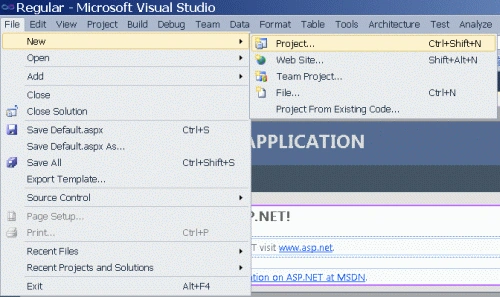
- Go to file -> New->Projects.
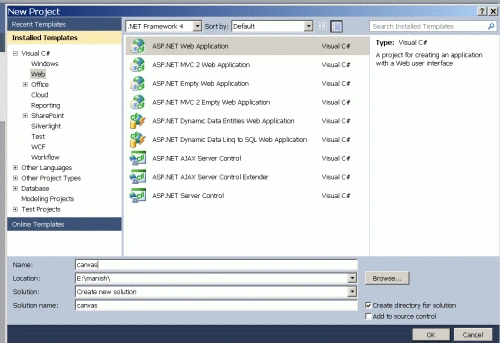
- Create an ASP. NET Web Application.
- Name of "Image.aspx".
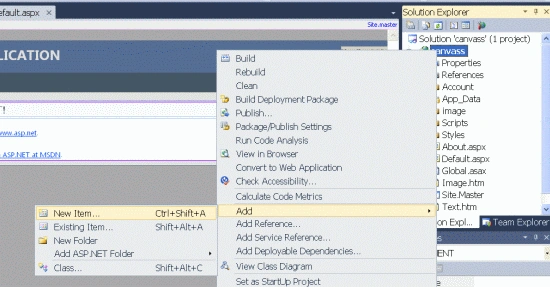
- Right-click on the Solution Explorer.
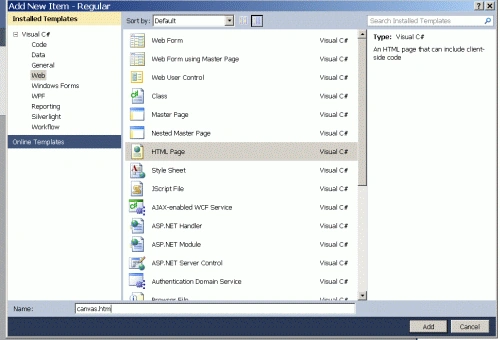
- Add->add new item->HTML form.
- The Name of the HTML form is "gallery.html".
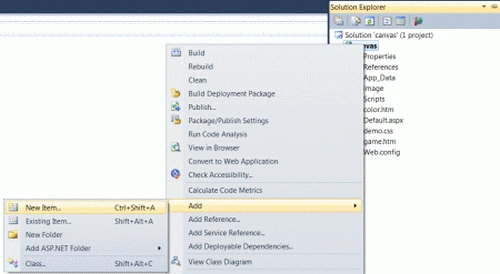
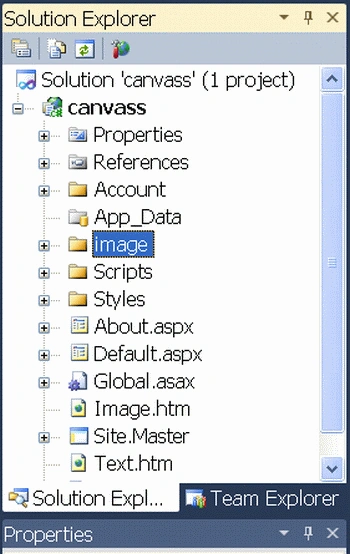
- Right-click on the Solution Explorer.
- Add-> Add New Folder.
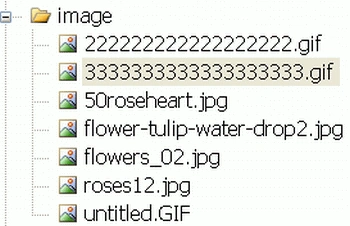
- Set the name of the folder as "image".
Code
- function Display()
- {
- var rxt = document.getElementById('canvas').getContext('2d');
- var IMG = new Image();
- IMG.src = 'image/3333333333333333333.gif';
- IMG.onload = function ()
- {
- for (i = 0; i < 5; i++)
- {
- for (j = 0; j < 4; j++)
- {
- rxt.drawImage(IMG, j * 160, i * 250, 200, 200);
- }
- }
- }
- }
Step 5: In this section, we set a CSS used for the background, font and margin of a canvas body.
Code
- body
- {
- margin: 20px;
- font-family: arial,verdana;
- background: Gray;
- }
- h1
- {
- font-size: 140%;
- font-weight: normal;
- color: Gray;
- }
- h2
- {
- font-size: 100%;
- color: Red;
- }
- canvas
- {
- border: 2px solid #66FF99;
- float: left;
- margin-right: 20px;
- }
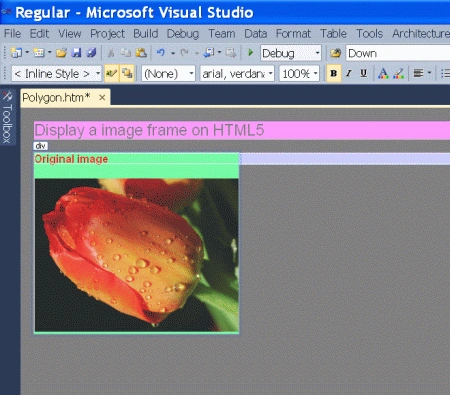
Step 6: In this section, we will set a body content of an image frame gallery application.
Code
- <body onload="Display();" background="image/222222222222222222.gif">
- <h1 style="background-color: #FF99FF">
- Display a image frame on HTML5</h1>
- <div style="background-color: #CCCCFF">
- <canvas id="canvas" width="700" height="700"></canvas>
- <div style="float: left; background: #66FF99">
- <h2>
- Original image</h2>
- <img src="image/3333333333333333333.gif" style="background-color: #FFCCFF" />
- </div>
- </div>
- </body>
Code
- <html>
- <head>
- <title>Tom application</title>
- <script type="text/javascript">
- function Display()
- {
- var rxt = document.getElementById('canvas').getContext('2d');
- var IMG = new Image();
- IMG.src = 'image/3333333333333333333.gif';
- IMG.onload = function ()
- {
- for (i = 0; i < 5; i++)
- {
- for (j = 0; j < 4; j++)
- {
- rxt.drawImage(IMG, j * 160, i * 250, 200, 200);
- }
- }
- }
- }
- body
- {
- margin: 20px;
- font-family: arial,verdana;
- background: Gray;
- }
- h1
- {
- font-size: 140%;
- font-weight: normal;
- color: Gray;
- }
- h2
- {
- font-size: 100%;
- color: Red;
- }
- canvas
- {
- border: 2px solid #66FF99;
- float: left;
- margin-right: 20px;
- }
- <body onload="Display();" background="image/222222222222222222.gif">
- <h1 style="background-color: #FF99FF">
- Display a image frame on HTML5</h1>
- <div style="background-color: #CCCCFF">
- <canvas id="canvas" width="700" height="700"></canvas>
- <div style="float: left; background: #66FF99">
- <h2>
- Original image</h2>
- <img src="image/3333333333333333333.gif" style="background-color: #FFCCFF" />
- </div>
- </div>
- </body>
- </html>
Step 8: Press Ctrl+F5 to run the application in a browser.
Output
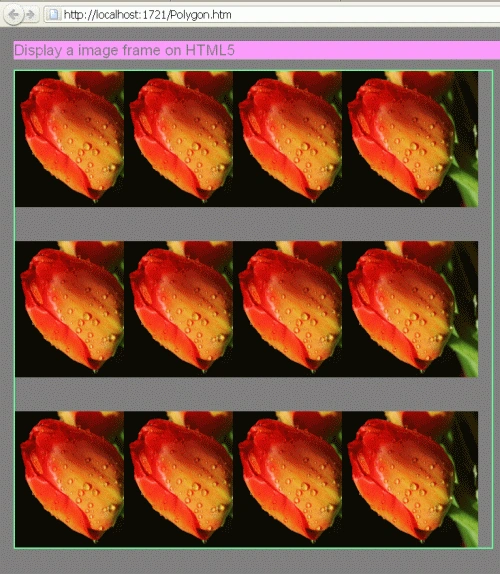
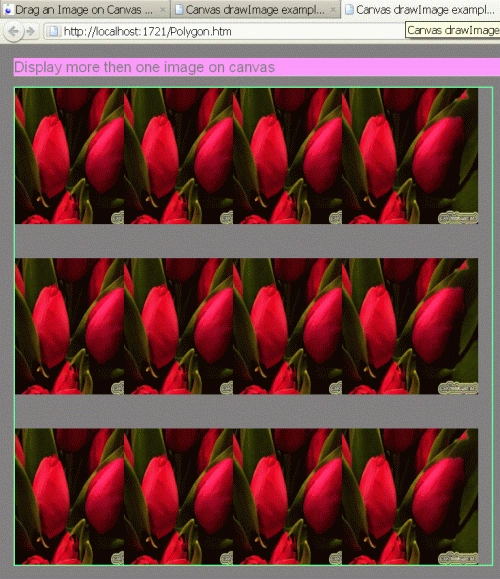
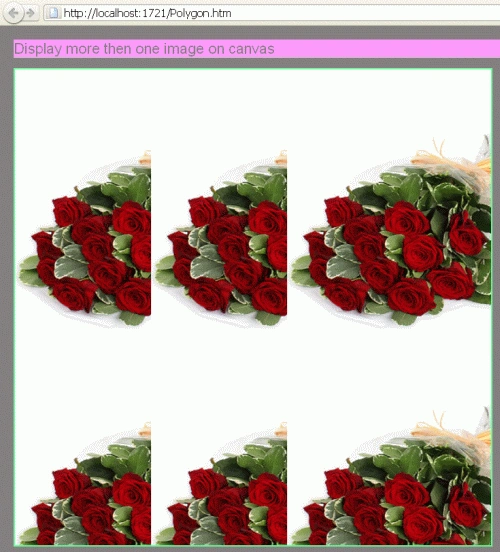
Resources
Here are some useful resources:
Join the conversation! Your thoughts help the community grow.