
Introduction : A FlowSwitch activity works like a FlowDecision except instead of being restricted to a True and False branch. Each branch of a FlowSwitch activity is called a FlowStep. The FlowSwitch activity is a template class(<T>) and use same as Switch Statement in C#.
Let see how to create FlowSwitch<T>activity :
Step : 1 Create an Workflow Console Application.
- Open Visual Studio.
- Select File->New->Project.
- Select Workflow Console Application.
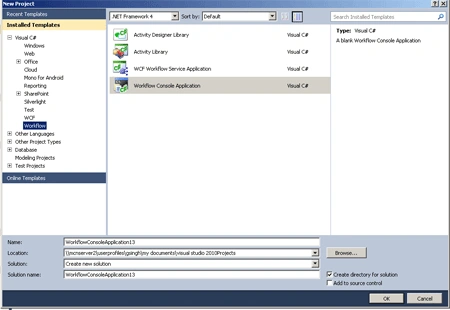
Step : 2 Drag Flowchart activity to the designer to place the activities on the palette.
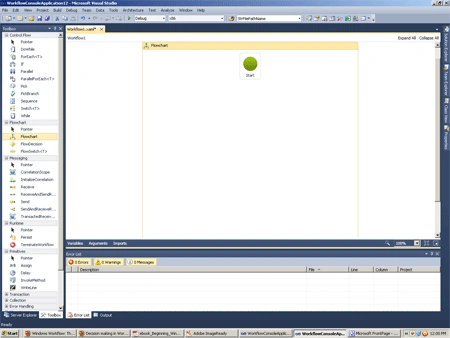
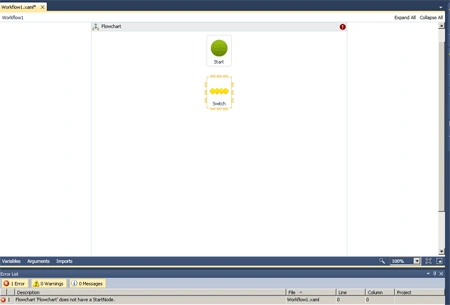
Step : 3 Drag a FlowSwitch activity to the bottom of the Workflow.
Step : 4 Drag a WriteLine activity to display a standard greeting message and set the Display Name Winter, Spring, Summer , Autumn and Default.
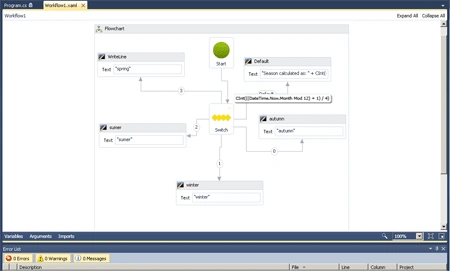
Step : 5 Go to FlowSwitch and right-click.
-
Select the Expression property and write a code.
Code :
CInt(((DateTime.Now.Month
Mod 12) + 1) / 4)
Step : 6 Go to Program.cs
file and write a code.
Code :
using
System;
using
System.Linq;
using
System.Activities;
using
System.Activities.Statements;
namespace
WorkflowConsoleApplication13
{
class Program
{
static void Main(string[]
args)
{
WorkflowInvoker.Invoke(new
Workflow1());
Console.WriteLine("Hi");
Console.WriteLine("bye");
Console.WriteLine("press
enter ");
Console.ReadLine();
}
}
}
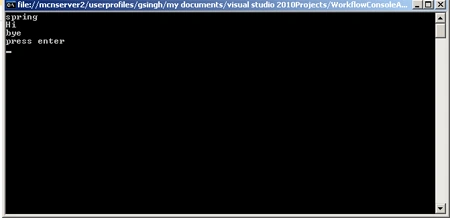
Step :7 Press F5 and run application.
Join the conversation! Your thoughts help the community grow.