

Introduction
Software requirement
- Python 3.5 and IDLE (Python 3.5)
Programming code
- #Python Radiobutton using Application
- import tkinter as tk
- from tkinter import ttk
- win = tk.Tk()
- win.title("Python GUI App")
- #Label Creation
- ttk.Label(win, text="Choose the color:").grid(column=0,row=0)
- #Colors
- Color1='Red'
- Color2='Blue'
- Color3='Yellow'
- #Action
- def radioCall():
- radioSel=radioVar.get()
- if radioSel== 1:
- win.configure(background=Color1)
- elif radioSel== 2:
- win.configure(background=Color2)
- elif radioSel== 3:
- win.configure(background=Color3) :
- #Create three Radio Button
- radioVar= tk.IntVar()
- radio1=tk.Radiobutton(win, text=Color1, variable=radioVar, value=1, command=radioCall)
- radio1.grid(column=1,row=1, sticky=tk.W, columnspan=3)
- radio2=tk.Radiobutton(win, text=Color2, variable=radioVar, value=2, command=radioCall)
- radio2.grid(column=1,row=2, sticky=tk.W, columnspan=3)
- radio3=tk.Radiobutton(win, text=Color3, variable=radioVar, value=3, command=radioCall)
- radio3.grid(column=1,row=3, sticky=tk.W, columnspan=3)
- #Calling Main()
- win.mainloop()
About the code
- First, I am importing the tkinter module.
- Next, I will assign a class and variables and give the application title.
- Next, I will create color values and radio button action condition.
- Next, I will create a radio button and define values in the code.
- Finally, I have started the Windows event loop by calling the mainloop method then executed the code.
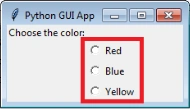
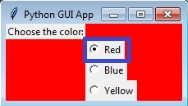
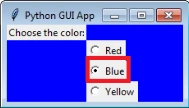
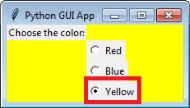
Output
Join the conversation! Your thoughts help the community grow.