

Here, we will learn the step by step process of form-based authentication in SharePoint 2013. The following will be the flow of the article.
- Create Web Application by enabling form-based authentication.
- Create Site Collection.
- Create Database for FBA.
- Add Connection String and providers to Central Administration, STS and Newly created site collection in IIS.
- Add Test User.
Create a web application by enabling the form-based authentication.
Step 1
Open the Central Administration panel of SharePoint in administrator mode.
Step 2
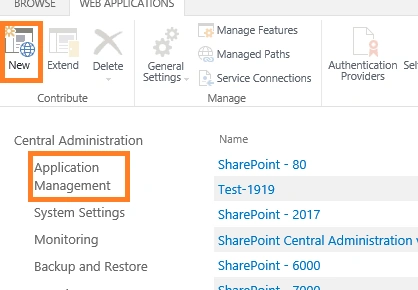
Click "Manage Web Application" to create a new web.
Step 3
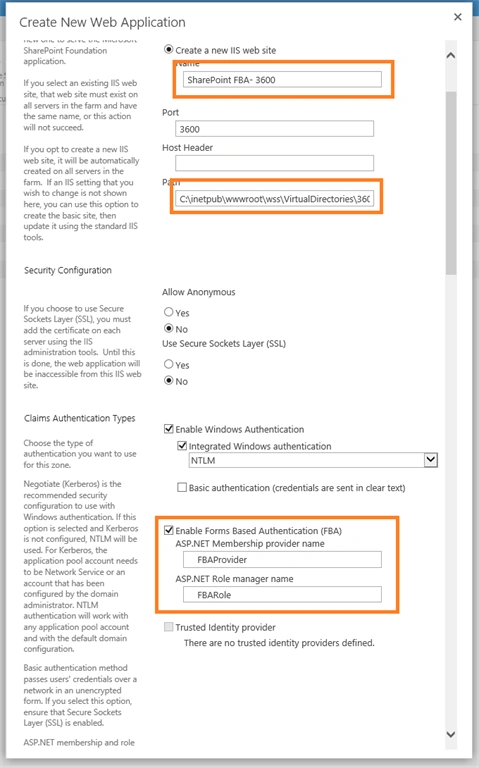
Please provide the names in the following fields.
- ASP.NET Membership provider name : FBAProvider
- ASP.NET Role manager name: FBARole
Step 4
Note down the database server name and database name.
- Database server: DatabaseServerName<DB3>
- Database Name: WSS_Content_SPFBADB
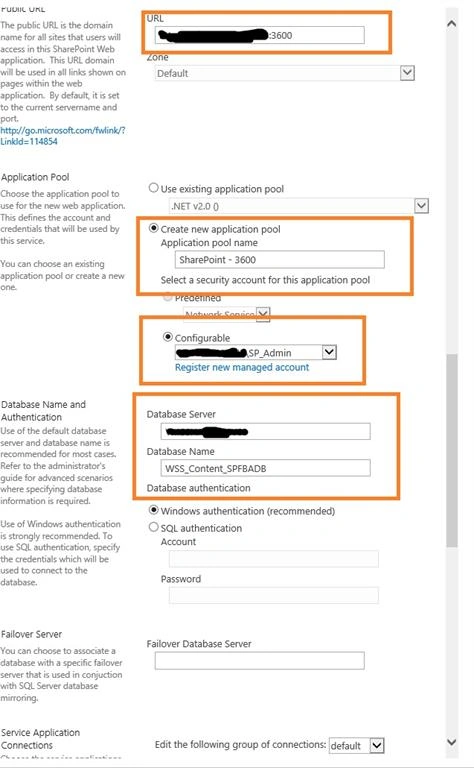
Now, click 'OK' button to create the web application.
Create Site Collection.
Step 1
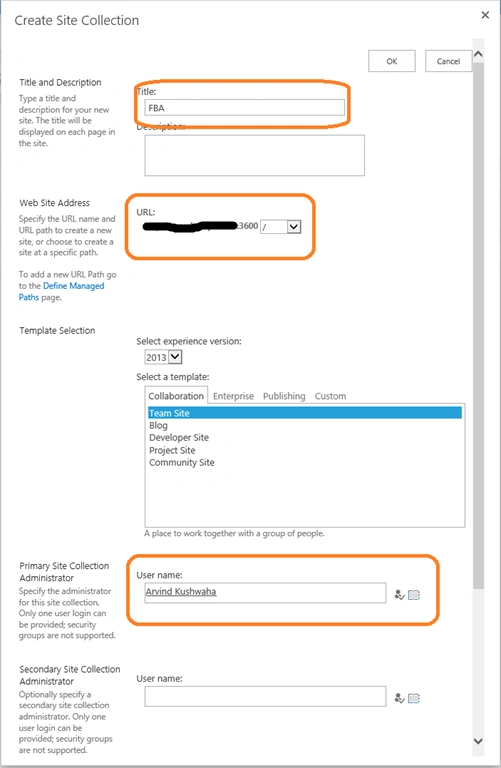
Enter the value in the title and primary site collection fields and click 'OK'.
Step 2
To verify the form-based authentication, navigate to the site collection URL.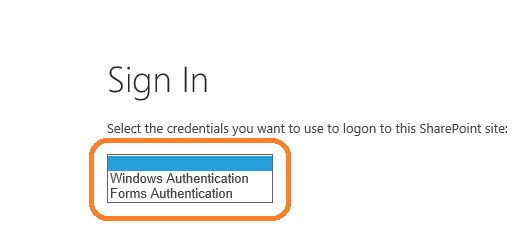
Create a database for FBA
Step 1
Open aspnet_regsql.exe file from C:\Windows\Microsoft.NET\Framework64\v4.0.30319
Step 2
Click on "Next" button.
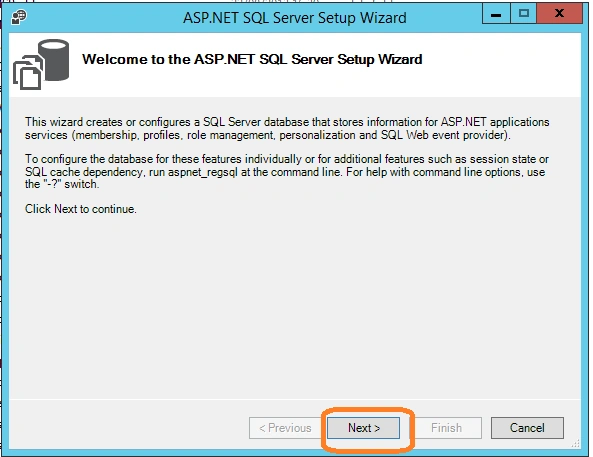
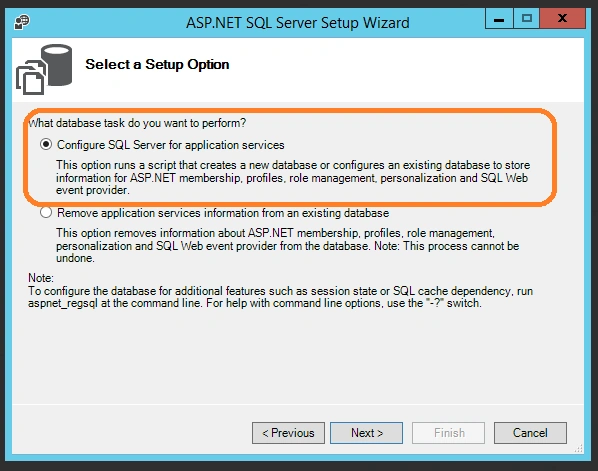
Step 3
Select the highlighted option.
Step 4
Now, select the same database which was created earlier during web application creation and click "Next" until we reach the Finish button.
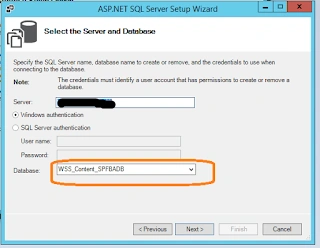
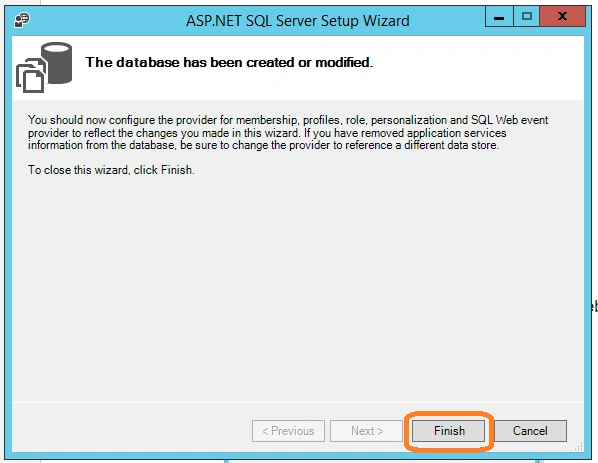
Note: If you are getting any database creation error while following the above step, that means you don't have db_owner right on your content DB, WSS_Content_SPFBADB. Please provide the db_owner rights to the content database and then follow the steps.
Add connection string and providers to Central Administration, STS, and Newly created site collection in IIS
Step 1
Open IIS Manager by typing inetmgr in Run window.
Configuration in SharePoint Central Administration
Step 2
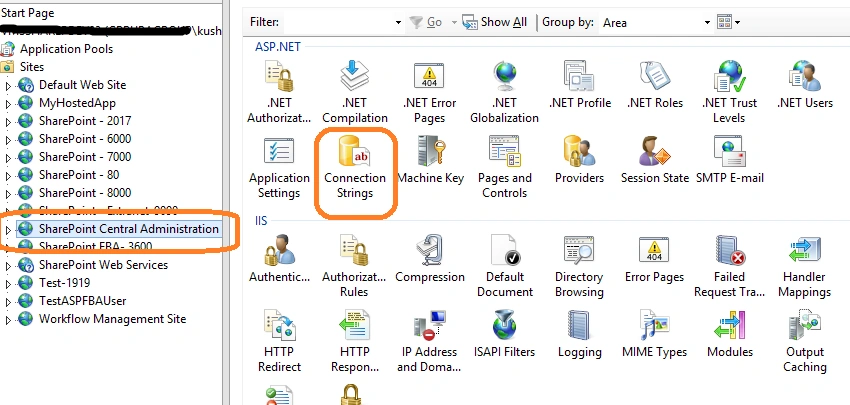
Select SharePoint Central Administration and click on the Connection Strings icon.
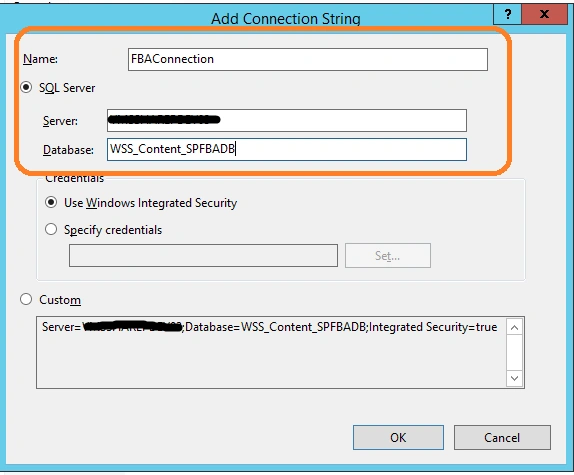
Enter the value in Name, Server, and database field and click on "OK" button.
- Name: FBAConnection
- Server: DatabaseServerName<DB3>
- Database: WSS_Content_SPFBADB
Step 4
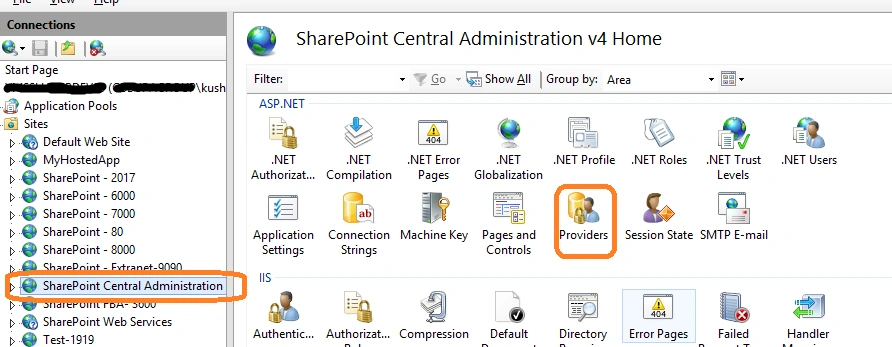
Now, go back and select the "Providers" icon.
Step 5
For adding the role, select .NET Roles from Features and click on add link from right side of action section
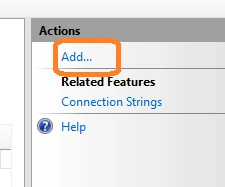
Step 6
Enter value in the name field, select the correct connection name from ConnectionStringName and enter '/' in Application Name.
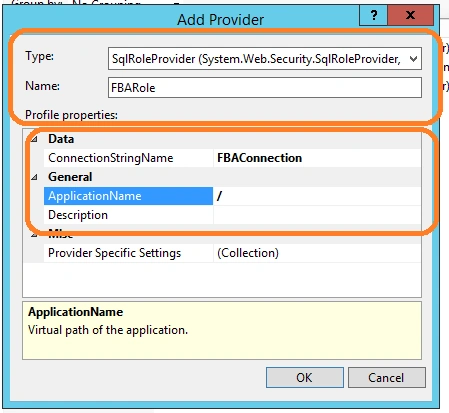
Repeat step 4.
Step 8
For adding provider, select .Net Users from Features and click on add link from right side of action section
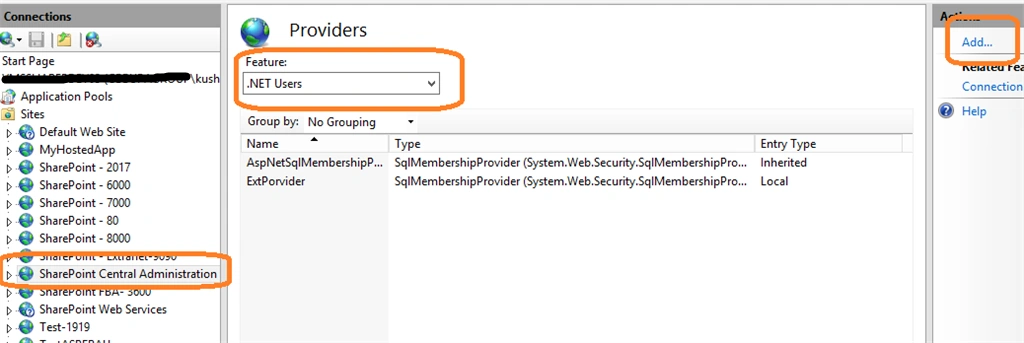
Enter a value in the name field, enable the EnableResetPassword field, select the correct connection name from ConnectionStringName and enter '/' in Application Name.
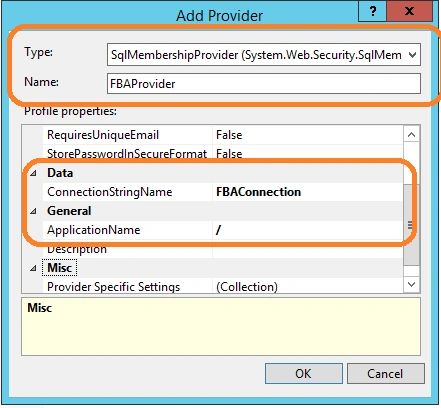
Configuration in STS(Security Token Services)
Step 1
Open STS
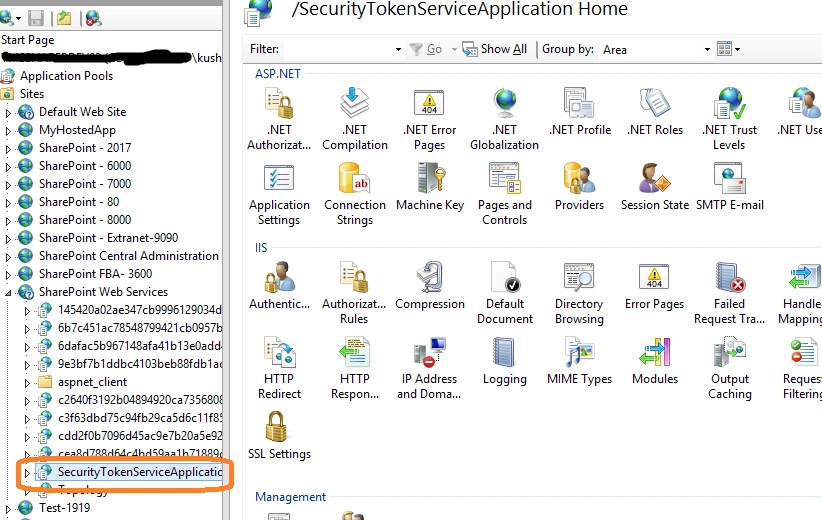
Step 2
Repeat steps from 2 to 9.
Configuration in IISWebsite Sharepoint FBA-3600
Step 1
Click on newly created FBA website in IIS i.e. Sharepoint FBA-3600
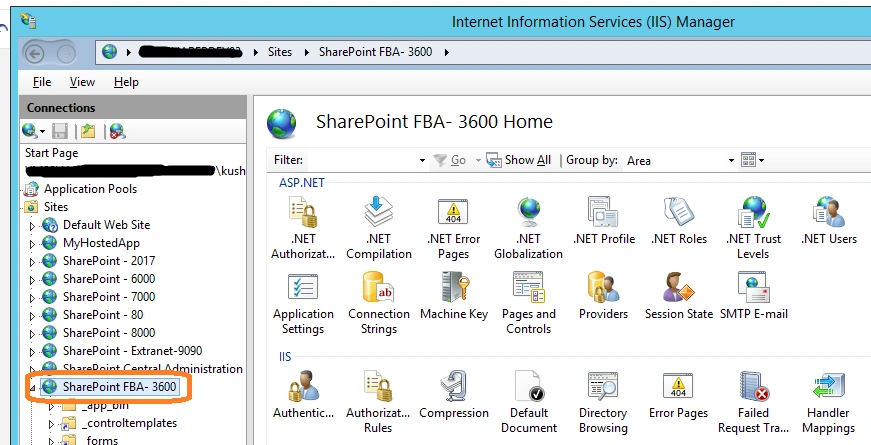
Step 2
Repeat steps from 2 to 9.
Add Test User
Step 1
Click on newly created FBA website in IIS i.e. Sharepoint FBA-3600
Now will get a warning that default providers are not set.
Step 3
So click on Set Default Provider and select FBARole as default and click OK.
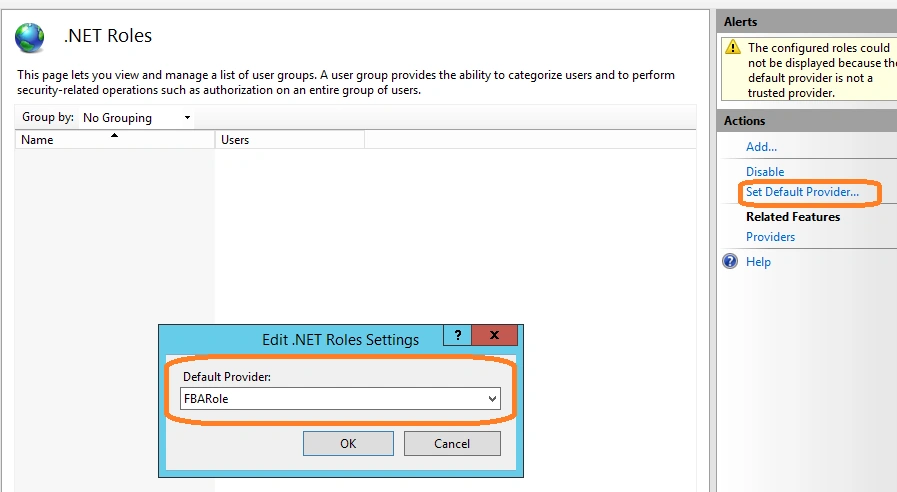
Step 4
After completion of the above step add button will appear in action section. so now click on add button and add 2 roles as Admin and User.
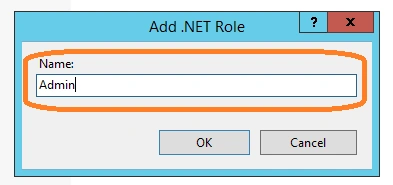
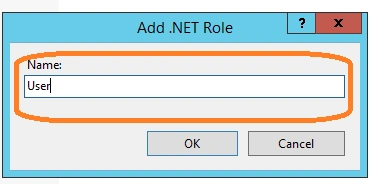
Step 5
Now click on .Net Users icon to add Users.
Ignore the warning and set the default provider as FBAProvider and click OK.
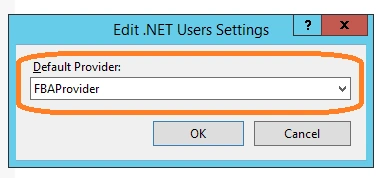
Step 6
Now add test user by clicking on add button and fill the form.
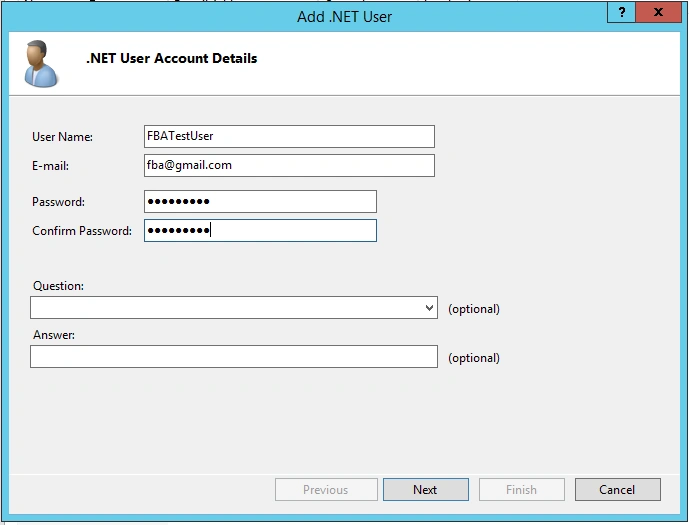
Step 7
Select the role for the test user and click on Finish button.
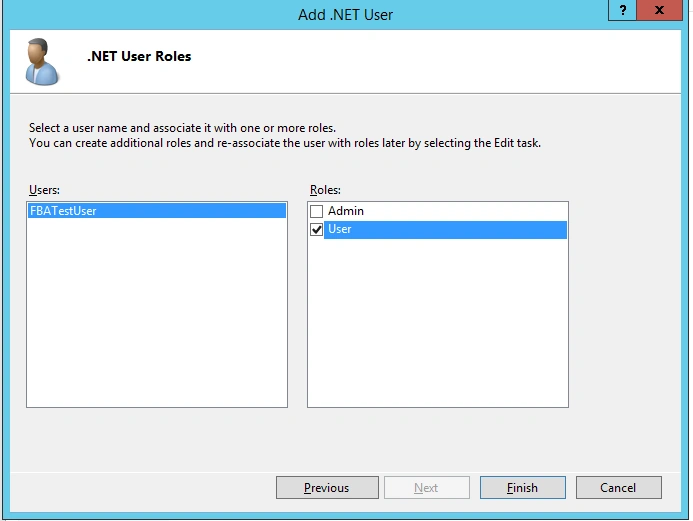
Step 8
Now, set the default provider for .NET Users as i and .NET Roles as c.
Please ignore the warning while resetting the default provider.
Step 9
Provide the appropriate permission for newly created FBA test user by firstly login with windows authentication.
Step 10
Login to the site using newly created test User and click on Sign in.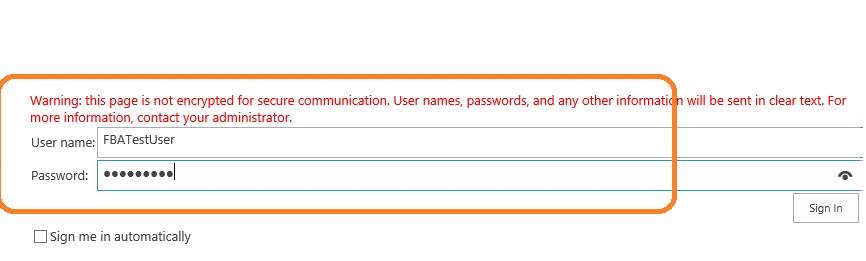
Step 11
Now, we are login with FBA Test User.
Achref JamiiPosted Feb 25, 2025, 11:49 AM
Thank you for the detailed guide. I'll soon be migrating a SahrePoint 2019 to another 2019 farm (Yes a bit weird but that's what they want me to do...) we do have a FBA that is already in production in the current fram, so when I'll be configuring the FBA in the new farm, should I just ignore the "Create a database for FBA" all togather and just copy the existing DB from the current SQL instanceto the new one? Thank you gain :)
Piyush AgarwalPosted Mar 6, 2018, 12:02 PM
Very well explained...