

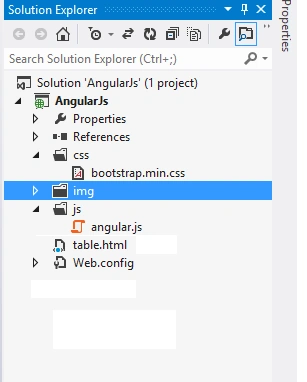
Step 1- Create a new ASP.NET web application.
Step 2- Create a table.html.
Step 2- Create a table.html.
Step 3- Add the bootstrap CSS and AngularJS files in CSS and JS folders respectively.
Step 4- Create an images folder and add images in the folder.
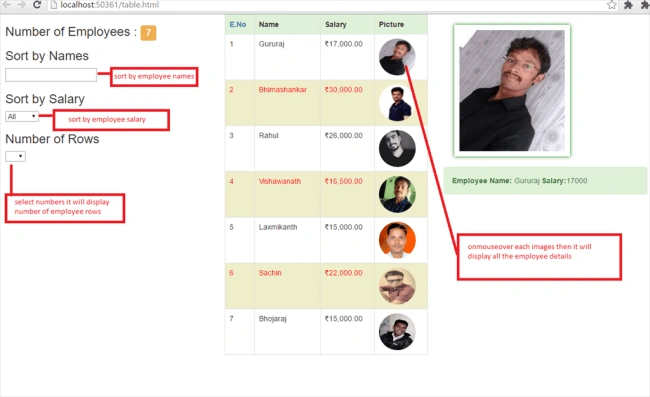
Step 5 - Table.html source code can be copied from here.
- <!DOCTYPE html>
- <html>
- <head>
- <title></title>
- <link href="css/bootstrap.min.css" rel="stylesheet" />
- <script src="js/angular.js"></script>
- <script>
- var obj = angular.module("myApp", []);
- obj.controller("EmpController", function($scope) {
- //list of data
- $scope.array = [{
- eno: 1,
- ename: "Gururaj",
- esal: 17000,
- pic: 'guru.jpg'
- }, {
- eno: 2,
- ename: "Bhimashankar",
- esal: 30000,
- pic: 'bhima.jpg'
- }, {
- eno: 3,
- ename: "Rahul",
- esal: 26000,
- pic: 'rahul.jpg'
- }, {
- eno: 4,
- ename: "Vishawanath",
- esal: 16500,
- pic: 'vishwa.jpg'
- }, {
- eno: 5,
- ename: "Laxmikanth",
- esal: 15000,
- pic: 'laxmi.jpg'
- }, {
- eno: 6,
- ename: "Sachin",
- esal: 22000,
- pic: 'sachin.jpg'
- }, {
- eno: 7,
- ename: "Bhojaraj",
- esal: 15000,
- pic: 'bhoju.jpg'
- }];
- //onmouse over image should be large
- $scope.image = 'guru.jpg';
- $scope.name = "Gururaj";
- $scope.salary = "17000";
- $scope.update = function(arg, nme, sal) {
- $scope.image = arg;
- $scope.name = nme;
- $scope.salary = sal;
- }
- //sort the data through eno properties
- $scope.isReverse = false;
- $scope.enamesortType = 'ename';
- });
- </script>
- <style>
- /*based on even number row color should be change*/
- .red {
- color: red;
- background-color: #efedca;
- }
- </style>
- </head>
- <body ng-app="myApp">
- <div ng-controller="EmpController">
- <div class="container row col-md-12">
- <div class="col-md-4">
- <h3> Number of Employees : <span class="label label-warning">{{array.length}}</span> </h3>
- <h3>Sort by Names</h3> <input id="Text1" type="text" ng-model="Names" />
- <!--sortout based on salary -->
- <h3>Sort by Salary</h3> <select ng-model="Salary">
- <option value="">All</option>
- <option>15000</option>
- <option>25000</option>
- <option>30000</option>
- <option>16000</option>
- <option>20000</option>
- </select>
- <!--select number of rows to display-->
- <h3> Number of Rows</h3> <select ng-model="scount">
- <option>All</option>
- <option>2</option>
- <option>4</option>
- <option>6</option>
- <option>8</option>
- </select> </div>
- <div class="col-md-4">
- <table border="1" class="table table-bordered">
- <tr class="bg-success">
- <th><a href="#" ng-click="isReverse=!isReverse"> E.No</a></th>
- <th>Name</th>
- <th>Salary</th>
- <th>Picture</th>
- </tr>
- <tr ng-repeat="items in array |filter:Names |filter:Salary |limitTo:scount |orderBy:sortType:isReverse" ng-class-even="{red:true}">
- <td>{{items.eno}}</td>
- <td>{{items.ename}}</td>
- <td>{{items.esal|currency:"₹"}}</td>
- <td><img ng-src="img/{{items.pic}}" data-ng-mouseover="update(items.pic,items.ename,items.esal)" style="height:70px; width:70px;border-radius:50%" /></td>
- </tr>
- </table>
- </div>
- <div class="col-md-4">
- <!--onmouseover image shoule be large--><img ng-src="img/{{image}}" style="height:250px;width:220px;box-shadow:0px 0px 10px green;padding:10px;margin:20px" />
- <div class="alert alert-success"> <strong>Employee Name:</strong> {{name}} <strong>Salary:</strong>{{salary}} </div>
- </div>
- </div>
- </div>
- </body>
- </html>
Anilkumar MadalaPosted May 4, 2019, 5:43 AM
Nice one keep it up :)
Vaibhav DeshmukhPosted Sep 30, 2016, 2:21 AM
Helpful... and easy to understand
Shekhar PanwarPosted Sep 29, 2016, 5:23 AM
nice...
Shekhar PanwarPosted Sep 29, 2016, 2:43 AM
nice
Kapi ShivharePosted Sep 29, 2016, 2:38 AM
good
Karke BhojarajPosted Sep 28, 2016, 1:15 PM
Nice blog gururaj this code helpfull for us
Nikhil SanganiPosted Sep 28, 2016, 7:29 AM
Good.