
Introduction
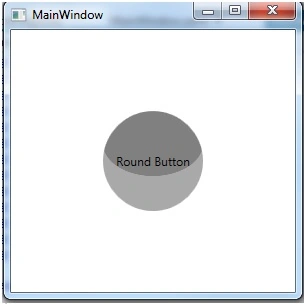
This blog illustrates to create round button in WPF, follow the below XAML code to create rounded button.
- <Button Width="100" Content="Round Button"
- Height="100">
- <Button.Template>
- <ControlTemplate TargetType="Button">
- <Grid>
- <Ellipse Stroke="Black"
- StrokeThickness="0">
- <Ellipse.Fill>
- <RadialGradientBrush>
- <GradientStop Offset="0"
- Color="Gray" />
- <GradientStop Offset="1"
- Color="Gray" />
- <GradientStop Offset="1"
- Color="DarkGray" />
- <RadialGradientBrush.Transform>
- <TransformGroup>
- <ScaleTransform ScaleY="0.65" />
- </TransformGroup>
- </RadialGradientBrush.Transform>
- </RadialGradientBrush>
- </Ellipse.Fill>
- </Ellipse>
- <ContentPresenter HorizontalAlignment="Center"
- VerticalAlignment="Center"/>
- </Grid>
- </ControlTemplate>
- </Button.Template>
- </Button>
Image
Join the conversation! Your thoughts help the community grow.