

Overview
In this blog, we will learn how to write a PowerShell script which will read principal user name from the CSV file and remove those users from Office 365 account.
Step 1
Connect Windows Azure Active Directory Module for Windows PowerShell.
Use the following code snippet to connect with Office 365 tenant.
- $UserCredential = Get-Credential
- Connect-AzureAD -Credential $UserCredential
Step 2
Execute the following script.
Below is a screenshot for my CSV file.
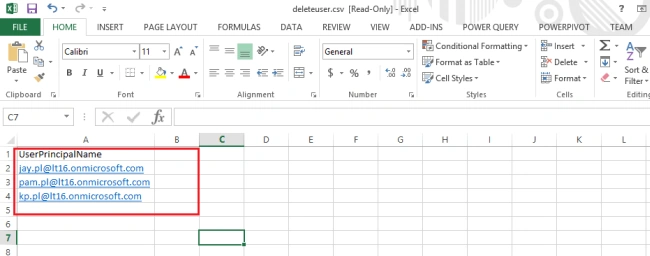
- $sInputFile = "D:\deleteuser.csv"
- $sColumnName = "UserPrincipalName"
- $tblDatos = Import - CSV $sInputFile
- foreach($fila in $tblDatos)
- {
- "Deleting user " + $fila.$sColumnName.ToString()
- Write - Host - ForegroundColor Yellow "User staring to deleter"
- $fila.$sColumnName
- Remove - MsolUser - UserPrincipalName $fila.$sColumnName
- Write - Host - ForegroundColor Yellow $fila.$sColumnName "Deleted........"
- $fila.
- $sColumnName
- }
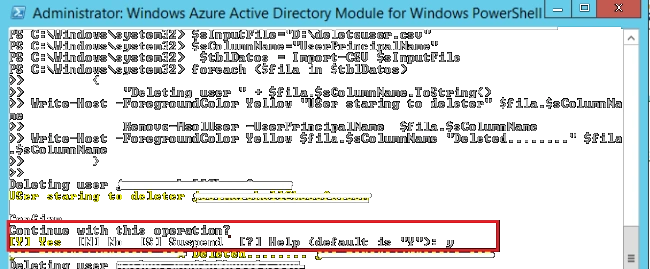
Press "Yes".
Conclusion
This is how we can use PowerShell script to delete multiple users from Office 365.
Swatismita BiswalPosted Oct 3, 2017, 7:18 AM
Nice one..............................................................