

These days, authentication is one of the most important factors in the cloud environment. Many organizations are utilizing SharePoint Online as their Content Management System. It is their basic requirement that delicate information does not slip into bad hands. Therefore, Multi-Factor Authentication for Office 365 becomes possibly the most important factor. Multi-factor authentication is a two-step process. In addition to passwords, users are expected to acknowledge a phone call/ text message to complete the verification process. One can enable Multi-Factor Authentication by following these steps.
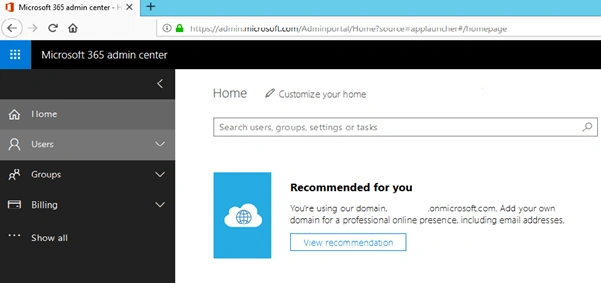
Navigate to the Admin Portal through this link
https://admin.microsoft.com/Adminportal
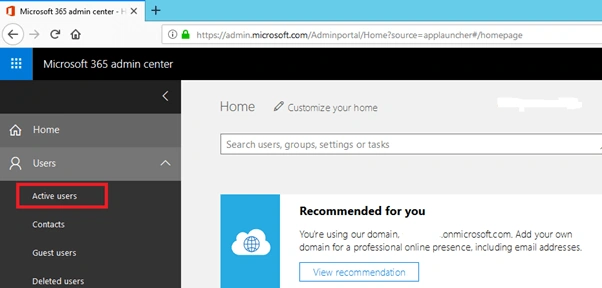
Select the "Active Users" tab.
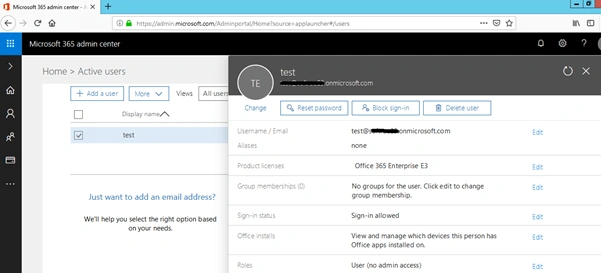
Select a user. A new window will open.
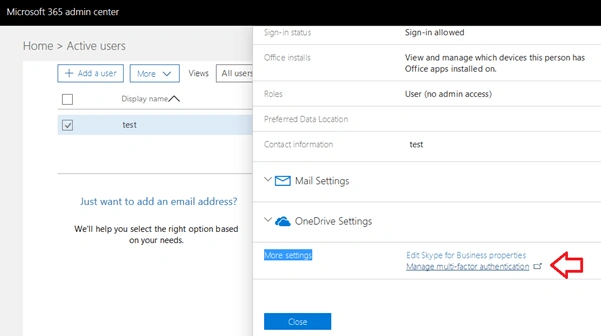
Click on the "Manage multi-factor authentication" link from more settings.
Check on the user account for which you want to enable MFA and select the "Enable" option.
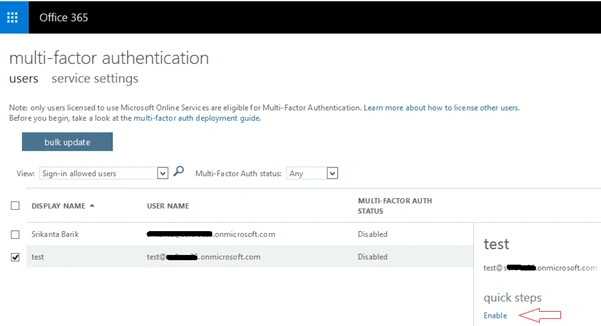
Or, open the admin center with the user for which you want to enable MFA authentication. Navigate to here.
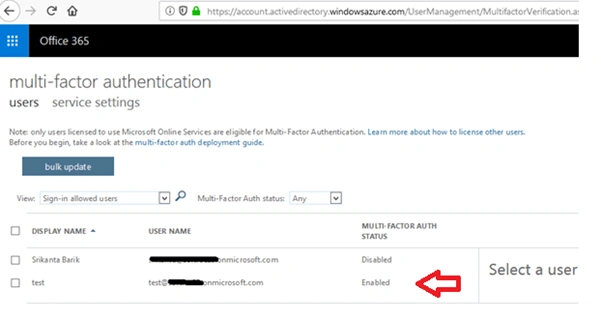
From the above figure, you can see we have successfully enabled multi-factor authentication for the user named “test”.
In our blog, we will see how to work with MFA authentication using PowerShell. Basically, we provide the user's username and password credentials in the PowerShell script to retrieve the client context object. If we will use the same procedure with MFA to enable user account, it will show an exception while executing the client context.
Note
Make sure you have installed the latest version of SharePoint, i.e., SharePointPnPPowerShellOnline.msi in your system and added all the dlls of latest versions. You can download the OfficeDevPnP.Core.dll,Microsoft.IdentityModel.Clients.ActiveDirectory.dll package from these links.
- https://www.nuget.org/packages/SharePointPnPCoreOnline/2.26.1805.1
- https://www.nuget.org/packages/Microsoft.IdentityModel.Clients.ActiveDirectory/2.29.0
Download the packages, rename that (add .zip extension with it), and save. Extract it to use the dlls in scripts.
In this blog, we are going to create a custom list with MFA authentication.
The code block for this is mentioned below.- try {
- $SiteURL = "http://portal/sites/site1"
- $ListTitle = "NewList" [System.Reflection.Assembly]::LoadFrom("C:\Program Files\Common Files\Microsoft Shared\Web Server Extensions\15\ISAPI\Microsoft.SharePoint.Client.dll")[System.Reflection.Assembly]::LoadFrom("C:\Program Files\Common Files\Microsoft Shared\Web Server Extensions\15\ISAPI\Microsoft.SharePoint.Client.Runtime.dll")[System.Reflection.Assembly]::LoadFrom("C:\Program Files\Common Files\Microsoft Shared\Web Server Extensions\15\ISAPI\Microsoft.IdentityModel.Clients.ActiveDirectory.dll")[System.Reflection.Assembly]::LoadFrom("C:\Program Files\Common Files\Microsoft Shared\Web Server Extensions\15\ISAPI\OfficeDevPnP.Core.dll")
- $authManager = new - object OfficeDevPnP.Core.AuthenticationManager;
- $Context = $authManager.GetWebLoginClientContext($SiteURL);#
- Retrieve lists
- $Lists = $Context.Web.Lists
- $Context.Load($Lists)
- $Context.ExecuteQuery()# Create list with "custom"
- list template
- $ListInfo = New - Object Microsoft.SharePoint.Client.ListCreationInformation
- $ListInfo.Title = $ListTitle
- $ListInfo.TemplateType = "100"
- $List = $Context.Web.Lists.Add($ListInfo)
- $List.Description = "new list description"
- $List.Update()
- $Context.ExecuteQuery()
- } catch {
- Write - Host - ForegroundColor Red 'Error ', ':'
- $Error[0].ToString();
- sleep 10
- }
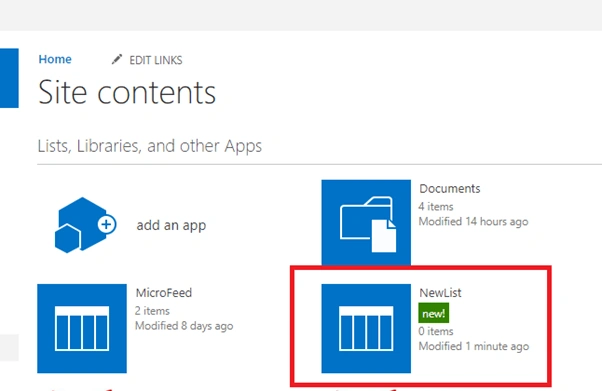
After the code is executed, a custom list is created successfully in the SharePoint site.
Anand SapkalPosted Aug 17, 2021, 10:34 AM
Hi Sir , I have tried above code. But I am getting below error. Please help me on this: Cannot convert argument "parameters", with value: "Microsoft.SharePoint.Client.ListCreationInformation", for "Add" to type "Microsoft.SharePoint.Client.ListCreationInformation": "Cannot convert the "Microsoft.SharePoint.Client.ListCreationInformation" value of type "Microsoft.SharePoint.Client.ListCreationInformation" to type "Microsoft.SharePoint.Client.ListC reationInformation"."
Laxmidhar SahooPosted Apr 24, 2019, 12:30 AM
Thank you for a good naration
Manoj MittalPosted Apr 11, 2019, 1:27 AM
Nicely explained, Good one.