

Containers are a powerful tool for developers. They let you quickly start services like databases without messing up your computer, and they’re great for testing, building, and automating your code.
In this post, we will learn how to.
- Understand what Docker images and containers are
- Run SQL Server inside a Docker container
- Connect to it from your application or database tools
What’s a Docker Image and Container?
Before we get started, let us quickly understand two important Docker concepts.
- Docker Image: It's a read-only template that includes everything needed to run software—like the code, runtime, libraries, and dependencies. You can think of it as a snapshot or a blueprint for the app.
- Docker Container: It’s a running version of an image. By default, it’s isolated, lightweight, and temporary—unless you save data using volumes.
“It’s like using a recipe (the image) to bake a cake (the container). You can make as many cakes as you want from the same recipe.”
Prerequisites
- .NET SDK (8.0 +)
- Docker Desktop
- SQL Server Management Studio/Azure Data Studio/VS Code with mssql extension
Step 1. Pull the SQL Server Docker Image
Let us use the SQL Server 2022 Developer Edition, which is free for development and testing.
docker pull mcr.microsoft.com/mssql/server:2022-latest
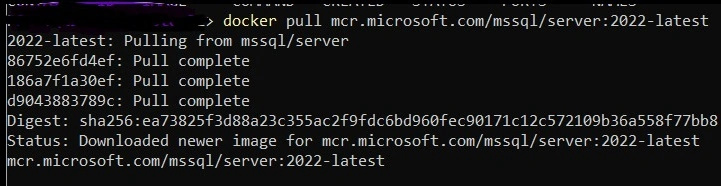
This command fetches the image from Microsoft’s container registry.
Step 2. Run SQL Server in a Container
Now, let us run it locally.
docker run -e "ACCEPT_EULA=Y" -e "MSSQL_SA_PASSWORD=YourStrong!Passw0rd" \
   -p 1433:1433 --name sql2022 \
   -v sqlvolume:/var/opt/mssql \
   -d mcr.microsoft.com/mssql/server:2022-latest
Let us understand each option.
| Option | Purpose |
|---|---|
| -e | Set environment variables (accept license and set password) |
| -p | Map port 1433 from container to host |
| --name | Give your container a friendly name |
| -v | Create a Docker volume to persist data |
| -d | Run the container in detached mode (in the background) |

Let us look at the docket container.

Step 3. Connect to SQL Server from Local Tools
I will give a try using SSMS.
- Server Name: localhost,1433
- Authentication: SQL Server Authentication
- Login: sa
- Password: YourStrong!Passw0rd
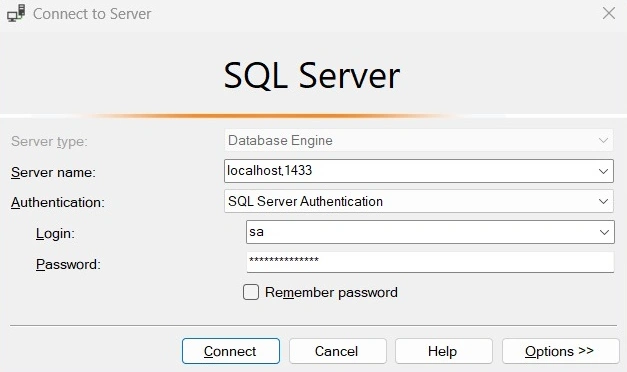
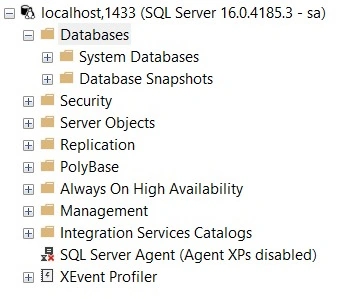
Successfully logged into the container SQL server.
Final Thoughts
Running the SQL Server in a container gives you a consistent, isolated, and easy-to-repeat setup for development. It’s a clean and powerful way to test new features, help new team members get started, or set up local CI.
Join the conversation! Your thoughts help the community grow.