

In this post, we will learn how to remove an HTML element using jQuery. For removing the element using jQuery, we can use element name, element id, element class etc. We can remove a single or multiple elements using jQuery remove() function. For this example, first, we need a JS file for accessing the remove() function. After setting the JS file, let's start coding.
First, we need to add the JavaScript file for accessing the remove() function.
- <script src="https://ajax.googleapis.com/ajax/libs/jquery/3.3.1/jquery.min.js"></script>
- <!DOCTYPE html>
- <html>
- <head>
- <script src="https://ajax.googleapis.com/ajax/libs/jquery/3.3.1/jquery.min.js"></script>
- <script>
- $(document).ready(function () {
- $("#RemoveDiv").click(function () {
- $("#div1").remove();
- });
- $("#RemoveDivclass").click(function () {
- $(".divclass").remove();
- });
- $("#Removeh1").click(function () {
- $("h1").remove();
- });
- });
- </script>
- </head>
- <body>
- <div id="div1">
- I AM DIV TAG REMOVE USING ID
- </div>
- <button id="RemoveDiv">Remove div using id</button>
- <div class="divclass">
- I AM DIV TAG REMOVE USING CLASS
- </div>
- <button id="RemoveDivclass">Remove div using class</button>
- <h1>
- I AM H1 TAG REMOVE USING MY NAME
- </h1>
- <button id="Removeh1">Remove h1 element using name</button>
- </body>
- </html>
I click on "Remove h1 element using the name" and the button searches for "h1" from HTML and removes. So here, we removed the HTML element using ID, class name, or HTML element using jQuery.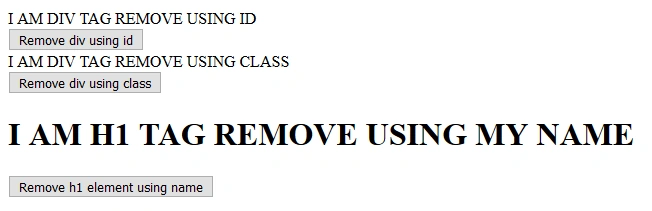
See the below screenshot to see how the HTML looks.
Join the conversation! Your thoughts help the community grow.