

In this blog we'll see how to upload your ASP.Net application into the server.
Step 1
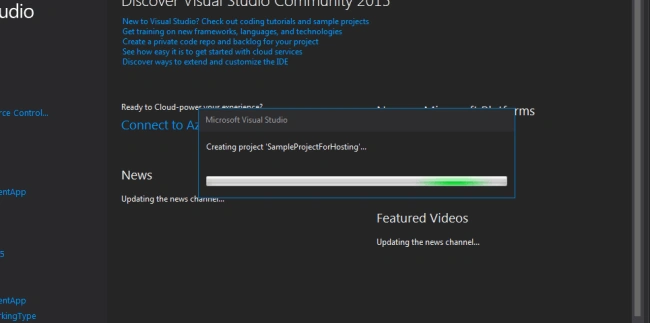
First you need to create your project.
First you need to create your project.
Step2
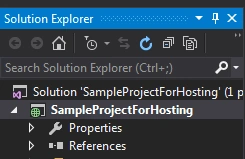
Then find Solution Explorer > Publish
Step 3
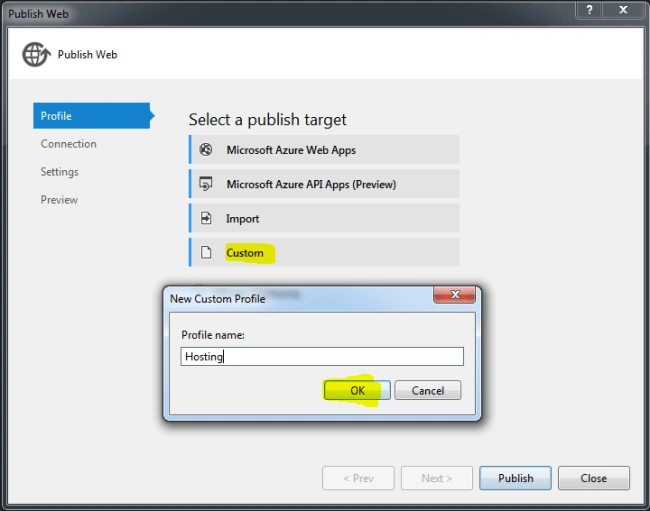
Click Custom option and enter any profile name you want then click ok.
Step 4
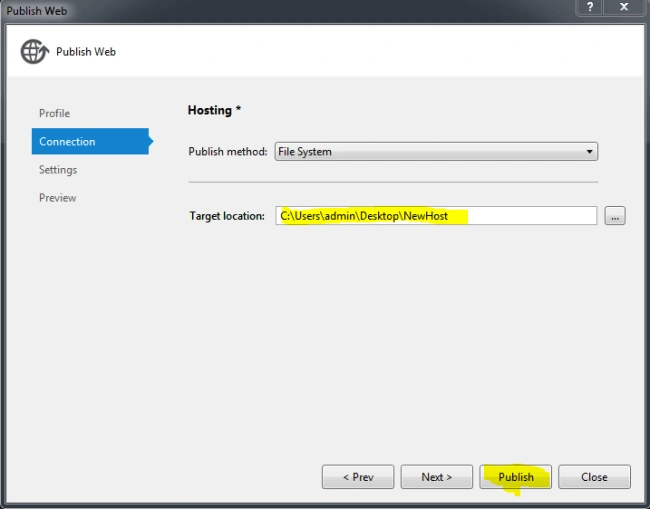
Select File System in Publish method and add Target location to save published copy in your PC.
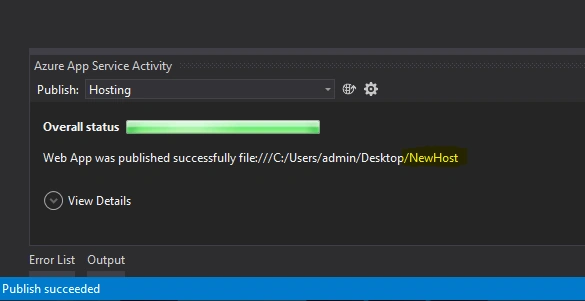
I created a folder on the deskop (NewHost). Then click publish.
Step 5
Open folder.
Step 6
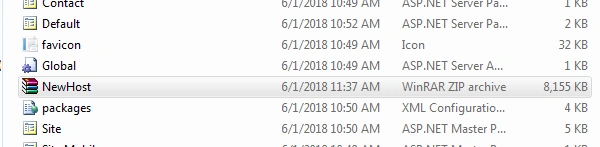
Select all files in this folder and merge in zip.
Step 7
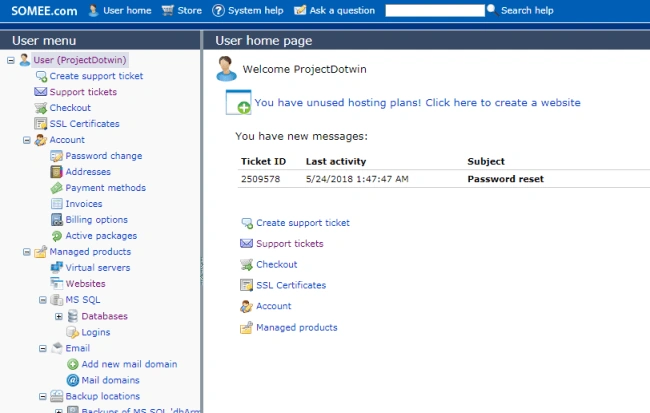
Create account on somee.com for hosting, then open your account.
Step 8
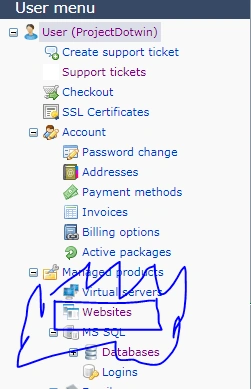
Create new website

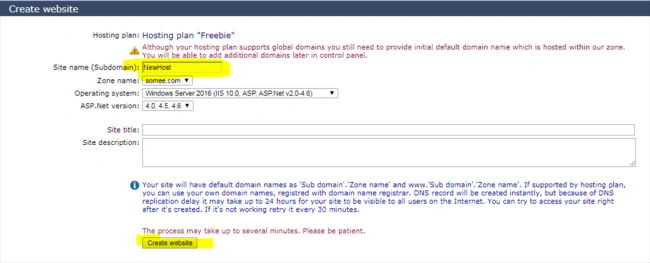
Step 9
Open File manager.
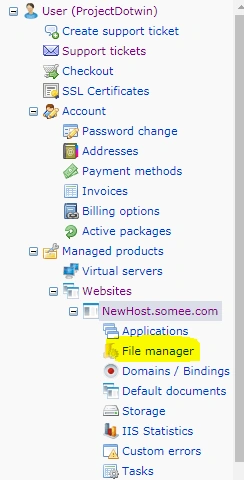
Step 10
Click upload option then choose zip file and click upload and unzip Archives


Step 11
Open your website link -- my website link is newhost.somee.com
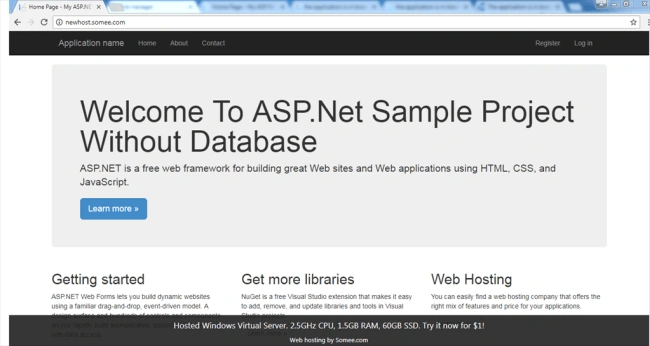
thank you...
Step 5
Open folder.
Step 6
Select all files in this folder and merge in zip.
Step 7
Create account on somee.com for hosting, then open your account.
Step 8
Create new website
Step 9
Open File manager.
Step 10
Click upload option then choose zip file and click upload and unzip Archives
Step 11
Open your website link -- my website link is newhost.somee.com
thank you...
snehal suryavanshiPosted Jul 3, 2018, 12:31 PM
It's really useful.