

In this section, we will see how the search text is highlighted in the Data Grid View cell where it has matched. We will apply searching over selected columns of the grid.
Example
Suppose we have a search textbox and Data Grid View which is displaying the data.
Task
Whatever text we will write over the search text box, this text needs to search over the Data Grid View over specific columns and highlight the matched words over the grid cell with yellow color.
Controls used
Data Grid View and a text box.
Columns participate in searching
Name, Address, and Notes.
Events used
txtSearch_KeyUp - for getting the text for searching.
dataGridViewForSearching_CellPainting - it is used to highlight the search text in the Data Grid View cell.
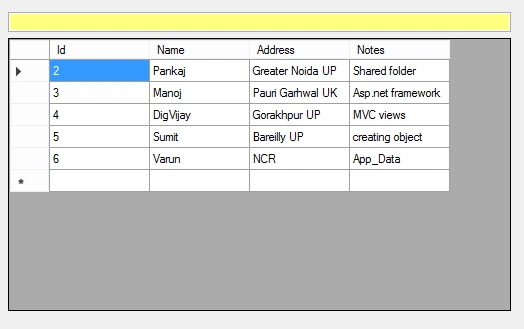
How it works
In the below screen, let's type “at” over search text box and it highlights the data over the grid.
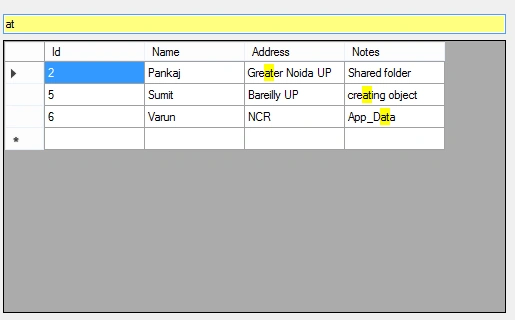
Steps involve in highlighting the search text over grid cell -
Step 1
Add “data grid view” and “text box” control in the form.
Step 2
Create data table to bind with the Data Grid View.
- public frmHighlightSearchTextInDataGridView() {
- InitializeComponent();
- }
- publicDataTable GetTable() {
- // Here we create a DataTable with four columns.
- DataTable table = newDataTable();
- table.Columns.Add("Id", typeof(int));
- table.Columns.Add("Name", typeof(string));
- table.Columns.Add("Address", typeof(string));
- table.Columns.Add("Notes", typeof(string));
- // Here we add 5 DataRows.
- table.Rows.Add(2, "Pankaj", "Greater Noida UP", "Shared folder");
- table.Rows.Add(3, "Manoj", "Pauri Garhwal UK", "Asp.net framework");
- table.Rows.Add(4, "DigVijay", "Gorakhpur UP", "MVC views");
- table.Rows.Add(5, "Sumit", "Bareilly UP", "creating object");
- table.Rows.Add(6, "Varun", "NCR", "App_Data ");
- return table;
- }
Step 3
Bind theData Grid View with table on the form load event.
- privatevoid frmHighlightSearchTextInDataGridView_Load(object sender, EventArgs e) {
- // Bind the DataGridView
- dataGridViewForSearching.DataSource = GetTable();
- }
Create function SearchDataInDataGridViewOverSelectedFields() for filter or search the searching text into data table which are used to bind the Data Grid View.
- privateDataTable SearchDataInDataGridViewOverSelectedFields(String searchText, DataTable dt) {
- DataView dvForSearch = newDataView(dt);
- // Apply search over selective fields.
- dvForSearch.RowFilter = "Name Like '%" + searchText + "%' or Address Like '%" + searchText + "%' or Notes Like '%" + searchText + "%'";
- return dvForSearch.ToTable();
- }
Step 5
Use txtSearch_KeyUp event to get the searching text as input from user.
- privatevoid txtSearch_KeyUp(object sender, KeyEventArgs e) {
- DataTable dt = GetTable();
- if (!String.IsNullOrWhiteSpace(txtSearch.Text.Trim())) {
- DataTable dtAfterSerach = SearchDataInDataGridViewOverSelectedFields(txtSearch.Text.Trim(), dt);
- dataGridViewForSearching.DataSource = dtAfterSerach;
- } else {
- dataGridViewForSearching.DataSource = dt;
- }
- }
Step 5
Use dataGridViewForSearching_CellPainting() for paint the match text in grid cell with the background yellow color.
- privatevoid dataGridViewForSearching_CellPainting(object sender, DataGridViewCellPaintingEventArgs e) {
- // High light and searching apply over selective fields of grid.
- if (e.RowIndex > -1 && e.ColumnIndex > -1 && dataGridViewForSearching.Columns[e.ColumnIndex].Name != "Id") {
- // Check data for search
- if (!String.IsNullOrWhiteSpace(txtSearch.Text.Trim())) {
- String gridCellValue = e.FormattedValue.ToString();
- // check the index of search text into grid cell.
- int startIndexInCellValue = gridCellValue.ToLower().IndexOf(txtSearch.Text.Trim().ToLower());
- // IF search text is exists inside grid cell then startIndexInCellValue value will be greater then 0 or equal to 0
- if (startIndexInCellValue >= 0) {
- e.Handled = true;
- e.PaintBackground(e.CellBounds, true);
- //the highlite rectangle
- Rectangle hl_rect = newRectangle();
- hl_rect.Y = e.CellBounds.Y + 2;
- hl_rect.Height = e.CellBounds.Height - 5;
- //find the size of the text before the search word in grid cell data.
- String sBeforeSearchword = gridCellValue.Substring(0, startIndexInCellValue);
- //size of the search word in the grid cell data
- String sSearchWord = gridCellValue.Substring(startIndexInCellValue, txtSearch.Text.Trim().Length);
- Size s1 = TextRenderer.MeasureText(e.Graphics, sBeforeSearchword, e.CellStyle.Font, e.CellBounds.Size);
- Size s2 = TextRenderer.MeasureText(e.Graphics, sSearchWord, e.CellStyle.Font, e.CellBounds.Size);
- if (s1.Width > 5) {
- hl_rect.X = e.CellBounds.X + s1.Width - 5;
- hl_rect.Width = s2.Width - 6;
- } else {
- hl_rect.X = e.CellBounds.X + 2;
- hl_rect.Width = s2.Width - 6;
- }
- //color for showing highlighted text in grid cell
- SolidBrush hl_brush;
- hl_brush = newSolidBrush(Color.Yellow);
- //paint the background behind the search word
- e.Graphics.FillRectangle(hl_brush, hl_rect);
- hl_brush.Dispose();
- e.PaintContent(e.CellBounds);
- }
- }
- }
- }
Handwerk ItPosted Mar 24, 2021, 1:10 PM
Https://stackoverflow.com/questions/66762116/texthighlight-in-datagridview-on-textcell-with-wrapmode look for the word wrap
Michael Coffey, AIA, LEED AP BD+C, CDTPosted Oct 17, 2019, 10:32 AM
What about when wraptext is used for a column? Does it highlight all the way to bottom of cell?
Faisal SiddiquiPosted Sep 6, 2019, 3:19 PM
Thank you for this example. Actually i am looking for the code that can search in the textbox column while typing to search and select it just like autofill.
Roger RousseauPosted Feb 6, 2019, 9:03 PM
Great example. How also can the text color of the highlighted characters be changed?I have included this but it doesn't work for me. SolidBrush h2_brush; h2_brush = new SolidBrush(Color.Green); e.Graphics.DrawString(sSearchWord, e.CellStyle.Font, h2_brush, hl_rect.X - 2, hl_rect.Y + 2,StringFormat.GenericDefault); h2_brush.Dispose();