

Introduction
In this blog, I have discussed how to add, retrieve, and delete the SharePoint navigation menu using PowerShell. Follow the steps to get the result.
Steps
- Get the Navigation Node
- Add the Navigation
- Remove/Delete the Navigation
In this blog, I added the coding of HubNavigation Menu but you can also Add, Retrieve and Delete the footer, Top and Hub Navigation menu from your site by running the script.
Get Top Navigation Node
Follow the below code to get the Hub Navigation menu.
- $siteURL = Read - Host "Enter site url"
- try {
- Connect - PnPOnline - Url $siteURL - Credentials(Get - Credential)
- #Get Hub Navigation and Its Sub Menu
- $topNavsMenu = Get - PnPNavigationNode - Location TopNavigationBar | Select Title, Url, Id
- foreach($topNav in $topNavsMenu) {
- Write - Host "Top Navigaion : "
- $topNav.Title
- $node = Get - PnPNavigationNode - Id $topNav.Id
- $childMenus = $node.Children | Select Title, Url, Id
- if ($childMenus - ne $null) {
- foreach($childMenus in $node.Children) {
- Write - Host "SubNavigation : "
- $childMenus.Title
- $subNodeMenus = Get - PnPNavigationNode - Id $childMenus.Id
- $subchilds = $subNodeMenus.Children | Select Title, Url, Id
- if ($subchilds - ne $null) {
- foreach($childMenus in $subchilds) {
- Write - Host $childMenus.Title
- }
- }
- }
- }
- }
- } catch {}
It is retrieving Hub navigation top, sub & child menu.
Normal 0 false false false EN-IN X-NONE X-NONE
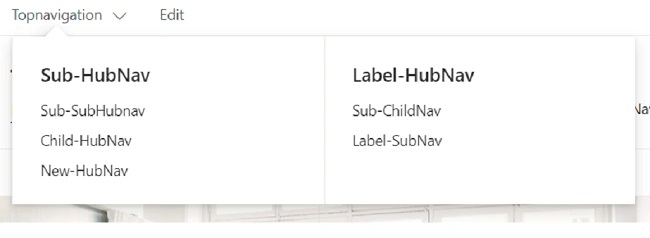
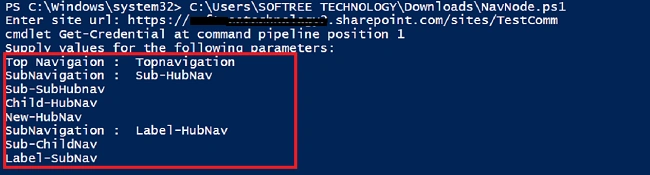
For Quick Launch Menu,
- $quicklunch = Get-PnPNavigationNode -Location QuickLaunch
- Write-Host $quicklunch.Title
For Footer Navigation,
- $footerNav = Get-PnPNavigationNode -Location Footer
- Write-Host $footerNav.Title
For Search Navigation,
- $searchNav = Get-PnPNavigationNode -Location SearchNav
- Write-Host $searchNav.Title
Add Navigation Node
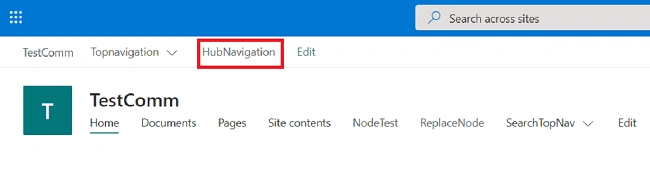
Follow the code mentioned below to add the navigation node
- $siteUrl = Read - Host "Enter site url"
- try {
- Connect - PnPOnline - Url $siteUrl - Credentials(Get - Credential)
- Add - PnPNavigationNode - Location TopNavigationBar - Title "HubNavigation" - Url "https://www.google.com"
- } catch {}
Remove Navigation Node
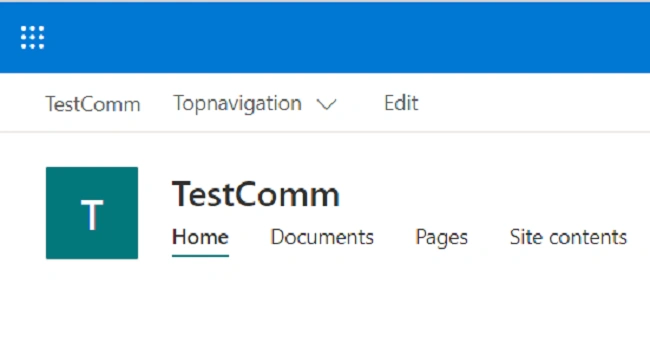
Follow the code mentioned below to remove navigation node.
- $siteUrl = Read - Host "Enter site url"
- try {
- Connect - PnPOnline - Url $siteUrl - Credentials(Get - Credential)
- $navMenus = Get - PnPNavigationNode - Location TopNavigationBar | Select Title, Url, Id
- $deleteNavNode = $navMenus | Where - Object {
- $_.Title - eq "HubNavigation"
- }
- Remove - PnPNavigationNode - Identity $deleteNavNode.Id - Force
- } catch {}
Conclusion
Here we have given the dynamic way to add, retrieve, and delete the SharePoint online navigation menu. As we are using the PowerShell PnP this it's easier to perform this as well as more time effective.
Join the conversation! Your thoughts help the community grow.