
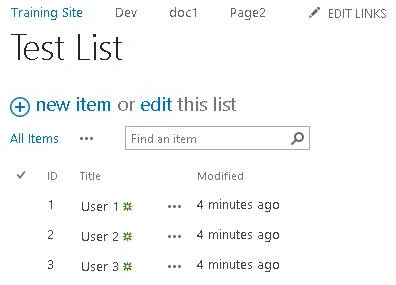
Step 1: Create or open the list to retrieve the data from and note the list name (Here, it’s Test List).
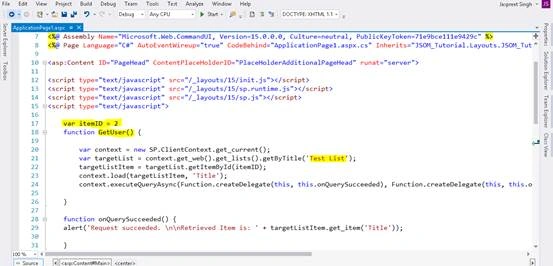
Step 2: Open Visual Studio and create SharePoint Empty Project. Add Application page to it and add the script file path in PageHead . Add the code, given below, for retrieving the data by ID.
- <script type="text/javascript" src="/_layouts/15/init.js"></script>
- <script type="text/javascript" src="/_layouts/15/sp.runtime.js"></script>
- <script type="text/javascript" src="/_layouts/15/sp.js"></script>
- <script type="text/javascript">
- var itemID = 2 // Item ID
- function GetUser() {
- var context = new SP.ClientContext.get_current();
- var targetList = context.get_web().get_lists().getByTitle('Test List'); //Ur List Name
- targetListtargetListItem = targetList.getItemById(itemID);
- context.load(targetListItem, 'Title');
- context.executeQueryAsync(Function.createDelegate(this, this.onQuerySucceeded), Function.createDelegate(this, this.onQueryFailed));
- }
- function onQuerySucceeded() {
- alert('Request succeeded. \n\nRetrieved Item is: ' + targetListItem.get_item('Title'));
- }
- function onQueryFailed(sender, args) {
- alert('Request failed. \nError: ' + args.get_message() + '\nStackTrace: ' + args.get_stackTrace());
- }
- </script>
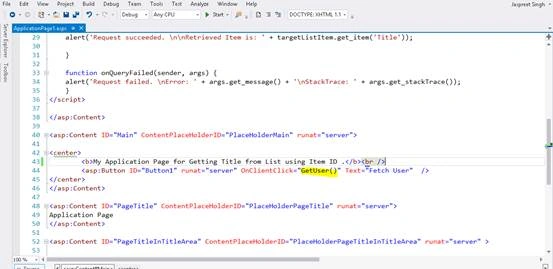
Step 3: Add a button and write your function name in OnClientClick event for firing the code, given below:
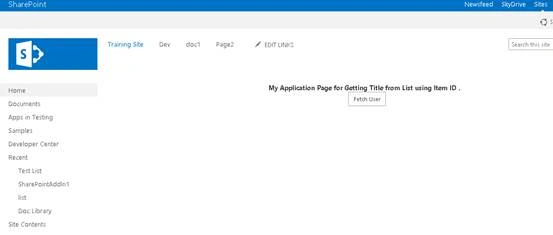
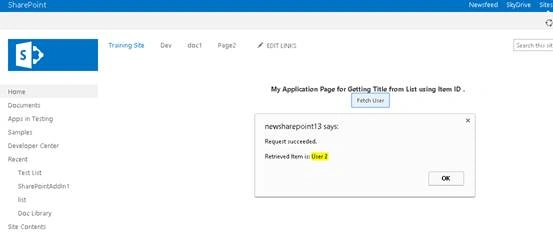
Step 4: Open the Application page in the Browser and click the button for the retrieval of the detail from Test List (created above).
Step 5: See the results. Data is retrieved from the list, using its ID successfully.
kalu singh raoPosted Jul 8, 2016, 1:32 AM
Nice...