

For dynamically creating DataTable and binding to GridView without database, we have to know the following things:
- How to create columns in a DataTable.
- How to add rows in a DataTable.
- DataTable mytable=new DataTable();
- mytable.columns.add("ColunmName",TypeOf(string/int/Float));
Syntax For Creating Rows
- DataTable mytable=new DataTable(); //creating datatable
- DataRow dr=mytable.NewRow(); //Creating Row
- dr["ColunmName"]="Raj"; //assigning value to the row
- mytable.Rows.add(dr); //adding to datatable
Example
Step 1: Design the form as in the following image:
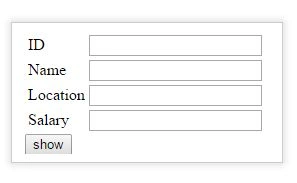
Step 2: When the form is filled and enter button is hit, we want that the value should not be added in the database, but instead of this it should be directly added to my DataTable so that I could bind the DataTable and show directly in the
form.
Step 3: For this add a GridView in the form and name it as GridView1.
Step 4: Now under show button click, write the following code:
- protected void btn_1_Click(object sender, EventArgs e)
- {
- GridView1.Visible = true; //my grid view name
- createnewrow(); //call a function
- }
- public void createnewrow()
- {
- DataTable mytable = new DataTable();
- if (ViewState["Row"] != null)
- {
- mytable = (DataTable) ViewState["Row"];
- DataRow dr = null;
- if (mytable.Rows.Count > 0)
- {
- dr = mytable.NewRow();
- dr["Id"] = txt_id.Text;
- dr["Name"] = txt_name.Text;
- dr["Location"] = txt_location.Text;
- dr["Salary"] = txt_salary.Text;
- mytable.Rows.Add(dr);
- ViewState["Row"] = mytable;
- GridView1.DataSource = ViewState["Row"];
- GridView1.DataBind();
- }
- }
- else
- {
- mytable.Columns.Add("Id", typeof(int));
- mytable.Columns.Add(new DataColumn("Name", typeof(string)));
- mytable.Columns.Add("Location", typeof(string));
- mytable.Columns.Add("Salary", typeof(float));
- DataRow dr1 = mytable.NewRow();
- dr1 = mytable.NewRow();
- dr1["Id"] = txt_id.Text;
- dr1["Name"] = txt_name.Text;
- dr1["Location"] = txt_location.Text;
- dr1["Salary"] = txt_salary.Text;
- mytable.Rows.Add(dr1);
- ViewState["Row"] = mytable;
- GridView1.DataSource = ViewState["Row"];
- GridView1.DataBind();
- }
- }
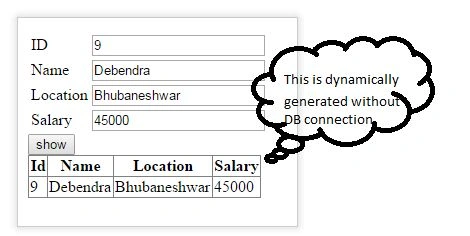
Explanation:
- For the first time the condition for the Viewstate is false, so the control goes to else part and creates the columns for the datatable.
- Create rows and add the Textbox value to them.
- Saving the table in viewstate.
- Binding the viewstate to the Gridview.
- After first time, the vewstate condition becomes true and it directly creates only rows and is added to the table.
Amit Kumar SinghPosted Jan 9, 2019, 11:19 PM
Thanks for sharing !!!
Thilina AkalankaPosted May 18, 2016, 1:38 PM
Nice and Simple
Meena sPosted Jan 22, 2016, 1:53 AM
your article is excellent...! could you please suggest me, how to add one more new column based on user input dynamically during run time
Jacob RobinsonPosted Jun 22, 2015, 3:21 AM
Good One....