

Introduction
In this blog, we will explore data modeling in Power BI to connect multiple data sources to create reports and how to interconnect them.
Need of Data Modelling
- We can create a relationship in Power BI to create a logical relationship between the data sources. By establishing the relationship, we can connect multiple data sources to create visuals and reports.
- Model view in Power BI enables the creation of a relationship between tables.
- We can go to the Home Tab of Power BI desktop and click on manage relationship to manage the relationship between the tables.
Example of Data Model in Power BI
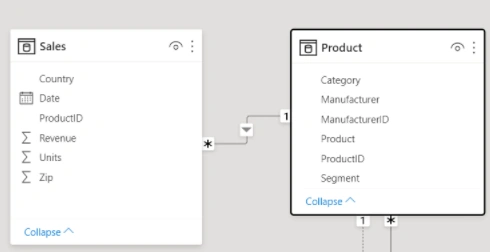
We can basically define two types of relationships,
one to one
Column in one table only has one instance associated with one record in another table
many to one
Column in one table has more than one instance available with one instance in another table
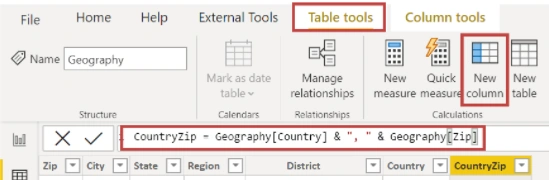
- Sometimes it is also possible that columns are not available while defining the relationship. We can also create a calculated column or new column by defining the transformations on the existing data.
- We can enter the calculations to create a new column using DAX queries.
Analyze Time Based Data Power BI
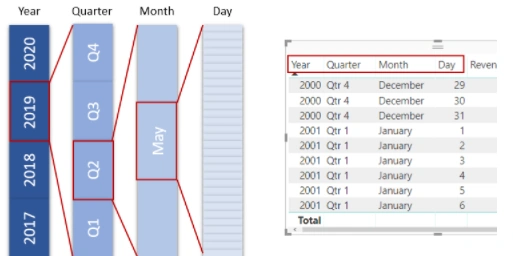
Analysis of Time-based data in Power BI is relatively very easy. Power BI desktop tool automatically generates the field that helps to generate the fields to drill down through time periods.
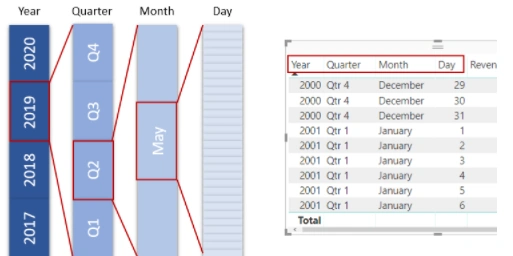
Power BI automatically creates a breakdown based on the time period when we create the table in Power BI.
Conclusion
In this blog, we explored how to work with multiple data sources and define a relationship between them using the data model. Additionally, we can also create new columns, additional measures, and calculated tables to define the data model and the relationship between the tables.
Once we import the data sources into Power BI, by default Power BI will auto-detect the relationship between the entities or tables. It is also possible to customize those relationships based on our use case.
Join the conversation! Your thoughts help the community grow.