

Introduction
This blog will help you to create a web browser in WPF (Windows Presentation Foundation).
Prerequisites
- Visual Studio 2013 with update 4 (or) Visual Studio 2015
Follow the following steps now:
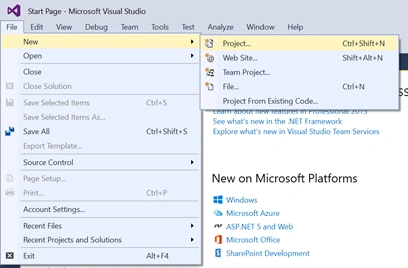
Step 1: Open Visual Studio 2015 and Create a New Project.
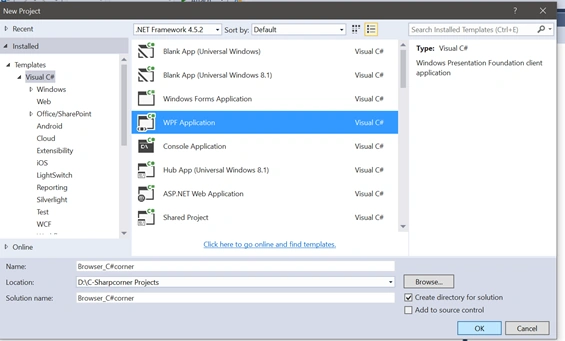
Step 2: Select WPF (Windows Presentation Foundation), name your project and select the location where it has to be saved.
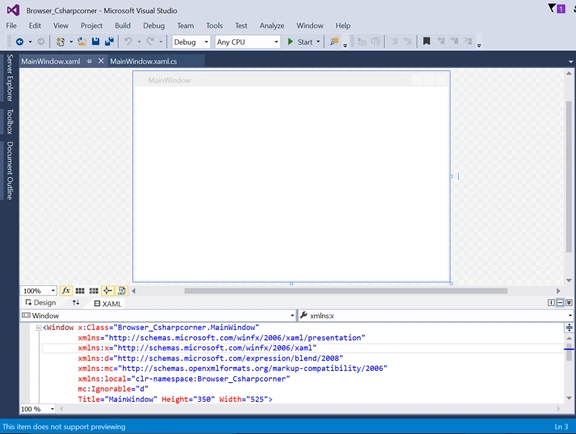
Step 3: Goto MainWindow.xaml and paste the following code for the web browser:
- <Window x:Class="WPFWebControl.MainWindow" xmlns="http://schemas.microsoft.com/winfx/2006/xaml/presentation" xmlns:x="http://schemas.microsoft.com/winfx/2006/xaml" Title="My Web Browser" WindowState="Normal" Loaded="Window_Loaded" WindowStyle="ThreeDBorderWindow" mc:Ignorable="d" xmlns:d="http://schemas.microsoft.com/expression/blend/2008" xmlns:mc="http://schemas.openxmlformats.org/markup-compatibility/2006" Height="529" Width="731">
- <Grid>
- <Button Content="<<" Height="23" HorizontalAlignment="Left" Margin="10,5,0,0" Name="MyBack" VerticalAlignment="Top" Width="25" ToolTip="Backword" Click="MyBack_Click" />
- <WebBrowser Height="445" HorizontalAlignment="Left" Margin="10,33,0,0" Name="MyWebBrowser" VerticalAlignment="Top" Width="687" LoadCompleted="MyWebBrowser_LoadCompleted" />
- <TextBox Height="23" Margin="103,5,12,0" Name="MyTextBox" VerticalAlignment="Top" />
- <Button Content="|>" Height="23" HorizontalAlignment="Left" Margin="41,5,0,0" Name="MyGo" VerticalAlignment="Top" Width="25" ToolTip="Go" Click="MyGo_Click" />
- <Button Content=">>" Height="23" HorizontalAlignment="Right" Margin="0,5,612,0" Name="MyForward" VerticalAlignment="Top" Width="25" ToolTip="Forward" Click="MyForward_Click" />
- </Grid>
- </Window>
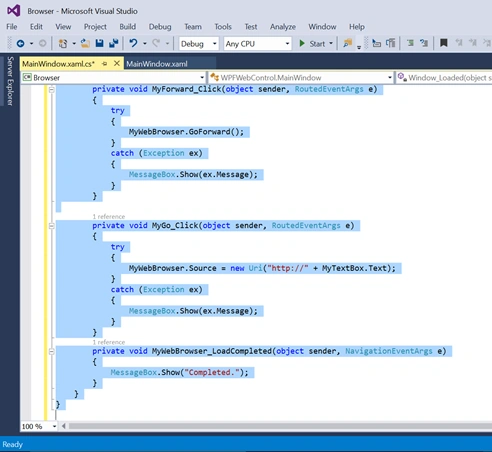
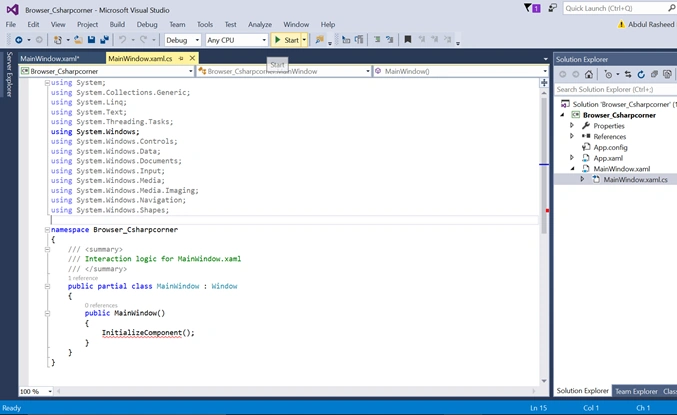
Step 4: Now copy the following code in MainWindow.xaml.cs:
- using System;
- using System.Collections.Generic;
- using System.Linq;
- using System.Text;
- using System.Windows;
- using System.Windows.Controls;
- using System.Windows.Data;
- using System.Windows.Documents;
- using System.Windows.Input;
- using System.Windows.Media;
- using System.Windows.Media.Imaging;
- using System.Windows.Navigation;
- using System.Windows.Shapes;
- namespace WPFWebControl
- {
- public partial class MainWindow: Window
- {
- public MainWindow()
- {
- InitializeComponent();
- }
- private void Window_Loaded(object sender, RoutedEventArgs e)
- {
- try
- {
- MyWebBrowser.Source = new Uri("http://www.microsoft.com");
- }
- catch (Exception ex)
- {
- MessageBox.Show(ex.Message);
- }
- }
- private void MyBack_Click(object sender, RoutedEventArgs e)
- {
- try
- {
- MyWebBrowser.GoBack();
- }
- catch (Exception ex)
- {
- MessageBox.Show(ex.Message);
- }
- }
- private void MyForward_Click(object sender, RoutedEventArgs e)
- {
- try
- {
- MyWebBrowser.GoForward();
- }
- catch (Exception ex)
- {
- MessageBox.Show(ex.Message);
- }
- }
- private void MyGo_Click(object sender, RoutedEventArgs e)
- {
- try
- {
- MyWebBrowser.Source = new Uri("http://" + MyTextBox.Text);
- }
- catch (Exception ex)
- {
- MessageBox.Show(ex.Message);
- }
- }
- private void MyWebBrowser_LoadCompleted(object sender, NavigationEventArgs e)
- {
- MessageBox.Show("Completed.");
- }
- }
- }
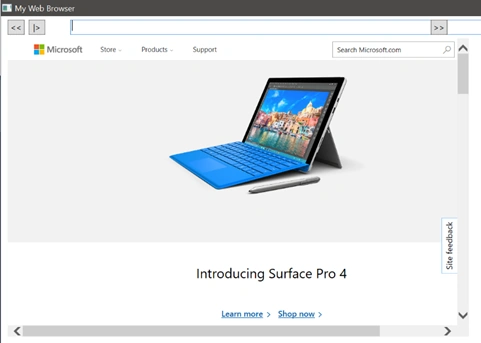
Step 5: Now run the project by clicking on start at the top of Visual Studio 2015.

Mohammed AshrafPosted May 31, 2016, 4:07 AM
Nice sharing...