

Open Windows PowerShell ISE and run the below script:
- Add - PSSnapin Microsoft.SharePoint.PowerShell
- function CreateCustomList($siteCollectionUrl, $listName) {
- $spWeb = Get - SPWeb - Identity $siteCollectionUrl
- $spTemplate = $spWeb.ListTemplates["Custom List"]
- $spListCollection = $spWeb.Lists
- $spListCollection.Add($listName, $listName, $spTemplate)
- $path = $spWeb.url.trim()
- $spList = $spWeb.GetList("$path/Lists/$listName")
- #adding the field type(Number) to the list
- $spFieldType = [Microsoft.SharePoint.SPFieldType]::Number
- $spList.Fields.Add("Area", $spFieldType, $false)
- #adding the field type(Number) to the list
- $spFieldType = [Microsoft.SharePoint.SPFieldType]::Number
- $spList.Fields.Add("Population", $spFieldType, $false)
- $spList.Update()
- }
- $siteCollectionUrl = "http://moss13:1111/"
- $listName = "Continents"
- CreateCustomList $siteCollectionUrl $listName
Next Go to the site ->Settings->Site Contents.

Click on created custom List (Continents).

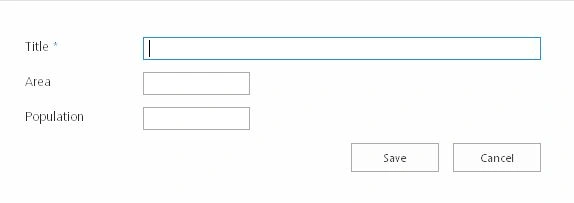
You can add the value in the fields, you have defined in the script.
Vipul UpadhyayPosted Dec 27, 2017, 7:22 AM
Your script not working
Rupali ShindePosted Nov 26, 2015, 11:52 PM
Great Powershell Example for beginner ..
Abhay ShankerPosted Jul 29, 2015, 11:31 AM
Thank you sir
Jacob RobinsonPosted Jul 29, 2015, 4:07 AM
Nice One..