
Creating cascading dropdowns in Power Apps can significantly enhance the user experience by filtering options based on previous selections.
Here’s a step-by-step guide to help you set up this.
Perquisites
Use a SharePoint list or any other data source to store your hierarchical data (Master Data).
I am going to demonstrate cascading dropdown functionality using the following controls.
- Dropdown Control
- Combo box Control
- Combo box with text box control
Dropdown Control

I used a Dropdown control to create a cascading effect. Based on the selected value in the Segment dropdown, the Country dropdown will be filtered. Then, based on the selected value in the Country dropdown, the Product dropdown will be filtered. Finally, based on the selected value in the Product dropdown, the Sale Price textbox will be set.
Note. Source Master lists all columns as single-line text.
Destination Try list structure is as follows: all columns single line text except Sale Price Currency Data type.
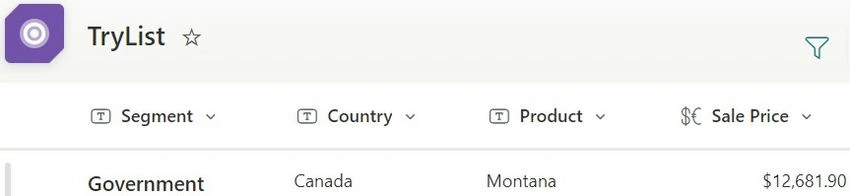
- Segment Dropdown Configuration
- Item Property
Distinct('Financial Dummy data',Segment) - This sets the items in the Segment dropdown to be distinct values from the ‘Segment’ column in the ‘Financial Dummy data’ table.
- OnChange Property
Reset(ddCountry);Reset(ddProduct);Reset(txtSalePrice) - When the Segment dropdown value changes, it resets the Country dropdown, Product dropdown, and Sale Price textbox to their default states.
- Update Property
ddSegment.Selected.Value - This updates the Segment dropdown with the selected value.
- Item Property
- Country Dropdown Configuration
- Item Property
Distinct( Filter( 'Financial Dummy data', Segment = ddSegment.Selected.Value ), Country ) - Update Property
ddCountry.Selected.Value
- Item Property
- Product Dropdown Configuration
- Item Property
Distinct( Filter( 'Financial Dummy data', Segment = ddSegment.Selected.Value && Country = ddCountry.Selected.Value ), Product ) - Update Property
ddProduct.Selected.Value
- Item Property
- Sale Price Text box Configuration
- Default Property.
- The LookUp function in Power Apps is used to find the first record in a table that matches a specified formula.
LookUp(

    'Financial Dummy data',

    Segment = ddSegment.Selected.Value && Country = ddCountry.Selected.Value && Product = ddProduct.Selected.Value,

    ' Sales'

)
2. Combo box Control

Let's see how to do Cascading dropdown using combo box control, code will remain the same only the control will change in this case.
Note. The database master table named VisTbl_Country_States has the table schema below from which we are fetching cascading data.

- Country Combo Box Configuration
- Item Property: This property lists all distinct country names from the VisTbl_Country_States table.
Distinct( VisTbl_Country_States, country_name ) - Update Property: This property updates the selected value of the country combo box.
cbxCountry.Selected.Value
- Item Property: This property lists all distinct country names from the VisTbl_Country_States table.
- States Combo Box Configuration
- Item Property: This property lists all distinct state names from the VisTbl_Country_States table, filtered by the selected country.
Distinct( Filter( VisTbl_Country_States, country_name = cbxCountry.Selected.Value ), name ) - Update Property: This property updates the selected value of the states combo box.
cbxStates.Selected.Value
- Item Property: This property lists all distinct state names from the VisTbl_Country_States table, filtered by the selected country.
- Latitude Text Box Configuration
- Default Property: This property looks up the latitude value from the VisTbl_Country_States table based on the selected country and state.
LookUp(

    VisTbl_Country_States,

    country_name = cbxCountry.Selected.Value && name = cbxStates.Selected.Value,

    latitude

)
- Default Property: This property looks up the latitude value from the VisTbl_Country_States table based on the selected country and state.
- Longitude Text Box Configuration
- Default Property: This property looks up the longitude value from the VisTbl_Country_States table based on the selected country and state.
LookUp(

    VisTbl_Country_States,

    country_name = cbxCountry.Selected.Value && name = cbxStates.Selected.Value,

    longitude

)
- Default Property: This property looks up the longitude value from the VisTbl_Country_States table based on the selected country and state.
- Data Table Filter
- Item Property: This property filters the data table based on the selected country and state. If no country or state is selected, it shows all data.
Filter(

    VisTbl_Country_States,

    cbxCountry.Selected.Value = Blank() Or country_name = cbxCountry.Selected.Value &&

    cbxStates.Selected.Value = Blank() Or name = cbxStates.Selected.Value

)
- Item Property: This property filters the data table based on the selected country and state. If no country or state is selected, it shows all data.
3. Combo box with text box control

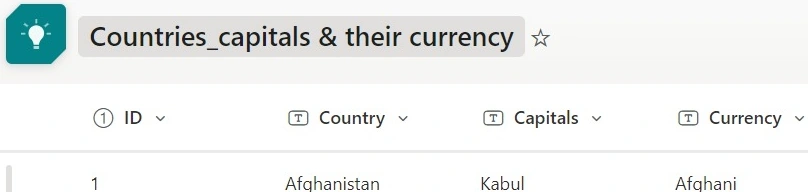
Here I use the combo box to best fit to search among 195 countries from the data source.
The rest of Capital & Currency are text filed where auto fetch value will be saved based on country selection
Master List Structure
All columns are single-line text.
- Combo Box Configuration
- Item Property
Distinct('Countries_capitals & their currency', Country) - This code shows distinct country values.
- Update Property
cbxCountry1.Selected.Value
- Item Property
- Capital Text Box Configuration
- Default Property
LookUp('Countries_capitals & their currency', Country = cbxCountry1.Selected.Value, Capitals) - This sets the default value to the capital based on the selected country.
- Update Property
txtCapital.Text
- Default Property
- Currency Text Box Configuration
- Default Property
LookUp('Countries_capitals & their currency', Country = cbxCountry1.Selected.Value, Currency) - This sets the default value to the currency based on the selected country.
- Update Property
txtCountry.Text
- Default Property
- Precautionary Note
- Save the form data to the destination data source as a single-line text column type to avoid data type conversion issues.
- If the “Allow Searching” option keeps turning off automatically, save your Power Apps, close it, and then reopen it, this will fix the issue.
Thanks for reading the blog.
I hope this makes it clearer!
Amit KumarPosted Sep 5, 2024, 12:17 PM
Very nice it is very helpful blog.