

Today I am going to show you how to create a program that records voice and plays it (microphone) using C#.
- Let’s start with creating a Windows Form Application for this tutorial by following the following steps in Microsoft Visual Studio: Go to File, click New Project, and choose Windows Application and name your program as microphone or whatever you want.
- Next, add three buttons named Button1 as record button for recording voice, Button2 as save and stop button, and Button3 for playing the recorded audio. You must design your interface like this.
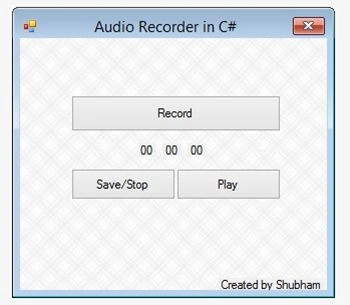
When design is finished move on to code
Import System.Runtime.InteropServices namespace
- using System.Diagnostics;
- using System;
- using System.Windows.Forms;
- using System.Collections;
- using System.Drawing;
- using Microsoft.VisualBasic;
- using System.Data;
- using System.Collections.Generic;
- using System.Runtime.InteropServices;
- [DllImport("winmm.dll",EntryPoint="mciSendStringA", ExactSpelling=true, CharSet=CharSet.Ansi, SetLastError=true)]
- private static extern int record(string lpstrCommand, string lpstrReturnString, int uReturnLength, int hwndCallback);
- public void Button1_Click(System.Object sender, System.EventArgs e)
- {
- timer1.Enabled = true;
- timer1.Start();
- record("open new Type waveaudio Alias recsound", "", 0, 0);
- record("record recsound", "", 0, 0);
- }
For save and stop button for Button2, put this code below
- public void Button2_Click(System.Object sender, System.EventArgs e)
- {
- timer1.Stop();
- timer1.Enabled = false;
- record("save recsound d:\\mic.wav", "", 0, 0);
- record("close recsound", "", 0, 0);
- }
For play button for Button3, put this code below
- public void Button3_Click(System.Object sender, System.EventArgs e)
- {
- ms = 0;
- h = 0;
- s = 0;
- m = 0;
- timer1.Enabled = false;
- lblhur.Text = "00";
- lblmin.Text = "00";
- lblsecond.Text = "00";
- (new Microsoft.VisualBasic.Devices.Audio()).Play("d:\\mic.wav");
- }
Santcer LaurensPosted May 27, 2020, 11:14 AM
It works in W7 but not in W10.
Robert BushlowPosted Apr 30, 2020, 6:45 PM
Having a little trouble with this. I'm new to C#. Could you post the whole Visual Studio project including winmm.dll so that I can studio it as a whole? thank you.
MicroncodePosted Apr 12, 2020, 2:59 AM
Greate example :) If you or anyone here need to record audio with more advanced features, feel free to use my audio recorder library: https://microncode.com/developers/cs-audio-recorder/
Phillipp HuttererPosted Jan 18, 2020, 2:38 PM
Hi! So it is working but I got a problem: I have an external mic on my laptop for recording and whenever I record in e.g. Audacity, the quality is far, far better than recording with this, can I somehow change up the quality? There's a ton of noise but it seems to pick the audio from my mic.
Jim KeeganPosted Nov 30, 2018, 11:45 AM
Winmm.dll will not let me add it to visual studio c#
Surya SrinPosted May 11, 2018, 2:51 AM
It is working in my local solution. but ,once it is moved to server It is not working.
MaikPosted Mar 23, 2018, 7:02 AM
I need this as a service someone help
Ruchi MishraPosted May 25, 2015, 11:28 PM
nice one
Santhakumar MunuswamyPosted Apr 28, 2015, 3:00 PM
Good work