

Introduction
To make our application attractive, animation techniques may be helpful. Animation is the process of creating motion and shape changes. Animation in an Android is possible in many ways. In this blog, we are going to implement the slideshow animation in our Android Application. We are going to do this, using the Fade In and Fade Out effect. Let us create a simple Android app, which shows Fade In and Fade Out effects for the eight pictures (you can take any number of pictures).
Requirements
- Android Studio (Download Android Studio)
- Java
- Designing
- Coding
- 8 pictures
Step 1
Open Android Studio. Create your New Project. Give your desired app name.
Step 2
In app res, create New Directory named anim.
In app res anim , create new XML file, named fade_in and fade_out.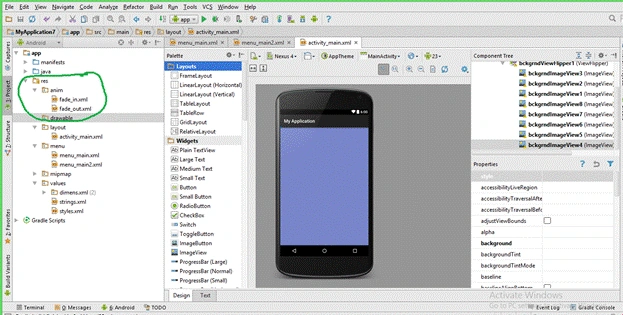
Fade_in consists of the code, given below.
- <?xml version="1.0" encoding="utf-8"?>
- <set xmlns:android="http://schemas.android.com/apk/res/android">
- <Alpha
- android:duration="2000"
- android:fromAlpha="0.0"
- android:toAlpha="1.0"
- android:interpolator="@android:anim/accelerate_interpolator" />
- </set>
- <?xml version="1.0" encoding="utf-8"?>
- <set xmlns:android="http://schemas.android.com/apk/res/android">
- <Alpha
- android:duration="2000"
- android:fromAlpha="1.0"
- android:toAlpha="0.0"
- android:interpolator="@android:anim/accelerate_interpolator" />
- </set>
Step 3
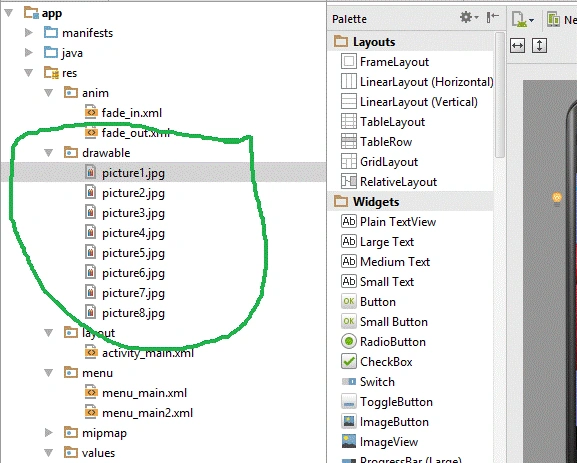
Now, copy the eight pictures, which you want to slide in your app from your PC and paste into app res drawable.
Step 4
Activity_main.xml should consist of a code, given below.
- <?xml version="1.0" encoding="utf-8"?>
- <RelativeLayout xmlns:android="http://schemas.android.com/apk/res/android"
- xmlns:tools="http://schemas.android.com/tools"
- android:layout_width="fill_parent"
- android:layout_height="fill_parent"
- tools:context="com.sheravision.myapplication.MainActivity"
- android:background="#7986cb">
- <LinearLayout
- android:layout_width="fill_parent"
- android:layout_height="fill_parent">
- <ViewFlipper
- android:id="@+id/bckgrndViewFlipper1"
- android:layout_marginTop="30dp"
- android:layout_width="fill_parent"
- android:layout_height="fill_parent">
- <ImageView
- android:id="@+id/bckgrndImageView2"
- android:layout_width="fill_parent"
- android:layout_height="fill_parent"
- android:scaleType="fitCenter"
- android:src="@drawable/picture7" />
- <ImageView
- android:id="@+id/bckgrndImageView1"
- android:layout_width="fill_parent"
- android:layout_height="fill_parent"
- android:scaleType="fitCenter"
- android:src="@drawable/picture8" />
- <ImageView
- android:id="@+id/bckgrndImageView8"
- android:layout_width="fill_parent"
- android:layout_height="fill_parent"
- android:scaleType="fitCenter"
- android:src="@drawable/picture1" />
- <ImageView
- android:id="@+id/bckgrndImageView7"
- android:layout_width="fill_parent"
- android:layout_height="fill_parent"
- android:scaleType="fitCenter"
- android:src="@drawable/picture2" />
- <ImageView
- android:id="@+id/bckgrndImageView6"
- android:layout_width="fill_parent"
- android:layout_height="fill_parent"
- android:scaleType="fitCenter"
- android:src="@drawable/picture3"
- android:layout_marginTop="0dp" />
- <ImageView
- android:id="@+id/bckgrndImageView5"
- android:layout_width="fill_parent"
- android:layout_height="fill_parent"
- android:scaleType="fitCenter"
- android:src="@drawable/picture4" />
- <ImageView
- android:id="@+id/bckgrndImageView4"
- android:layout_width="fill_parent"
- android:layout_height="fill_parent"
- android:scaleType="fitCenter"
- android:src="@drawable/picture5" />
- <ImageView
- android:id="@+id/bckgrndImageView3"
- android:layout_width="fill_parent"
- android:layout_height="fill_parent"
- android:scaleType="fitCenter"
- android:src="@drawable/picture6" />
- </ViewFlipper>
- </LinearLayout>
- </RelativeLayout>
Step 5
Now, the last task remaining is to code for MainActivity.java. The code, given below completes the MainActivity.java.
- package com.sheravision.myapplication;
- import android.os.Bundle;
- import android.support.v7.app.AppCompatActivity;
- import android.view.animation.Animation;
- import android.view.animation.AnimationUtils;
- import android.widget.ViewFlipper;
- public class MainActivity extends AppCompatActivity {
- Animation fade_in, fade_out;
- ViewFlipper viewFlipper;
- @Override
- protected void onCreate(Bundle savedInstanceState) {
- super.onCreate(savedInstanceState);
- setContentView(R.layout.activity_main);
- viewFlipper = (ViewFlipper) this.findViewById(R.id.bckgrndViewFlipper1);
- fade_in = AnimationUtils.loadAnimation(this,
- android.R.anim.fade_in);
- fade_out = AnimationUtils.loadAnimation(this,
- android.R.anim.fade_out);
- viewFlipper.setInAnimation(fade_in);
- viewFlipper.setOutAnimation(fade_out);
- //sets auto flipping
- viewFlipper.setAutoStart(true);
- viewFlipper.setFlipInterval(5000);
- viewFlipper.startFlipping();
- }
- }



Ritesh kumarPosted Oct 28, 2016, 8:21 AM
Nice share
Shamim UddinPosted Oct 16, 2016, 5:28 AM
Nice