

In this article we will learn how to add Bootstrap in Angular 6 projects. We will learn from the beginning how we add Bootstrap and use it in our application. Bootstrap is used to create responsive web applications.
Prerequisites
- We should have a basic knowledge of HTML and JavaScript.
- Basic knowledge of TypeScript
- Visual Studio Code should be installed
- Node and NPM installed
- Angular Cli
First of all, let's check Node and npm version in our system.To check versions open command prompt, and type -
- node -v
- npm -v
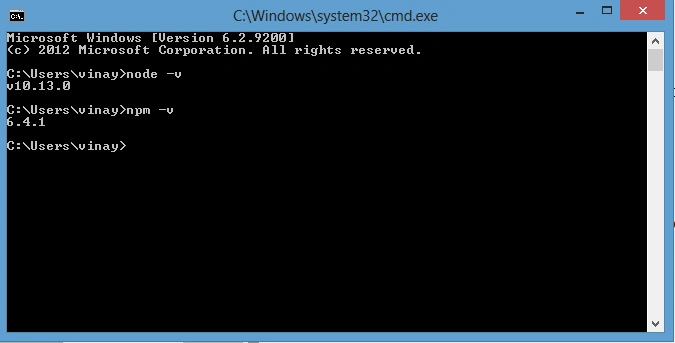
Node latest version is installed
Now create a Project using cmd,
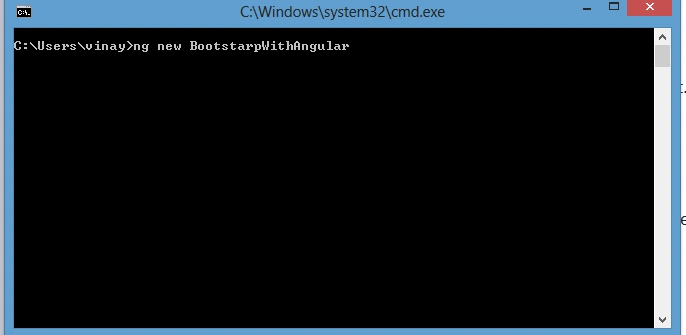
After creating the project open the project in Visual Studio code
Now, open the integrated terminal by pressing Ctrl + and ~,and add the following command to add Bootstarp in this project,

Now open node_modules folder and check that the Bootstrap folder is created,

Open this folder and check if Bootstrap file is added,

Now open styles.css file and add Bootstrap file reference. We can also add Bootstrap file reference into angular.json file.
To add reference in styles.css file add this line,
Open app.component.html and add a button and add bootstrap class to this button,

Bootstrap reference is added in our project. Let's create a form using Bootstrap classes. Add these lines in app.component.html of html and bootstrap to design form.
- <div class="container">
- <form>
- <div class="form-group">
- <label for="Username">Username:</label>
- <input type="text" class="form-control" id="txtuname" placeholder="Username">
- </div>
- <div class="form-group">
- <label for="Password">Password:</label>
- <input type="password" class="form-control" id="txtPassword" placeholder="Password">
- </div>
- <div class="form-group">
- <label for="City">City:</label>
- <input type="text" class="form-control" id="txtcity" placeholder="City">
- </div>
- <div class="form-group">
- <label for="Country">Country:</label>
- <input type="text" class="form-control" id="txtCountry" placeholder="Country">
- </div>
- <div class="text-center">
- <button type="submit" class="btn btn-primary">Save</button>
- </div>
- </form>
- </div>
- <router-outlet></router-outlet>

Bootstrap classes is added successfully in our project.
Summary
Amit Kumar SinghPosted Nov 15, 2018, 12:13 AM
Thanks Sanwar for sharing !!!