

Introduction
Web parts are the building blocks of the pages by which you can modify the content, appearance and behavior of pages of a SharePoint site.
In this blog we are going to discuss how to Add, Update and Remove the web part using csom. Here I have used Content Editor Web Part in Wiki page.
Adding the web part in a wikipage
Step 1
First set the credentials by providing the user credentials.
Step 2
Using the client context, load the web.
Step 3
Get the object of the file using server relative url of the wiki page in which you want to add the web part. Example (/sites/Team Site/Site Pages/wikiPage.aspx).
Step 4
Get the 'limitedWebPartManager' by using object file.
Step 5
Design the Xml string for importing the web part as definition of web part in 'limitedWebPartManager'. In xml I have added the Title of web part as 'My Web Part'.
Step 6
Then add the web part order and left zone of the page.
Follow the below code snippet,
- using System;
- using Microsoft.SharePoint.Client;
- using Microsoft.SharePoint.Client.WebParts;
- using System.Security;
- namespace webpartadd {
- class Program {
- static void Main(string[] args) {
- string userName = "[email protected]";
- string password = "PassWord";
- string siteUrl = "https://tenantName.sharepoint.com/sites/TeamSite";
- SecureString securePassword = new SecureString();
- foreach(char c in password) {
- securePassword.AppendChar(c);
- }
- var credentials = new SharePointOnlineCredentials(userName, securePassword);
- using(ClientContext clientContext = new ClientContext(siteUrl)) {
- try {
- clientContext.Credentials = credentials;
- clientContext.Load(clientContext.Web);
- clientContext.ExecuteQuery();
- File oFile = clientContext.Web.GetFileByServerRelativeUrl("/sites/TeamSite/SitePages/wikiPage.aspx");
- LimitedWebPartManager limitedWebPartManager = oFile.GetLimitedWebPartManager(PersonalizationScope.Shared);
- string xmlWebPart = "<?xml version=\"1.0\" encoding=\"utf-8\"?>" + "<WebPart xmlns:xsi=\"http://www.w3.org/2001/XMLSchema-instance\"" + " xmlns:xsd=\"http://www.w3.org/2001/XMLSchema\"" + " xmlns=\"http://schemas.microsoft.com/WebPart/v2\">" + "<Title>My Web Part</Title><FrameType>Default</FrameType>" + "<Description>Use for formatted text, tables, and images.</Description>" + "<IsIncluded>true</IsIncluded><ZoneID></ZoneID><PartOrder>0</PartOrder>" + "<FrameState>Normal</FrameState><Height /><Width /><AllowRemove>true</AllowRemove>" + "<AllowZoneChange>true</AllowZoneChange><AllowMinimize>true</AllowMinimize>" + "<AllowConnect>true</AllowConnect><AllowEdit>true</AllowEdit>" + "<AllowHide>true</AllowHide><IsVisible>true</IsVisible><DetailLink /><HelpLink />" + "<HelpMode>Modeless</HelpMode><Dir>Default</Dir><PartImageSmall />" + "<MissingAssembly>Cannot import this Web Part.</MissingAssembly>" + "<PartImageLarge>/_layouts/images/mscontl.gif</PartImageLarge><IsIncludedFilter />" + "<Assembly>Microsoft.SharePoint, Version=13.0.0.0, Culture=neutral, " + "PublicKeyToken=94de0004b6e3fcc5</Assembly>" + "<TypeName>Microsoft.SharePoint.WebPartPages.ContentEditorWebPart</TypeName>" + "<ContentLink xmlns=\"http://schemas.microsoft.com/WebPart/v2/ContentEditor\" />" + "<Content xmlns=\"http://schemas.microsoft.com/WebPart/v2/ContentEditor\">" + "<![CDATA[This is a first paragraph!<DIV> </DIV>And this is a second paragraph.]]></Content>" + "<PartStorage xmlns=\"http://schemas.microsoft.com/WebPart/v2/ContentEditor\" /></WebPart>";
- WebPartDefinition oWebPartDefinition = limitedWebPartManager.ImportWebPart(xmlWebPart);
- limitedWebPartManager.AddWebPart(oWebPartDefinition.WebPart, "Left", 1);
- clientContext.ExecuteQuery();
- } catch (Exception e) {
- Console.WriteLine(e);
- }
- }
- Console.WriteLine("Succcesfully added webpart");
- }
- }
- }
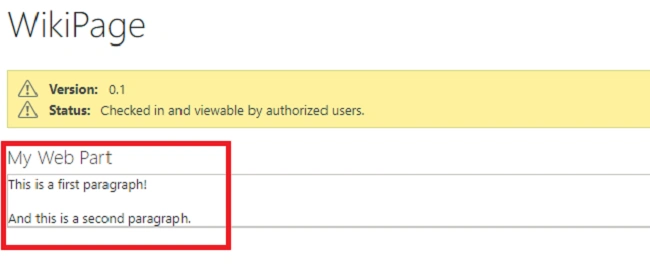
In the below image webpat is added in a wikipage,
Updating the web part in a wikipage
Step 1
First set the credentials by providing the user credentials.
Step 2
Using the client context, load the web.
Step 3
Get the object of the file using the server relative URL of the wiki page in which you want to add the web part. Example (/sites/team Site/Site Pages/wikiPage.aspx).
Step 4
Get the 'limitedWebPartManager' by using object file.
Step 5
Load the web part using LINQ query expression to return only the title of each Web Part.
Step 6
Check the page having at least one web part for updating.
Step 7
Get the web part definition by using the order value.
Step 8
Change the web part Title then save the web part by calling 'SaveWebPartChanges()'.
Follow the below code snippet,
- using System;
- using Microsoft.SharePoint.Client;
- using Microsoft.SharePoint.Client.WebParts;
- using System.Security;
- namespace UpdateWebpart {
- class Program {
- static void Main(string[] args) {
- string userName = "[email protected]";
- string password = "PassWord";
- string siteUrl = "https://tenantName.sharepoint.com/sites/TeamSite";
- SecureString securePassword = new SecureString();
- foreach(char c in password) {
- securePassword.AppendChar(c);
- }
- var cred = new SharePointOnlineCredentials(userName, securePassword);
- using(ClientContext clientContext = new ClientContext(siteUrl)) {
- try {
- clientContext.Credentials = cred;
- clientContext.Load(clientContext.Web);
- clientContext.ExecuteQuery();
- File oFile = clientContext.Web.GetFileByServerRelativeUrl("/sites/TeamSite/SitePages/wikiPage.aspx");
- LimitedWebPartManager limitedWebPartManager = oFile.GetLimitedWebPartManager(PersonalizationScope.Shared);
- clientContext.Load(limitedWebPartManager.WebParts, wps => wps.Include(wp => wp.WebPart.Title));
- clientContext.ExecuteQuery();
- if (limitedWebPartManager.WebParts.Count == 0) {
- throw new Exception("No Web Parts on this page.");
- }
- WebPartDefinition oWebPartDef = limitedWebPartManager.WebParts[0];
- WebPart oWebPart = oWebPartDef.WebPart;
- oWebPart.Title = "New WebPart Title";
- oWebPartDef.SaveWebPartChanges();
- clientContext.ExecuteQuery();
- } catch (Exception e) {
- Console.WriteLine(e);
- }
- }
- Console.WriteLine("Succcesfully updated webpart");
- }
- }
- }
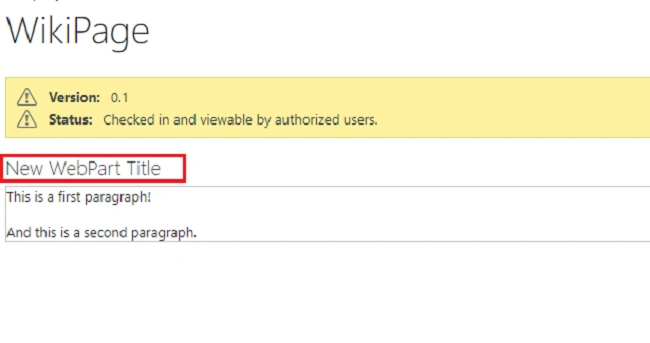
In the below image web pat title is update in a wikipage,
Removing the web part from a wikipage
Step 1
First set the credentials by providing the user credentials.
Step 2
Using the client context and, load the web.
Step 3
Get the object of the file using server relative URL of the wiki page in which you want to add the web part. Example (/sites/team Site/Site Pages/wikiPage.aspx).
Step 4
Get the 'limitedWebPartManager' by using object file.
Step 5
Load the web part.
Step 6
Check the page having at least one web part for deleting.
Step 7
Get the web part definition by using the order value.
Step 8
Delete the web part by calling ‘DeleteWebPart ()'.
Follow the below code snippet,
- using System;
- using Microsoft.SharePoint.Client;
- using Microsoft.SharePoint.Client.WebParts;
- using System.Security;
- namespace RemoveWebpart {
- class Program {
- static void Main(string[] args) {
- string userName = "[email protected]";
- string password = "PassWord";
- string siteUrl = "https://tenantName.sharepoint.com/sites/TeamSite";
- SecureString securePassword = new SecureString();
- foreach(char c in password) {
- securePassword.AppendChar(c);
- }
- var cred = new SharePointOnlineCredentials(userName, securePassword);
- using(ClientContext clientContext = new ClientContext(siteUrl)) {
- try {
- clientContext.Credentials = cred;
- clientContext.Load(clientContext.Web);
- clientContext.ExecuteQuery();
- File oFile = clientContext.Web.GetFileByServerRelativeUrl("/sites/TeamSite/SitePages/wikiPage.aspx");
- LimitedWebPartManager ltdWebPartManager = oFile.GetLimitedWebPartManager(PersonalizationScope.Shared);
- clientContext.Load(ltdWebPartManager.WebParts);
- clientContext.ExecuteQuery();
- if (ltdWebPartManager.WebParts.Count == 0) {
- throw new Exception("No Web Parts to delete.");
- }
- WebPartDefinition webPartDef = ltdWebPartManager.WebParts[0];
- webPartDef.DeleteWebPart();
- clientContext.ExecuteQuery();
- } catch (Exception e) {
- Console.WriteLine(e);
- }
- Console.WriteLine("Succcesfully deleted webpart");
- }
- }
- }
- }
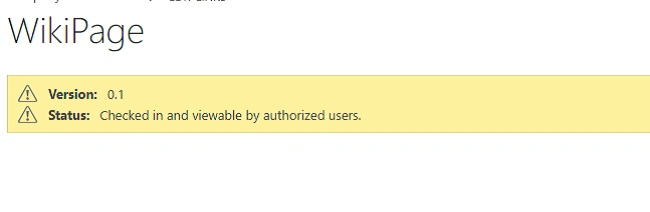
In the below image web pat is deleted from the wikipage,
Join the conversation! Your thoughts help the community grow.