

Action Method Parameters
- We can organize the action methods for GET and POST requests separately.
- We can easily create seperate action methods for each request types.
Request Type Attribute
- [HttpGet]
- [HttpPost]
Action method parameters
MVC framework provides 3 different action methods for Post Request, which are given below.
- Form Collection
- Formal Parameters
- Model Class Object
i) Form Collection
- It is a pre-defined class in syste.web.mvc namespace.
- It stores the items in key value pairs format only.
- key - name of the input fields.
- value - input content field (string type).
Step 1 - Create a new empty MVC Application.
Step 2 - Add the controller, as shown below.
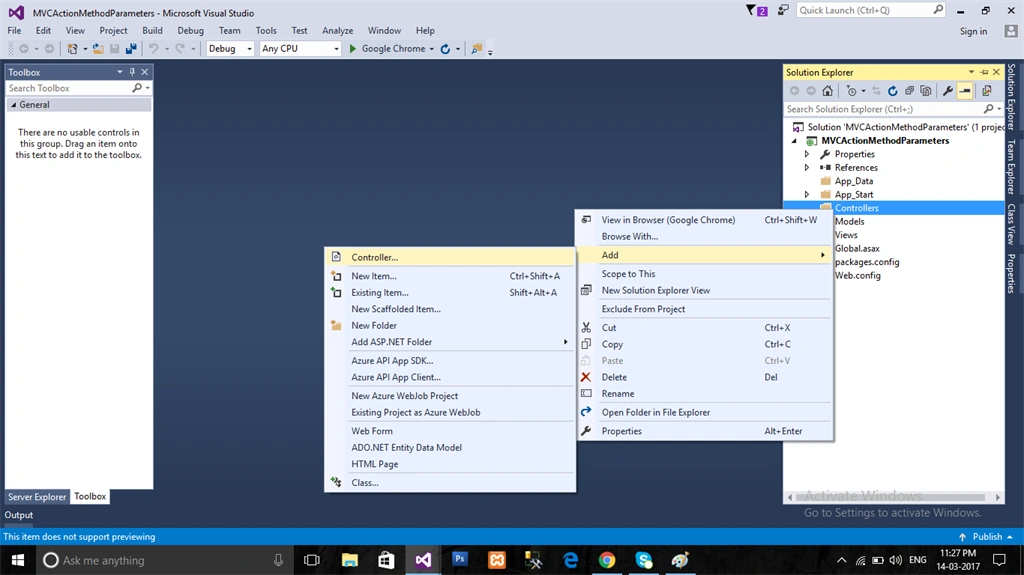
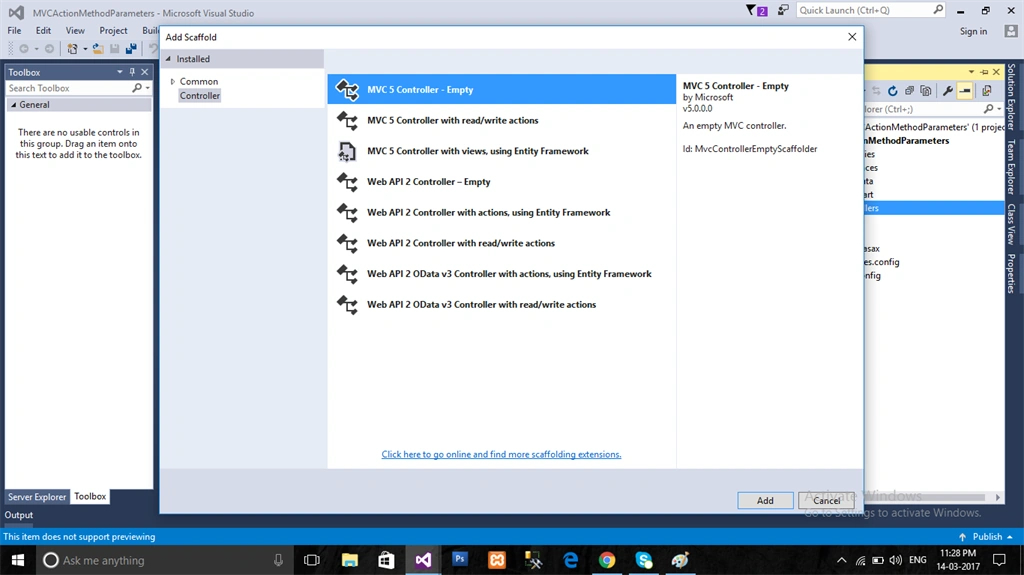
Step 3 - First is controller example of FormCollection.
- using System.Web.Mvc;
- namespace MVCActionMethodParameters.Controllers
- {
- public class HomeController : Controller
- {
- // GET: Home
- [HttpGet]
- public ActionResult Index()
- {
- return View();
- }
- [HttpPost]
- public ActionResult Index(FormCollection frmobj) //FormCollection
- {
- string username = frmobj["userid"];
- string password = frmobj["pwd"];
- if (username == "Admin" && password == "123456")
- {
- Response.Write("<h2> Success </h2> Valid User...");
- }
- else
- Response.Write(" <h2> Failed </h2> Invalid User...");
- return View();
- }
- }
- @{
- ViewBag.Title = "Index";
- }
- <h1>Form Collection</h1>
- <h2>Login </h2>
- @using (Html.BeginForm())
- {
- <label>User Name</label>
- <input type="text" class="form-control" id="userid" name="userid" />
- <label>Password</label>
- <input type="text" class="form-control" id="pwd" name="pwd" /> <br />
- <input type="submit" class="btn btn-success" value="Submit" />
- }
- Using this option, we can get the values easily in the form of pre-defined data types example like int, string etc.
- We can easily handle type casting.
- It will read based on the form input fields name directly.
Note - The name of the parameters should be the same as the input field name. Afterwards, it will possible to achieve the formal parameters.
Step 5 - Again add another controller, give any name of the controller and paste the code given below into Controller.
- using System.Web.Mvc;
- namespace MVCActionMethodParameters.Controllers
- {
- public class LoginController : Controller
- {
- // GET: Login
- [HttpGet]
- public ActionResult Login()
- {
- return View();
- }
- [HttpPost]
- public ActionResult Login(string userid, string pwd) //Formal Parameters
- {
- string username = userid;
- string password = pwd;
- if (username == "Admin" && password == "123456")
- {
- Response.Write("<h2> Success </h2> Valid User...");
- }
- else
- Response.Write(" <h2> Failed </h2> Invalid User...");
- return View();
- }
- }
- }
- @{
- ViewBag.Title = "Login";
- }
- <h1>Formal Parameters</h1>
- <hr />
- <h2>Login</h2>
- @using (Html.BeginForm())
- {
- <label>User Name</label>
- <input type="text" class="form-control" id="userid" name="userid" />
- <label>Password</label>
- <input type="text" class="form-control" id="pwd" name="pwd" /> <br />
- <input type="submit" class="btn btn-success" value="Submit" />
- }
- It is the same as business entities.
- We have created a seperate class for the objects in model folder.
- In MVC model, logic is prepared by using the classes, which are based on the database tables.
- It requires model class objects.
Note - The name of the parameters should be same as the input field name, then only it will possible to achieve formal parameters.
Step 7 - Right click on Model folder and add the class.
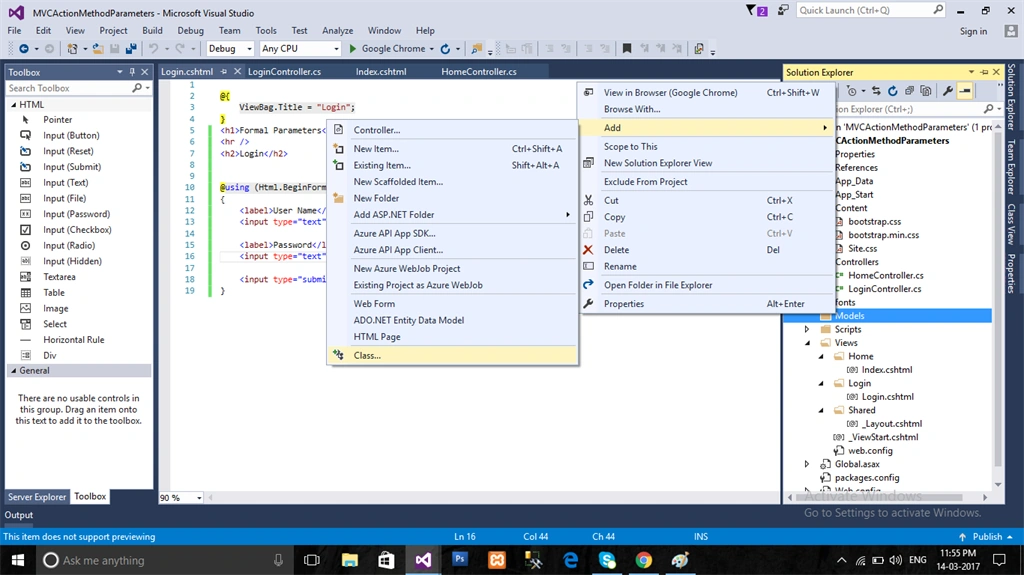
Step 8 - Create a class with the objects.
- namespace MVCActionMethodParameters.Models
- {
- public class Login
- {
- public string userid { get; set; }
- public string pwd { get; set; }
- }
- }
- using System.Web.Mvc;
- using MVCActionMethodParameters.Models;
- namespace MVCActionMethodParameters.Controllers
- {
- public class LoginModelController : Controller
- {
- // GET: LoginModel
- public ActionResult LoginModel()
- {
- return View();
- }
- [HttpPost]
- public ActionResult LoginModel(Login obj) // Model class object
- {
- string username = obj.userid;
- string password = obj.pwd;
- if (username == "Admin" && password == "123456")
- {
- Response.Write("<h2> Success </h2> Valid User...");
- }
- else
- Response.Write(" <h2> Failed </h2> Invalid User...");
- return View();
- }
- }
- }
Step 10 - Right click on Model class object method and add the view.
- <h1>Formal Parameters</h1>
- <hr />
- <h2>Login</h2>
- @using (Html.BeginForm())
- {
- <label>User Name</label>
- <input type="text" class="form-control" id="userid" name="userid" />
- <label>Password</label>
- <input type="text" class="form-control" id="pwd" name="pwd" /> <br />
- <input type="submit" class="btn btn-success" value="Submit" />
- }
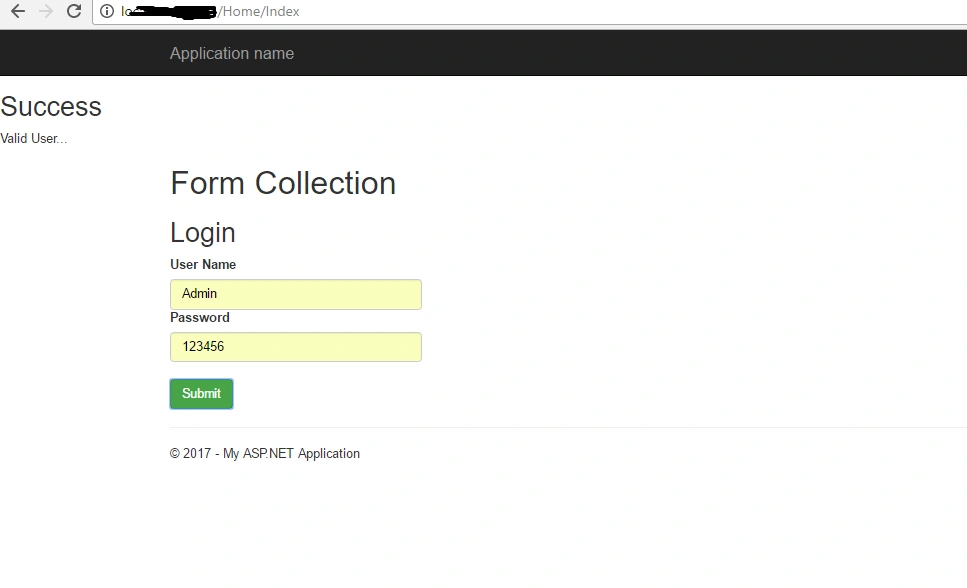
Ahmed SalimPosted Nov 24, 2017, 7:06 PM
This is good but missing want i wanted [HttpGET]