

Introduction and History
Today, I shall show you how to create text recognition app using Xamarin.Android. This app is based on Xamarin Google-Play-Services vision for text recognition. Text recognition is the way of identifying the text in pictures and video streams and perceiving the content from there. Once the text is identified, the recognizer at that point decides the real content in each square and fragments it into lines and words.
Text Structure
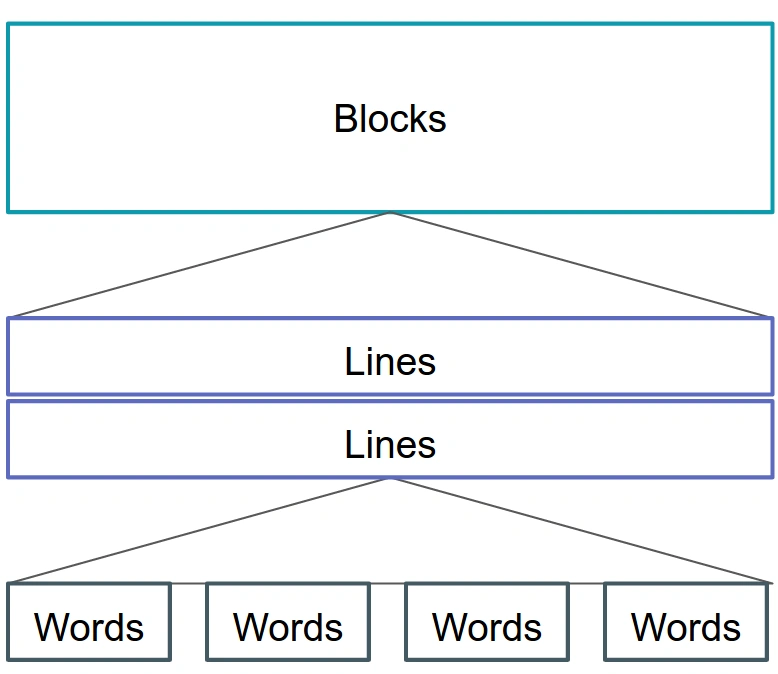
The text recognizer fragments the content into pieces, lines, and words.
Today, I shall show you how to create text recognition app using Xamarin.Android. This app is based on Xamarin Google-Play-Services vision for text recognition. Text recognition is the way of identifying the text in pictures and video streams and perceiving the content from there. Once the text is identified, the recognizer at that point decides the real content in each square and fragments it into lines and words.
Text Structure
The text recognizer fragments the content into pieces, lines, and words.
- A block is a bordering set of text lines; for example, a passage or segment.
- A line is an adjoining set of words on a similar vertical axis.
- A word is a contiguous arrangement of alphanumeric characters on a similar vertical axis.
Step 1
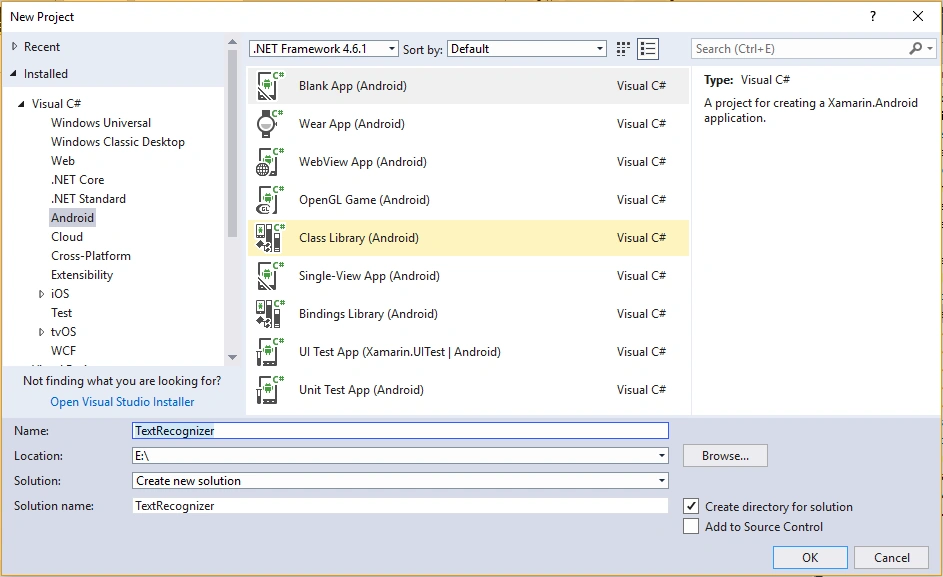
Open Visual Studio. Go to New Project-> Templates-> Visual C#-> Android-> Blank app. Select Blank app. Give the project a name, such as TextRecognizer.
Step 2
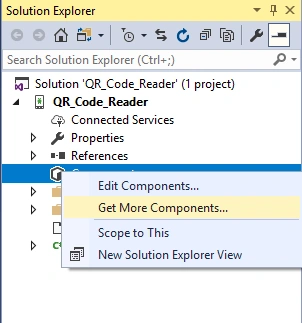
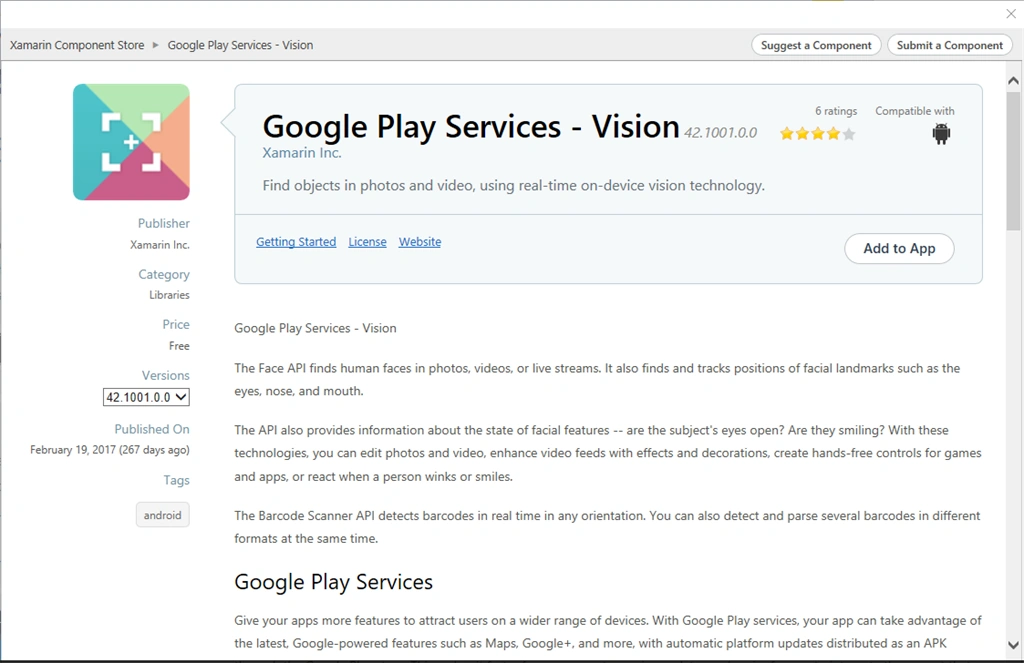
First of all, we need to add a component that is required for text recognition. Open Solution Explorer and go to Components -> Get More Components. In this way, you can move onto Xamarin Components Store and search the Vision app. Click "Add to App", as shown below.
Step 3
Open Solution Explorer and go to Project Name-> Resources-> Layout-> Main.axml and add the following code.
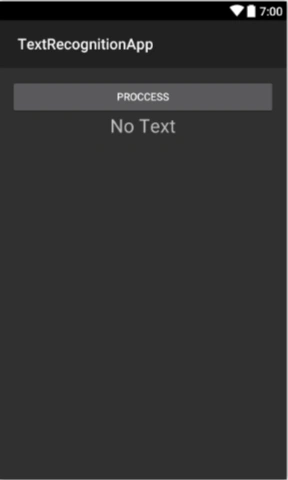
The layout will have an ImageView in order to display the preview of the image. I have added a TextView also to display the content of the recognized text.
Main.axml
- <?xml version="1.0" encoding="utf-8"?>
- <LinearLayout xmlns:android="http://schemas.android.com/apk/res/android"
- android:orientation="vertical"
- android:layout_width="match_parent"
- android:layout_height="match_parent"
- android:padding="15dp">
- <ImageView
- android:id="@+id/image_view"
- android:layout_width="match_parent"
- android:layout_height="wrap_content"
- android:scaleType="centerInside" />
- <Button
- android:id="@+id/btnProcess"
- android:layout_width="match_parent"
- android:layout_height="wrap_content"
- android:text="Proccess" />
- <TextView
- android:id="@+id/txtView"
- android:layout_width="wrap_content"
- android:layout_height="wrap_content"
- android:text="No Text"
- android:layout_gravity="center"
- android:textSize="25sp" />
- </LinearLayout>
Step 4
We need a permission from device. Let's open Solution Explorerand go to Properties-> AndroidManifest and add the following code inside application tags.
We need a permission from device. Let's open Solution Explorerand go to Properties-> AndroidManifest and add the following code inside application tags.
- <meta-data android:name="com.google.android.gms.vision.DEPENDENCIES"
- android:value="barcode"/>
Step 5
Open Solution Explorer, go to Project Name-> Resources-> Drawable, and add this image to the drawable folder.
Open Solution Explorer, go to Project Name-> Resources-> Drawable, and add this image to the drawable folder.

Step 6
Open Solution Explorer, go to Project Name-> MainActivity, and add the following code with appropriate namespaces.
Here is the complete code of Main Activity.
Open Solution Explorer, go to Project Name-> MainActivity, and add the following code with appropriate namespaces.
Here is the complete code of Main Activity.
- using Android.App;
- using Android.Widget;
- using Android.OS;
- using Android.Graphics;
- using Android.Gms.Vision.Texts;
- using Android.Util;
- using Android.Gms.Vision;
- using System.Text;
- namespace TextRecognitionApp
- {
- [Activity(Label = "TextRecognitionApp", MainLauncher = true)]
- public class MainActivity : Activity
- {
- private ImageView imageview;
- private Button btnProcess;
- private TextView txtView;
- protected override void OnCreate(Bundle savedInstanceState)
- {
- base.OnCreate(savedInstanceState);
- // Set our view from the "main" layout resource
- SetContentView(Resource.Layout.Main);
- imageview = FindViewById<ImageView>(Resource.Id.image_view);
- btnProcess = FindViewById<Button>(Resource.Id.btnProcess);
- txtView = FindViewById<TextView>(Resource.Id.txtView);
- Bitmap bitmap = BitmapFactory.DecodeResource(ApplicationContext.Resources, Resource.Drawable.csharpcorner);
- imageview.SetImageBitmap(bitmap);
- btnProcess.Click += delegate
- {
- TextRecognizer txtRecognizer = new TextRecognizer.Builder(ApplicationContext).Build();
- if (!txtRecognizer.IsOperational)
- {
- Log.Error("Error", "Detector dependencies are not yet available");
- }
- else
- {
- Frame frame = new Frame.Builder().SetBitmap(bitmap).Build();
- SparseArray items = txtRecognizer.Detect(frame);
- StringBuilder strBuilder = new StringBuilder();
- for (int i = 0; i < items.Size(); i++)
- {
- TextBlock item = (TextBlock)items.ValueAt(i);
- strBuilder.Append(item.Value);
- strBuilder.Append("/");
- }
- txtView.Text = strBuilder.ToString();
- }
- };
- }
- }
- }
Output
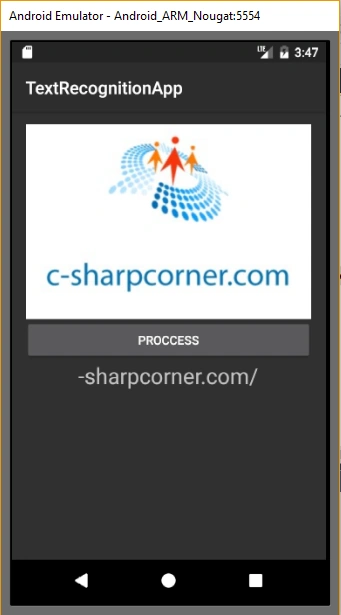
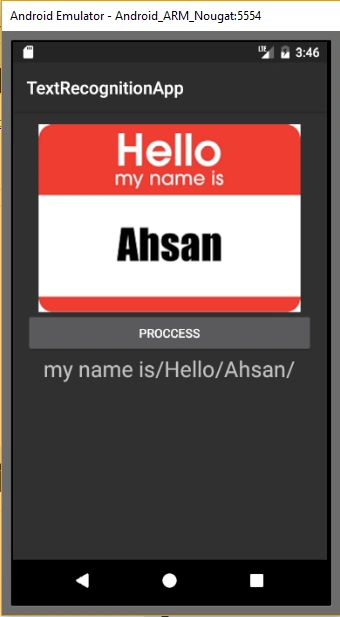
Running this project, you will have result like this.
Suraj BinorkarPosted Jul 29, 2019, 5:42 AM
How do I install google play service vision in xamarin forms using visual studio 2017, actually I am new in xamarin development, and I got task to read text from image. And I found this solution, but I am not able to find any google play service vision package.Do you have any idea, how do I achieve it :)
Ronak ShetiyaPosted Nov 15, 2018, 12:46 AM
Download link is not working
Vinay ReddyPosted Nov 5, 2018, 1:23 AM
How to draw rectangle around the text in the image ?