

Introduction

Xamarin.Forms code runs on multiple platforms - each of which has its own filesystem. This means that reading and writing files is most easily done using the native file APIs on each platform. Alternatively, embedded resources are a simpler solution to distribute data files with an app.
MVVM
MVVM - Model View ViewModel
MVVM Is the design pattern to separate the user interface & business logic concerns. I suppose that you have heard something about it. This pattern created by Microsoft is widely used with applications created with .NET Framework but not only because you can also use it with Xamarin.
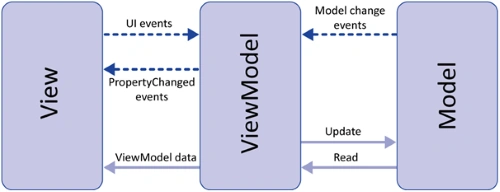
There are many different frameworks to help Xamarin developers.
- MVVM Cross
- MVVM Fresh
- Prism
- MVVM Light
MVVM Light
MVVM Light lightweight framework allows developers to choose which components they want to use. (like ViewModel Locator, Navigation Service, Dialogue Service)
Prerequisites
- Visual Studio 2017 or later (Windows or Mac)
- Mvvm Light Nuget
Setting up a Xamarin.Forms Project
Start by creating a new Xamarin.Forms project. You wíll learn more by going through the steps yourself.
Visual Studio 2019 has more options in the opening window. Clone or check out the code from any repository or, open a project or solution for your computer.
Now, you need to click "Create a new project".
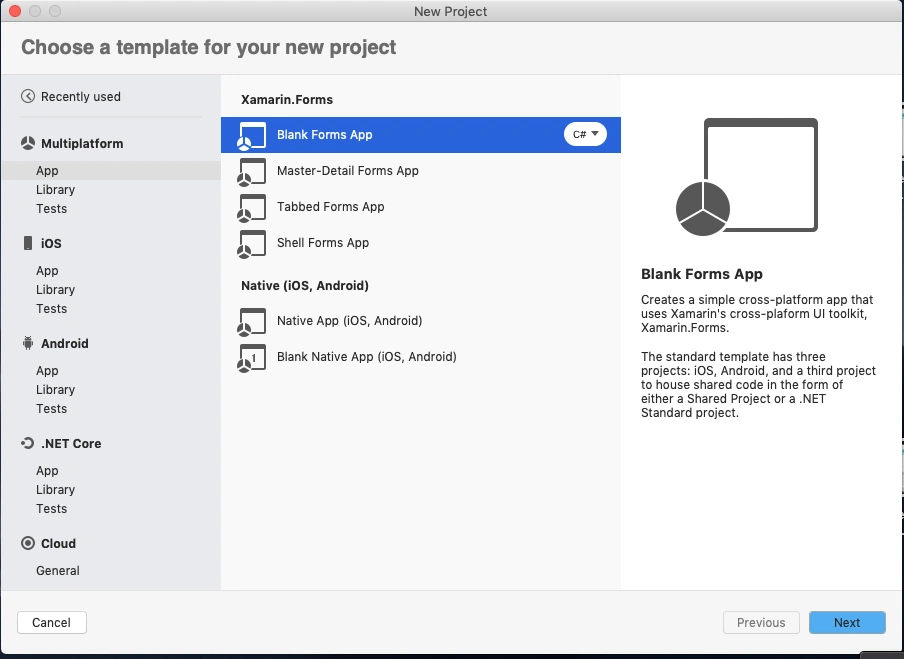
Now, filter by Project Type: Mobile
Choose the Mobile App (Xamarin. forms) project under C# and Mobile.
Name your app. You probably want your project and solution to use the same name as your app. Put it on your preferred location for projects and click "Create".
Now, select the blank app and target platforms - Android, iOS and Windows (UWP).
Subsequently, go to the solution. In there, you get all the files and sources of your project (.NET Standard). Now, select the XAML page and double-click to open the MainPage.Xaml page.
You now have a basic Xamarin.Forms app. Click the Play button to try it out.
NuGet Packages
Now, add the following NuGet Packages.
- MVVM Light
- MVVM Light Libs
Go to Solution Explorer and select your solution. Right-click and select "Manage NuGet Packages for Solution". Search "MVVM Light" and add Package. Remember to install it for each project (.NET Standard, Android, iO).
ViewModel Locator
Here, we are going to register Viewmodels and Create instance of viewmodel using Mvvm Light.
ViewModelLocator.cs
- using GalaSoft.MvvmLight.Ioc;
- using GalaSoft.MvvmLight.Views;
- using System;
- using System.Collections.Generic;
- using System.Text;
- using XamarinStudy.ViewModels;
- namespace XamarinStudy.Services
- {
- /// <summary>
- /// Author : Delpin
- /// </summary>
- public class ViewModelLocator
- {
- public ViewModelLocator()
- {
- SimpleIoc.Default.Register<LandingPageViewModel>();
- }
- public LandingPageViewModel LandingPageVM
- {
- get
- {
- if (!SimpleIoc.Default.IsRegistered<LandingPageViewModel>())
- {
- SimpleIoc.Default.Register<LandingPageViewModel>();
- }
- return SimpleIoc.Default.GetInstance<LandingPageViewModel>();
- }
- }
- }
- }
App.xaml.cs
In this step, Create a Viewmodellocator instance when your app first time open.
- public partial class App : Application
- {
- private static ViewModelLocator _viewModelLocator;
- public App()
- {
- InitializeComponent();
- MainPage = new LandingPage();
- }
- public static ViewModelLocator ViewModelLocator
- {
- get { return _viewModelLocator ?? (_viewModelLocator = new ViewModelLocator()); }
- }
- }
BindingContext
Now, Set your ViewModel BindingContext to ContentPage.
- using System;
- using System.Collections.Generic;
- using System.Linq;
- using System.Text;
- using System.Threading.Tasks;
- using Xamarin.Forms;
- using Xamarin.Forms.Xaml;
- namespace XamarinStudy.ContentPages
- {
- [XamlCompilation(XamlCompilationOptions.Compile)]
- public partial class LandingPage : ContentPage
- {
- public LandingPage()
- {
- InitializeComponent();
- BindingContext = App.ViewModelLocator.LandingPageVM;
- }
- }
- }
Done.
I hope you have understood how to create a MVVM ViewModel Locator using MVVM Light in Xamarin.Forms.
Thanks for reading. Please share your comments and feedback. Happy Coding :)
arulraj ganesanPosted Sep 19, 2020, 11:31 PM
listvew using export CSV,excel,pdf download from android local directory
arulraj ganesanPosted Sep 19, 2020, 8:18 PM
no man I have to store CSV file in device local directory..give any one sample
arulraj ganesanPosted Sep 19, 2020, 2:25 PM
ji we need export CSV sample code
arulraj ganesanPosted Sep 19, 2020, 7:08 AM
How to export csv in xmarain c# code any sample
Rajanikant HawaldarPosted Oct 21, 2019, 9:49 AM
Informative article