

Introduction
This article demonstrates how to use the navigation pages to perform navigation in a stack of pages where the user is able to navigate through pages, forward and backward as desired, and the class implements navigation as a last-in, first-out (LIFO) stack of the page object.
This article demonstrates how to use the navigation pages to perform navigation in a stack of pages where the user is able to navigate through pages, forward and backward as desired, and the class implements navigation as a last-in, first-out (LIFO) stack of the page object.
- PushAsync
Move from one page to another; the application will push a new page onto the navigation stack where it will become the active page. - PopAsync
To return back to the previous page, the application will pop the current page up from the navigation stack, and the new topmost page becomes the active page.
Let's start :)
Step 1
You can create a new Xamarin.Forms app by going to File ->> New -> Visual C# -> Cross Platform >> Cross-Platform App (Xamarin.Native or Xamarin.Forms), give the application name, and press OK.
(Project Name : HierarchicalNavigation)
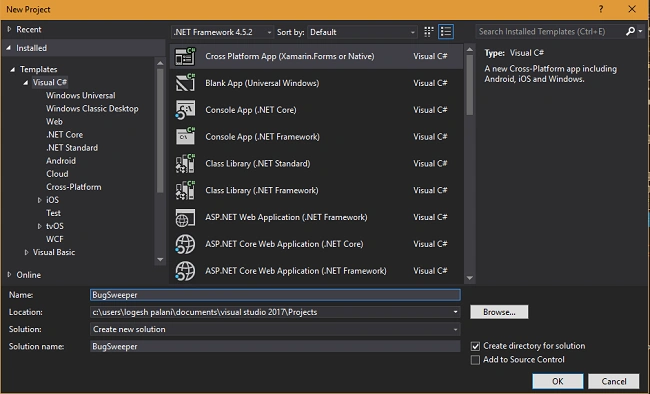
(Project Name : HierarchicalNavigation)
Step 2
Open Solution Explorer >> HierarchicalNavigation(PCL) >> right click and select "New Item". In the popup window, select Cross Platform ->> Class.
Open Solution Explorer >> HierarchicalNavigation(PCL) >> right click and select "New Item". In the popup window, select Cross Platform ->> Class.
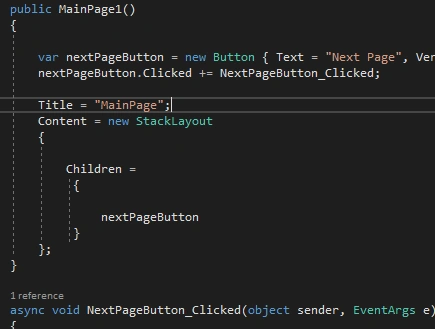
This way, you can add a new class. Create a new Class named MainPage1, double-click to get into its design view, and insert the code given below.
CS code
CS code
- using System;
- using System.Collections.Generic;
- using System.Linq;
- using System.Text;
- using System.Threading.Tasks;
- using Xamarin.Forms;
- namespace NavigtionHirechical
- {
- class MainPage1 : ContentPage
- {
- public MainPage1()
- {
- var nextPageButton = new Button { Text = "Next Page", VerticalOptions = LayoutOptions.CenterAndExpand };
- nextPageButton.Clicked += NextPageButton_Clicked;
- Title = "MainPage";
- Content = new StackLayout
- {
- Children =
- {
- nextPageButton
- }
- };
- }
- async void NextPageButton_Clicked(object sender, EventArgs e)
- {
- await Navigation.PushAsync (new MainPage2());
- }
- }
- }
Step 3
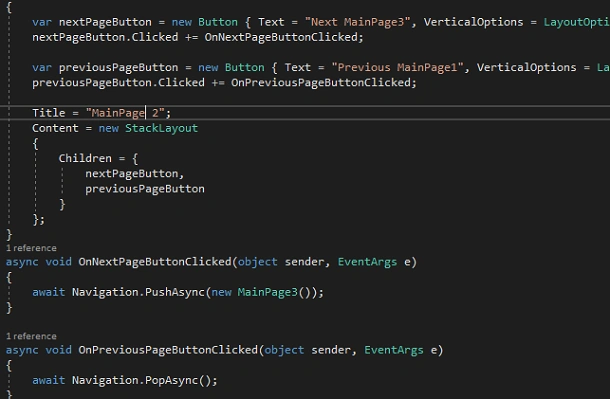
Similarly, create another class named MainPage2 and add the following code.
CS Code
Similarly, create another class named MainPage2 and add the following code.
CS Code
- using System;
- using System.Collections.Generic;
- using System.Linq;
- using System.Text;
- using System.Threading.Tasks;
- using Xamarin.Forms;
- namespace NavigtionHirechical
- {
- public class MainPage2 : ContentPage
- {
- public MainPage2()
- {
- var nextPageButton = new Button { Text = "Next MainPage3", VerticalOptions = LayoutOptions.CenterAndExpand };
- nextPageButton.Clicked += OnNextPageButtonClicked;
- var previousPageButton = new Button { Text = "Previous MainPage1", VerticalOptions = LayoutOptions.CenterAndExpand };
- previousPageButton.Clicked += OnPreviousPageButtonClicked;
- Title = "MainPage 2";
- Content = new StackLayout
- {
- Children = {
- nextPageButton,
- previousPageButton
- }
- };
- }
- async void OnNextPageButtonClicked(object sender, EventArgs e)
- {
- await Navigation.PushAsync(new MainPage3());
- }
- async void OnPreviousPageButtonClicked(object sender, EventArgs e)
- {
- await Navigation.PopAsync();
- }
- }
- }
Step 4
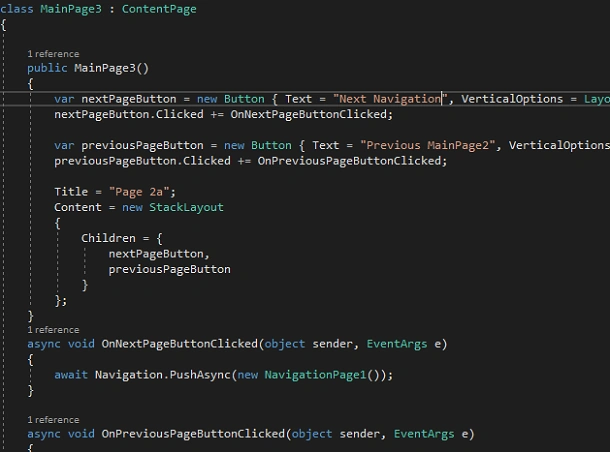
In this step, add a new class named MainPage3 and add the following code.
CS code
In this step, add a new class named MainPage3 and add the following code.
CS code
- using System;
- using System.Collections.Generic;
- using System.Linq;
- using System.Text;
- using System.Threading.Tasks;
- using Xamarin.Forms;
- namespace NavigtionHirechical
- {
- class MainPage3 : ContentPage
- {
- public MainPage3()
- {
- var nextPageButton = new Button { Text = "Next Navigation", VerticalOptions = LayoutOptions.CenterAndExpand };
- nextPageButton.Clicked += OnNextPageButtonClicked;
- var previousPageButton = new Button { Text = "Previous MainPage2", VerticalOptions = LayoutOptions.CenterAndExpand };
- previousPageButton.Clicked += OnPreviousPageButtonClicked;
- Title = "Page 2a";
- Content = new StackLayout
- {
- Children = {
- nextPageButton,
- previousPageButton
- }
- };
- }
- async void OnNextPageButtonClicked(object sender, EventArgs e)
- {
- await Navigation.PushAsync(new NavigationPage1());
- }
- async void OnPreviousPageButtonClicked(object sender, EventArgs e)
- {
- await Navigation.PopAsync();
- }
- }
- }
Step 5
Now, add another new class named NavigationPage1. Here is the code for this class.
CS code
Now, add another new class named NavigationPage1. Here is the code for this class.
CS code
- using System;
- using System.Collections.Generic;
- using System.Linq;
- using System.Text;
- using System.Threading.Tasks;
- using Xamarin.Forms;
- namespace NavigtionHirechical
- {
- class NavigationPage1 : ContentPage
- {
- public NavigationPage1()
- {
- var previousPageButton = new Button { Text = "Previous MainPage", VerticalOptions = LayoutOptions.CenterAndExpand };
- previousPageButton.Clicked += OnPreviousPageButtonClicked;
- var rootPageButton = new Button { Text = "Return to Root MainPage", VerticalOptions = LayoutOptions.CenterAndExpand };
- rootPageButton.Clicked += OnRootPageButtonClicked;
- var insertPageButton = new Button
- {
- Text = "Insert Page 2a Before Page 3",
- VerticalOptions = LayoutOptions.CenterAndExpand
- };
- insertPageButton.Clicked += OnInsertPageButtonClicked;
- var removePageButton = new Button { Text = "Remove MainPage 2", VerticalOptions = LayoutOptions.CenterAndExpand };
- removePageButton.Clicked += OnRemovePageButtonClicked;
- Title = "Final Page";
- Content = new StackLayout
- {
- Children = {
- previousPageButton,
- rootPageButton,
- insertPageButton,
- removePageButton
- }
- };
- }
- async void OnPreviousPageButtonClicked(object sender, EventArgs e)
- {
- await Navigation.PopAsync();
- }
- async void OnRootPageButtonClicked(object sender, EventArgs e)
- {
- await Navigation.PopToRootAsync();
- }
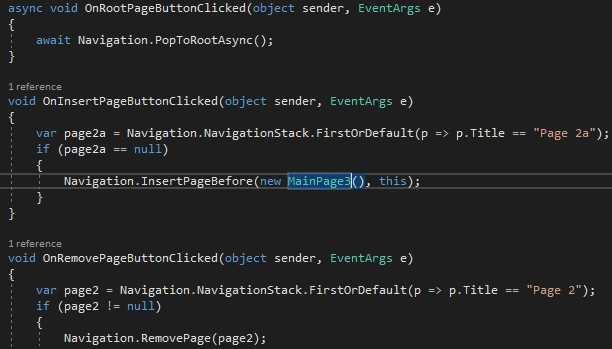
- void OnInsertPageButtonClicked(object sender, EventArgs e)
- {
- var page2a = Navigation.NavigationStack.FirstOrDefault(p => p.Title == "Page 2a");
- if (page2a == null)
- {
- Navigation.InsertPageBefore(new MainPage3(), this);
- }
- }
- void OnRemovePageButtonClicked(object sender, EventArgs e)
- {
- var page2 = Navigation.NavigationStack.FirstOrDefault(p => p.Title == "Page 2");
- if (page2 != null)
- {
- Navigation.RemovePage(page2);
- }
- }
- }
- }
Step 6
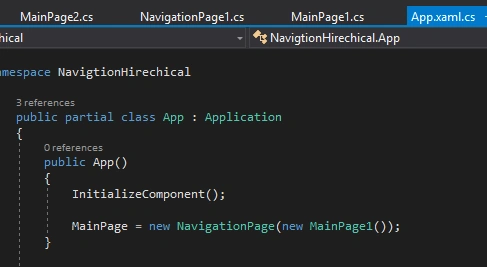
After the design view creation, go to Solution Explorer >> HierarchicalNavigation(PCL) >> click to open App.xaml.cs. The code is given below.
CS code
After the design view creation, go to Solution Explorer >> HierarchicalNavigation(PCL) >> click to open App.xaml.cs. The code is given below.
CS code
- using System;
- using System.Collections.Generic;
- using System.Linq;
- using System.Text;
- using Xamarin.Forms;
- namespace NavigtionHirechical
- {
- public partial class App : Application
- {
- public App()
- {
- InitializeComponent();
- MainPage = new NavigationPage(new MainPage1());
- }
- protected override void OnStart()
- {
- // Handle when your app starts
- }
- protected override void OnSleep()
- {
- // Handle when your app sleeps
- }
- protected override void OnResume()
- {
- // Handle when your app resumes
- }
- }
- }
Step 7
Click 'F5' or "Build " to 'Run' your application. Running this project, you will have the result like below.
Click 'F5' or "Build " to 'Run' your application. Running this project, you will have the result like below.
Finally, we have successfully created a Xamarin.Forms Hierarchical Navigation Application.
Luca MonacoPosted Sep 18, 2018, 6:51 AM
Thanks for a great tutorial :)
Ashish TiwariPosted Dec 13, 2017, 1:39 AM
Thanks for sharing. keep sharing
Ravishankar VelladuraiPosted Dec 2, 2017, 1:32 PM
Bro excellent article keep sharing!!!