

Introduction
This article demonstrates how to create your own camera application to capture pictures and videos.It's showing imageview or videoview in the last capture.
This article demonstrates how to create your own camera application to capture pictures and videos.It's showing imageview or videoview in the last capture.
Step 1
You can get started with a new Xamarin.Forms app by going to File ->New -> Visual C# -> Cross Platform -> select Crossplatform app(Xamarin.Forms or Native) and give the application suitable name, such as Camera App and solution name. Choose your project location,then click ok.
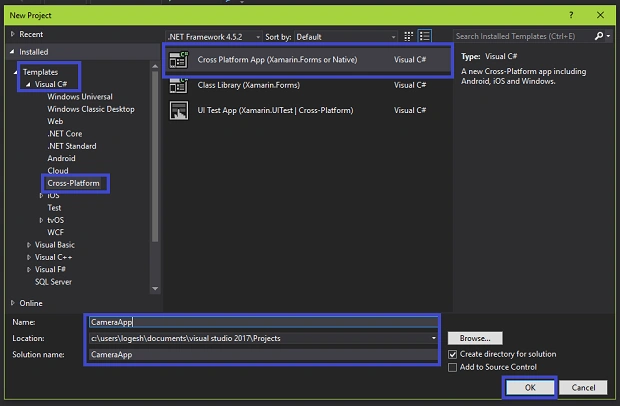
You can get started with a new Xamarin.Forms app by going to File ->New -> Visual C# -> Cross Platform -> select Crossplatform app(Xamarin.Forms or Native) and give the application suitable name, such as Camera App and solution name. Choose your project location,then click ok.
Step 2
After the project creation, add the following Nuget Packages for your projects
After the project creation, add the following Nuget Packages for your projects
- Xam.Plugin.Media
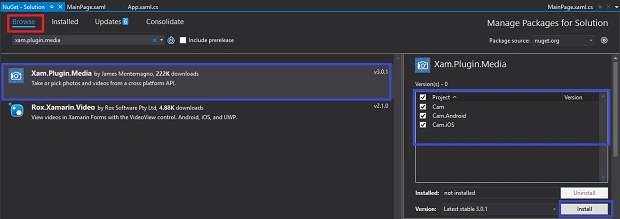
For that, open Solution Explorer ->right click to solution explorer and select "Manage NugetPacages for the solution".
Now,select the following nuget packages and followedby select your project then click to Install it.
- Xam.Plugin.Media
Step 3
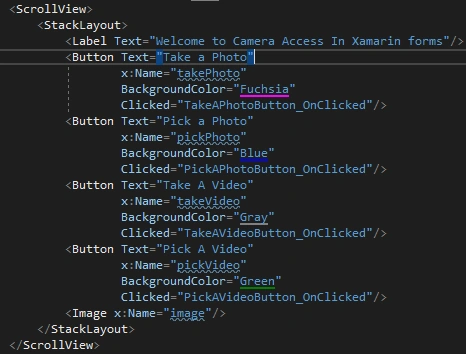
Now, we need to add camera controls to your projects.For that go to Solution Explorer -> Camera App(PCL) >> click open MainPage.xaml and you can add XAML code to your project.here the code is given.
Toolbar Items
Toolbar Items
- Button - Take a photo with clicked event
- Button - Pick a photo already taken with clicked event
- Button - Take a video with clicked event
- Button - Pick a video already taken with clicked event
- Image - To display a image last taken
- <ContentPage xmlns="http://xamarin.com/schemas/2014/forms"
- xmlns:x="http://schemas.microsoft.com/winfx/2009/xaml"
- xmlns:local="clr-namespace:SEC"
- x:Class="SEC.MainPage"
- Title="Camera Access"
- BackgroundColor="Gray">
- <ScrollView>
- <StackLayout>
- <Label Text="Welcome to Camera Access In Xamarin forms"/>
- <Button Text="Take a Photo"
- x:Name="takePhoto"
- BackgroundColor="Fuchsia"
- Clicked="TakeAPhotoButton_OnClicked"/>
- <Button Text="Pick a Photo"
- x:Name="pickPhoto"
- BackgroundColor="Blue"
- Clicked="PickAPhotoButton_OnClicked"/>
- <Button Text="Take A Video"
- x:Name="takeVideo"
- BackgroundColor="Gray"
- Clicked="TakeAVideoButton_OnClicked"/>
- <Button Text="Pick A Video"
- x:Name="pickVideo"
- BackgroundColor="Green"
- Clicked="PickAVideoButton_OnClicked"/>
- <Image x:Name="image"/>
- </StackLayout>
- </ScrollView>
- </ContentPage>
Step 4
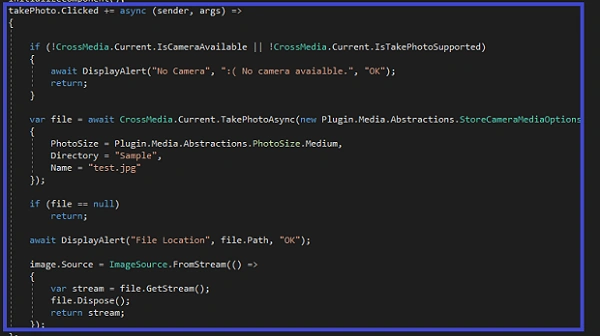
In this step, open Solution Explorer >> CameraApp(PCL)>> double click to open Mainpage.xaml.cs.Here the code for this page
In this step, open Solution Explorer >> CameraApp(PCL)>> double click to open Mainpage.xaml.cs.Here the code for this page
- using System;
- using System.Collections.Generic;
- using System.Linq;
- using System.Text;
- using System.Threading.Tasks;
- using Plugin.Media;
- using Xamarin.Forms;
- namespace SEC
- {
- public partial class MainPage : ContentPage
- {
- public MainPage()
- {
- InitializeComponent();
- takePhoto.Clicked += async (sender, args) =>
- {
- if (!CrossMedia.Current.IsCameraAvailable || !CrossMedia.Current.IsTakePhotoSupported)
- {
- await DisplayAlert("No Camera", ":( No camera avaialble.", "OK");
- return;
- }
- var file = await CrossMedia.Current.TakePhotoAsync(new Plugin.Media.Abstractions.StoreCameraMediaOptions
- {
- PhotoSize = Plugin.Media.Abstractions.PhotoSize.Medium,
- Directory = "Sample",
- Name = "test.jpg"
- });
- if (file == null)
- return;
- await DisplayAlert("File Location", file.Path, "OK");
- image.Source = ImageSource.FromStream(() =>
- {
- var stream = file.GetStream();
- file.Dispose();
- return stream;
- });
- };
- pickPhoto.Clicked += async (sender, args) =>
- {
- if (!CrossMedia.Current.IsPickPhotoSupported)
- {
- await DisplayAlert("Photos Not Supported", ":( Permission not granted to photos.", "OK");
- return;
- }
- var file = await Plugin.Media.CrossMedia.Current.PickPhotoAsync(new Plugin.Media.Abstractions.PickMediaOptions
- {
- PhotoSize = Plugin.Media.Abstractions.PhotoSize.Medium
- });
- if (file == null)
- return;
- image.Source = ImageSource.FromStream(() =>
- {
- var stream = file.GetStream();
- file.Dispose();
- return stream;
- });
- };
- takeVideo.Clicked += async (sender, args) =>
- {
- if (!CrossMedia.Current.IsCameraAvailable || !CrossMedia.Current.IsTakeVideoSupported)
- {
- await DisplayAlert("No Camera", ":( No camera avaialble.", "OK");
- return;
- }
- var file = await CrossMedia.Current.TakeVideoAsync(new Plugin.Media.Abstractions.StoreVideoOptions
- {
- Name = "video.mp4",
- Directory = "DefaultVideos",
- });
- if (file == null)
- return;
- await DisplayAlert("Video Recorded", "Location: " + file.Path, "OK");
- file.Dispose();
- };
- pickVideo.Clicked += async (sender, args) =>
- {
- if (!CrossMedia.Current.IsPickVideoSupported)
- {
- await DisplayAlert("Videos Not Supported", ":( Permission not granted to videos.", "OK");
- return;
- }
- var file = await CrossMedia.Current.PickVideoAsync();
- if (file == null)
- return;
- await DisplayAlert("Video Selected", "Location: " + file.Path, "OK");
- file.Dispose();
- };
- }
Step 5
Now, we need to add namespaces.For that,go to Solution Explorer>>Camera App(PCL)>>click open Mainpage.xaml.cs page design view and add the following namespaces.
- using System;
- using System.Threading.Tasks;
- using Android.App;
- using Android.Content.PM;
- using Android.Runtime;
- using Android.Views;
- using Android.Widget;
- using Android.OS;
- using Plugin.Media;
Step 6
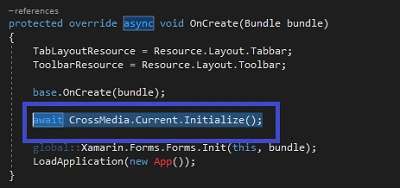
Next, Add await oncreate override method to your Android projects to initialize the camera and add namespaces. For that go to Solution Explorer >> open CameraApp.Droid project >> select MainActivity.cs and click open MainActivity.cs.Insert the given below code.
Next, Add await oncreate override method to your Android projects to initialize the camera and add namespaces. For that go to Solution Explorer >> open CameraApp.Droid project >> select MainActivity.cs and click open MainActivity.cs.Insert the given below code.
MainActivity.cs
- Using Plugin.Media;
- using System;
- using System.Threading.Tasks;
- using Android.App;
- using Android.Content.PM;
- using Android.Runtime;
- using Android.Views;
- using Android.Widget;
- using Android.OS;
- using Plugin.Media;
- namespace SEC.Droid
- {
- [Activity(Label = "SEC", Icon = "@drawable/icon", Theme = "@style/MainTheme", MainLauncher = true, ConfigurationChanges = ConfigChanges.ScreenSize | ConfigChanges.Orientation)]
- public class MainActivity : global::Xamarin.Forms.Platform.Android.FormsAppCompatActivity
- {
- protected override async void OnCreate(Bundle bundle)
- {
- TabLayoutResource = Resource.Layout.Tabbar;
- ToolbarResource = Resource.Layout.Toolbar;
- base.OnCreate(bundle);
- await CrossMedia.Current.Initialize();
- global::Xamarin.Forms.Forms.Init(this, bundle);
- LoadApplication(new App());
- }
- }
- }
Step 7
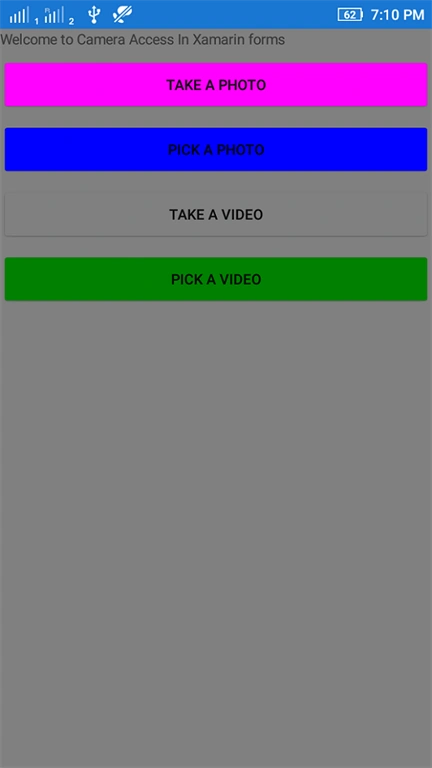
Click F5 or Build and run your application, the output below like this,
Click F5 or Build and run your application, the output below like this,
Wait a few seconds, the app will be started on your android simulators and you will see your app working successfully.
Now Click TAKE A PHOTO button
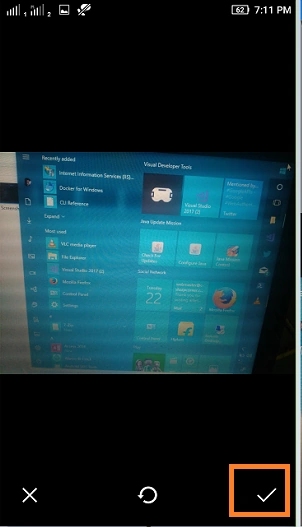
Now click get a photo and followedby click right corner tick arrow
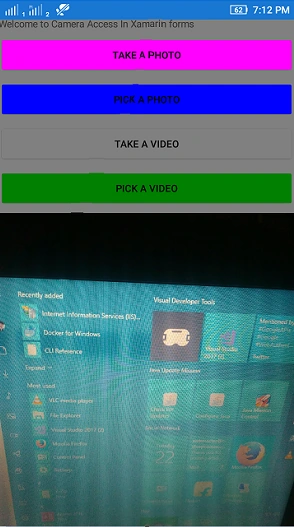
After you clicked tick symbol, back to home page.In this page below your taken picture has been displayed
Now click get a photo and followedby click right corner tick arrow
After you clicked tick symbol, back to home page.In this page below your taken picture has been displayed
Finally, we have successfully created Camera App in Xamarin.Forms.
Devaraj SekarPosted May 5, 2021, 6:31 AM
Sample not at all working, tried with all the package version in vs19 not at all working. Always crashes!!
Abhijeet BoralPosted Sep 23, 2020, 4:42 AM
Your Code Works fine,how to display video?
santosh KumarPosted Jul 8, 2020, 4:00 PM
Your code is not working. i have done Xam.Plugin.Media version 5.0.1 but the camera is not opened and app is crashed now..
selvakumar arunasalamPosted May 11, 2020, 9:51 PM
Platform specific code for IOS not available or not needed ?
Avanindra DubeyPosted May 25, 2019, 8:58 AM
This code is working perfectly. only delete Clicked property of Button's from MainPage.xaml
Metehan MetinPosted Jan 1, 2019, 8:52 PM
Your code is not working. Please have a look
Tigyi JanosPosted May 13, 2018, 12:06 PM
How can you upload an unfinished code for demonstration? This code is a mess! How can you be an MVP? :o ...
shrawan kickPosted Apr 26, 2018, 2:28 AM
Cool let me try it
SureshPosted Feb 9, 2018, 9:41 PM
Hi, it's not working for me, in my application camera is not display, kindly help me