

Xamarin.Forms code runs on multiple platforms - each of which has its own filesystem. This means that reading and writing files are most easily done using the native file APIs on each platform. Alternatively, the embedded resources are a simpler solution to distribute data files with an app.
Xamarin.Essentials

Xamarin.Essentials plugin provides 20+ cross-platform APIs for mobile application development. Xamarin.Essentials API works with all Xamarin.Forms, Xamarin.Android, Xamarin.iOS, or UWP applications that can be accessed from shared code. Xamarin.Essentials overcomes a problem, so that developers can access every native platform API using C#. This plugin provides many APIs so initially, there is no need of more plugins for Xamarin. Xamarin.Essentials plugin impacts your app's minimum size.
You can read more at the following links -
Platform SupportXamarin.Essentials supports platforms and operating systems,
| Platform | Version |
| Android | 4.4 (API 19) or earlier |
| iOS | 10.0 or higher |
| UWP | 10.0.16299.0 or earlier |
Prerequisites
- Visual Studio 2017 (Windows or Mac)
Setting up a Xamarin.Forms Project
Start by creating a new Xamarin.Forms project. You’ll learn more by going through the steps yourself.
Choose the Xamarin.Forms App Project type under Cross-platform/App in the New Project dialog.
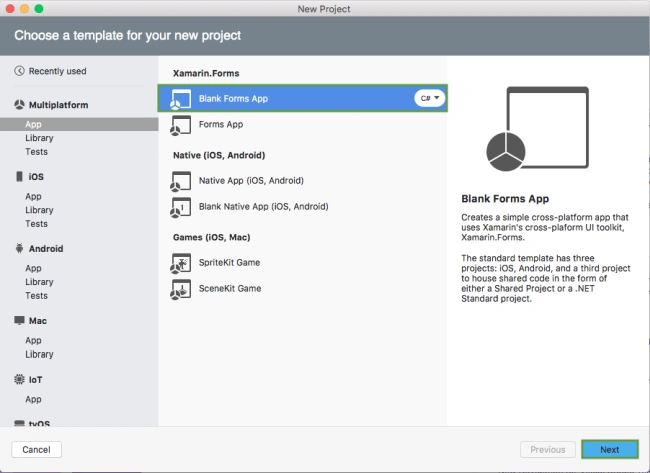
Start by creating a new Xamarin.Forms project. You’ll learn more by going through the steps yourself.
Choose the Xamarin.Forms App Project type under Cross-platform/App in the New Project dialog.
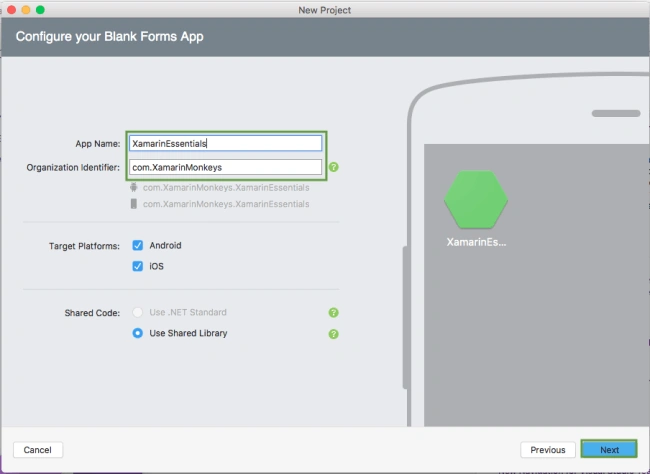
Name your app, select “Use Portable Class Library” for shared code, and target both Android and iOS.
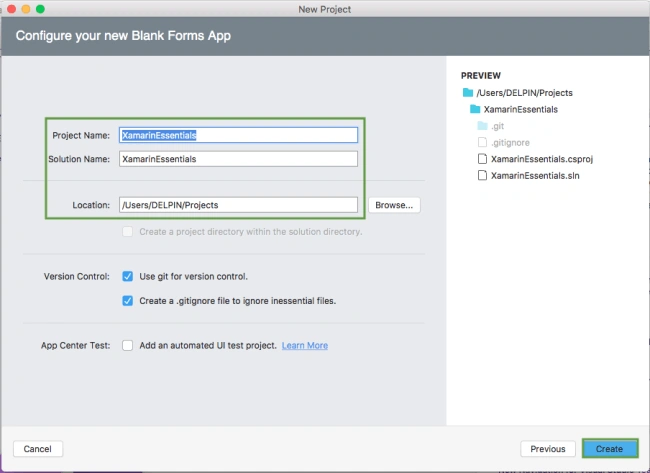
You probably want your project and solution to use the same name as your app. Put it in your preferred folder for projects and click Create.
You now have a basic Xamarin.Forms app. Click the play button to try it out.
You probably want your project and solution to use the same name as your app. Put it in your preferred folder for projects and click Create.
You now have a basic Xamarin.Forms app. Click the play button to try it out.
Setting up the User Interface
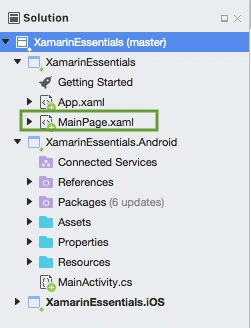
Go to MainPage.xaml and write the following code.
MainPage.xaml
- <?xml version="1.0" encoding="utf-8" ?>
- <ContentPage xmlns="http://xamarin.com/schemas/2014/forms"
- xmlns:x="http://schemas.microsoft.com/winfx/2009/xaml"
- xmlns:local="clr-namespace:XamarinEssentials"
- x:Class="XamarinEssentials.MainPage">
- <StackLayout>
- <StackLayout HorizontalOptions="Center" VerticalOptions="Start">
- <Image Margin="0,50,0,0" x:Name="imgBanner" Source="banner.png" ></Image>
- <Image Margin="0,0,0,10" x:Name="imgXamarinEssential" Source="xamarinessential.png" ></Image>
- <Label Margin="0,0,0,10" FontAttributes="Bold" FontSize="Large" TextColor="#CA6F1E" HorizontalTextAlignment="Center" Text="Browser"></Label>
- <Entry x:Name="txtUrl" Placeholder="Type url here..."> </Entry>
- <Button x:Name="btnOpenBrowser" Text="Open Browser" Clicked="btnOpenBrowser_Clicked"/>
- </StackLayout>
- </StackLayout>
- </ContentPage>
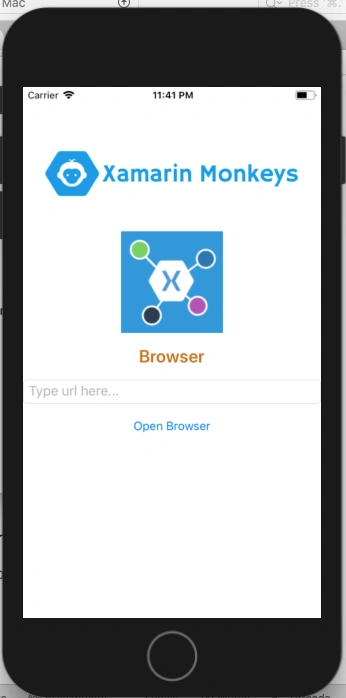
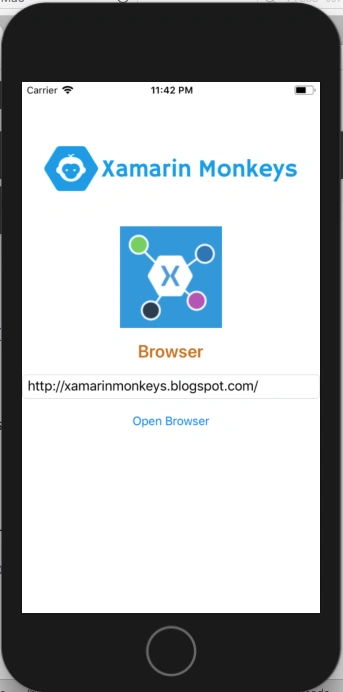
Click the Play button to try it out.
Add Xamarin Essentials
In this step, add Xamarin.Essentials to your project. You can install Xamarin.Essentials via NuGet, or you can browse the source code on GitHub.
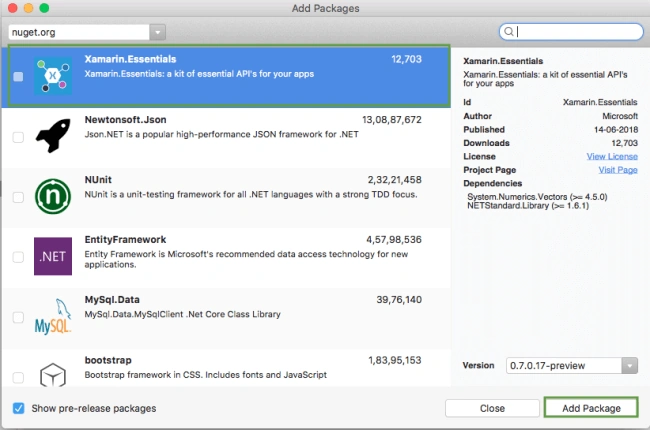
Go to Solution Explorer and select your solution. Right-click and select "Manage NuGet Packages for Solution". Search "Xamarin.Essentials" and add Package. Remember to install it for each project (PCL, Android, iOS, and UWP).
Xamarin.Essentials requires platform-specific setup
Android
The following steps are necessary for Android.
Go to Solution Explorer and select your solution. Right-click and select "Manage NuGet Packages for Solution". Search "Xamarin.Essentials" and add Package. Remember to install it for each project (PCL, Android, iOS, and UWP).
Xamarin.Essentials requires platform-specific setup
Android
The following steps are necessary for Android.
- Xamarin.Essentials supports a minimum Android version of 4.4
- Target Android version for compiling must be 8.1, API level 27.
In the Android project's MainActivity, Xamarin.Essentials must be initialized in the OnCreate method.
MainActivity.cs
- Xamarin.Essentials.Platform.Init(this, bundle);
Xamarin.Essentials must receive any OnRequestPermissionsResult. Write the following code for runtime permission.
MainActivity.cs
MainActivity.cs
- public override void OnRequestPermissionsResult(int requestCode, string[] permissions, [GeneratedEnum] Android.Content.PM.Permission[] grantResults)
- {
- Xamarin.Essentials.Platform.OnRequestPermissionsResult(requestCode, permissions, grantResults);
- base.OnRequestPermissionsResult(requestCode, permissions, grantResults);
- }
iOS
No additional set up required.
UWP
No additional set up required.
In this step, write the following code for open web links using the browser.
No additional set up required.
UWP
No additional set up required.
In this step, write the following code for open web links using the browser.
MainPage.xaml.cs
- using Xamarin.Forms;
- using Xamarin.Essentials;
- namespace XamarinEssentials
- {
- public partial class MainPage : ContentPage
- {
- Uri uri;
- public MainPage()
- {
- InitializeComponent();
- }
- protected override void OnAppearing()
- {
- base.OnAppearing();
- }
- void btnOpenBrowser_Clicked(object sender, System.EventArgs e)
- {
- uri = new Uri(txtUrl.Text);
- OpenBrowser(uri);
- }
- public async void OpenBrowser(Uri uri)
- {
- await Browser.OpenAsync(uri, BrowserLaunchType.SystemPreferred);
- }
- }
- }
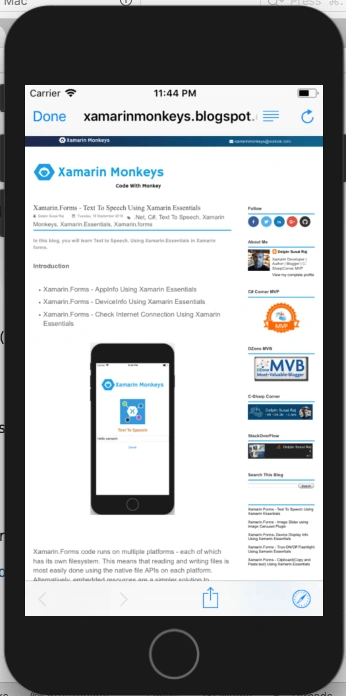
Click the Play button to try it out.
Related Post
I hope you have understood how to open web links using Xamarin.Essentials in Xamarin.Forms.
Thanks for reading. Please share comments and feedback.
Thanks for reading. Please share comments and feedback.
Join the conversation! Your thoughts help the community grow.