

Introduction
Today, I am super excited to share with you my new article “Upload Image to Blob Storage using Xamarin. Android”.

Prerequisites
- If you don't have an Azure subscription, create a free account before you begin.
- Log into the Azure portal.
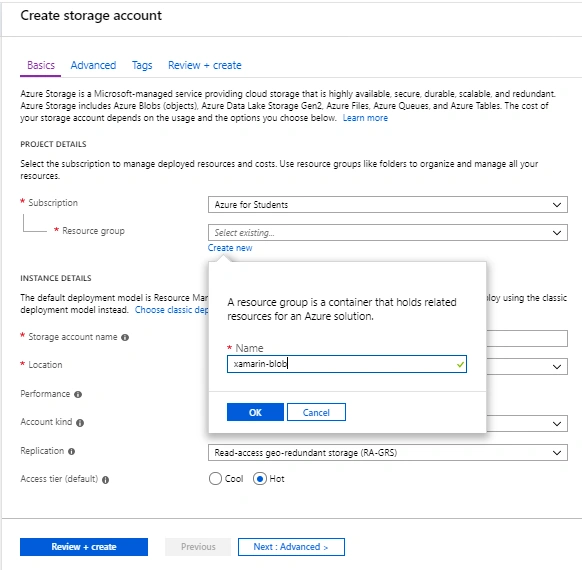
Create a storage account
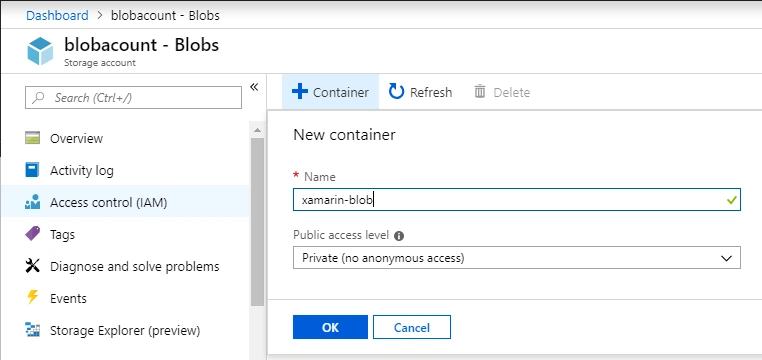
Create a container
Let’s create a Xamarin.Forms project with .NET standard library.
First of all, add the required NuGet packages to your application.
- AppCompat
- WindowsAzure.Storage
User interface of application
Open Solution Explorer-> Project Name-> Resources-> Layout-> Main.axml. Open this main layout file and add the following code. In the layout, we will need three buttons, one picture placeholder, and one text viewer.
(File Name: Main.axml, Folder Name: Layout)
<?xml version="1.0" encoding="utf-8"?>
<LinearLayout xmlns:android="http://schemas.android.com/apk/res/android"
    android:orientation="vertical"
    android:layout_width="match_parent"
    android:layout_height="match_parent"
    android:padding="10dp">

    <LinearLayout
        android:orientation="horizontal"
        android:layout_width="match_parent"
        android:layout_height="wrap_content"
        android:weightSum="2"
        android:id="@+id/btns">

        <Button
            android:id="@+id/btnChoose"
            android:text="Choose"
            android:layout_width="0dp"
            android:layout_weight="1"
            android:layout_height="wrap_content" />

        <Button
            android:id="@+id/btnCapture"
            android:text="Capture"
            android:layout_width="0dp"
            android:layout_weight="1"
            android:layout_height="wrap_content" />
    </LinearLayout>

    <LinearLayout
        android:orientation="vertical"
        android:layout_width="match_parent"
        android:layout_height="wrap_content"
        android:padding="8dp">

        <ImageView
            android:id="@+id/imgView"
            android:layout_width="350dp"
            android:layout_height="300dp" />

        <Button
            android:id="@+id/btnUpload"
            android:text="Upload"
            android:layout_width="match_parent"
            android:layout_height="wrap_content" />

        <EditText
            android:id="@+id/edtURL"
            android:text="URL:"
            android:layout_width="match_parent"
            android:layout_height="match_parent" />

        <ProgressBar
            android:layout_width="match_parent"
            android:layout_height="wrap_content"
            android:id="@+id/progressBar"
            android:visibility="invisible" />
    </LinearLayout>
</LinearLayout>
Backend code of application
Now, go to Solution Explorer-> Project Name-> MainActivity and add the following code with appropriate namespaces.
Note. In the upload function, I am using my own blob storage connection string. But you will use your own blob storage connection string. Go to Access keys, and inside this tab, you will get two keys (key1 and key2) also with connection strings. You can use either key1 or key2. In this demo we only need the connection string, so you will only copy the connection string.
using Android.App;
using Android.Content;
using Android.Graphics;
using Android.OS;
using Android.Provider;
using Android.Runtime;
using Android.Support.V7.App;
using Android.Widget;
using Microsoft.WindowsAzure.Storage;
using System;
using System.IO;

namespace UploadToBlob.Droid
{
    [Activity(Label = "@string/app_name", Theme = "@style/AppTheme", MainLauncher = true)]
    public class MainActivity : AppCompatActivity
    {
        private Button btnUpload, btnChoose, btnCapture;
        private ImageView imgView;
        public Bitmap mBitMap;
        private Android.Net.Uri filePath;
        private const int PICK_IMAGE_REQUSET = 71;
        private const int TAKE_IMAGE_REQUSET = 0;
        private EditText edtURL;
        private MemoryStream inputStream;
        private ProgressBar progressBar;
        public string URL { get; private set; }

        protected override void OnCreate(Bundle savedInstanceState)
        {
            base.OnCreate(savedInstanceState);

            // Set our view from the "main" layout resource
            SetContentView(Resource.Layout.activity_main);
            btnChoose = FindViewById<Button>(Resource.Id.btnChoose);
            btnUpload = FindViewById<Button>(Resource.Id.btnUpload);
            btnCapture = FindViewById<Button>(Resource.Id.btnCapture);
            imgView = FindViewById<ImageView>(Resource.Id.imgView);
            edtURL = FindViewById<EditText>(Resource.Id.edtURL);
            progressBar = FindViewById<ProgressBar>(Resource.Id.progressBar);

            //Events
            btnChoose.Click += delegate
            {
                ChooseImage();
            };

            btnCapture.Click += delegate
            {
                CaptureImage();
            };

            btnUpload.Click += delegate
            {
                UploadImage();
                Busy();
            };
        }

        private void CaptureImage()
        {
            Intent intent = new Intent(MediaStore.ActionImageCapture);
            StartActivityForResult(intent, 0);
        }

        private void UploadImage()
        {
            if (inputStream != null)
                Upload(inputStream);
        }

        private void ChooseImage()
        {

            Intent intent = new Intent();
            intent.SetType("image/*");
            intent.SetAction(Intent.ActionGetContent);
            StartActivityForResult(Intent.CreateChooser(intent, "Select Picture"), PICK_IMAGE_REQUSET);
        }
        protected override void OnActivityResult(int requestCode, [GeneratedEnum] Result resultCode, Intent data)
        {
            base.OnActivityResult(requestCode, resultCode, data);

            if (requestCode == PICK_IMAGE_REQUSET &&
                resultCode == Result.Ok &&
                data != null &&
                data.Data != null)
            {
                filePath = data.Data;
                try
                {
                    mBitMap = MediaStore.Images.Media.GetBitmap(ContentResolver, filePath);
                    imgView.SetImageBitmap(mBitMap);
                    byte[] bitmapData;
                    using (var stream = new MemoryStream())
                    {
                        mBitMap.Compress(Bitmap.CompressFormat.Jpeg, 100, stream);
                        bitmapData = stream.ToArray();
                    }
                    inputStream = new MemoryStream(bitmapData);
                }
                catch (IOException ex)
                {
                    Console.WriteLine(ex);
                }
            }
            else if (requestCode == 0 &&
                resultCode == Result.Ok &&
                data != null)
            {
                try
                {
                    mBitMap = (Bitmap)data.Extras.Get("data");
                    imgView.SetImageBitmap(mBitMap);
                    byte[] bitmapData;
                    using (var stream = new MemoryStream())
                    {
                        mBitMap.Compress(Bitmap.CompressFormat.Jpeg, 100, stream);
                        bitmapData = stream.ToArray();
                    }
                    inputStream = new MemoryStream(bitmapData);
                }
                catch (IOException ex)
                {
                    Console.WriteLine(ex);
                }
            }
        }

        //Upload to blob function
        private async void Upload(Stream stream)
        {
            try
            {
                var account = CloudStorageAccount.Parse("DefaultEndpointsProtocol=https;AccountName=blobacount;AccountKey=hMZuDKfdz1iGPVsV+W9V52YnsjD6F1tjdH89XIw0QM3J6FB+tdJ9IgQI+OAWHgCRKSYMK0EwGcpB0qCJI8kY+w==;x=core.windows.net");
                var client = account.CreateCloudBlobClient();
                var container = client.GetContainerReference("images");
                await container.CreateIfNotExistsAsync();
                var name = Guid.NewGuid().ToString();
                var blockBlob = container.GetBlockBlobReference($"{name}.png");
                await blockBlob.UploadFromStreamAsync(stream);
                URL = blockBlob.Uri.OriginalString;
                edtURL.Text = URL;
                Toast.MakeText(this, "Image uploaded to Blob Storage Successfully!", ToastLength.Short).Show();
                NotBusy();
            }
            catch (Exception e)
            {
                Toast.MakeText(this, "" + e.ToString(), ToastLength.Short);
            }
        }

        void Busy()
        {
            btnCapture.Enabled = false;
            btnChoose.Enabled = false;
            btnUpload.Enabled = false;
            progressBar.Visibility = Android.Views.ViewStates.Visible;
        }
        void Not

Choose from mobile and upload

Capture from camera and upload
Yasir ArafatPosted Sep 1, 2022, 5:04 AM
Thanks for this tutorial! do you have any idea or lead on how to do this now in dotnet maui?
Abdul ThamisPosted Jan 31, 2020, 4:29 AM
Hi ashan This is Thamis,My Query is How to add all gallery images in recyclerview xamarin android with Image name Filter
Usama ShahidPosted Dec 27, 2018, 1:05 AM
Good Work Boy :)
Delpin Susai RajPosted Dec 26, 2018, 9:06 PM
Nice one, Thanks for sharing