

Introduction
FCM refers to Firebase Cloud Messaging. It’s used to send the message between the mobile apps and the Server Applications. For more details, refer refer here
Let’s start
Before starting our Android Application creation, we need to register Google Firebase Console New Project.
Step 1
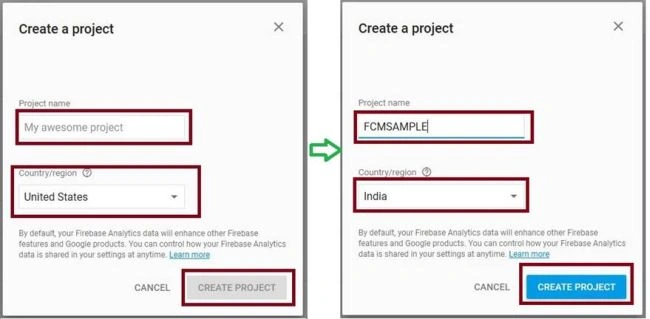
Go to https://console.firebase.google.com/ Check the page center, which has +Add Project. Now click the button and open one more Window for Create New Project. It asks Project Name and Country. Click the button Create Project and afterwards it will create a new Project.
Step 2
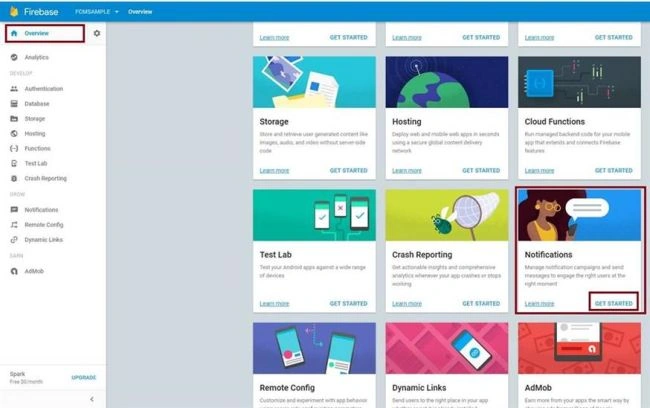
Go to Overview-> Notification-> Get Started. Afterwards, open the new page, which will show what platform we need to create FCM option for ( iOS or an Android). Here, we will select an Android platform.
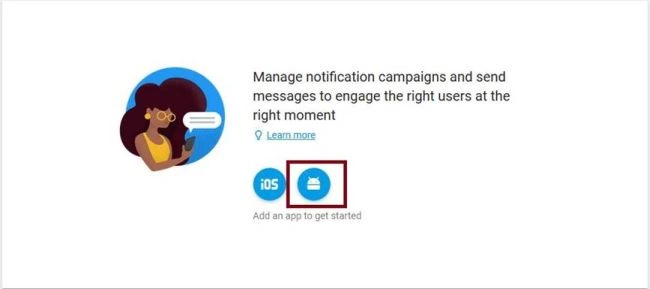
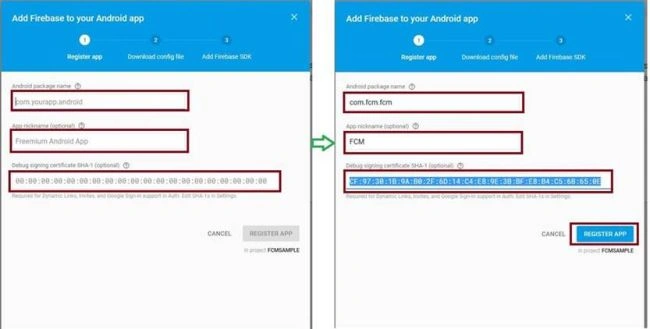
Afterwards, select the platform for an Android and give the Android Package name, App Nick Name and Debug Singing Certificate (SHA-1). You need to create SHA-1 key by the link http://www.c-sharpcorner.com/article/xamarin-android-create-an-sha-1-key-for-google-map-app-deve/
Step 4
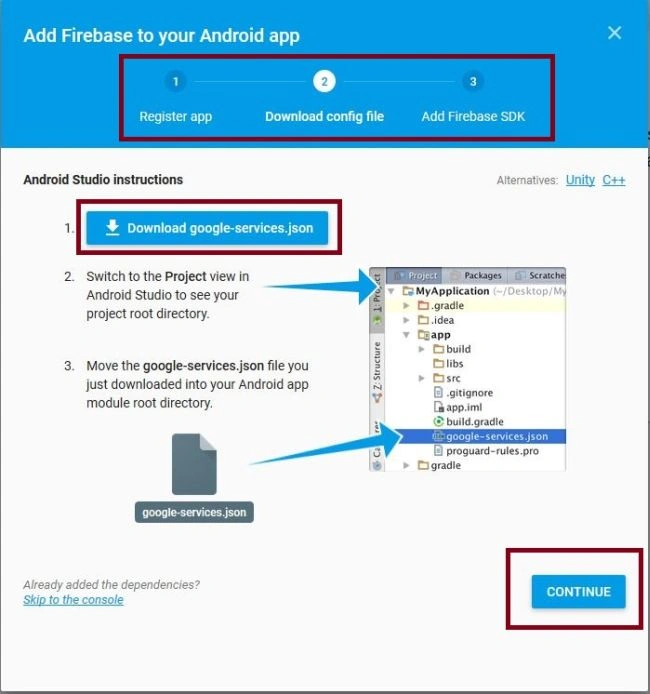
Afterwards, continue to Register the app. Go to the next step for Config Page. Here, we need to download google-services.json file. Afterwards, click Continue button.
Step 5
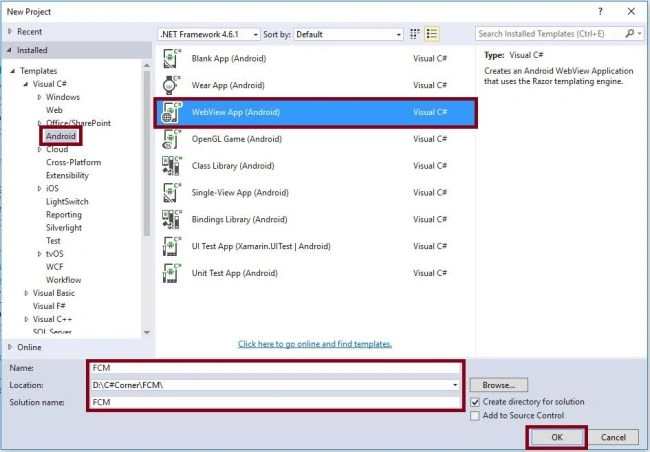
Open Visual Studio-> New Project->Templates-> Visual C#-> Android-> Blank App.
Select Blank App. Give the project name and the project location.
Step 6
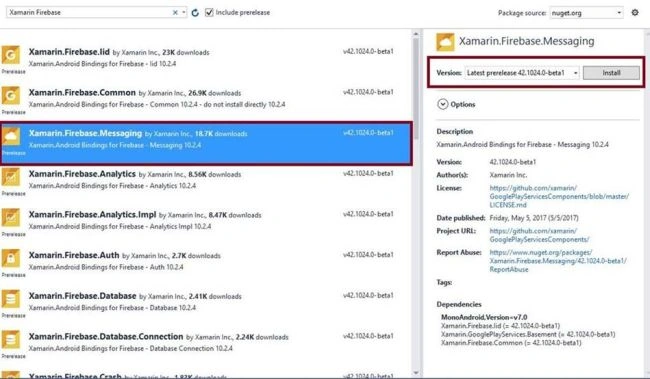
Go to Solution Explorer-> Project Name-> References. Right click to Manage NuGet Packages, followed by opening new dialog box. This dialog box is required to search Xamarin Firebase, followed by installing Install Xamarin.Firebase.Messaging Packages.
Step 7
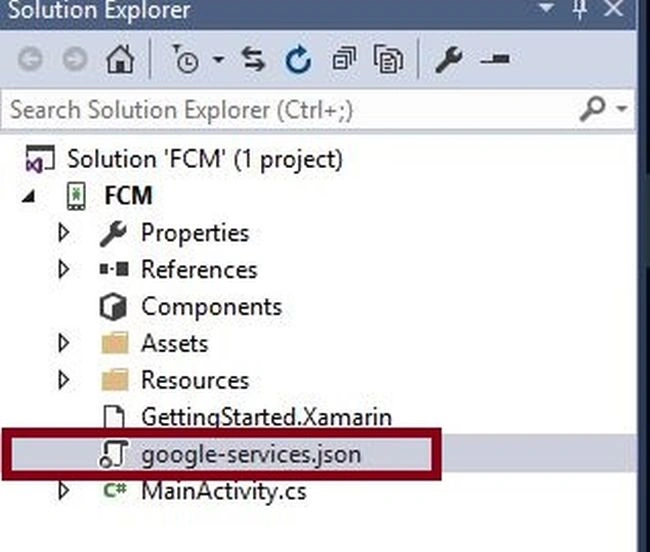
Goto Solution Explorer-> Project Name. Here, download Google-services.json file, copy and paste it nside the package. After pasting the file, close the Application.
Step 8
Go to Project Source folder, find the ProjectName.csproj file. Open and edit to add the code given below for Google-services.json config.
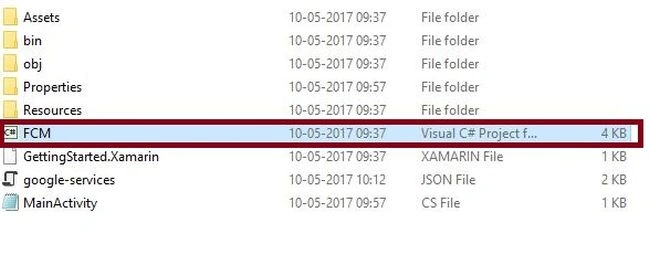

XML Code
- <ItemGroup>
- <GoogleServicesJson Include="google-services.json" />
- </ItemGroup>
Step 9
We need to add one class for FCM Token Creation. Go to Solution Explorer-> Project Name, followed by right clicking Add. Open the new dialog box. Select Class and give the name for MyFirebaseIIDService.cs. Add New Class.
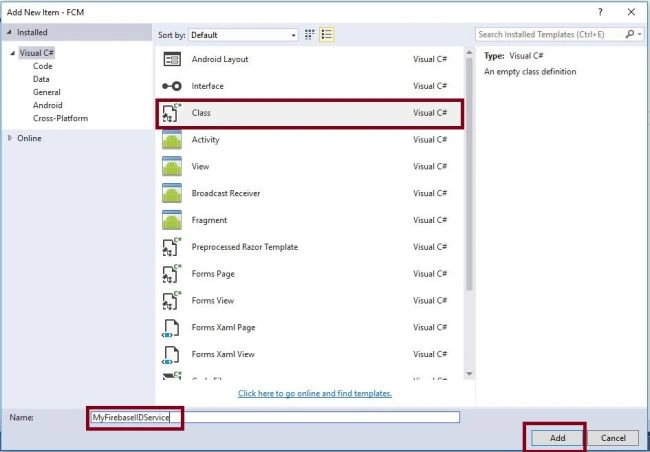
Step 10
We need to add one Messaging receiving class. Go to Solution Explorer-> Project Name, followed by right clicking Add. Oen the new dialog box and select Class. Give the name for MyFireMessagingService.cs. Afterwards add New Class.
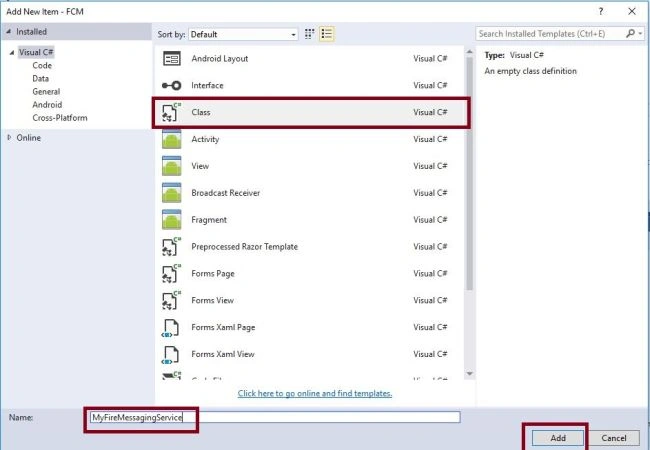
Step 11
Open Solution Explorer-> Project Name-> MyFirebaseIIDService.cs. Click Open CS code and Page view. Add the namespaces and C# Code given below.
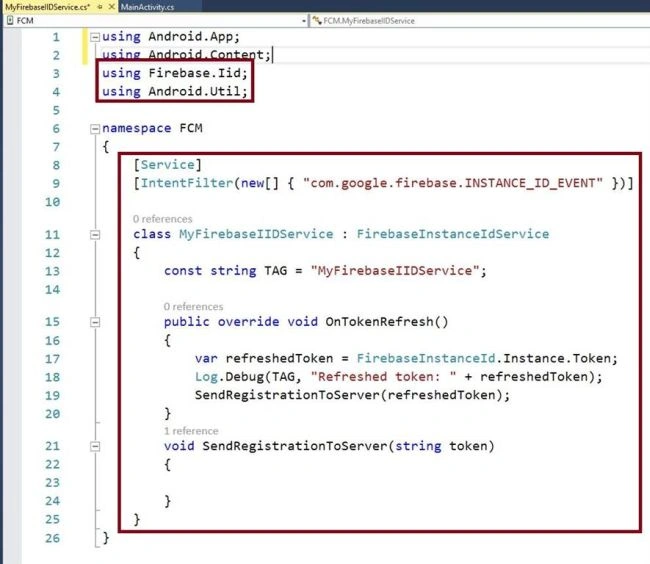
C# code
- using Firebase.Iid;
- using Android.Util;
- namespace FCM {
- [Service]
- [IntentFilter(new [] {
- "com.google.firebase.INSTANCE_ID_EVENT"
- })]
- class MyFirebaseIIDService: FirebaseInstanceIdService {
- const string TAG = "MyFirebaseIIDService";
- public override void OnTokenRefresh() {
- var refreshedToken = FirebaseInstanceId.Instance.Token;
- Log.Debug(TAG, "Refreshed token: " + refreshedToken);
- SendRegistrationToServer(refreshedToken);
- }
- void SendRegistrationToServer(string token) {}
- }
- }
Step 12
Open Solution Explorer-> Project Name-> MyFireMessagingService.cs. Click Open CS code page view, followed by adding namespaces and C# Code given below.This class helps to receive messaging from FCM.
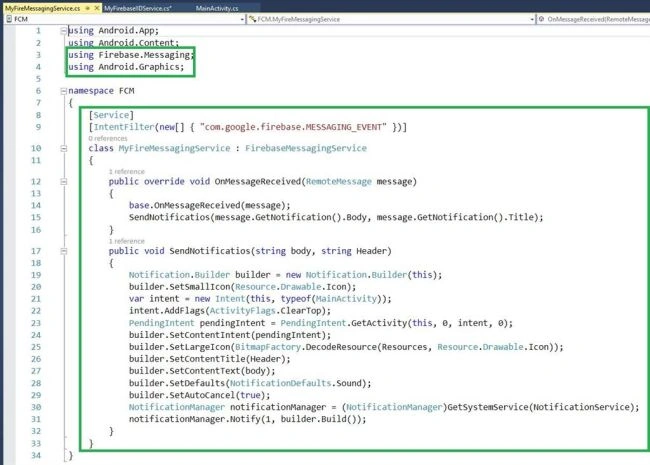
C# code
- using Firebase.Messaging;
- using Android.Graphics;
- namespace FCM {
- [Service]
- [IntentFilter(new [] {
- "com.google.firebase.MESSAGING_EVENT"
- })]
- class MyFireMessagingService: FirebaseMessagingService {
- public override void OnMessageReceived(RemoteMessage message) {
- base.OnMessageReceived(message);
- SendNotificatios(message.GetNotification().Body, message.GetNotification().Title);
- }
- public void SendNotificatios(string body, string Header) {
- Notification.Builder builder = new Notification.Builder(this);
- builder.SetSmallIcon(Resource.Drawable.Icon);
- var intent = new Intent(this, typeof(MainActivity));
- intent.AddFlags(ActivityFlags.ClearTop);
- PendingIntent pendingIntent = PendingIntent.GetActivity(this, 0, intent, 0);
- builder.SetContentIntent(pendingIntent);
- builder.SetLargeIcon(BitmapFactory.DecodeResource(Resources, Resource.Drawable.Icon));
- builder.SetContentTitle(Header);
- builder.SetContentText(body);
- builder.SetDefaults(NotificationDefaults.Sound);
- builder.SetAutoCancel(true);
- NotificationManager notificationManager = (NotificationManager) GetSystemService(NotificationService);
- notificationManager.Notify(1, builder.Build());
- }
- }
- }
Step 13
Open Solution Explorer-> Project Name-> MainActivity.cs Click Open CS code Page view, followed by adding namespaces and C# Code given below. We created Temporary FCM Token for Single Device Notifications.
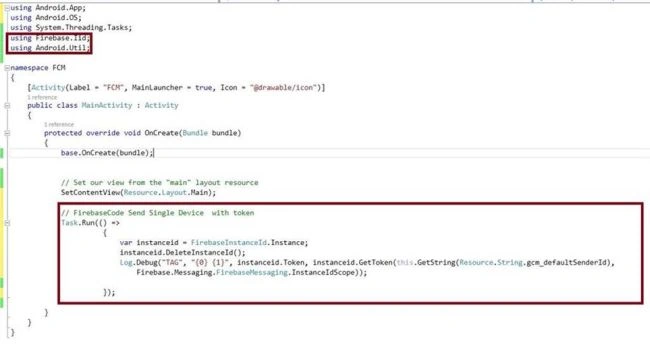
Namespace
- using System.Threading.Tasks;
- using Firebase.Iid;
- using Android.Util;
- MainActivity.cs: -Task.Run(() => {
- var instanceid = FirebaseInstanceId.Instance;
- instanceid.DeleteInstanceId();
- Log.Debug("TAG", "{0} {1}", instanceid.Token, instanceid.GetToken(this.GetString(Resource.String.gcm_defaultSenderId), Firebase.Messaging.FirebaseMessaging.InstanceIdScope));
- });
Step 14
Click select Solution Explorer->Project Name->Properties-> AndroidManifest.xml file.
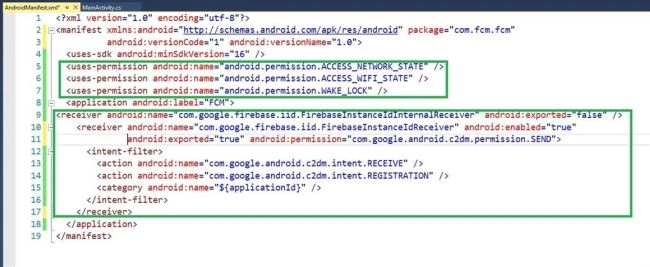
XML Code
- <?xml version="1.0" encoding="utf-8"?>
- <manifest xmlns:android="http://schemas.android.com/apk/res/android" package="com.fcm.fcm" android:versionCode="1" android:versionName="1.0">
- <uses-sdk android:minSdkVersion="16" />
- <uses-permission android:name="android.permission.ACCESS_NETWORK_STATE" />
- <uses-permission android:name="android.permission.ACCESS_WIFI_STATE" />
- <uses-permission android:name="android.permission.WAKE_LOCK" />
- <application android:label="FCM">
- <receiver android:name="com.google.firebase.iid.FirebaseInstanceIdInternalReceiver" android:exported="false" />
- <receiver android:name="com.google.firebase.iid.FirebaseInstanceIdReceiver" android:enabled="true" android:exported="true" android:permission="com.google.android.c2dm.permission.SEND">
- <intent-filter>
- <action android:name="com.google.android.c2dm.intent.RECEIVE" />
- <action android:name="com.google.android.c2dm.intent.REGISTRATION" />
- <category android:name="${applicationId}" /> </intent-filter>
- </receiver>
- </application>
- </manifest>
Step 15
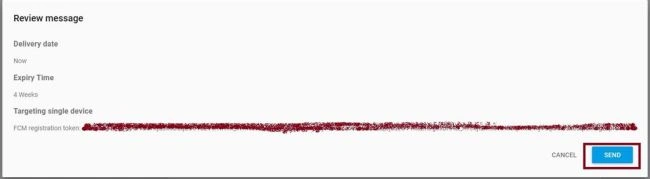

Click F5 or build and run the Application. Here, it is MainActivity.cs. After runnig the project, just copy the FCM Token, followed by directly going to Firebase Console, which has put the token followed by the images.
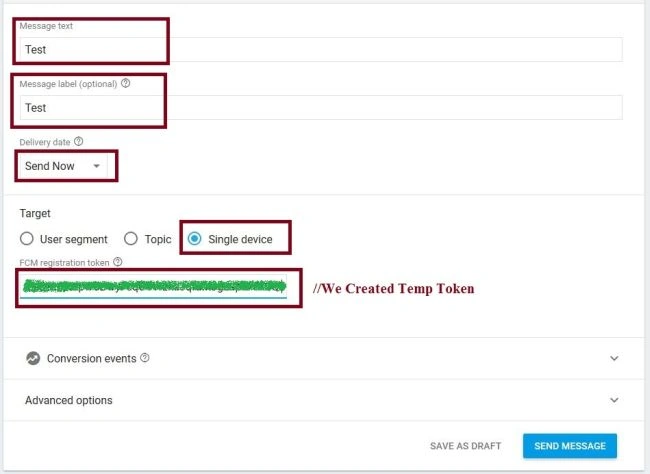
Step 16
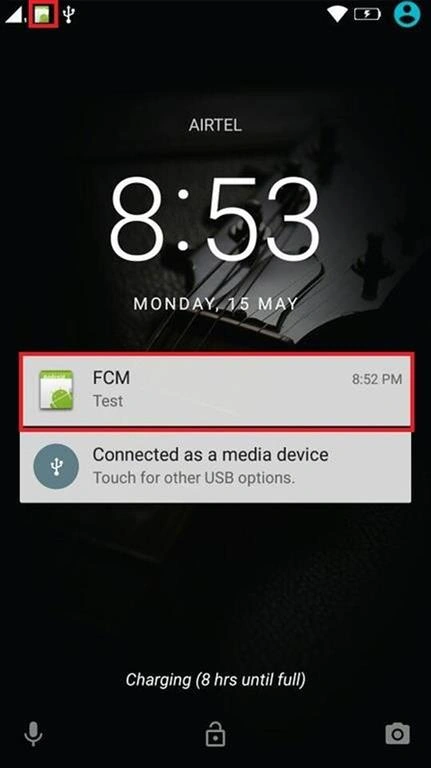
Finally Firebase Messaging output is given.
Finally, we successfully created Xamarin Android Application with Firebase Cloud Messaging.
Pushpendra SinghPosted Jun 19, 2020, 12:17 PM
Hi sir i am have done same as you describe in this tutorial. notification has been sent from the firebase project but did not recieve in my android emulater. ia m using marshmello 6
懿萱 郭Posted Aug 5, 2018, 6:01 AM
Hello again:)) I have some problem in MainActivity.cs ~~ The system said: Resource.String didn't have the defined of "gcm_defaultSenderId" ~ what should I do next ?? thx~:))
Pierre DuvenagePosted Jun 1, 2018, 3:01 AM
Please update the notification part. With Android O and above, you need to add ChannelID to the NotificationCompat.Builder(this, ChannelID);
Akanksha TripathiPosted Apr 26, 2018, 1:41 AM
Hi, I am creating an application using this code in xamarin. But notification is not sent all the time, Some time notification delivers to mobile app sometime it's not delivering notification.
bla bluPosted Jun 28, 2017, 4:44 AM
After adding Xamarin.Firebase.Ads package to my project. My project build is failing with java outofmemory exception. Then i increased heap size to 1G, then my project build failed with exit code 2. So i tried Enabling MultiDex still project failing with some error. How to fix this. TIA
Vaibhav PatilPosted Jun 23, 2017, 7:00 AM
Is it faster than GCM or Just Newer version of GCM with same performance. Currently my gcm notifications coming late. Sometimes notification receives in sec, but sometime it takes it takes 15-16 min. I know that GCM using throttling mech. to stop overflow. Is FCM is better that GCM or do i keep using GCM . Please reply as fast you can. TIA
Vaibhav PatilPosted Jun 23, 2017, 6:57 AM
Great, Thank you very much