

Introduction
The gesture means finger movement in the touchscreen interface. The different types of gestures are Tab, drag, Flick, Swipe, double tab, pinch, Three-finger pinch, three-finger swipe, touch and hold, rotate, shake. In this article, we are going to learn how to implement gestures in our application.

Let's begin.
Create a Xamarin android project in Visual Studio 2019. Go to Visual Studio >> Create New Project >> select Android App (Xamarin) and click Next. In the next dialog box, give Project Name, Location Name, Location and click the Create button.
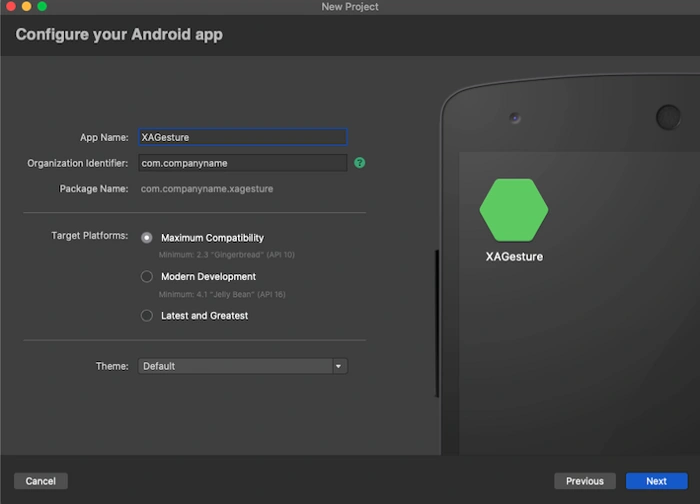
After the project creation, open content_main.xml file and add TextView widget in the screen and set width and height as match_parent. The code is given below:
- <?xml version="1.0" encoding="utf-8"?>
- <RelativeLayout xmlns:android="http://schemas.android.com/apk/res/android"
- xmlns:app="http://schemas.android.com/apk/res-auto"
- xmlns:tools="http://schemas.android.com/tools"
- android:layout_width="match_parent"
- android:layout_height="match_parent"
- tools:showIn="@layout/activity_main">
- <TextView
- android:id="@+id/imageView"
- android:layout_width="match_parent"
- android:text="Gesture"
- android:textSize="35dp"
- android:gravity="center"
- android:layout_centerInParent="true"
- android:textColor="@android:color/black"
- android:layout_height="match_parent"/>
- </RelativeLayout>
Next, open the MainActivity.cs class by double-clicking it. The gesture interfaces are going to implement in this MainActivity. This Interfaces will create the following gesture methods:
- OnDown
- OnScroll
- OnSingleTabUp
- OnLongPress
- OnFling
- OnShowPress
The Method definitions are here:
- OnDown(MotionEvent e) – Down MotionEvent will get triggers. One Touch or tab the UI
- OnFling(MotionEvent e1, MotionEvent e2, float velocityX, float velocityY) - Notifies of swipe occurs in the start and end of MotionEvent or threshold of swipe.
- OnLongPress(MotionEvent e) - This event will get trigger. Once long touch or tab the UI
- OnScroll(MotionEvent e1, MotionEvent e2, float distanceX, float distanceY) - While scrolling this event will be triggered.
- OnShowPress(MotionEvent e) - performed a done MotionEvent and not above performed a moment.
- OnSingleTapUp(MotionEvent e) - On single tab, the widget or layout this event will be triggered.
Based on the Fling start and end velocity, we can set the swipe directions:
- Top to Bottom
- Bottom to Top
- Right to Left
- Left to Right.
Velocity has two types:
- Swipe Threshold - The difference between the initial and final position of touch in any four directions that we already have seen.
- Velocity Threshold - How quickly the gesture is swiped.
Finally, set this interface to the TextView we already designed in content_main.xml. The page code is given below
- using System;
- using Android.App;
- using Android.OS;
- using Android.Runtime;
- using Android.Support.Design.Widget;
- using Android.Support.V7.App;
- using Android.Views;
- using Android.Widget;
- using static Android.Views.GestureDetector;
- using static Android.Views.View;
- namespace TVS_Demo {
- [Activity(Theme = "@style/AppTheme.NoActionBar", MainLauncher = true, ScreenOrientation = Android.Content.PM.ScreenOrientation.Portrait)]
- public class MainActivity: AppCompatActivity, IOnTouchListener, IOnGestureListener {
- private TextView txtGestureView;
- private readonly int SWIPE_MIN_DISTANCE = 120;
- private static int SWIPE_MAX_OFF_PATH = 250;
- private static int SWIPE_THRESHOLD_VELOCITY = 200;
- private int imageIndex = 0;
- private GestureDetector gestureDetector;
- protected override void OnCreate(Bundle savedInstanceState) {
- base.OnCreate(savedInstanceState);
- Xamarin.Essentials.Platform.Init(this, savedInstanceState);
- SetContentView(Resource.Layout.activity_main);
- txtGestureView = FindViewById < TextView > (Resource.Id.imageView);
- gestureDetector = new GestureDetector(this);
- txtGestureView.SetOnTouchListener(this);
- }
- public override void OnRequestPermissionsResult(int requestCode, string[] permissions, [GeneratedEnum] Android.Content.PM.Permission[] grantResults) {
- Xamarin.Essentials.Platform.OnRequestPermissionsResult(requestCode, permissions, grantResults);
- base.OnRequestPermissionsResult(requestCode, permissions, grantResults);
- }
- public bool OnTouch(View v, MotionEvent e) {
- Toast.MakeText(this, "On Touch", ToastLength.Short).Show();
- return gestureDetector.OnTouchEvent(e);
- }
- public bool OnDown(MotionEvent e) {
- Toast.MakeText(this, "On Down", ToastLength.Short).Show();
- return true;
- }
- public bool OnFling(MotionEvent e1, MotionEvent e2, float velocityX, float velocityY) {
- bool result = false;
- try {
- float diffY = e2.GetY() - e1.GetY();
- float diffX = e2.GetX() - e1.GetX();
- if (Math.Abs(diffX) > Math.Abs(diffY)) {
- if (Math.Abs(diffX) > SWIPE_THRESHOLD_VELOCITY && Math.Abs(velocityX) > SWIPE_THRESHOLD_VELOCITY) {
- if (diffX > 0) {
- //onSwipeRight();
- if (imageIndex > 0) {
- imageIndex--;
- }
- txtGestureView.Text = "Swiped Right";
- } else {
- if (imageIndex < 28) {
- imageIndex++;
- }
- //onSwipeLeft();
- txtGestureView.Text = "Swiped Left";
- }
- result = true;
- }
- } else
- if (Math.Abs(diffY) > SWIPE_THRESHOLD_VELOCITY && Math.Abs(velocityY) > SWIPE_THRESHOLD_VELOCITY) {
- if (diffY > 0) {
- //onSwipeBottom();
- txtGestureView.Text = "Swiped Bottom";
- } else {
- //onSwipeTop();
- txtGestureView.Text = "Swiped Top";
- }
- result = true;
- }
- } catch (Exception exception) {
- Console.WriteLine(exception.Message);
- }
- return result;
- }
- public void OnLongPress(MotionEvent e) {
- Toast.MakeText(this, "On Long Press", ToastLength.Short).Show();
- }
- public bool OnScroll(MotionEvent e1, MotionEvent e2, float distanceX, float distanceY) {
- Toast.MakeText(this, "On Scroll", ToastLength.Short).Show();
- return true;
- }
- public void OnShowPress(MotionEvent e) {
- Toast.MakeText(this, "On Show Press", ToastLength.Short).Show();
- }
- public bool OnSingleTapUp(MotionEvent e) {
- Toast.MakeText(this, "On Single Tab Up", ToastLength.Short).Show();
- return true;
- }
- }
- }
Run your application and get output, as shown in the below gif.
The full source code is here - GitHub
Conclusion
I hope you all understood the gestures and how to implement them in our applications. Thanks for reading!
Join the conversation! Your thoughts help the community grow.