

Introduction
This article demonstrates how to make Toast Message or local message using Dependency Service in Xamarin.Forms applications.
This article demonstrates how to make Toast Message or local message using Dependency Service in Xamarin.Forms applications.

Android Output
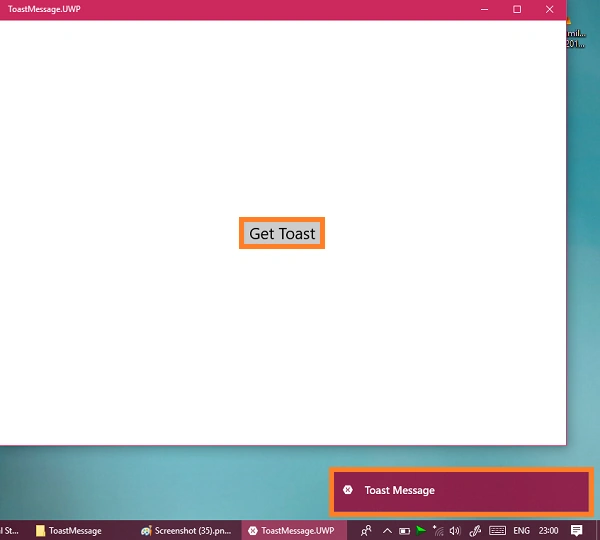
UWP Output
Requirements
- Visual Studio 2017 update
- This article was prepared by a windows machine
- This sample project is targeted for Android, IOS, UWP and tested for Android and UWP
Let's start!
Step 1
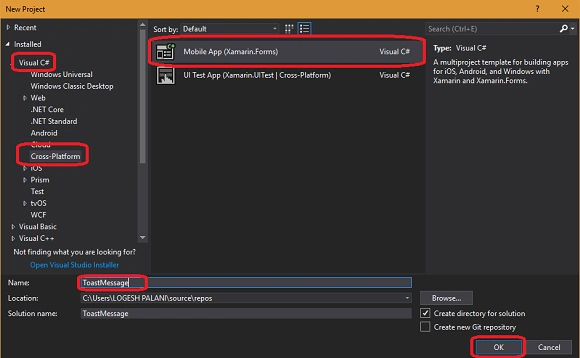
You can create a new Xamarin.Forms app by going to File >> New >> Visual C# >> Cross Platform >>Cross Platform App(Xamarin.Forms or Xamarin.Native) and click OK.
You can create a new Xamarin.Forms app by going to File >> New >> Visual C# >> Cross Platform >>Cross Platform App(Xamarin.Forms or Xamarin.Native) and click OK.
(Eg - Project name - ToastMessage)
Step 2
After the project creation, add a new Toast Interface in Xamarin.Forms PCL project. For that, go to Solution Explorer >>click ToastMessage(PCL) project >> right click to select Add >> followed by select New Item >> Select Interface >> give the name as Toast and click ok. Here is the code for this interface.
After the project creation, add a new Toast Interface in Xamarin.Forms PCL project. For that, go to Solution Explorer >>click ToastMessage(PCL) project >> right click to select Add >> followed by select New Item >> Select Interface >> give the name as Toast and click ok. Here is the code for this interface.
C# Code
- using System;
- using System.Collections.Generic;
- using System.Text;
- namespace ToastMessage
- {
- public interface Toast
- {
- void Show(string message);
- }
- }
Step 4
Now, open MainPage.Xaml. For that, go to Solution Explorer >> ToastMessage(PCL) >> double-click to open design view of MainPage.xaml and the cCode is given below.
Now, open MainPage.Xaml. For that, go to Solution Explorer >> ToastMessage(PCL) >> double-click to open design view of MainPage.xaml and the cCode is given below.
Xaml Code
- <?xml version="1.0" encoding="utf-8" ?>
- <ContentPage xmlns="http://xamarin.com/schemas/2014/forms"
- xmlns:x="http://schemas.microsoft.com/winfx/2009/xaml"
- xmlns:local="clr-namespace:ToastMessage"
- x:Class="ToastMessage.MainPage">
- <Button Text="Get Toast"
- HorizontalOptions="Center"
- VerticalOptions="Center"
- FontSize="Medium"
- x:Name="ToastButton"/>
- </ContentPage>
Step 5
Next, go to MainPage.xaml.cs . For that, go to Solution Explorer >>ToastMessage(PCL) >> click open MainPage.xaml.cs and add the following code.
Next, go to MainPage.xaml.cs . For that, go to Solution Explorer >>ToastMessage(PCL) >> click open MainPage.xaml.cs and add the following code.
C# Code
- using System;
- using System.Collections.Generic;
- using System.Linq;
- using System.Text;
- using System.Threading.Tasks;
- using Xamarin.Forms;
- namespace ToastMessage
- {
- public partial class MainPage : ContentPage
- {
- public MainPage()
- {
- InitializeComponent();
- }
- protected override void OnAppearing()
- {
- ToastButton.Clicked += ToastButton_Clicked;
- }
- private void ToastButton_Clicked(object sender, EventArgs e)
- {
- DependencyService.Get<Toast>().Show("Toast Message");
- }
- }
- }
Step 6
Open Solution Explorer >> ToastMessage(PCL) >>right click and select New Item. In the popup window, select Cross Platform >>Class. This way, you can add a new class.
Open Solution Explorer >> ToastMessage(PCL) >>right click and select New Item. In the popup window, select Cross Platform >>Class. This way, you can add a new class.
Platform specific implementation
Xamarin.Android
In this step, create a new class named Toast_Android and add the following code.
C# Code
In this step, create a new class named Toast_Android and add the following code.
C# Code
- using System;
- using System.Collections.Generic;
- using System.Linq;
- using System.Runtime.CompilerServices;
- using System.Text;
- using Android.App;
- using Android.Content;
- using Android.OS;
- using Android.Runtime;
- using Android.Views;
- using Android.Widget;
- using ToastMessage.Droid;
- [assembly: Xamarin.Forms.Dependency(typeof(Toast_Android))]
- namespace ToastMessage.Droid
- {
- public class Toast_Android : Toast
- {
- public void Show(string message)
- {
- Android.Widget.Toast.MakeText(Android.App.Application.Context,message,ToastLength.Long).Show();
- }
- }
- }
Xamarin.IOS
Now, add another class named Toast_IOS and here is code for this class.
Now, add another class named Toast_IOS and here is code for this class.
C# Code
- using System;
- using System.Collections.Generic;
- using System.Linq;
- using System.Runtime.CompilerServices;
- using System.Text;
- using Foundation;
- using ToastMessage.iOS;
- using UIKit;
- [assembly:Xamarin.Forms.Dependency(typeof(Toast_IOS))]
- namespace ToastMessage.iOS
- {
- public class Toast_IOS : Toast
- {
- const double LONG_DELAY = 3.5;
- NSTimer alertDelay;
- UIAlertController alert;
- public void Show(string message)
- {
- ShowAlert(message, LONG_DELAY);
- }
- void ShowAlert(string message, double seconds)
- {
- alertDelay = NSTimer.CreateScheduledTimer(seconds, (obj) =>
- {
- dismissMessage();
- });
- alert = UIAlertController.Create(null, message, UIAlertControllerStyle.Alert);
- UIApplication.SharedApplication.KeyWindow.RootViewController.PresentViewController(alert, true, null);
- }
- void dismissMessage()
- {
- if (alert != null)
- {
- alert.DismissViewController(true, null);
- }
- if (alertDelay != null)
- {
- alertDelay.Dispose();
- }
- }
- }
- }
Similarly, create another class named Toast_UWP and insert the code given below.
C# Code
- using System;
- using System.Collections.Generic;
- using System.Linq;
- using System.Text;
- using System.Threading.Tasks;
- using Windows.Data.Xml.Dom;
- using Windows.UI.Notifications;
- using ToastMessage.UWP;
- [assembly:Xamarin.Forms.Dependency(typeof(Toast_UWP))]
- namespace ToastMessage.UWP
- {
- class Toast_UWP : Toast
- {
- public void Show(string message)
- {
- ToastTemplateType toastTemplate = ToastTemplateType.ToastImageAndText01;
- XmlDocument toastXml = ToastNotificationManager.GetTemplateContent(toastTemplate);
- XmlNodeList toastTextElements = toastXml.GetElementsByTagName("text");
- toastTextElements[0].AppendChild(toastXml.CreateTextNode(message));
- XmlNodeList toastImageAttributes = toastXml.GetElementsByTagName("image");
- ((XmlElement)toastImageAttributes[0]).SetAttribute("src", "ms-appx:///Assets/Logo.scale-240.png");
- ((XmlElement)toastImageAttributes[0]).SetAttribute("alt", "logo");
- IXmlNode toastNode = toastXml.SelectSingleNode("/toast");
- ((XmlElement)toastNode).SetAttribute("duration", "short");
- var toastNavigationUriString = "#/MainPage.xaml?param1=12345";
- var toastElement = ((XmlElement)toastXml.SelectSingleNode("/toast"));
- toastElement.SetAttribute("launch", toastNavigationUriString);
- ToastNotification toast = new ToastNotification(toastXml);
- ToastNotificationManager.CreateToastNotifier().Show(toast);
- }
- }
- }
Step 7
Click 'F5' or "Build" to "Run" your application. Running this project, you will have a result like below.
Click 'F5' or "Build" to "Run" your application. Running this project, you will have a result like below.
Xamarin.Android
Xamarin.UWP
Finally, we have successfully created a Xamarin.Forms ToastMessage application.
Please download the source code here.
Please download the source code here.
Nguyen Tu KietPosted Jul 9, 2021, 11:51 AM
Grate article! It works for me
Shivraj PurohitPosted May 20, 2021, 1:04 PM
Hello, I am facing a issue. the Navigation.PopAsync() not working in iOS. After Dismiss the toast message.
Manish ChavdaPosted Dec 19, 2018, 12:18 AM
I am getting this error in iOS: "pushViewController:animated: called on <Xamarin_Forms_Platform_iOS_NavigationRenderer 0x7fe4f0253a00> while an existing transition or presentation is occurring; the navigation stack will not be updated." How can I fix it?
Munish APosted Jun 5, 2018, 9:38 PM
Nice article keep sharing bro......