

A good product requires good user interaction. Products that are
using search boxes will be expected to have auto-completion/suggestion
feature. In WPF platform, the default text box control does not have any
built-in auto-completion/suggestion feature. There are many 3rd party
libraries out there which provide auto-complete/suggestion text box
control as a replacement to the default WPF text box control. Most of these
libraries are available in the paid version and those which are available
for free, are difficult to get integrated with your existing code. So, I
have created a very simple AutoComplete/Suggestion control for WPF
platform without using any external library.
You can easily integrate my
control in your project.
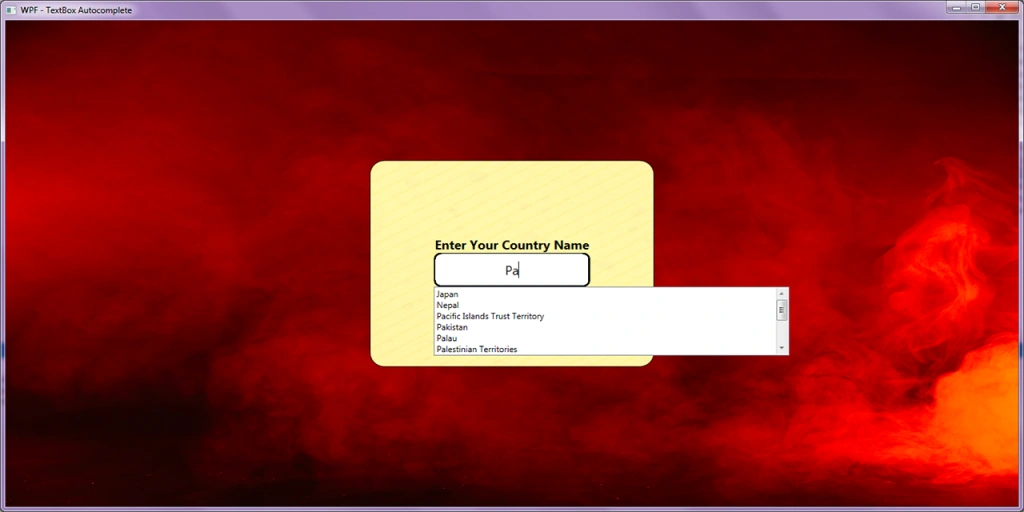
Today, I shall be
demonstrating the creation of a text box with auto-complete/suggestion
feature along with its integration within your code in WPF platform.
Prerequisites
Following are the prerequisites before you proceed any further in this tutorial.
- Knowledge of Windows Presentation Form (WPF).
- Knowledge of C# Programming.
- Knowledge of C# LINQ.
You can download the complete source code of this tutorial from the below link. The sample code is
being developed in Microsoft Visual Studio 2017 Professional.
Let's begin now.
Step 1
Create a new WPF application project and name it "WPFAutoCompleteTextBox".
Step 2
Create the "Views\UserControls\AutoCompleteTextBoxUserControl.xaml" file and replace the following code in it.
- <UserControl x:Class="WPFAutoCompleteTextBox.Views.UserControls.AutoCompleteTextBoxUserControl"
- xmlns="http://schemas.microsoft.com/winfx/2006/xaml/presentation"
- xmlns:x="http://schemas.microsoft.com/winfx/2006/xaml"
- xmlns:mc="http://schemas.openxmlformats.org/markup-compatibility/2006"
- xmlns:d="http://schemas.microsoft.com/expression/blend/2008"
- xmlns:local="clr-namespace:WPFAutoCompleteTextBox.Views.UserControls"
- mc:Ignorable="d"
- d:DesignHeight="480" d:DesignWidth="640">
- <Grid>
- <StackPanel Orientation="Vertical"
- VerticalAlignment="Center"
- HorizontalAlignment="Center">
- <!-- Text Box -->
- <Border x:Name="autoTextBoxBorder"
- Width="220"
- Height="50">
- <Border.Background>
- <ImageBrush ImageSource="/WPFAutoCompleteTextBox;component/Content/img/text-box_bg.png"/>
- </Border.Background>
- <TextBox x:Name="autoTextBox"
- Width="220"
- Height="50"
- FontSize="18"
- HorizontalAlignment="Center"
- VerticalAlignment="Center"
- BorderThickness="0"
- VerticalContentAlignment="Center"
- HorizontalContentAlignment="Center"
- Padding="0,0,0,0"
- Background="Transparent"
- Foreground="Black"
- TextChanged="AutoTextBox_TextChanged"/>
- </Border>
- <!-- Auto Suggestion box -->
- <Popup x:Name="autoListPopup"
- Visibility="Collapsed"
- Height="100"
- StaysOpen="False"
- Placement="Bottom">
- <ListBox x:Name="autoList"
- Visibility="Collapsed"
- Width="500"
- Height="100"
- SelectionChanged="AutoList_SelectionChanged" />
- </Popup>
- </StackPanel>
- </Grid>
- </UserControl>
In the above code, I have created my auto-complete/suggestion user control hierarchy from the built-in WPF control
with default settings.
Step 3
Now, open the "Views\UserControls\AutoCompleteTextBoxUserControl.xaml.cs" file and replace with the following code.
- //-----------------------------------------------------------------------
- // <copyright file="AutoCompleteTextBoxUserControl.xaml.cs" company="None">
- // Copyright (c) Allow to distribute this code and utilize this code for personal or commercial purpose.
- // </copyright>
- // <author>Asma Khalid</author>
- //-----------------------------------------------------------------------
- namespace WPFAutoCompleteTextBox.Views.UserControls
- {
- using System;
- using System.Collections.Generic;
- using System.Linq;
- using System.Text;
- using System.Threading.Tasks;
- using System.Windows;
- using System.Windows.Controls;
- using System.Windows.Data;
- using System.Windows.Documents;
- using System.Windows.Input;
- using System.Windows.Media;
- using System.Windows.Media.Imaging;
- using System.Windows.Navigation;
- using System.Windows.Shapes;
- /// <summary>
- /// Interaction logic for Autocomplete Text Box UserControl
- /// </summary>
- public partial class AutoCompleteTextBoxUserControl : UserControl
- {
- #region Private properties.
- /// <summary>
- /// Auto suggestion list property.
- /// </summary>
- private List<string> autoSuggestionList = new List<string>();
- #endregion
- #region Default Constructor
- /// <summary>
- /// Initializes a new instance of the <see cref="AutoCompleteTextBoxUserControl" /> class.
- /// </summary>
- public AutoCompleteTextBoxUserControl()
- {
- try
- {
- // Initialization.
- this.InitializeComponent();
- }
- catch (Exception ex)
- {
- // Info.
- MessageBox.Show(ex.Message, "Error", MessageBoxButton.OK, MessageBoxImage.Error);
- Console.Write(ex);
- }
- }
- #endregion
- #region Protected / Public properties.
- /// <summary>
- /// Gets or sets Auto suggestion list property.
- /// </summary>
- public List<string> AutoSuggestionList
- {
- get { return this.autoSuggestionList; }
- set { this.autoSuggestionList = value; }
- }
- #endregion
- #region Open Auto Suggestion box method
- /// <summary>
- /// Open Auto Suggestion box method
- /// </summary>
- private void OpenAutoSuggestionBox()
- {
- try
- {
- // Enable.
- this.autoListPopup.Visibility = Visibility.Visible;
- this.autoListPopup.IsOpen = true;
- this.autoList.Visibility = Visibility.Visible;
- }
- catch (Exception ex)
- {
- // Info.
- MessageBox.Show(ex.Message, "Error", MessageBoxButton.OK, MessageBoxImage.Error);
- Console.Write(ex);
- }
- }
- #endregion
- #region Close Auto Suggestion box method
- /// <summary>
- /// Close Auto Suggestion box method
- /// </summary>
- private void CloseAutoSuggestionBox()
- {
- try
- {
- // Enable.
- this.autoListPopup.Visibility = Visibility.Collapsed;
- this.autoListPopup.IsOpen = false;
- this.autoList.Visibility = Visibility.Collapsed;
- }
- catch (Exception ex)
- {
- // Info.
- MessageBox.Show(ex.Message, "Error", MessageBoxButton.OK, MessageBoxImage.Error);
- Console.Write(ex);
- }
- }
- #endregion
- #region Auto Text Box text changed the method
- /// <summary>
- /// Auto Text Box text changed method.
- /// </summary>
- /// <param name="sender">Sender parameter</param>
- /// <param name="e">Event parameter</param>
- private void AutoTextBox_TextChanged(object sender, TextChangedEventArgs e)
- {
- try
- {
- // Verification.
- if (string.IsNullOrEmpty(this.autoTextBox.Text))
- {
- // Disable.
- this.CloseAutoSuggestionBox();
- // Info.
- return;
- }
- // Enable.
- this.OpenAutoSuggestionBox();
- // Settings.
- this.autoList.ItemsSource = this.AutoSuggestionList.Where(p => p.ToLower().Contains(this.autoTextBox.Text.ToLower())).ToList();
- }
- catch (Exception ex)
- {
- // Info.
- MessageBox.Show(ex.Message, "Error", MessageBoxButton.OK, MessageBoxImage.Error);
- Console.Write(ex);
- }
- }
- #endregion
- #region Auto list selection changed method
- /// <summary>
- /// Auto list selection changed method.
- /// </summary>
- /// <param name="sender">Sender parameter</param>
- /// <param name="e">Event parameter</param>
- private void AutoList_SelectionChanged(object sender, SelectionChangedEventArgs e)
- {
- try
- {
- // Verification.
- if (this.autoList.SelectedIndex <= -1)
- {
- // Disable.
- this.CloseAutoSuggestionBox();
- // Info.
- return;
- }
- // Disable.
- this.CloseAutoSuggestionBox();
- // Settings.
- this.autoTextBox.Text = this.autoList.SelectedItem.ToString();
- this.autoList.SelectedIndex = -1;
- }
- catch (Exception ex)
- {
- // Info.
- MessageBox.Show(ex.Message, "Error", MessageBoxButton.OK, MessageBoxImage.Error);
- Console.Write(ex);
- }
- }
- #endregion
- }
- }
In the above code, I have created a public property "AutoSuggestionList" to which you will provide your auto-suggestion list.
I have, then, created an "OpenAutoSuggestionBox(..)" method which will open the auto suggestion box as the end-user types in the text box.
Then, I have created a "CloseSuggestionBox(...)"
method which will close the auto-suggestion box when the end-user
selects the target suggested item from the auto-suggestion list.
Then, I
have created "AutoTextBox_TextChanged(...)" method which will
update the auto-suggestion list according to the text typed in the text
box by the end-user.
Finally, I have created "AutoList_SelectionChanged(...)" method which will update the text box according to the selected suggested item from the auto-suggestion list by the end-user.
Step 4
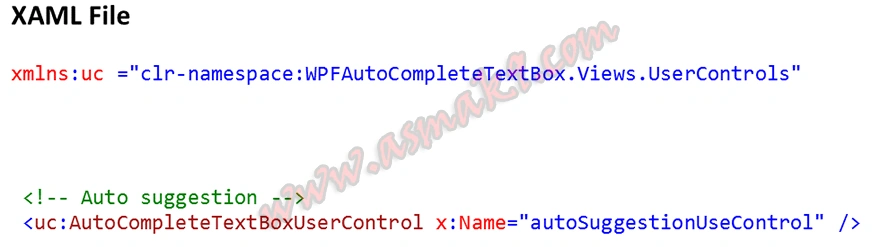
In order to use my autocomplete/suggestion text box control, you need to include my user control namespace into your target XAML file and the following line of code.
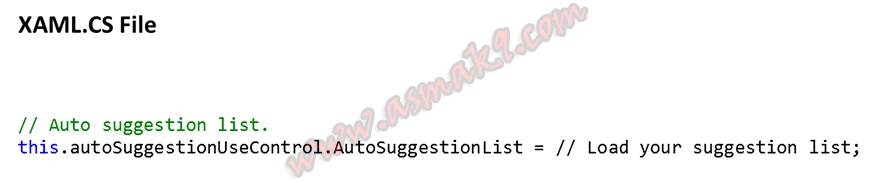
You also need to set your auto-suggestion list in the target XAML.CS file.
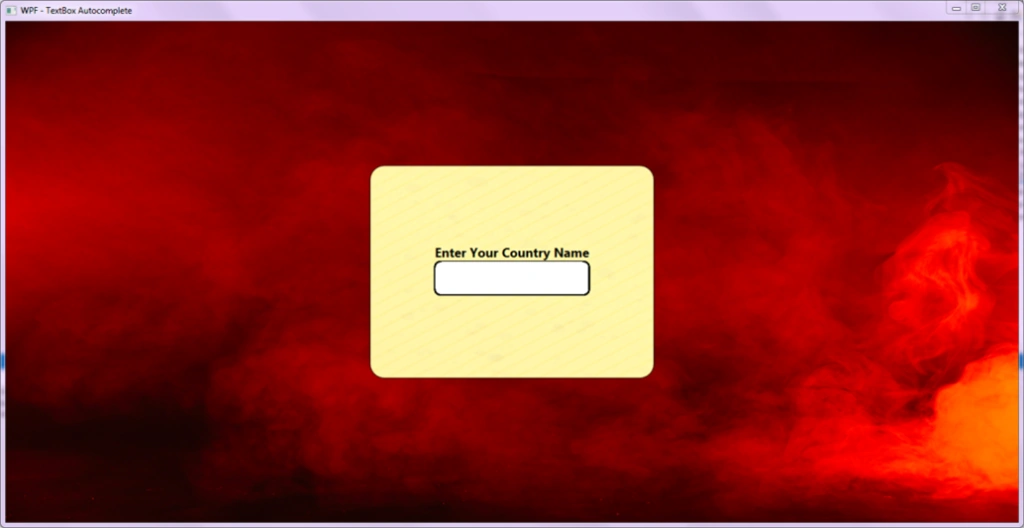
Now, execute the project and you
will be able to see the following in
action.
Conclusion
In this article, we learned to create an auto-complete/auto-suggestion text box control using the built-in UI controls in the WPF
platform. Along with this, we learned how to integrate this auto-complete/suggestion
text box user control into our own target WPF page.
Disclaimer
The background image used in this article has been taken from freepike.
Asma KhalidPosted Nov 1, 2022, 8:20 AM
Source Code: https://github.com/asmak9/WPFAutoCompleteTextBox
Mzoughi Mohamed AminePosted Oct 28, 2022, 3:19 PM
Thank you, this inspired me to make this : https://github.com/embeddedmz/SimpleAutoCompleteWPFControl
Rob CarverPosted Feb 5, 2021, 4:03 PM
Thank you, this was both useful and instructive.
Ankit SrivastavaPosted Jul 31, 2020, 9:38 AM
Hi Asma, your example is very good and help full, however I would want to give my users the capability to select one of the list items using down arrow on the keyboard... how do I modify your code for getting this result
Ethan YoungPosted May 5, 2020, 8:45 AM
Very helpful - thanks!