

Introduction
- In this article, I will explain about the Working With Touch Sensor By Using In Arduino Mega.
- When we touch the things that we have kept or connected to the Arduino, it will be used to blink the LED.
Parts Of Lists
- Arduino Mega 2560
- Touch sensor
- Bread Board
- LED
- Hook Up wires
Touch Sensor
- Touch Sensor enables you to replace the press with touch.
- It can detect the change in capacitance when a finger is nearby.
- That means no matter your finger directly touches the pad or just stays close to the pad.
- Touch Sensor would output HIGH also.
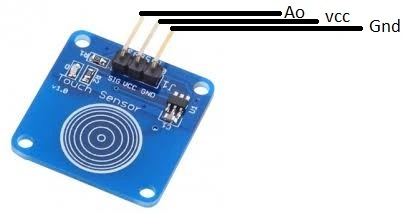
Figure 1: Touch Sensor
Connection
Step 1: Connection From ArduinoMega To Touch Sensor,
- Connect the SIG pin to Ao of the Analog pin to the Board
- Connect the VCC pin to 5v of the Arduino Board
- Connect the GND pin to Gnd of the Arduino Board.
Step 2: Connection From ArduinoMega To LED,
- Connect the positive side to 02 of board
- Connect the negative side to the GND of the board.
Programming
- void setup()
- {
- pinMode(2, OUTPUT);
- }
- void loop()
- {
- if(analogRead(A0) > 600)
- {
- digitalWrite(2, HIGH);
- }
- else
- digitalWrite(2, LOW);
- delay(100);
- }
Explanation
- In this article I explained about the Working With Touch Sensor By Using In ArduinoMega.
- It can clearly display the output on the LED blink
- When we touch the sensor it will glow high automatically.
Output
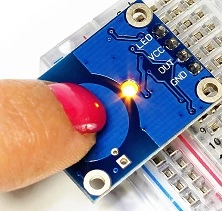
Figure 2: Output
Shobana JPosted Jul 8, 2016, 4:17 AM
Good one
Sr KarthigaPosted May 25, 2016, 8:05 AM
thank you sonu sir
Sr KarthigaPosted May 25, 2016, 8:05 AM
thank you gowtham k sir
Sr KarthigaPosted May 25, 2016, 8:05 AM
thank you gowtham sir
Sr KarthigaPosted May 25, 2016, 8:04 AM
thank you raja sir
Sr KarthigaPosted May 25, 2016, 8:04 AM
thank you prasana
Sr KarthigaPosted May 25, 2016, 8:04 AM
thank you gopi sir
Sr KarthigaPosted May 25, 2016, 8:04 AM
thank you vignesh sir
Sr KarthigaPosted May 25, 2016, 8:03 AM
Thank you thiruppathi sir
Sr KarthigaPosted May 25, 2016, 8:03 AM
Thank you munesh sir
Sr KarthigaPosted May 25, 2016, 8:02 AM
Thank you debasis sir
Sonu ChaudharyPosted May 24, 2016, 12:48 PM
Nice Sharing..
Gowtham KPosted May 24, 2016, 6:10 AM
Good One
Gowtham RajamanickamPosted May 24, 2016, 1:18 AM
good work
RajaPosted May 24, 2016, 12:38 AM
Great Work......
Prasanna MuraliPosted May 23, 2016, 10:20 PM
Good one..
Vignesh ManiPosted May 23, 2016, 3:47 PM
Good one
Gopi ChandPosted May 23, 2016, 3:27 PM
Nice work..Keep going..
Thiruppathi RPosted May 23, 2016, 2:53 PM
Good ..
Munesh SharmaPosted May 23, 2016, 1:57 PM
great
Debasis SahaPosted May 23, 2016, 1:45 PM
Good One..