

Introduction
PaaS (Platform as a Service) allows us to deploy and manage individual code functions without a need to deploy and manage on the individual Virtual Machine (VM). It is also known as Serverless computing. Azure Functions is a serverless compute service that runs our code on demand without needing to host it on the server and manage infrastructure. Azure Functions allows us to write code in various languages, such as C#, F#, Node.js, Java, or PHP. It can be triggered by a variety of events such as HTTPTrigger, TimerTrigger, QueueTrigger, etc. In my previous article, we learned about creating Azure Functions and looked at HTTP-triggered functions using the Azure portal.
In this article, we will learn about Timer-triggered Azure Functions.
The time-triggered Azure Function allows us to schedule time for executing the function. It means that it triggers the function at a specified time. It works as CRON expressions work. When creating a time-triggered function, we need to specify a time in CRON format that determines when the trigger will execute. The CRON expression consists of six parts - second, minute, hour, day, month, and day of the week in Azure Function, and each part is separated by space. We can specify the following special characters inside the expression.
- A comma (,) is used to specify a list of values.
- A forward slash (/) is used to reoccur execution time.
- An asterisk (*) indicates that the expression can have any value.
- A hyphen (-) indicates a range of values.
Apart from this, the following things need to be taken care of.
- To specify days or months, we can use numeric values or abbreviations of names.
- Numeric values 0 to 6 are used for the day where 0 starts with Sunday.
- If we specify the name, the name must be in English and names are case-insensitive.
- If we use a name abbreviation, three letters are the recommended length.
- The default timezone used with the CRON expression is Coordinated Universal Time (UTC). We can create CRON expressions based on other time zones by specifying. "WEBSITE_TIME_ZONE" app setting for the function app.
The format of the CRON expressions in Azure is,
{second} {minute} {hour} {day} {month} {day of the week}
Examples of CRON expression
| Expression | Description |
| 0 * * * * * | Every minute |
| 0 */2 * * * * | Every 2 minute |
| */1 * * * * * | Every second |
| 0 0 * * * * | Every hour |
| 0 0 0 * * * | Every day |
| 0 30 11 * * * | Every day at 11:30:00 |
| 0 0 5-10 * * * | Every hour between 5 to 10 |
| 0 0 0 * * SAT | Every Saturday |
| 0 0 0 * * 6 | Every Saturday |
| 0 0 0 * * 1-5 | Every workday (Monday to Friday) |
| 0 0 0 * * SAT,SUN | Every Saturday and Sunday |
| 0 0 0 1 1 * | Every year 1st January |
| 0 0 0 1-7 * SAT | Every first Saturday of the month at 00:00:00 |
Creating a timer-triggered function
In my previous article, I showed how to create a functional app. When we create a function app, it is automatically deployed and we can create functions under the function app.
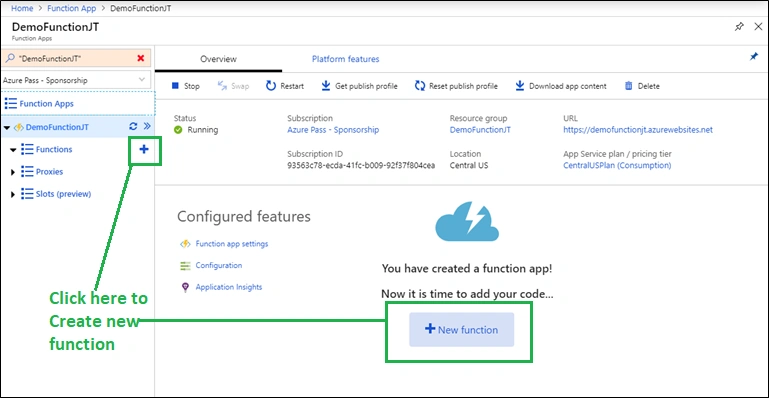
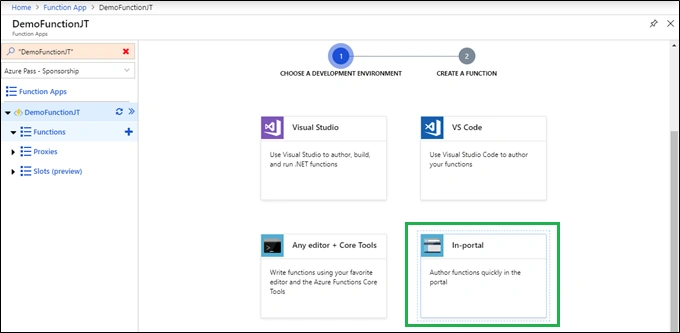
Now, expand the function app and click the "+" button. If it is the first function under the function app, select "In-portal" and click "Continue".
Alternatively, you can also create a function using editors, such as Visual Studio or Azure CLI.
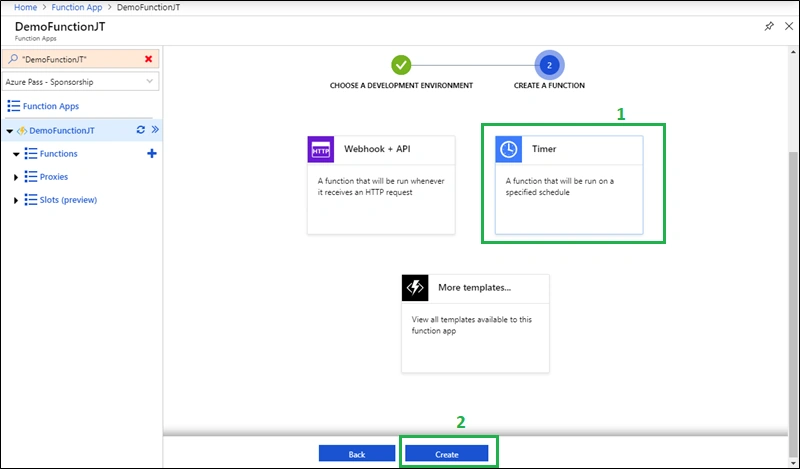
Now select "Timer" then click "Create".
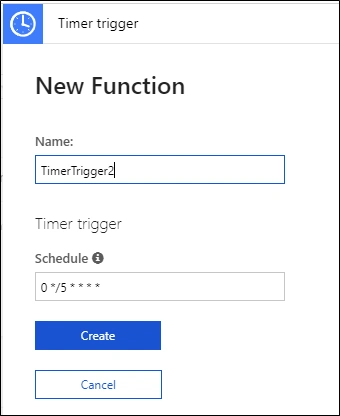
It will show the following screen to configure the new timer function. Here, we need to enter the name of the timer function and schedule time. The scheduled time is in six fields CRON expression. Click "Create".
We can change the scheduled time for the function from the Integrate tab. In this tab, we can also define the inputs/outputs required by the function.
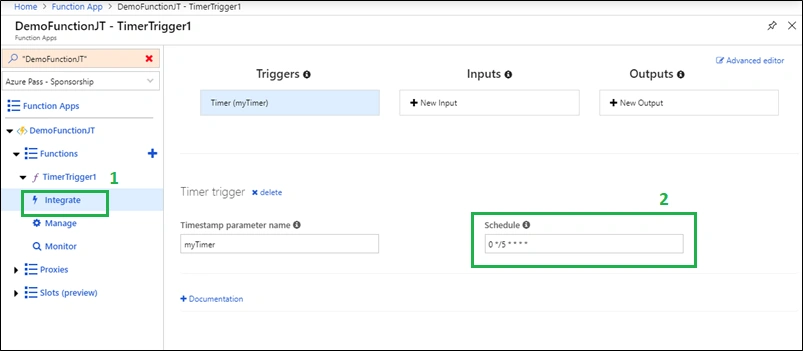
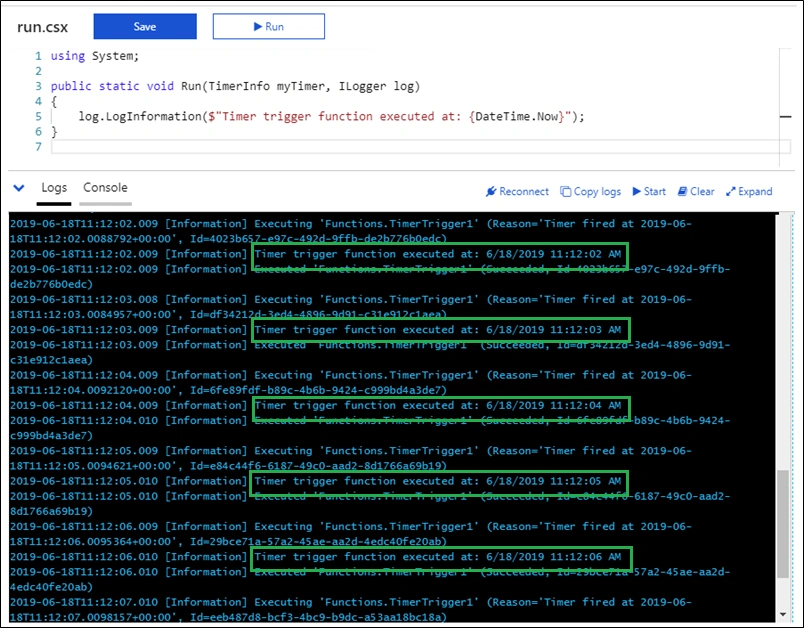
To demonstrate the concept, I have scheduled a timer for every second using the following CRON expression. In this example, I have printed the DateTime value to the console window.
*/1 * * * * *
Summary
In this article, we learned the basics of CRON expressions, and how to define CRON expressions for timer-triggered Azure function. We also learned how to create a function that executes every second.
Michelle SollicitoPosted Nov 21, 2019, 8:53 AM
Help me - how do I unit test timer triggered functions? If I want to call MyFunc.Run() - I need to pass the first parameter as a TimerTrigger - how do I do that?