

Prerequisites
- Visual Studio 2015
Now, let's get started with the steps, given below-
Step 1 - Create Windows Universal Project
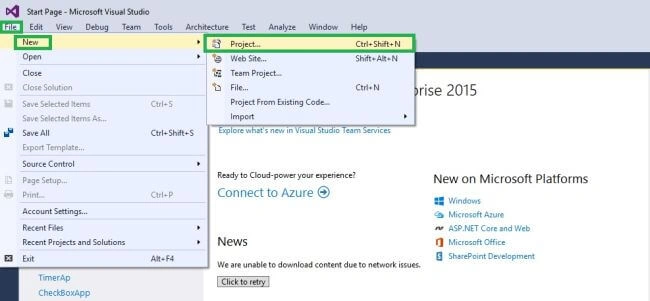
Open Visual Studio 2015 and click File -> New -> Project Option for New Universal App.
Step 2 - Giving the Project Name
New Project Window will open, where you can select an Installed -> Template -> Visual C# -> Windows -> Universal and select a Blank App (Universal Windows).
Type Project Name DatePickerControl and click OK button.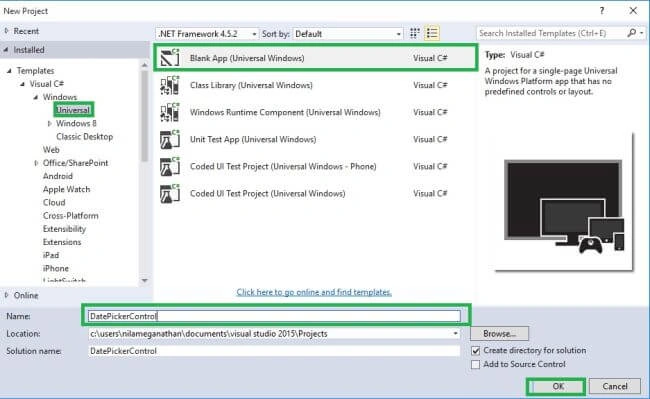
Step 3 - Setting the platform Versions
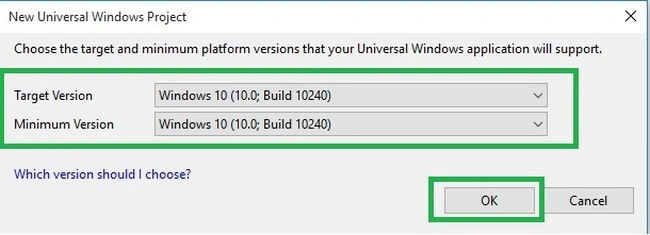
Here, we choose the Target Version and Minimum Version for our Universal Windows Application and click OK button.
Step 4 - Choose Designer Window
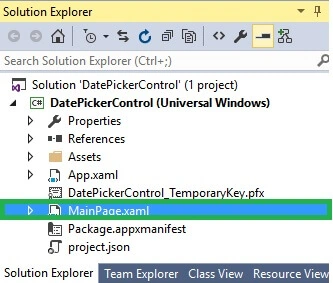
Now, we go to the Solution Explorer and select MainPage.xaml.
Step 5 - Designing the App
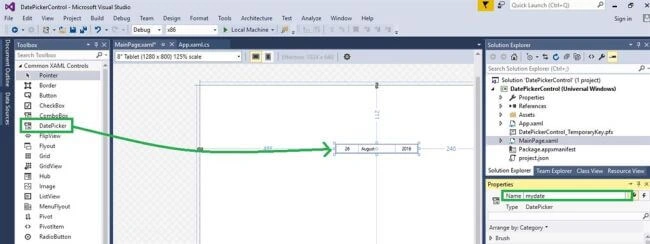
Drag the DatePicker Control from the tool box and change the name to mydate in Property Window.
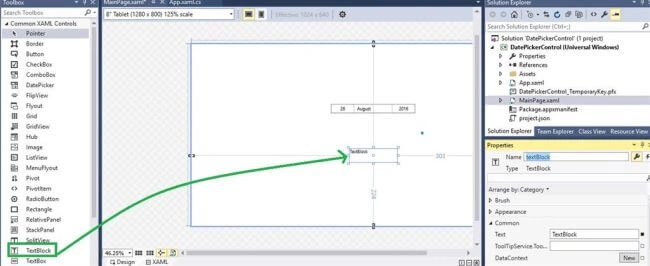
Next, add the Textblock from the tool box.
Step 6 - Add the Coding
To add coding, double click DatePicker Control and add the mentioned source code.
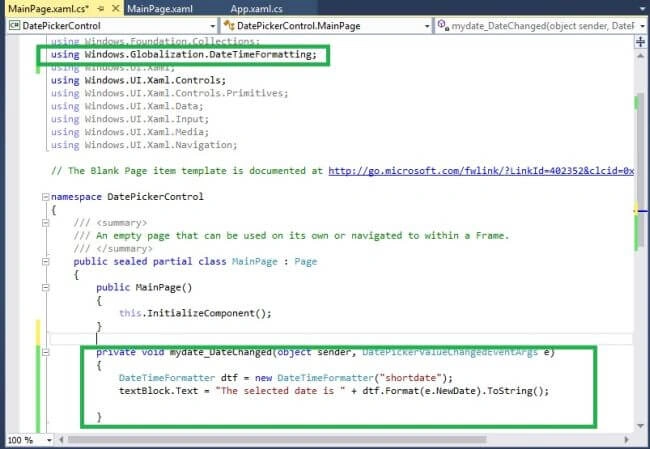
- private void mydate_DateChanged(object sender, DatePickerValueChangedEventArgs e)
- {
- DateTimeFormatter dtf = new DateTimeFormatter("shortdate");
- textBlock.Text = "The selected date is " + dtf.Format(e.NewDate).ToString();
- }
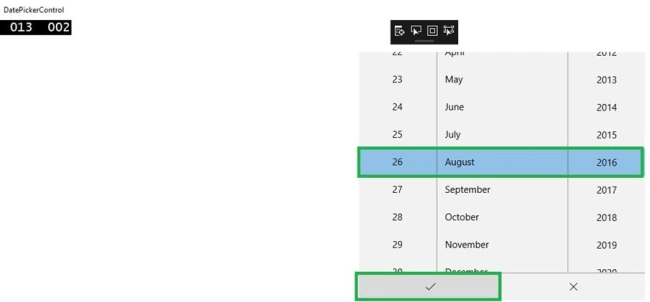
Now, we are ready to run our project. Thus, click the Local Machine to run the Application.
Conclusion
I hope you understood Date Picker control in Universal Window and how to run it.
RakeshPosted Sep 4, 2016, 11:26 PM
Good
Vignesh ManiPosted Sep 4, 2016, 4:58 PM
Nice one