

Microsoft Visual Studio .NET (VS.NET afterward) is full of Data-bound controls and wizards. These controls and wizards help you to generate your applications in no time. You just set some properties of these controls and use wizards to generate your code. In a couple of minutes, you develop a full-fledged working application.
In this series of articles, my first article is OleDb Data Adapter Controls in VS.NET. In this article, I'll show you how to display data in a DataGrid control by writing only one line of code. You just follow these simple steps:
Step 1: Create Project
Pick Visual C#->Windows Application project type your project name and pick a directory. See Figure 1.
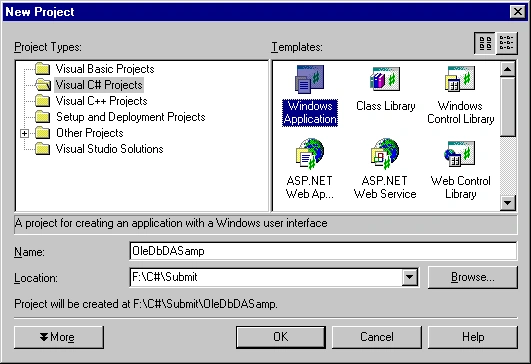
Figure 1.
Step 2: Add OleDb Data Adapter
Drag an OleDbDataAdapter control from Toolbox->Data to your form. Data Adapter Configuration Wizard appears and it guides you towards creating your Data Adapter object.
The first screen is about the wizard. See Figure 2.
Figure 2.
The second screen will let you create a connection. If you already have connections, they are available in a drop-down list. You either pick a connection from your list or create a new connection. The new Connection button will launch Data Link Properties Dialog, which lets you create a new connection. I'm using the Northwind database (Microsoft Access 2000) comes with Office 2002. See Figure 3.
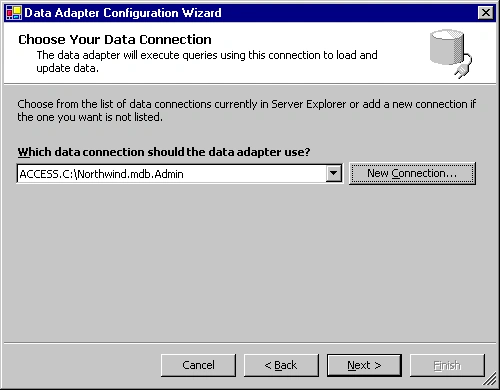
Figure 3.
The next page provides you with options to use SQL Statements or stored procedures. For Microsoft Access databases, only the "Use SQL statements" option is available. See Figure 4.
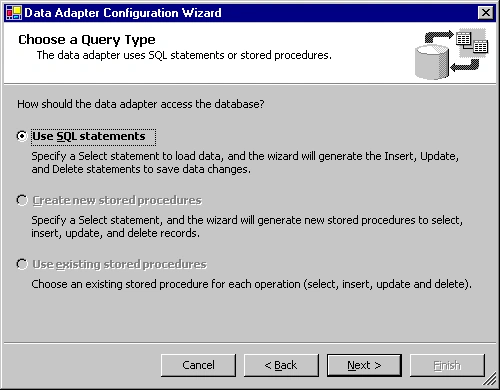
Figure 4.
The next step is to generate an SQL statement. You use the Query Builder button to build a query. See Figure 5.
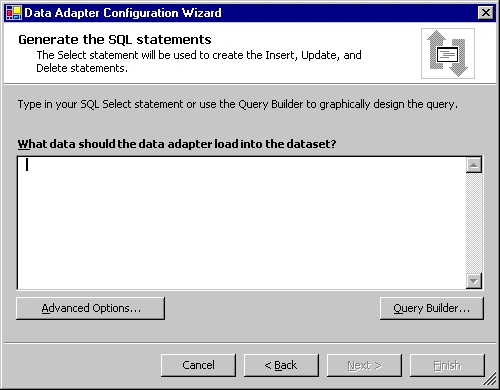
Figure 5.
This option lets you pick your database tables. I pick the Employee table. The Add button adds the table to the listing. You can even pick more than one table. See Figure 6.
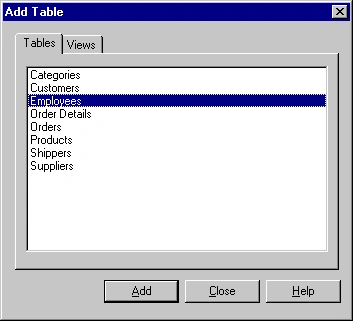
Figure 6.
And now you pick what columns you want to get data from the database to the DataAdapter. I picked some columns Address, City, EmployeeID, FirstName, LastName, and Title. See Figure 7.
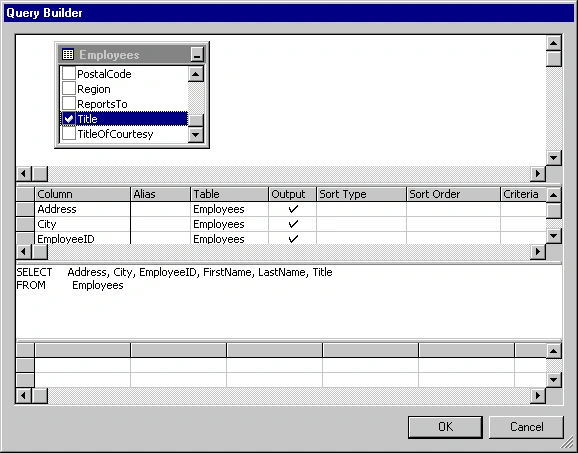
Figure 7.
This page shows you your SQL Statement. You can even write SQL statements by yourself (with no help from Query Builder). See Figure 8.
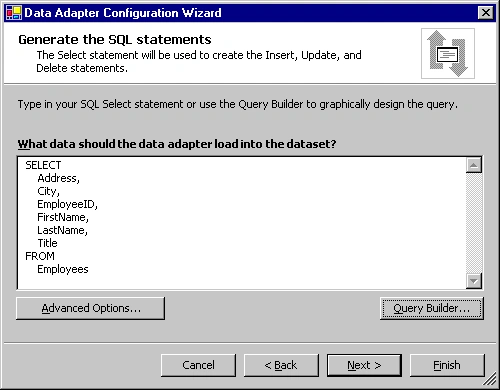
Figure 8.
The last page shows you the activities the wizard finished. See Figure 9.
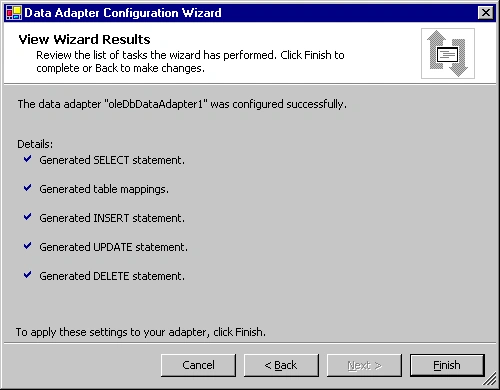
Figure 9.
Step 3: Generate DataSet
The next step is to generate DataSet and connect DataSet to a DataView component. You generate a DataSet by using the "Generate DataSet" option in DataAdapter's Properties dialog. See Figure 10.
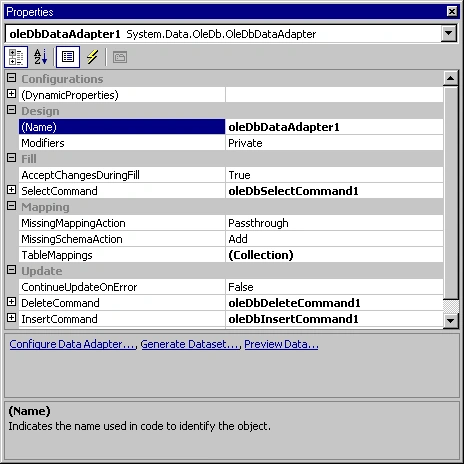
Figure 10.
The Generate DataSet option is also available from the right-click on a data adapter. See Figure 11. You can also call DataAdapter Configuration Wizard from here if you wish to change your data source or want to make any changes using the Configure Data Adapter option. See Figure 11.
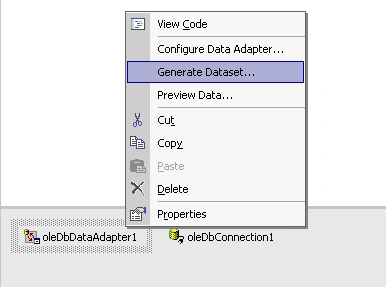
Figure 11.
The generate DataSet link shows you the dataset. Pick the "New" option and type your dataset name. You can pick as many as tables you want from the list. I keep the default option. See Figure 12.
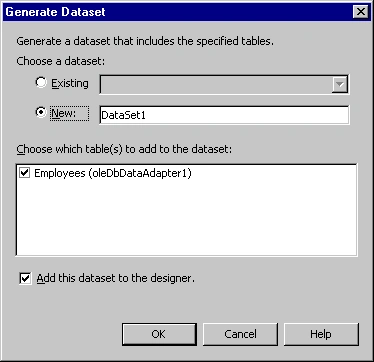
Figure 12.
By clicking the "OK" button, the wizard generates a dataset and shows you its properties dialog. You can change the DataSet name and other properties. The "View Schema" option shows you the XML Schema for this dataset added by the wizard and the "DataSet Properties" option shows you the properties. See Figure 13.
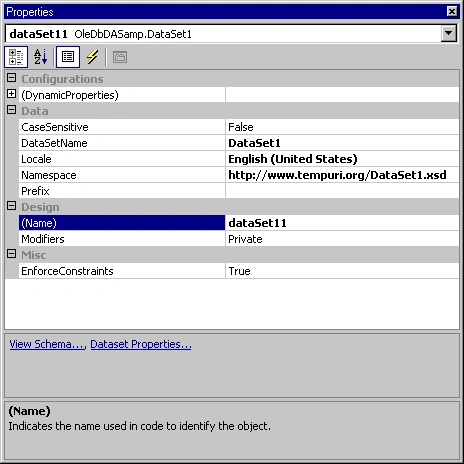
Figure 13.
This action adds one DataSet-derived class to your project. We're not going into details of this class. See Figure 14.
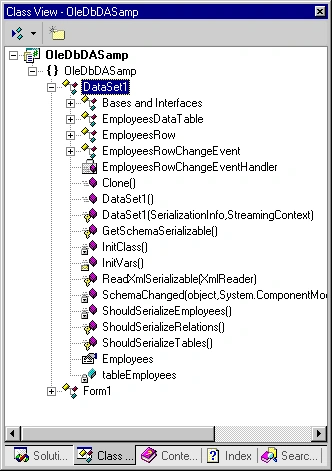
Figure 14.
Step 4: Attach DataSet with a DataView
Now we're going to view data in a DataGrid control. We'll use the recently generated dataset to fill a DataGrid control.
Now attach this dataset with a DataView. To attach a dataset to a DataView first, you need to add a DataView control to the form. Drag a DataView control from Toolbox->Data and set its table property to your DataSet's table. See Figure 15.
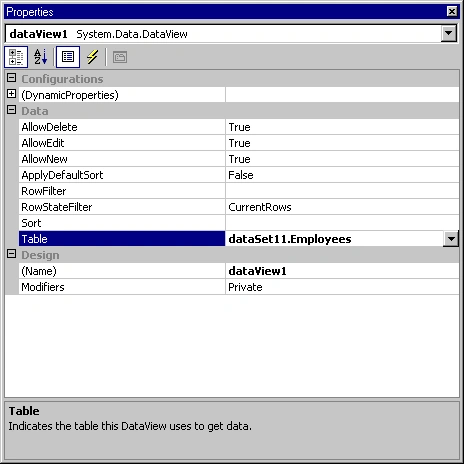
Figure 15.
Now you can bind this DataView with any data-bound controls.
Step 5: Attach DataView with the DataGrid Control and Fill the DataSet
Now drag a DataGrid control from Toolbox->WinFroms to the form and set its DataSource property to DataView. See Figure 16.
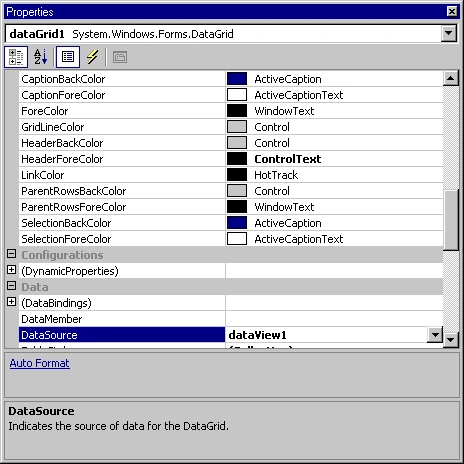
Figure 16.
The last step is one and only one line of code to add.
Now fill the data from DataAdapter to the DataSet by calling DataAdapter's Fill method. I write this code after InitializeComponent(); See BOLD like in the following listing.
InitializeComponent();
oleDbDataAdapter1.Fill(dataSet11);
Build and run the project and see the result. I see my data in the DataGrid control. See Figure 17.
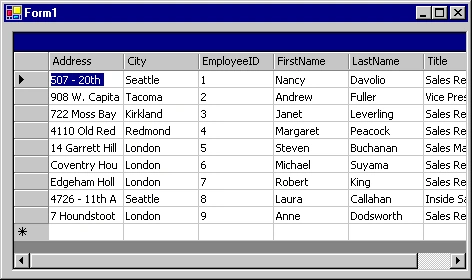
Figure 17.
Conclusion
You just saw how VS.NET provides tools, that you can use to write database applications by merely writing a few lines of code.
JayPosted Dec 11, 2007, 11:23 AM
Hello Mahesh, I seem to have some config... issues with OleDb and ASP.NET and/or Foxpro?... I am accessing a foxpro database or Tables.... so I did Your example to confirm, and got this error below.. Which seems to be the same error I got for the Real App... Can you Help? Security Exception Description: The application attempted to perform an operation not allowed by the security policy. To grant this application the required permission please contact your system administrator or change the application's trust level in the configuration file. Exception Details: System.Security.SecurityException: Requested registry access is not allowed. Source Error: Line 70: // oleDbConnection1 Line 71: // Line 72: this.oleDbConnection1.ConnectionString = "User ID=;DSN=;Cache Authentication=False;Data Source=\"C:\\WMS65\\DAT\";Password=;Pro" + Line 73: "vider=\"VFPOLEDB.1\";Collating Sequence=MACHINE;Mask Password=False;Mode=Share Den" + Line 74: "y None;Extended Properties=;Encrypt Password=False";
CarlosPosted Jun 20, 2007, 10:26 AM
hi Mahesh, ok the article is great but i run the program with mi database and i can't introduce new records, ok in the form yes, but later i check the changes in th database file and i don't see any changes. What happen??? thanks
henry bhavsarPosted May 24, 2006, 7:56 PM
Hi mahesh, I am not able to find SQLdataAdapter, or OledbDataAdpter in toolbox under data in visual studio 2005. I have reinstalled twice but still coundn't find it. Can u help me how to reload them.
eugenia ordanoPosted May 8, 2006, 11:48 AM
Hello, I need to fill a dataAdapter with data from a database, but the sql query that I have to use depends on what the user has selected in a previous DropDownList. So the sql statement (when I configure the dataAdapter) should be: SELECT DISTINCT SystemEvent FROM SubsWorkLoad WHERE (Application_ID ="+DropDownApp.SelectedItem.Text) But this is not possible...so, what should I do to use the selectedItem? Thanks!!!