
Here I am showing you how to create a simple data view web part to display data
from SharePoint list. It has filter and grouping enabled.
I am taking the example of a Task list here. I am creating a data view to
display data from this list to a data view web part.
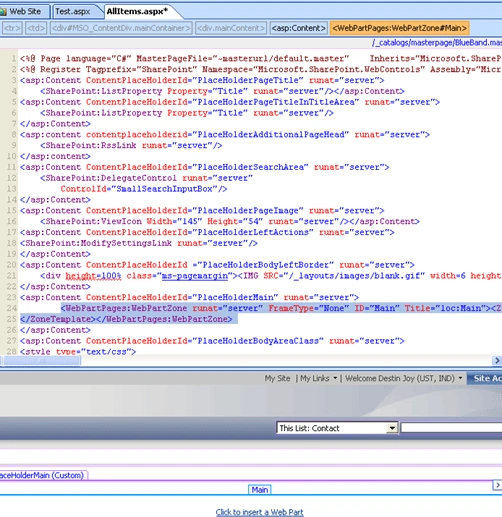
1. First of all you have to open your web application in share point
designer. Open the page where you want to insert data view.
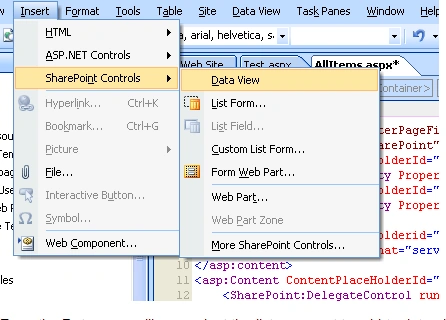
2. Click on Insert -> Share point Control -> Data view.
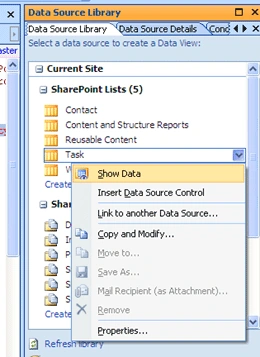
3. From the Data source library select the list you want to add to data
view web part and click on Show data.
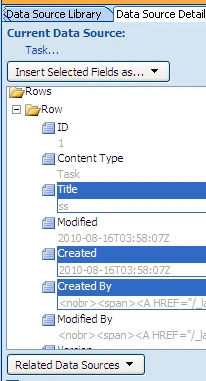
4. Select the fields you want to insert to data view web part.
5. Drag the selected Item to your page web part zone.
6. Click save You will get the data view as shown below.

7. Right click on the web part and click on show common controls.
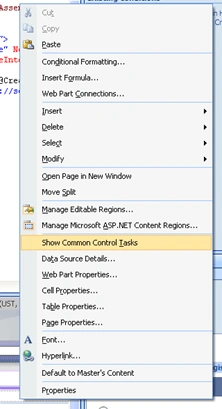
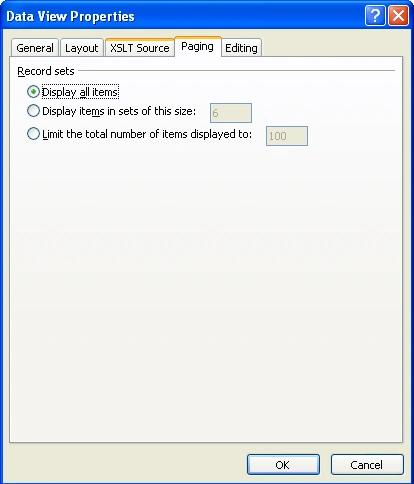
8. From the pop up select Data view properties.
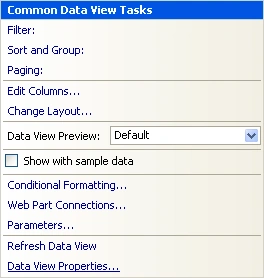
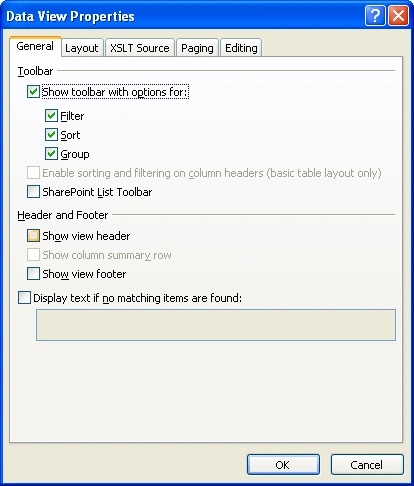
9. Please select the filter and grouping options.
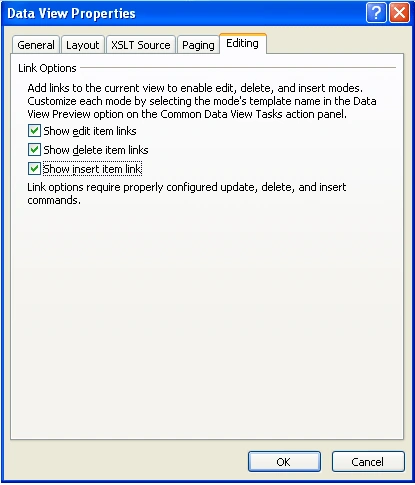
10. Go to Editing tab and select the options you want.
11. Alternatively you can select paging properties in the Paging tab.
12. Check in your changes and open your page in browser.
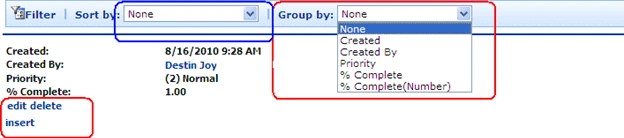
13. Now you can see your Data view web part with
filters,groups,Edit,Delete and Insert options.

Working with Data View Web Part in Sharepoint List
Join the conversation! Your thoughts help the community grow.
Sign in to leave a comment
It is the same account you read, post and publish with — and you will come straight back to this page.
Pratik PatniPosted Apr 1, 2015, 12:40 AM
Nice article. Going further...how can we apply CSS to DVWP?