

Introduction
Xamarin is a platform that allows us to create a multi-platform app for Android, Windows, and iOS through a single integrated development environment (IDE) with Xamarin.Form. The interface design for all three platforms can be accomplished within its XAML-based standard, native user-interfaces control.
Let's start.
Step 1
Open Visual Studio and go to New Project >> Installed>> Visual C# >> Cross-Platform.
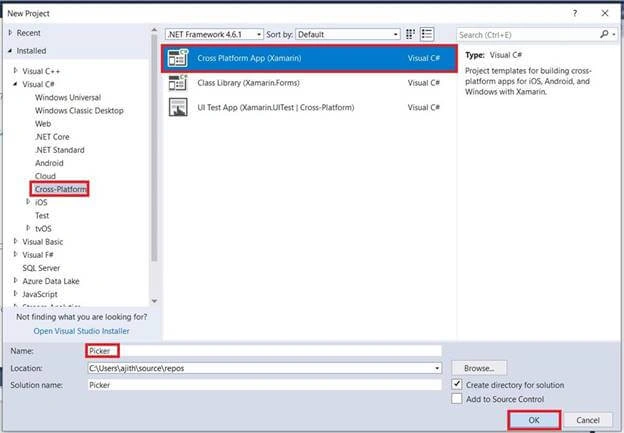
Select the Cross- Platform app, then give your project a name and location.
Step 2
Open Solution Eplorerer >> Project Name (Portable) >> App.xaml.cs >> double-click will open the design view of this page.
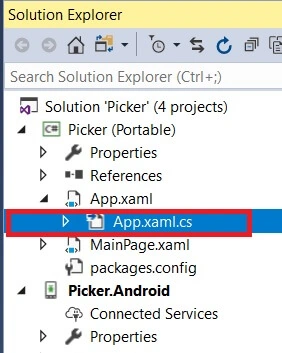
The code is given below.
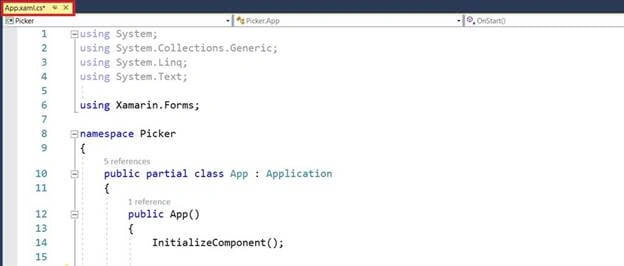
C# Code
- using System;
- using System.Collections.Generic;
- using System.Linq;
- using System.Text;
- using Xamarin.Forms;
- namespace Picker
- {
- public partial class App : Application
- {
- public App()
- {
- InitializeComponent();
- MainPage = new NavigationPage (new MainPage());
- }
- protected override void OnStart()
- {
- // Handle when your app starts
- }
- protected override void OnSleep()
- {
- // Handle when your app sleeps
- }
- protected override void OnResume()
- {
- // Handle when your app resumes
- }
- }
- }
Step 3
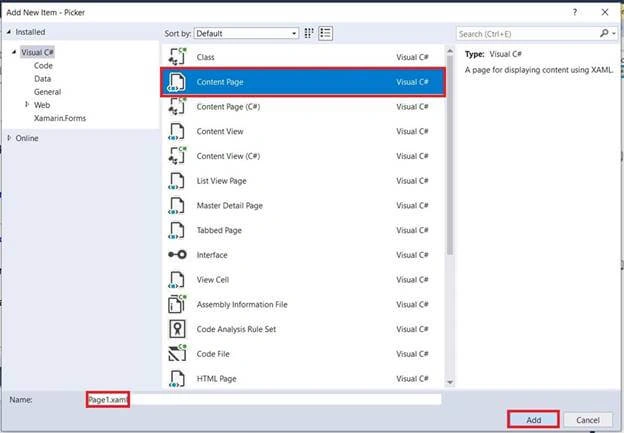
Next, open Solution Explorer >> Project Name (Portable) >>Right-Click >> Add >> New Item or Ctrl+Shift+A.
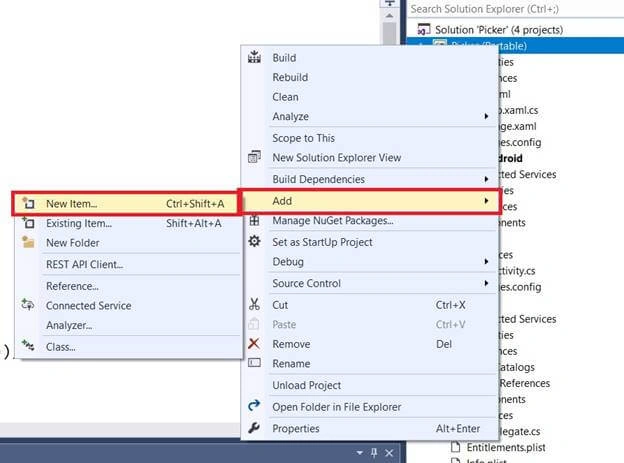
A new dialogue box will open. Now, add the XAML Page and give it a name. Click the "Add" button.
Step 4
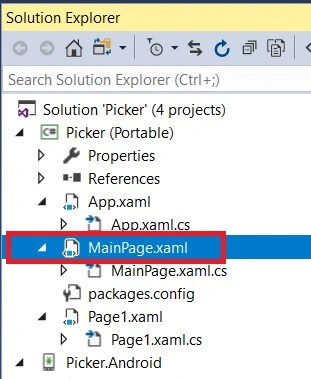
Open Solution Explorer >> Project Name >> MainPage.xaml. Open the design view of this page.
The code is given below.
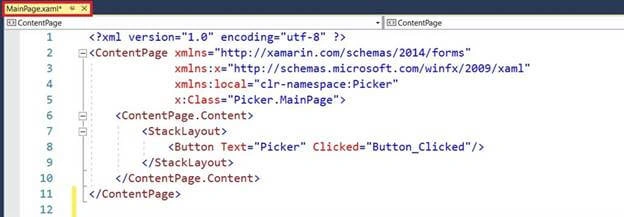
XAML Code
- <?xml version="1.0" encoding="utf-8" ?>
- <ContentPage xmlns="http://xamarin.com/schemas/2014/forms"
- xmlns:x="http://schemas.microsoft.com/winfx/2009/xaml"
- xmlns:local="clr-namespace:Picker"
- x:Class="Picker.MainPage">
- <ContentPage.Content>
- <StackLayout>
- <Button Text="Picker" Clicked="Button_Clicked"/>
- </StackLayout>
- </ContentPage.Content>
- </ContentPage>
Step 5
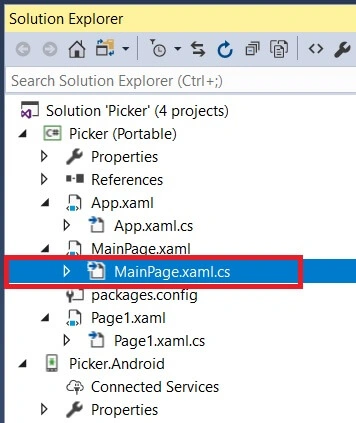
Open Solution Explorer >> Project Name >> MainPage.xaml.cs. Open the design view of this page.
The code is given below.
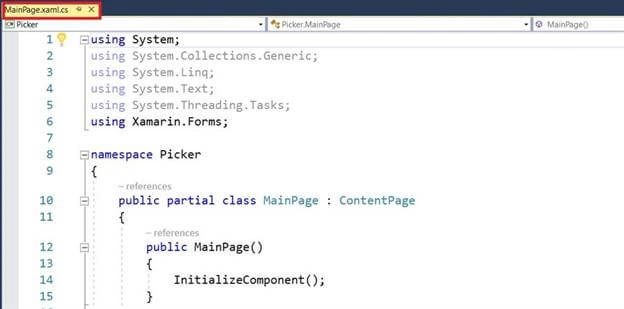
C# Code
- using System;
- using System.Collections.Generic;
- using System.Linq;
- using System.Text;
- using System.Threading.Tasks;
- using Xamarin.Forms;
- namespace Picker
- {
- public partial class MainPage : ContentPage
- {
- public MainPage()
- {
- InitializeComponent();
- }
- async private void Button_Clicked(object sender, EventArgs e)
- {
- await Navigation.PushAsync(new Page1());
- }
- }
- }
Step 6
Open Solution Explorer >> Project Name >> Page1.xaml. Open the design view of this page.
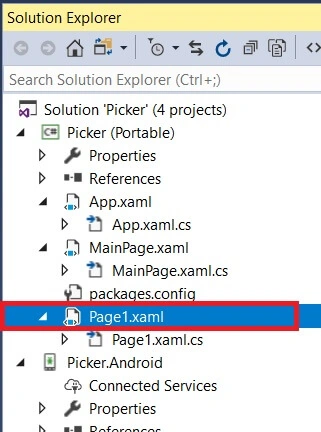
The code is given below.
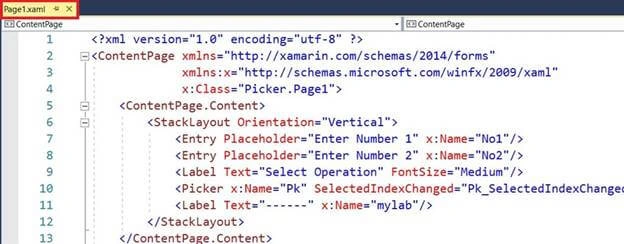
XAML Code
- <?xml version="1.0" encoding="utf-8" ?>
- <ContentPage xmlns="http://xamarin.com/schemas/2014/forms"
- xmlns:x="http://schemas.microsoft.com/winfx/2009/xaml"
- x:Class="Picker.Page1">
- <ContentPage.Content>
- <StackLayout Orientation="Vertical">
- <Entry Placeholder="Enter Number 1" x:Name="No1"/>
- <Entry Placeholder="Enter Number 2" x:Name="No2"/>
- <Label Text="Select Operation" FontSize="Medium"/>
- <Picker x:Name="Pk" SelectedIndexChanged="Pk_SelectedIndexChanged"/>
- <Label Text="------" x:Name="mylab"/>
- </StackLayout>
- </ContentPage.Content>
- </ContentPage>
Step 7
Open Solution Explorer >> Project Name >> Page.xaml.cs. Open the design view of this page.
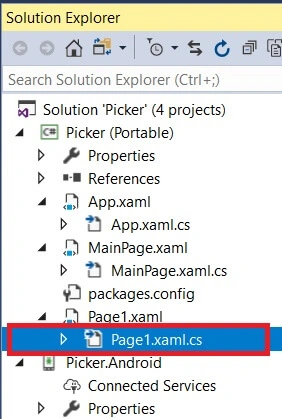
The code is given below.
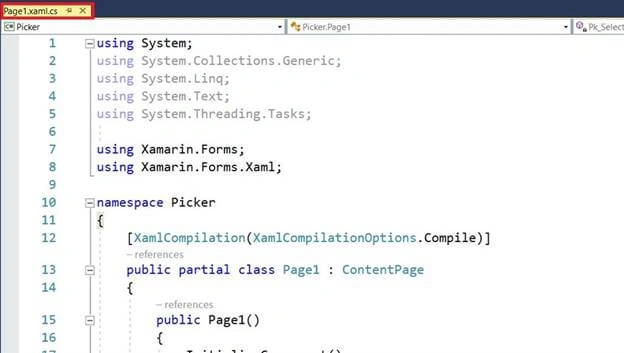
C# Code
- using System;
- using System.Collections.Generic;
- using System.Linq;
- using System.Text;
- using System.Threading.Tasks;
- using Xamarin.Forms;
- using Xamarin.Forms.Xaml;
- namespace Picker
- {
- [XamlCompilation(XamlCompilationOptions.Compile)]
- public partial class Page1 : ContentPage
- {
- public Page1()
- {
- InitializeComponent();
- Pk.Items.Add("Addition");
- Pk.Items.Add("Subtraction");
- Pk.Items.Add("Multiplication");
- Pk.Items.Add("Divition");
- }
- private void Pk_SelectedIndexChanged(object sender, EventArgs e)
- {
- string op = Pk.SelectedItem.ToString();
- int n1 = Int32.Parse(No1.Text);
- int n2 = Int32.Parse(No2.Text);
- double res = 0;
- if (op == "Addition")
- res = n1 + n2;
- else if (op == "Subtraction")
- res = n1 - n2;
- else if (op == "Multiplication")
- res = n1 * n2;
- else if (op == "Divition")
- res = n1 / n2;
- mylab.Text = res + "";
- }
- }
- }
Step 8
Next, select the "Build and Deploy" option followed by selecting from the list Android emulator and simulator. you can choose any API (Application Program Interface) level emulator or simulator to run it.
Output
After a few seconds, you will see your app working.
Android Output
You can choose the Android platform.

Enter the number and select the operation.
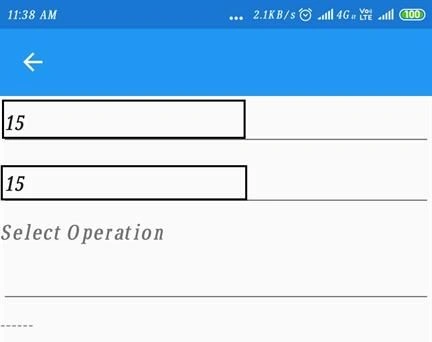
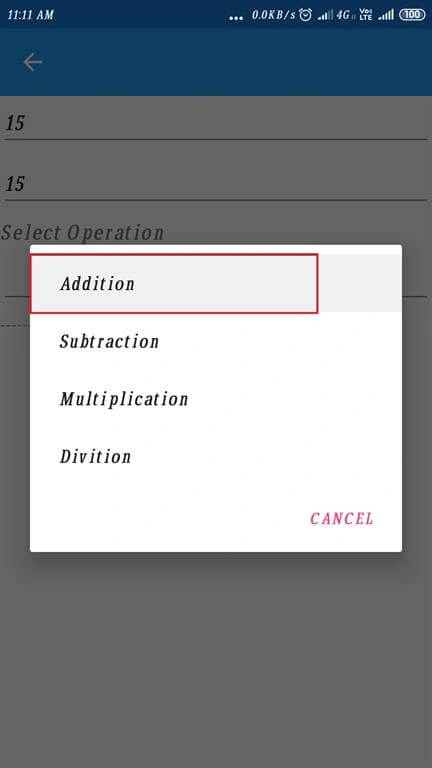
Click Addition Operation.
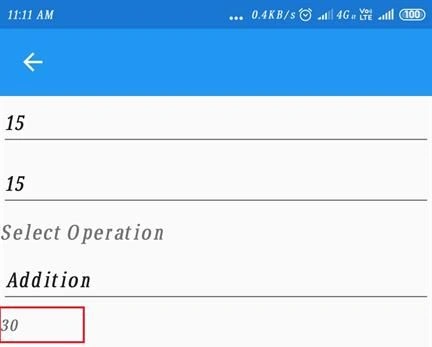
The result is displayed below.
Click "Subtraction" operation.
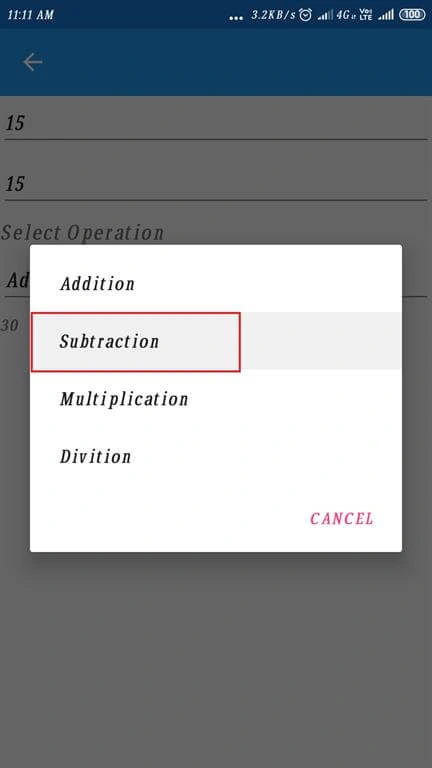
The result is displayed below.
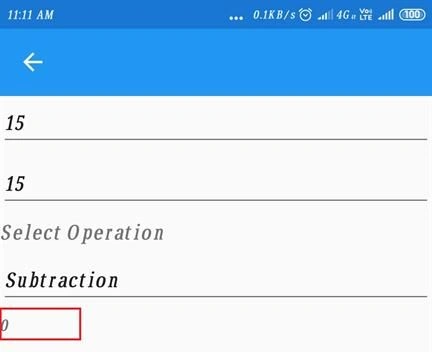
Click the "Multiplication" operation.
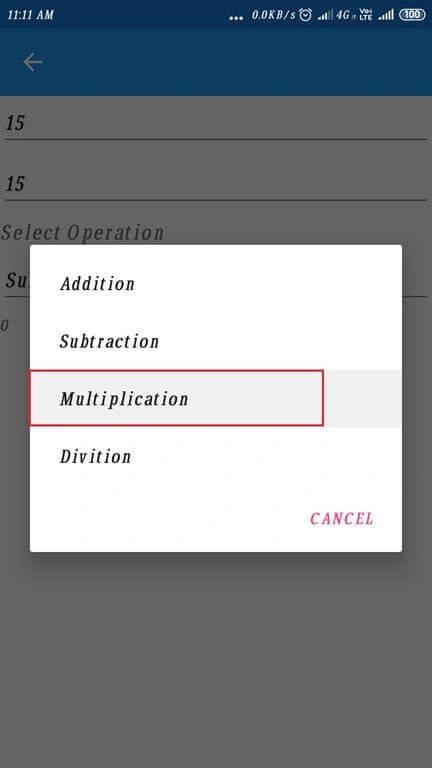
The result is displayed below.
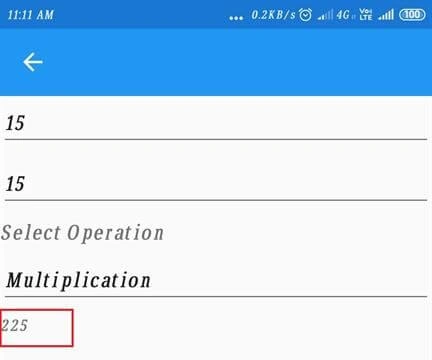
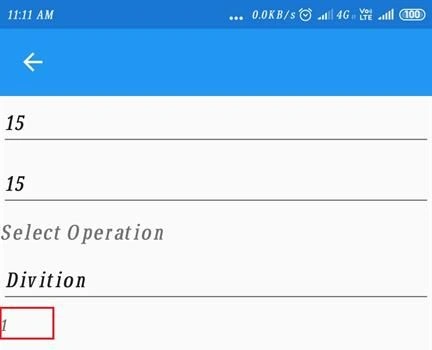
Click the "Division" operation.
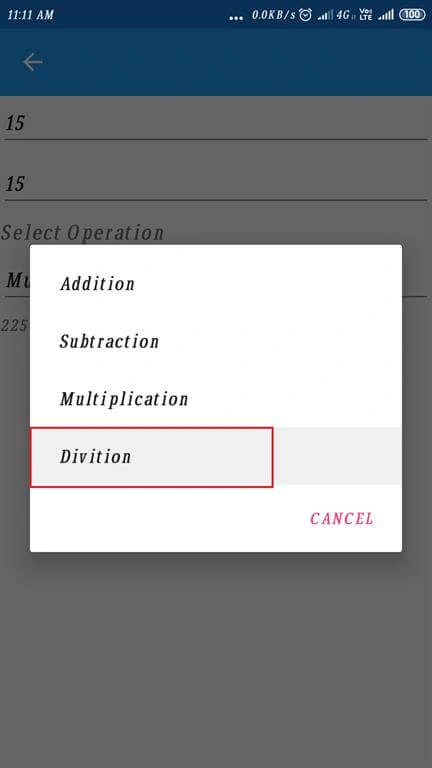
The result is displayed below.
Windows Output
Let us now choose the UWP Platform.

Enter the number and select the Addition operator. Show the picker and choose.
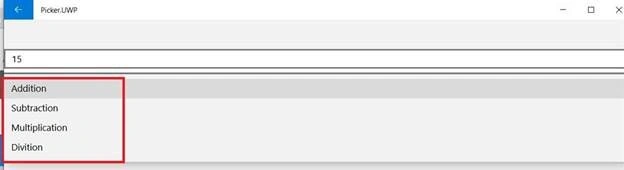
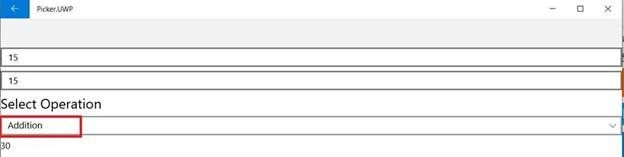
Choose the Addition operation. The result is displayed below.
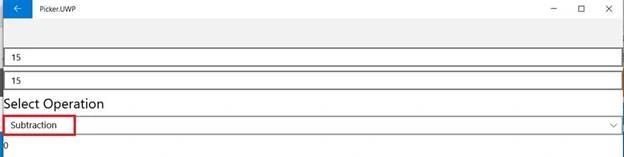
Choose the Subtraction operation. The result is displayed below.
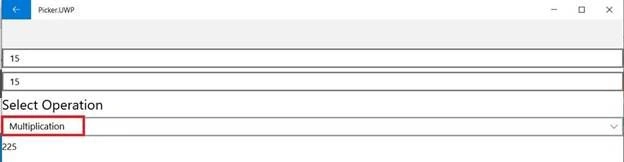
Choose the Multiplication operator. The result is displayed below.
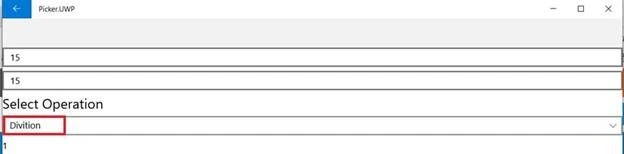
Choose the Division operation. The result is displayed below.
Conclusion
I hope you have learned about Arithmetic Operations in Android and UWP using Xamarin.Forms with Visual Studio and C#.
Join the conversation! Your thoughts help the community grow.