

Introduction
ScrollView is one of Android's most commonly used widgets and is also one of the easiest to use. When something is too big to fit on the screen, data may span the size of the screen so that some of it may not appear.
ScrollView gives us a scrollable layout for large data. We have two types of ScrollView; that is, ScrollView and HorizontalScrollView and we can say that they are a layout container for a view hierarchy that can be scrolled vertically or horizontally by the user, allowing it to be larger than the physical display.
In the example that follows let's imagine that you need to display a piece of text and a couple of buttons. The length of the text is longer than the screen and because of that, all your buttons will not show on the screen. Let us see an example:
- <?xml version="1.0" encoding="utf-8"?>
- <LinearLayout xmlns:android="http://schemas.android.com/apk/res/android"
- android:orientation="vertical"
- android:layout_width="fill_parent"
- android:layout_height="fill_parent"
- >
- <TextView
- android:layout_width="fill_parent"
- android:text="The basic unit of the Android UI is the View. A View represents
- a widget that has an appearance on the screen. An Activity contains Views and
- ViewGroups. Examples of widgets are buttons, labels, text boxes, etc. One or
- more Views can be grouped together into a ViewGroup. A ViewGroup provides the
- layout in which you can order the appearance and sequence of views. Examples
- of View groups are LinearLayout, Relative Layout, etc. "
- android:layout_height="wrap_content"
- android:id="@+id/txt"
- />
- <Button
- android:layout_width="fill_parent"
- android:layout_height="wrap_content"
- android:text="First Step"
- />
- <Button
- android:layout_width="fill_parent"
- android:layout_height="wrap_content"
- android:text="Second Step"
- />
- <Button
- android:layout_width="fill_parent"
- android:layout_height="wrap_content"
- android:text="Thired Step"
- />
- <Button
- android:layout_width="fill_parent"
- android:layout_height="wrap_content"
- android:text="Fourth Step"
- />
- <Button
- android:layout_width="fill_parent"
- android:layout_height="wrap_content"
- android:text="Fifth Step"
- />
- <Button
- android:layout_width="fill_parent"
- android:layout_height="wrap_content"
- android:text="Sixth Step"
- />
- </LinearLayout>
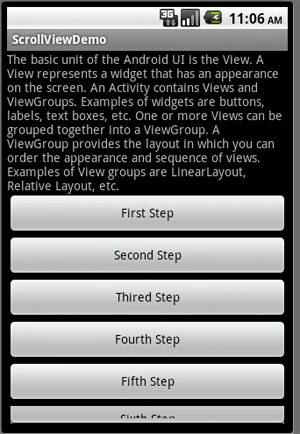
So, you see in the above example that just because of the length of the text the last button was not shown and to resolve this issue your only option is to use scrollview; it gives you a scrollable layout for all your data.
ScrollView
Let's see the example with ScrollView:
- <?xml version="1.0" encoding="utf-8"?>
- <ScrollView xmlns:android="http://schemas.android.com/apk/res/android"
- android:layout_width="fill_parent"
- android:layout_height="wrap_content"
- >
- <LinearLayout xmlns:android="http://schemas.android.com/apk/res/android"
- android:orientation="vertical"
- android:layout_width="fill_parent"
- android:layout_height="fill_parent"
- >
- <TextView
- android:layout_width="fill_parent"
- android:text="The basic unit of the Android UI is the View. A View represents
- a widget that has an appearance on the screen. An Activity contains Views and
- ViewGroups. Examples of widgets are buttons, labels, text boxes, etc. One or
- more Views can be grouped together into a ViewGroup. A ViewGroup provides the
- layout in which you can order the appearance and sequence of views. Examples
- of View groups are LinearLayout, Relative Layout, etc. "
- android:layout_height="wrap_content"
- android:id="@+id/txt"
- />
- <Button
- android:layout_width="fill_parent"
- android:layout_height="wrap_content"
- android:text="First Step"
- />
- <Button
- android:layout_width="fill_parent"
- android:layout_height="wrap_content"
- android:text="Second Step"
- />
- <Button
- android:layout_width="fill_parent"
- android:layout_height="wrap_content"
- android:text="Thired Step"
- />
- <Button
- android:layout_width="fill_parent"
- android:layout_height="wrap_content"
- android:text="Fourth Step"
- />
- <Button
- android:layout_width="fill_parent"
- android:layout_height="wrap_content"
- android:text="Fifth Step"
- />
- <Button
- android:layout_width="fill_parent"
- android:layout_height="wrap_content"
- android:text="Sixth Step"
- />
- </LinearLayout>
- </ScrollView>
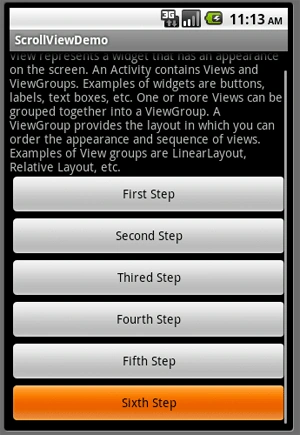
Now you can see your all data by scrolling the screen. The other type of scrollview I will explain in the next example.
HorizontalScrollView
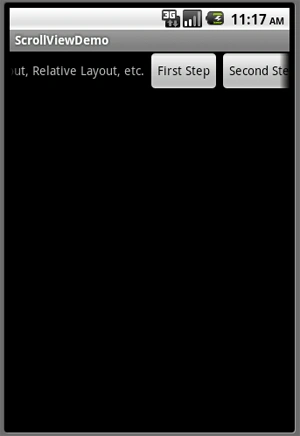
HorizontalScrollView is a FrameLayout; that means a child that is often used is a LinearLayout in a horizontal orientation, presenting a horizontal array of top-level items that the user can scroll through.
Example
- <?xml version="1.0" encoding="utf-8"?>
- <HorizontalScrollView xmlns:android="http://schemas.android.com/apk/res/android"
- android:layout_width="fill_parent"
- android:layout_height="wrap_content"
- >
- <LinearLayout xmlns:android="http://schemas.android.com/apk/res/android"
- android:orientation="horizontal"
- android:layout_width="fill_parent"
- android:layout_height="fill_parent"
- >
- <TextView
- android:layout_width="wrap_content"
- android:text="The basic unit of the Android UI is the View. A View represents a widget that has an appearance on the screen."
- android:layout_height="wrap_content"
- android:id="@+id/txt"
- />
- <Button
- android:layout_width="wrap_content"
- android:layout_height="wrap_content"
- android:text="First Step"
- />
- <Button
- android:layout_width="wrap_content"
- android:layout_height="wrap_content"
- android:text="Second Step"
- />
- <Button
- android:layout_width="wrap_content"
- android:layout_height="wrap_content"
- android:text="Thired Step"
- />
- <Button
- android:layout_width="wrap_content"
- android:layout_height="wrap_content"
- android:text="Fourth Step"
- />
- <Button
- android:layout_width="wrap_content"
- android:layout_height="wrap_content"
- android:text="Fifth Step"
- />
- <Button
- android:layout_width="wrap_content"
- android:layout_height="wrap_content"
- android:text="Sixth Step"
- />
- </LinearLayout>
- </HorizontalScrollView>
Output:
I hope you enjoy learning the working of scrollview in android.
karthick ragunathPosted Sep 7, 2011, 8:11 AM
Hi Manish nice work.whether this will work in samsung galaxy 3 mobiles
Mahesh ChandPosted Jul 21, 2011, 10:14 AM
Good work Manish.