

In this article, you will learn the following things.
- .NET Configuration Files.
- What is AppSetting in the web.config file?
- How to retrieve AppSetting Key’s Value?
- External appsetting
- Difference between FILE and CONFIGSOURCE attribute of AppSettings
- Step by Step Implementation using FILE attribute of APPSETTINGS
.NET Configuration Files
Types of configuration files in DOT NET (.NET) framework: In .NET, we can develop the following types of applications and for all types of applications, we require a configuration file. In the below chart, I have explained the types of applications and types of configuration files used.
| TYPES OF APPLICATION | CONFIGURATION FILENAME |
| Console Application | App.Config |
| WinForm Application | App.Config |
| Web Application (Web Form / MVC) | Web.Config |
| WPF Application | App.Config |
What is AppSetting in web.config file?
As the name defines itself, AppSetting means Application Setting. In the section, we store settings in a pair of Key/Value. AppSetting element section exists under the Configuration tag. All custom settings o a web application can be stored here.
Syntax
- <appSettings>
- <add key="[KeyName]" value="[Value of Key]"/>
- </appSettings>
Example
- <configuration>
- <appSettings>
- <add key="MainPath" value="D:\Projects\GstInvoice\"/>
- </appSettings>
- </configuration>
Please visit the following link for more details -
https://msdn.microsoft.com/en-us/library/ms228154(v=vs.100).aspx
How to retrieve AppSetting Key’s Value?
To retrieve the key’s value from the AppSetting section on the page, you have to use ConfigurationManager Class that is derived from System.Configuration Namespace.
Syntax
ConfigurationManager.AppSetting[ “Key Name”]
Example
String MainSitePath = ConfigurationManager.AppSettings["MainSite"]
External AppSetting
We can store AppSetting in an external file to manage it efficiently, besides that, at the Runtime, we can change the value of AppSetting and update the file without restarting the application.
To store AppSetting externally, there are two ways-
- <appSettings file=””>
- <appSettings configsource=””>
Difference between File and ConfigSource attribute of AppSettings
File attribute
- This attribute was introduced in .Net Framework version 1.1.
- Using file attribute and separate file allow us to update in appSetting section without restart application.
- The appsetting of separate files are merged with the appSetting section of the Web.Config
ConfigSource attribute
- This attribute introduced in .Net Framework version 2.0
- Using configsource attribute any changes cause to restart the application.
- Using configsource attribute we have to move all and entire appsetting to separate files and no merging.
For more detail visit the following links,
Step by Step Implementation using FILE attribute of APPSETTINGS
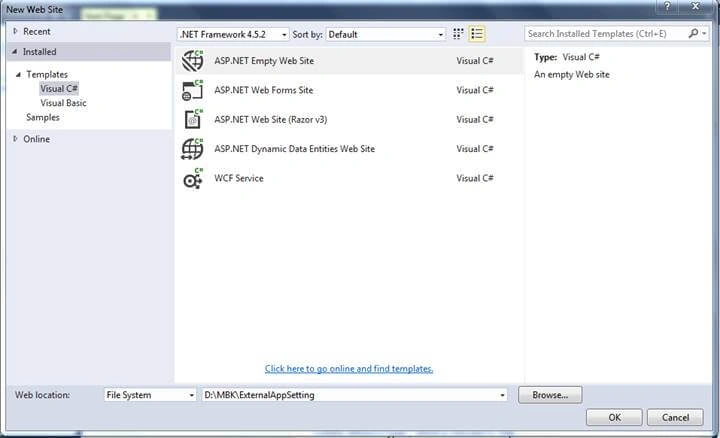
Start Visual Studio(VS) I am using VS Community 2015
Click on File-->New-->WebSite
Named project as “ExternalAppSetting”
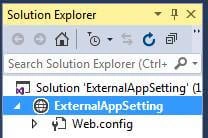
Switch to solution explorer or Press ALT + CTRL + L
You can see there is Web.config file.
Double click on Web.Config file following is the default view of the Web.Config file:
As you can see in the default view there is no appsetting element tag.
- <?xml version="1.0"?>
- <!--
- For more information on how to configure your ASP.NET application, please visit
- http://go.microsoft.com/fwlink/?LinkId=169433
- -->
- <configuration>
- <system.web>
- <compilation debug="true" targetFramework="4.5.2" />
- <httpRuntime targetFramework="4.5.2" />
- </system.web>
- </configuration>
Now you can see I had created a simple internal AppSetting within Web.Config file.
- <configuration>
- <appSettings>
- <add key="intUserName" value="Ashish Kalla"/>
- </appSettings>
- <system.web>
- <compilation debug="true" targetFramework="4.5.2" />
- <httpRuntime targetFramework="4.5.2" />
- </system.web>
- </configuration>
Creating external AppSetting
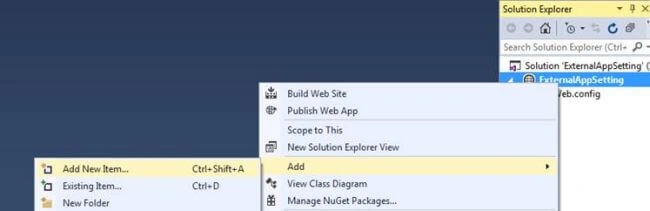
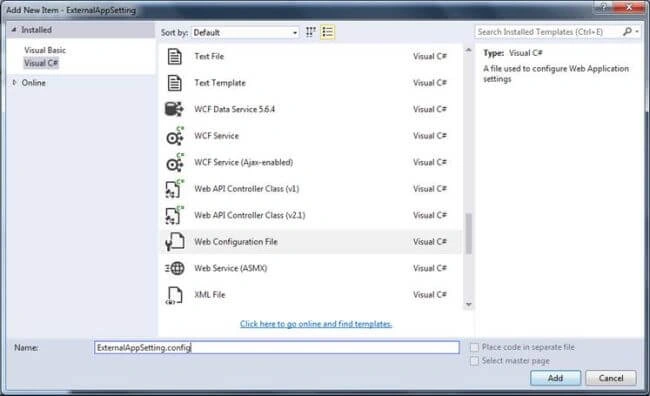
Now I am going to write an external app setting file called “ExternalAppSetting.config”
Code in ExternalAppSetting.config
- <?xml version="1.0"?>
- <appSettings>
- <add key="extUserName" value="Suhana Kalla"/>
- </appSettings>
Now linking external app setting config file to web.config. As you know there two method to attached external appsetting config file. Two attributes are configsource or file.
Web.Config file code
For attaching external appsetting with file attribute,
- <?xml version="1.0"?>
- <!--
- For more information on how to configure your ASP.NET application, please visit
- http://go.microsoft.com/fwlink/?LinkId=169433
- -->
- <configuration>
- <appSettings file="ExternalAppSetting.config">
- <add key="intUserName" value="Ashish Kalla"/>
- </appSettings>
- <system.web>
- <compilation debug="true" targetFramework="4.5.2" />
- <httpRuntime targetFramework="4.5.2" />
- </system.web>
- </configuration>
To check internal and external app settings insert a new webform file named “default.aspx”
Right-click on project or project name
Select ADD --> ADD NEW ITEM --> WebForm
Named “Default.aspx” then click the ADD button.
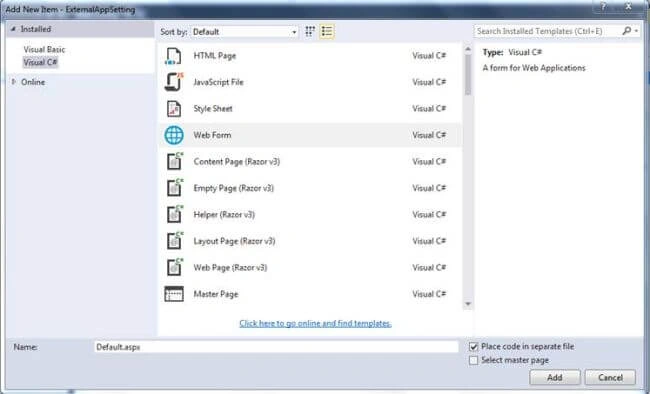
Double click on Default.aspx and insert two label controls and switch to code-behind file by pressing F7 or double click on default.aspx.cs file in solution explorer.
Before start coding first attached using System.Configuration; namespace at the top of the file.
Code in Default.aspx
- <%@ Page Language="C#" AutoEventWireup="true" CodeFile="Default.aspx.cs" Inherits="_Default" %>
- <!DOCTYPE html>
- <html xmlns="https://www.w3.org/1999/xhtml">
- <head runat="server">
- <title></title>
- </head>
- <body>
- <form id="form1" runat="server">
- <div>
- <b style="font-size:larger">Internal AppSetting</b>
- <br />
- <b>KEY</b>= intUserName and <b>Value</b> = <asp:Label ID="lblInternalAppsettingValue" runat="server" Text="Label"></asp:Label>
- <br />
- <br />
- <br />
- <b style="font-size:larger">External AppSetting</b>
- <br />
- <b>KEY</b>= extUserName and <b>Value</b> = <asp:Label ID="lblExternalAppsettingValue" runat="server" Text="Label"></asp:Label>
- </div>
- </form>
- </body>
- </html>
Code in Default.aspx.cs
- using System;
- using System.Collections.Generic;
- using System.Linq;
- using System.Web;
- using System.Web.UI;
- using System.Web.UI.WebControls;
- using System.Configuration;
- public partial class _Default : System.Web.UI.Page
- {
- protected void Page_Load(object sender, EventArgs e)
- {
- lblInternalAppsettingValue.Text = ConfigurationManager.AppSettings["intUserName"].ToString();
- lblExternalAppsettingValue.Text = ConfigurationManager.AppSettings["extUserName"].ToString();
- Response.Write(Session["ram"]);
- }
- }
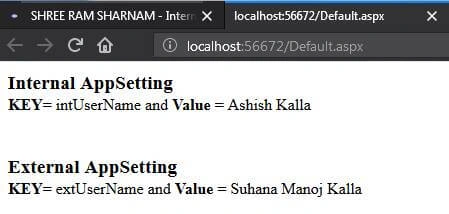
OUTPUT
Ravi PrakashPosted May 30, 2018, 1:24 AM
Can we add multiple files for appSettings ? For Example as shown below <appSettings file="file1.config,file2.config"></appSettings>