

This article gives a hand-on experience to deploy a Wordpress Website on Azure step by step. Microsoft Azure is a beloved service which is home to millions of applications and handles over 40 billion requests on a daily basis. It provides services which support robust applications to be developed, tested and launched with enterprise grade performance, security and compliances such as GDPR. Today, this article gives a hand-on experience with creating a website and using the Microsoft Azure service to host it. Microsoft Azure Cloud Certification and Azure Learning explains various learning tools provided by Microsoft and here, we use Microsoft Azure via Sandbox to host the website.
C# Corner is also having a week-long virtual event on Azure – Azure Summit 2021. To learn more about Azure and its constituent technologies, attending this event will help you explore and experience deeper with Azure. Check out the official website of the summit to register as an attendee or to be a speaker and share your knowledge with the community.
Azure
Azure is a cloud computing service developed by Microsoft which enables organizations and individuals to build, test, deploy and manage their applications in a high availability and rapidly scalable platform with unparalleled security offerings and benefits in comparison to the traditional on-premises infrastructure.
Sandbox
Azure Sandbox, mainly known as the Microsoft Learn Sandbox, provides an environment which can be used to explore and learn Azure from the Microsoft Learn modules, all free of cost. One of the benefits of the Sandbox is, it is not necessary to have an Azure account. You neither need to pay nor even use your free credits. With Microsoft Account alone, you can access, use and learn with the Sandbox environment through Microsoft Learn platform.
Azure provides numerous free services and afree usage tier. Once you start Azure with a free account, the platform provides $200 woth of credit for the first 30 days. You can use it to learn about Azure. Besides, there are Microsoft Sandbox which provides limited usage free platform for 2 hours a day. You can use any of these if you are willing to learn without any payment fees to Azure.
Steps to Create and Deploy a Wordpress Website in Azure
Step 1
Login into Azure Portal
Step 2
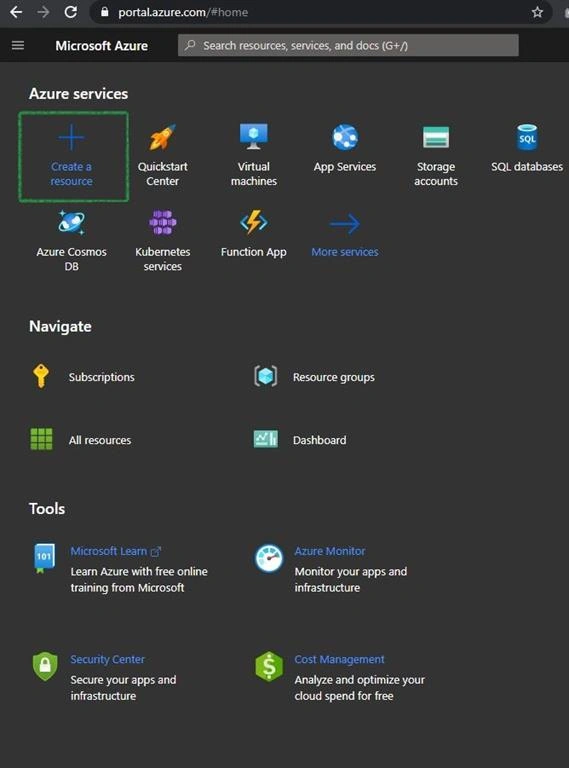
Select the Create a resource as in the green boxed reference below,
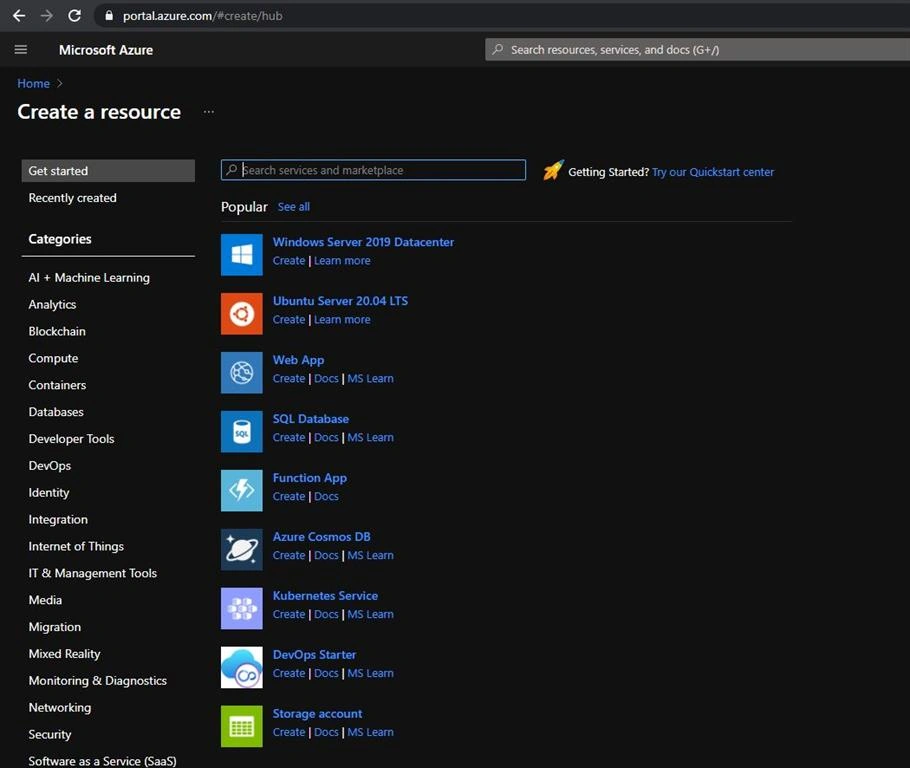
Explore the Marketplace and search in the keywordWordpress on the Search place,
Step 3
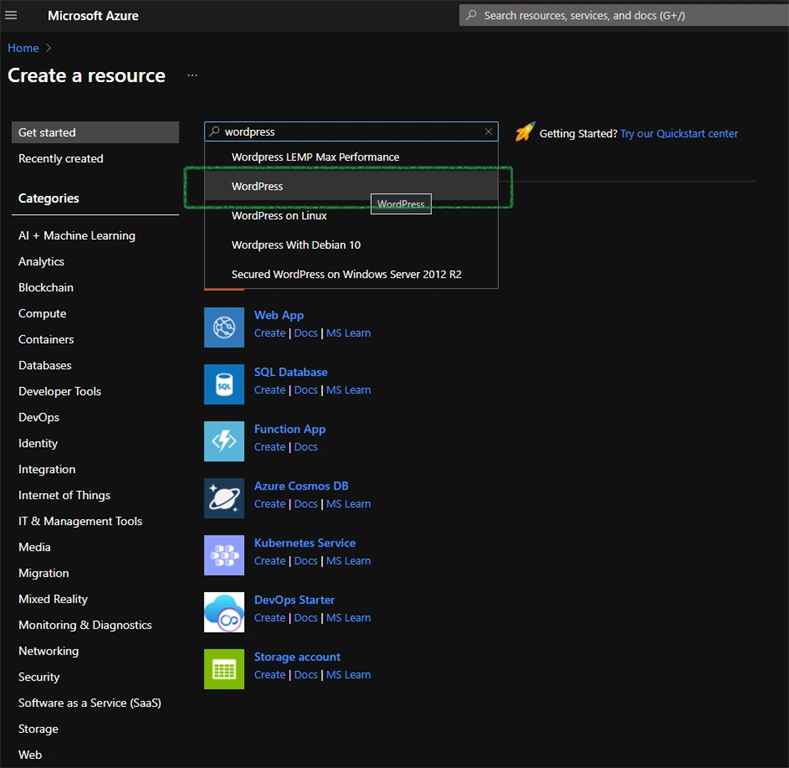
Make sure to click on WordPress and not the other options,
Step 4
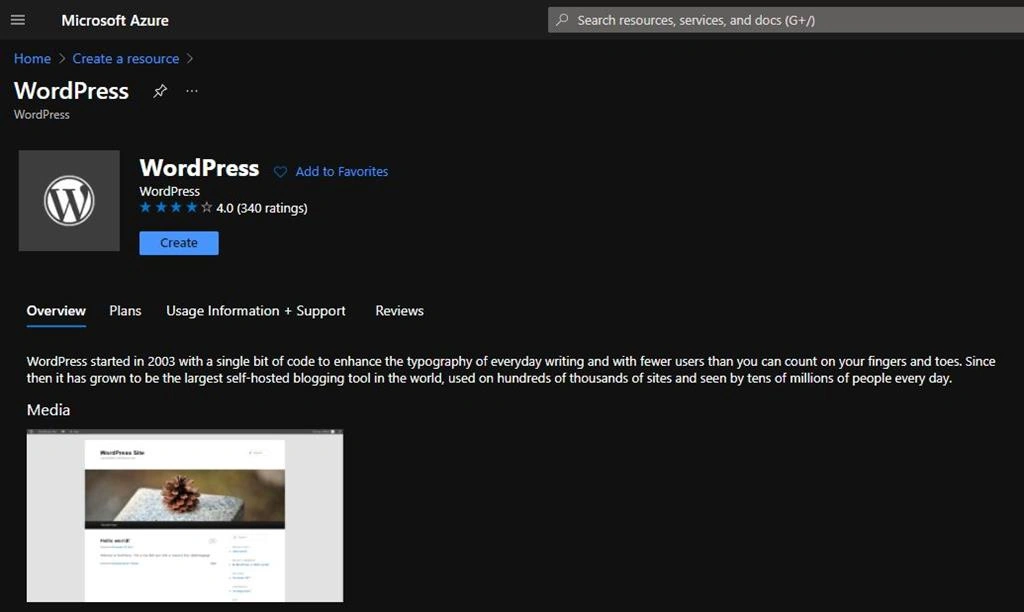
Explore the WordPress page and various Plans and Usage Information. Then, click on Create,
Step 5
Now, we are on App details page with choices of the services to be used. Choose in the Appname of your choice and use the other configures in the direction shown below,
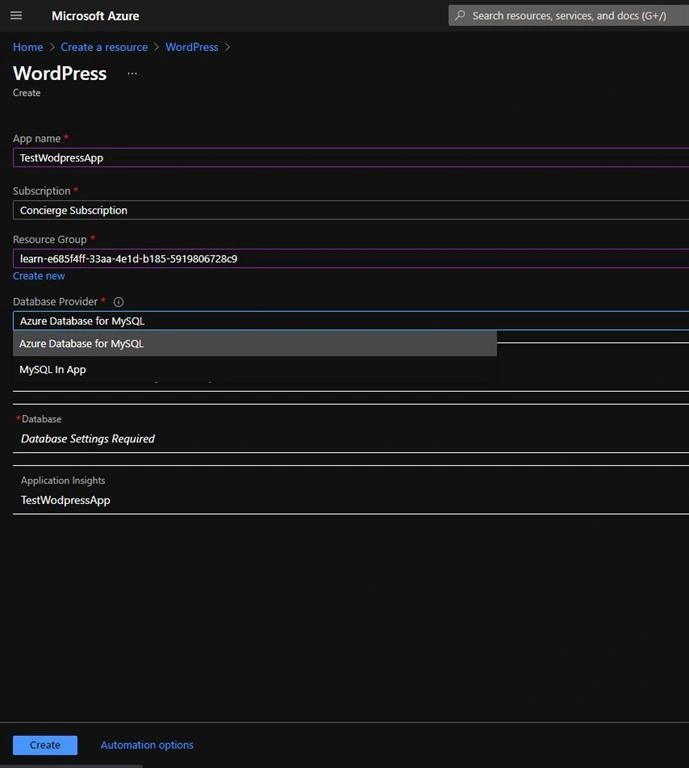
Make sure to use the MySQL In App as the Database Provider,
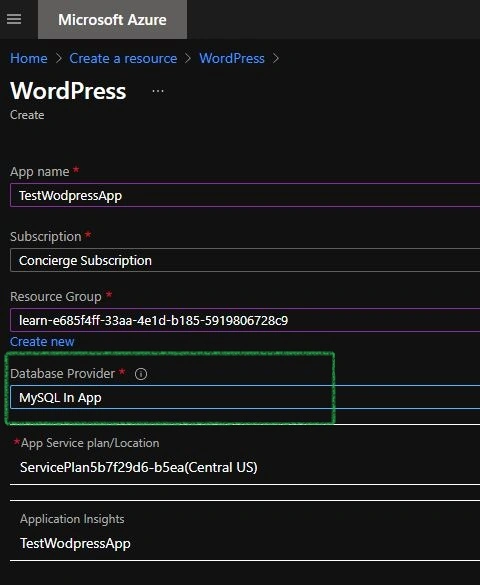
Step 6
Let us now configure the App Service Plan/Location as per our requirement
Step 7
Click on Create new,
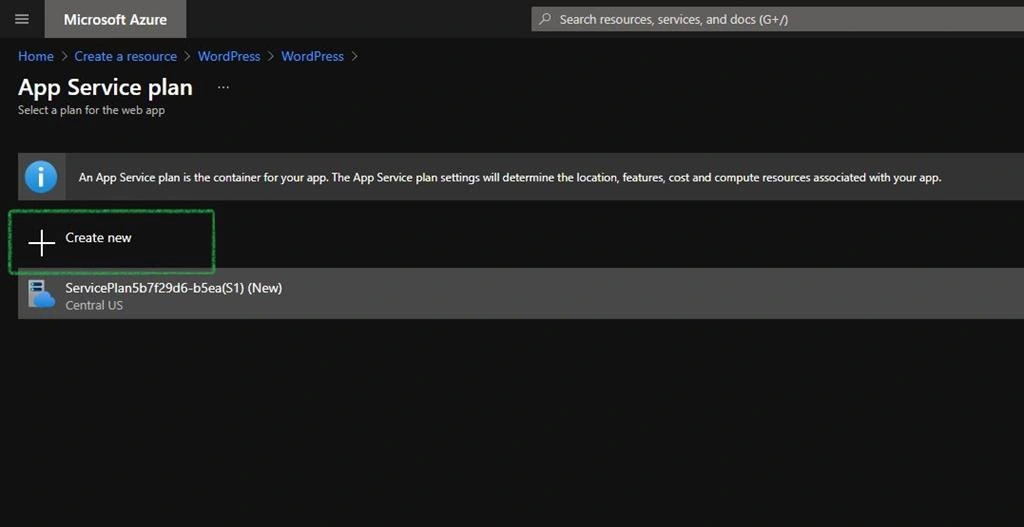
Step 8
Choose the respective Spec you require. For free usage, Click on Dev/ Test and then on Shared Infrastructure,
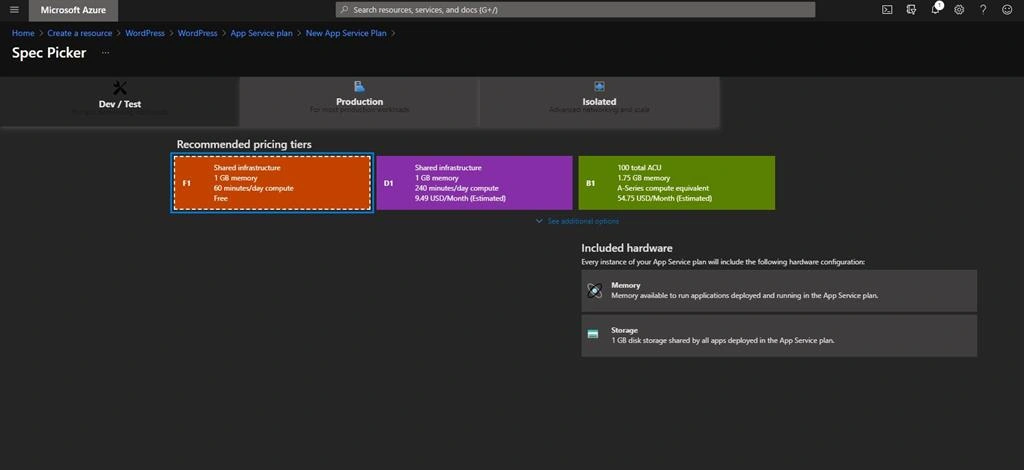
Step 9
Confirm your Pricing Tier and Location of the server
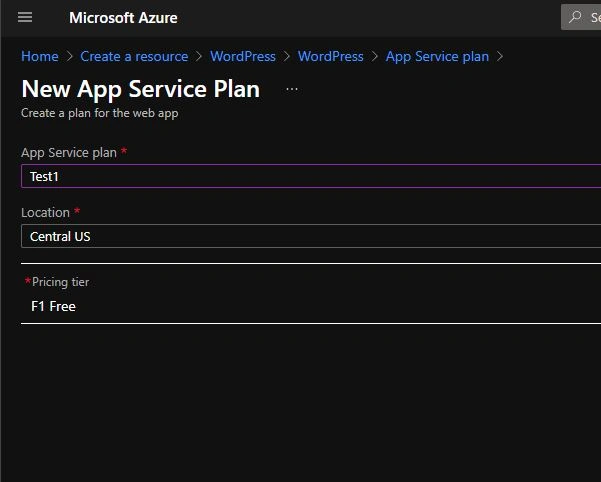
Step 10
Click on Create
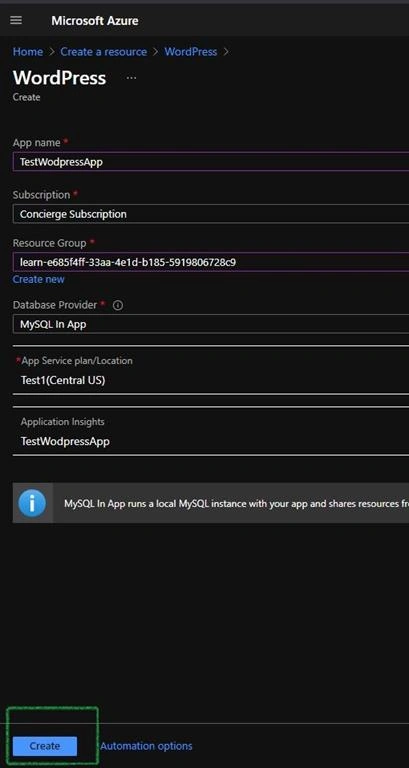
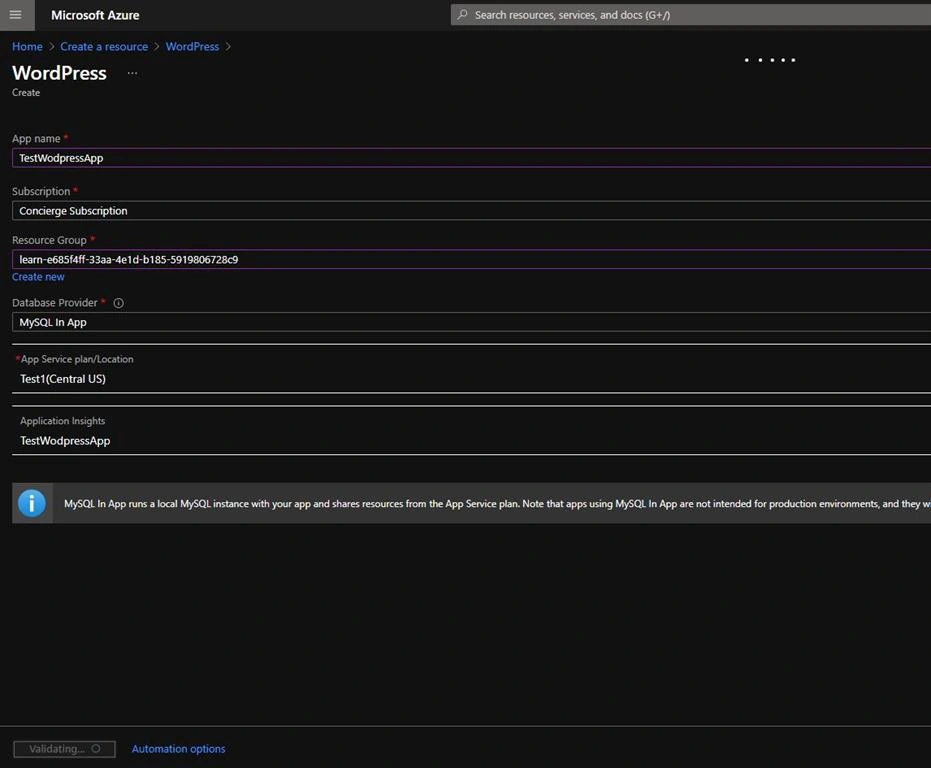
The system will start to validate your deployment,
During the process, your notification will look something like this.
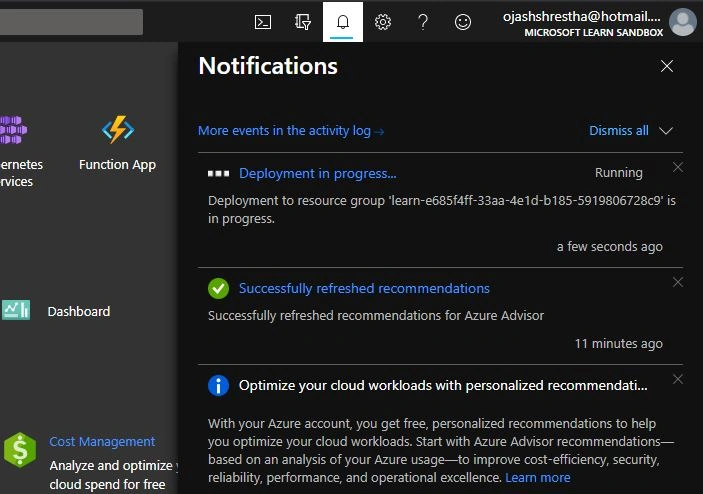
Step 11
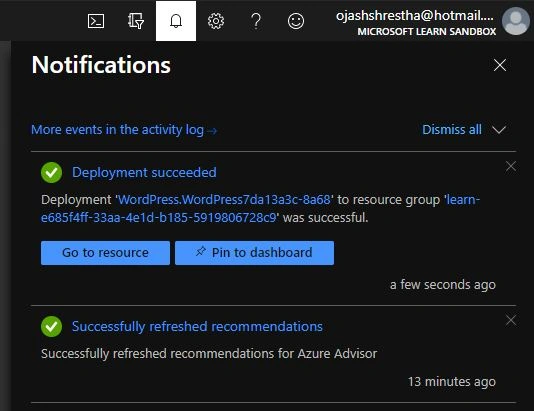
A notification will be received once your deployment is complete.
Step 12
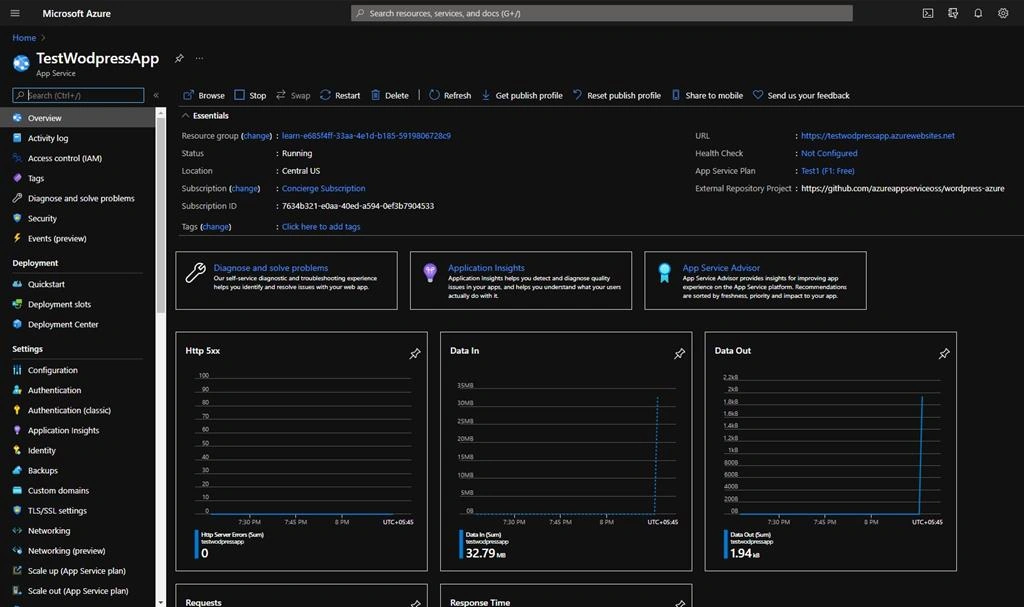
Your App deployment and usage details can be viewed,
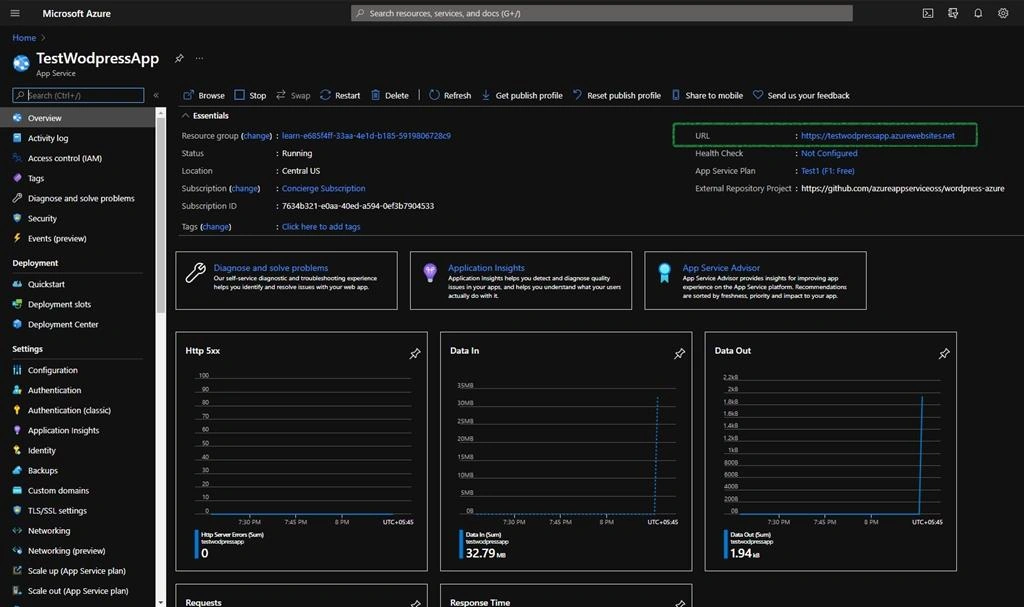
Click on the URL link to check your deployed website,
Step 13
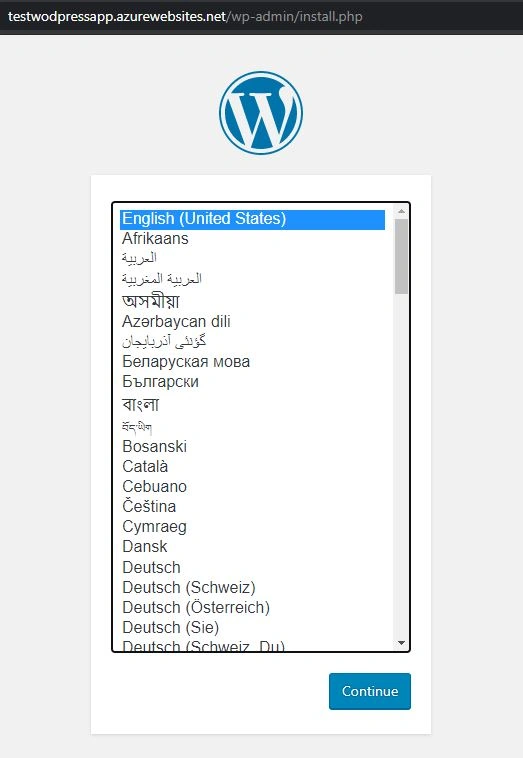
Choose the Language for your WordPress Website,
Step 14
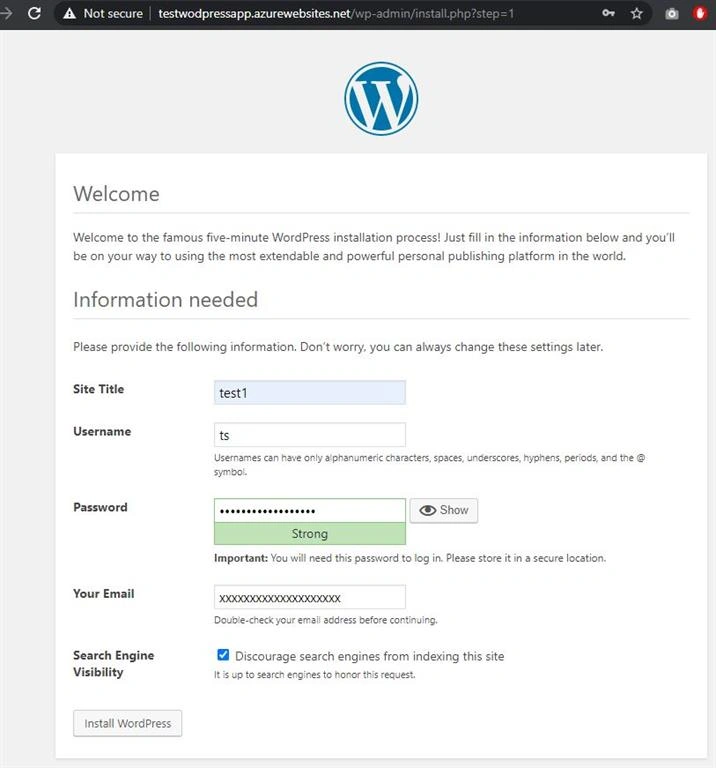
Fill in your Site Title, Username and Secure Password with your Email id.
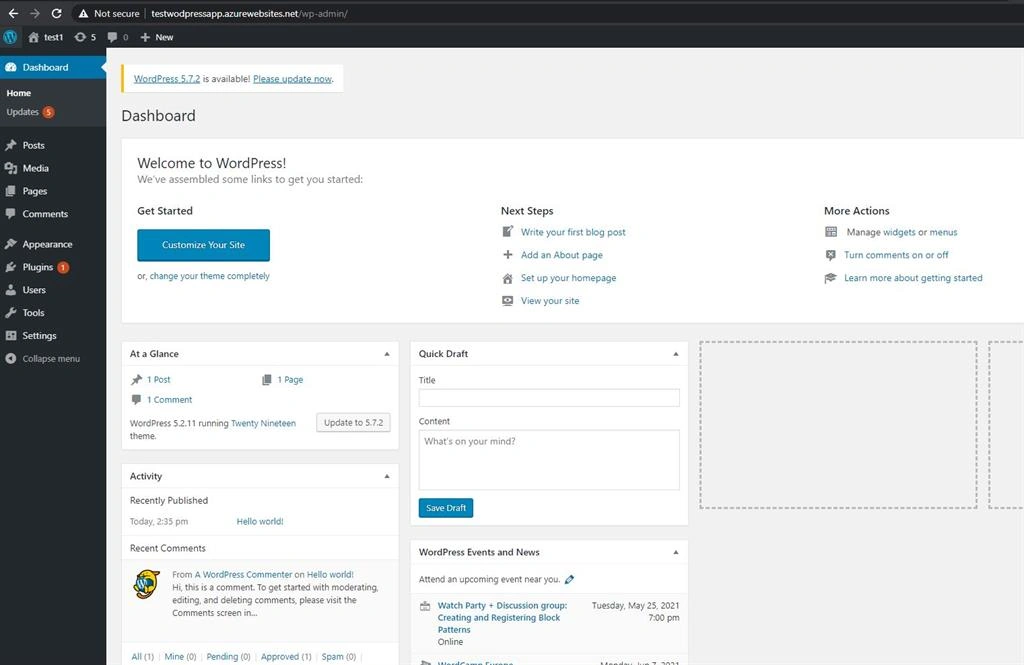
Step 15
Your completed WordPress Admin can be viewed.
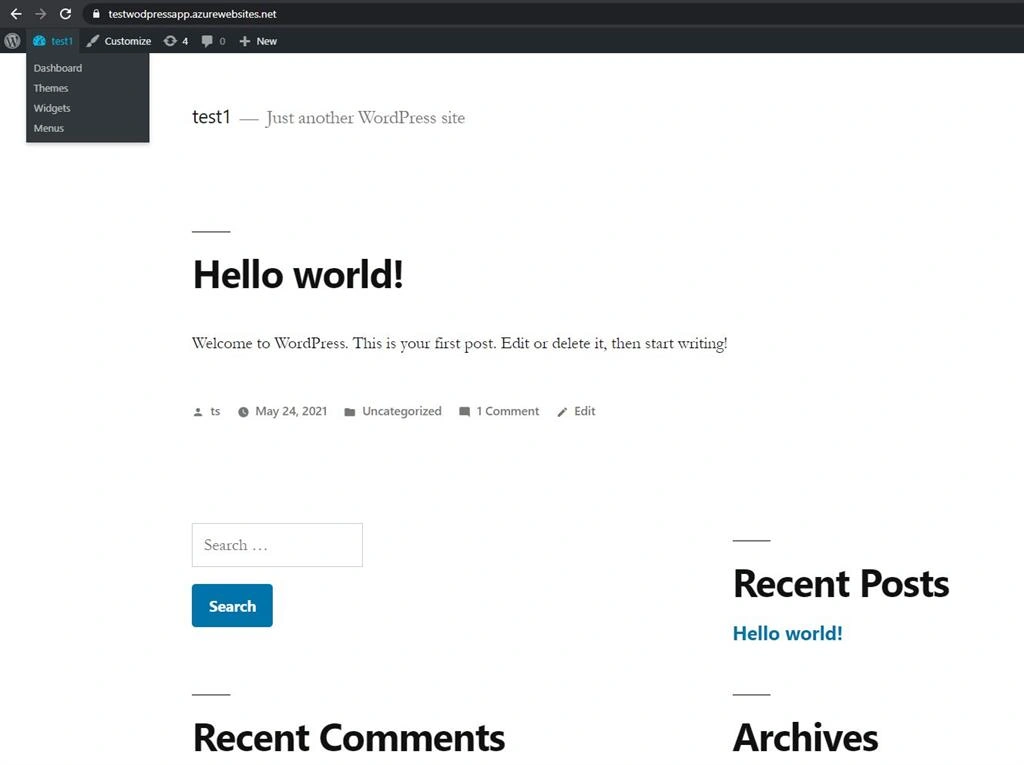
Also, check your live running website. It will have .azurewebsites.net root domain name.
In this article, we deployed a WordPress Wesbite. Each step was shown clearly with proper thorough details. For any questions, please feel free to drop them in the comment section and for any reviews. Hope you enjoyed this hands-on tutorial.
Join the conversation! Your thoughts help the community grow.