

Step 1:
Firstly, create a WinJS project as discussed in in my following article. For that we will start with creating a blank Universal Windows App:
Create you first WinJS Application
Step 2:
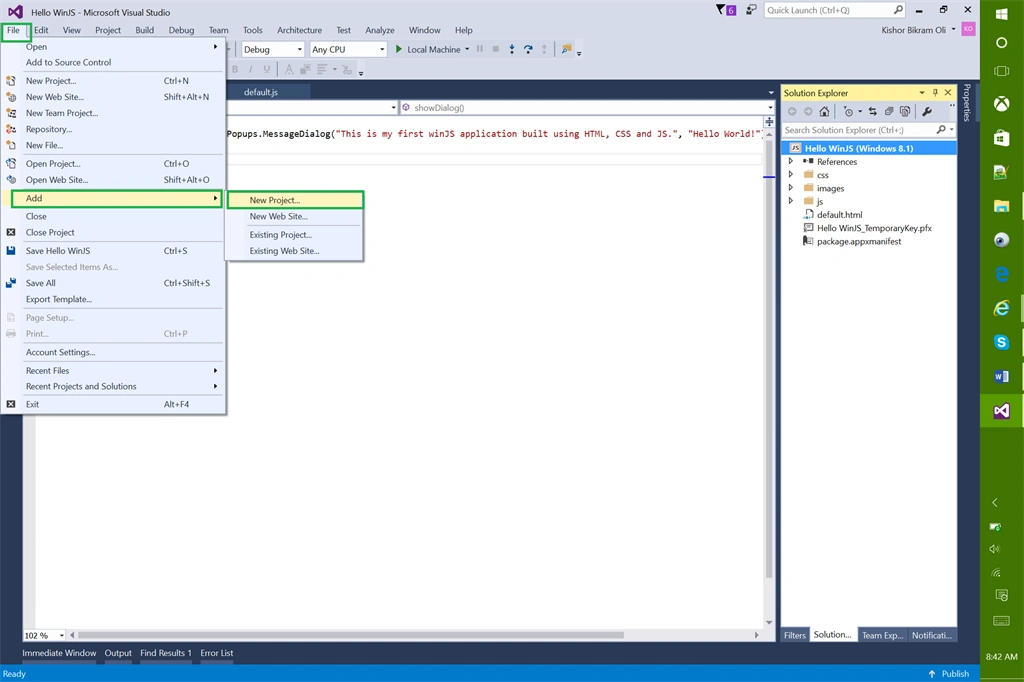
Now we will add a Windows Runtime Component. For this, go to File, Add, then click New Project.
Step 3:
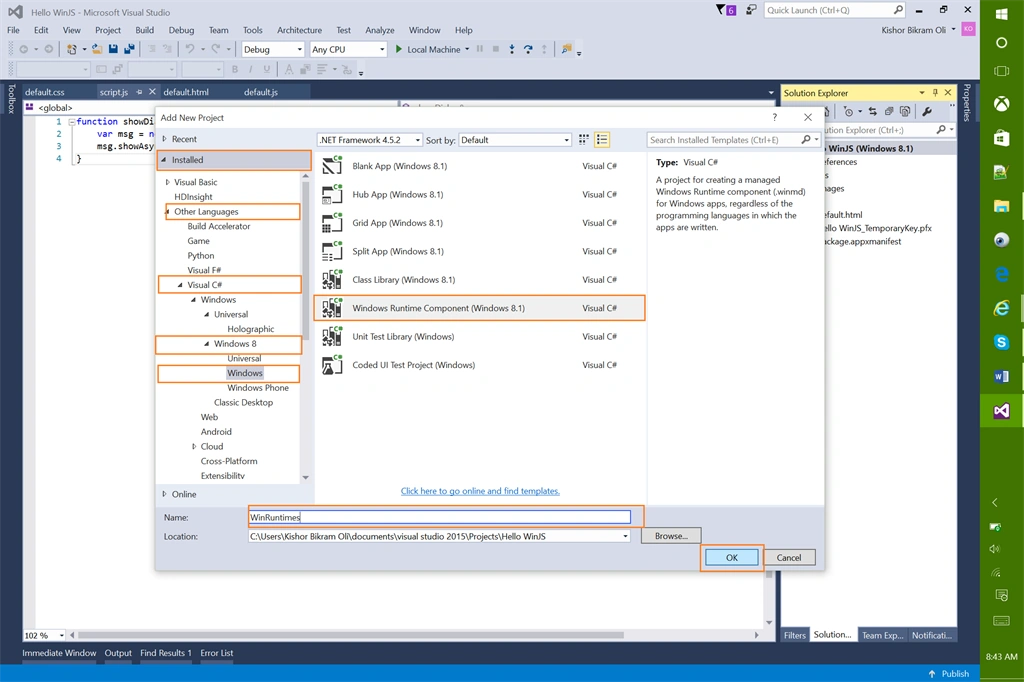
Under Other Languages, Visual C#, then Windows, elect Windows Runtime Component (Windows 8.1). Name it WinRuntimes and click OK.
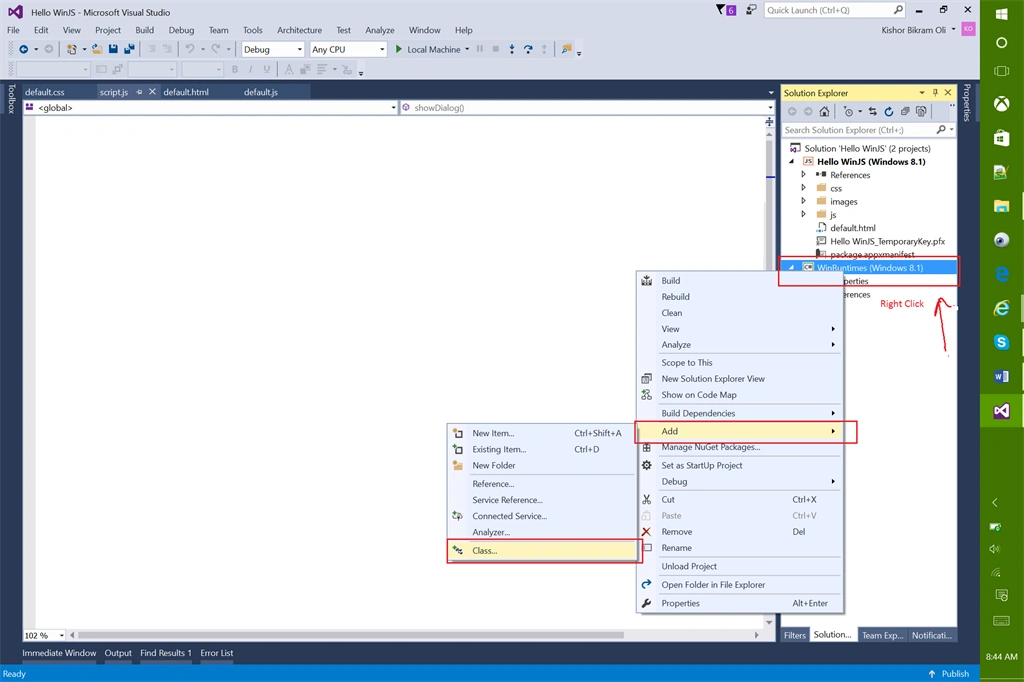
Delete the default class ‘Class1’ and add a new class Service by right click ing the WinRuntimes project and add new class.
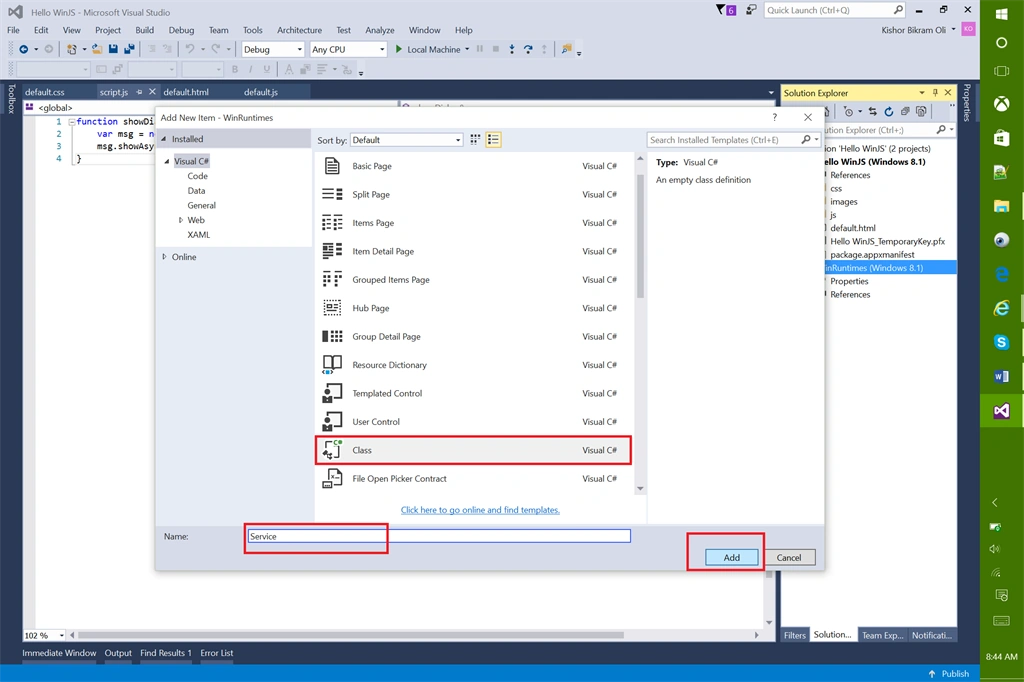
Name this class as Service and click Add.
Complete code snippet is:
- using System;
- using System.Collections.Generic;
- using System.Linq;
- using System.Text;
- using System.Threading.Tasks;
- namespace WinRuntimes
- {
- public sealed class Service
- {
- public string Hello()
- {
- return "Hello World";
- }
- }
- }
Now we have to add this WinRuntimes as reference in our WinJS project. Right Click on References > Add Reference.
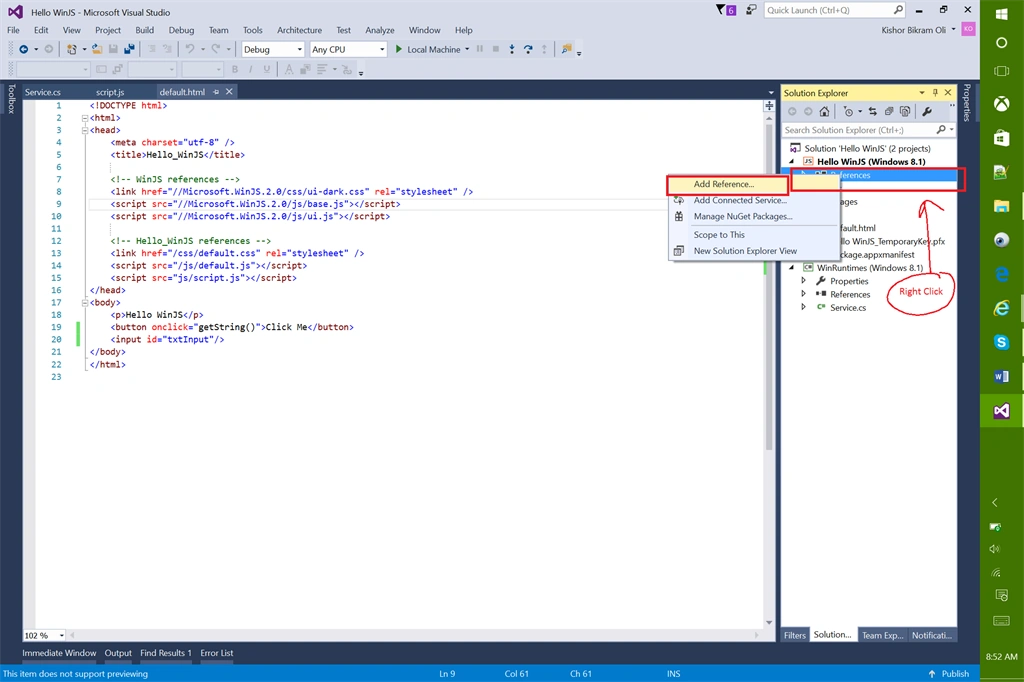
Step 7:
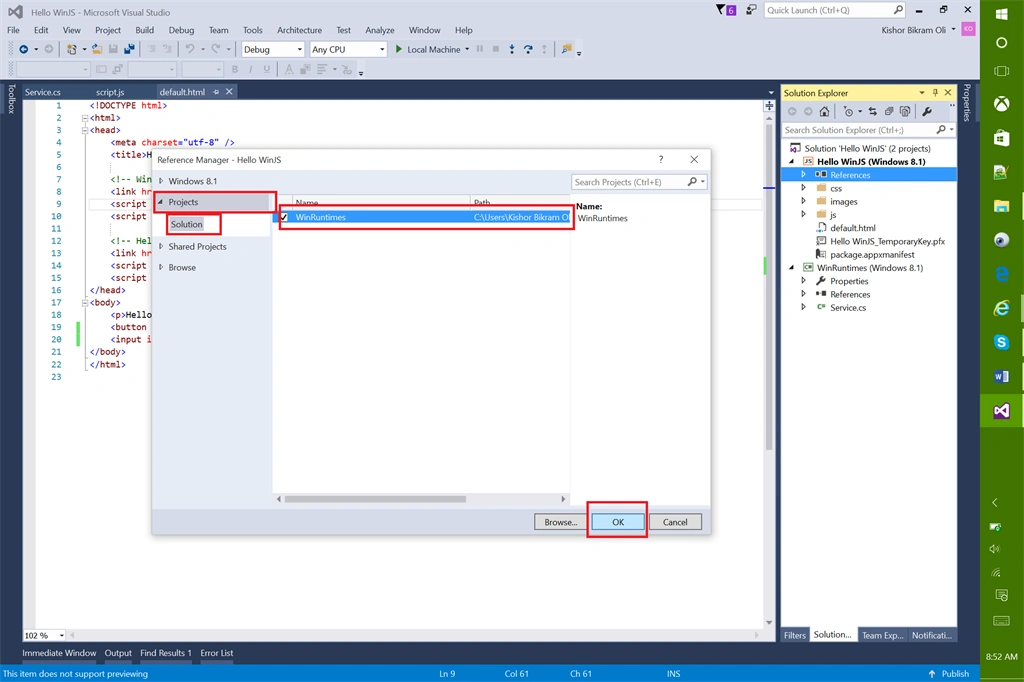
Under Projects, Solution, then select WinRuntimes and Click OK.
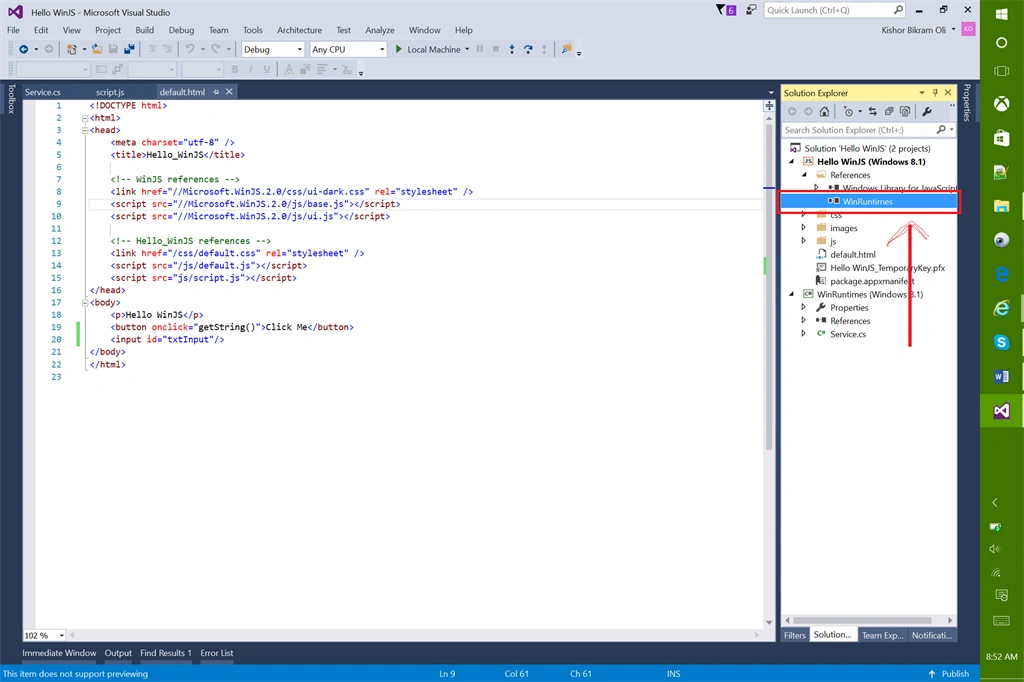
You will see a reference added in our WinJS project. Build this project or press Ctrl + Shift + B.
Add a script.js file and reference it in HTML similarly discussed in previous article.
Let us add the following things in HTML.
- Button with click event.
- Input field
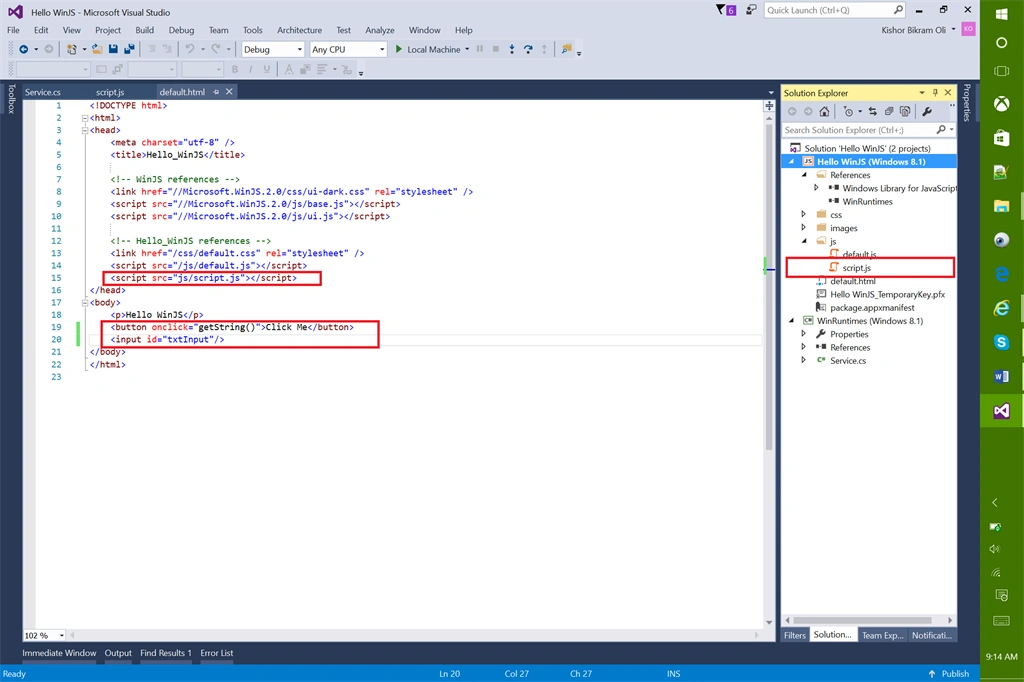
Our complete HTML looks like:
- <!DOCTYPE html>
- <html>
- <head>
- <meta charset="utf-8" />
- <title>Hello_WinJS</title>
- <!-- WinJS references -->
- <link href="//Microsoft.WinJS.2.0/css/ui-dark.css" rel="stylesheet" />
- <script src="//Microsoft.WinJS.2.0/js/base.js"></script>
- <script src="//Microsoft.WinJS.2.0/js/ui.js"></script>
- <!-- Hello_WinJS references -->
- <link href="/css/default.css" rel="stylesheet" />
- <script src="/js/default.js"></script>
- <script src="js/script.js"></script>
- </head>
- <body>
- <p>Hello WinJS</p>
- <button onclick="getString()">Click Me</button>
- <input id="txtInput"/>
- </body>
- </html>
Step 9:
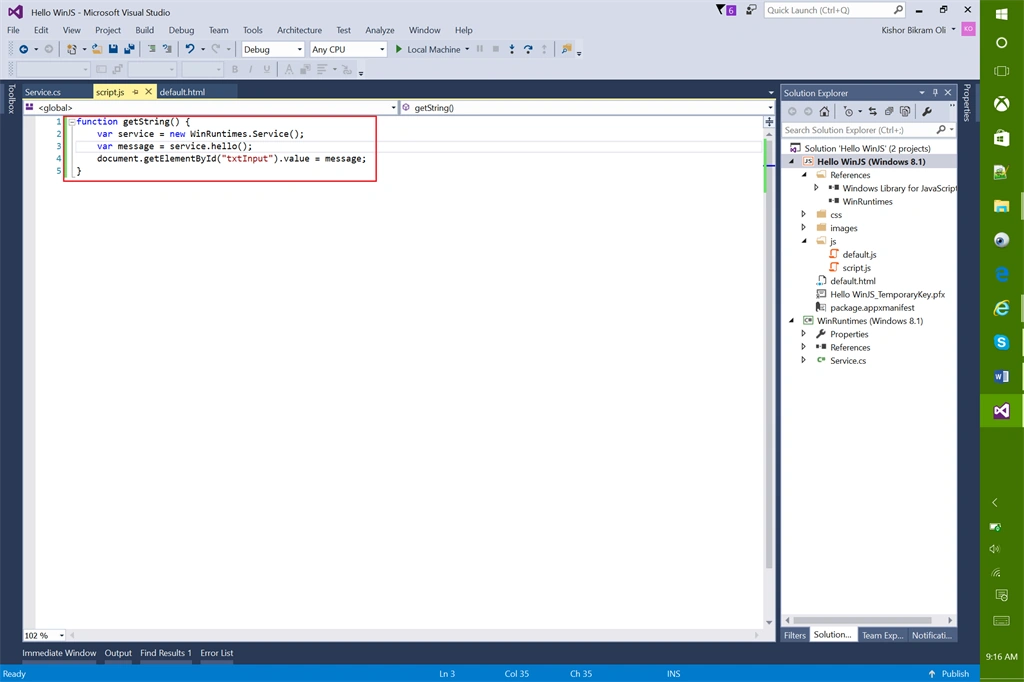
In script.js, we will add getString() function with a service object that calls the method Hello() of WinRuntimes (Windows Runtime Component) like:
- function getString() {
- var service = new WinRuntimes.Service();
- var message = service.hello();
- document.getElementById("txtInput").value = message;
- }
Step 10:
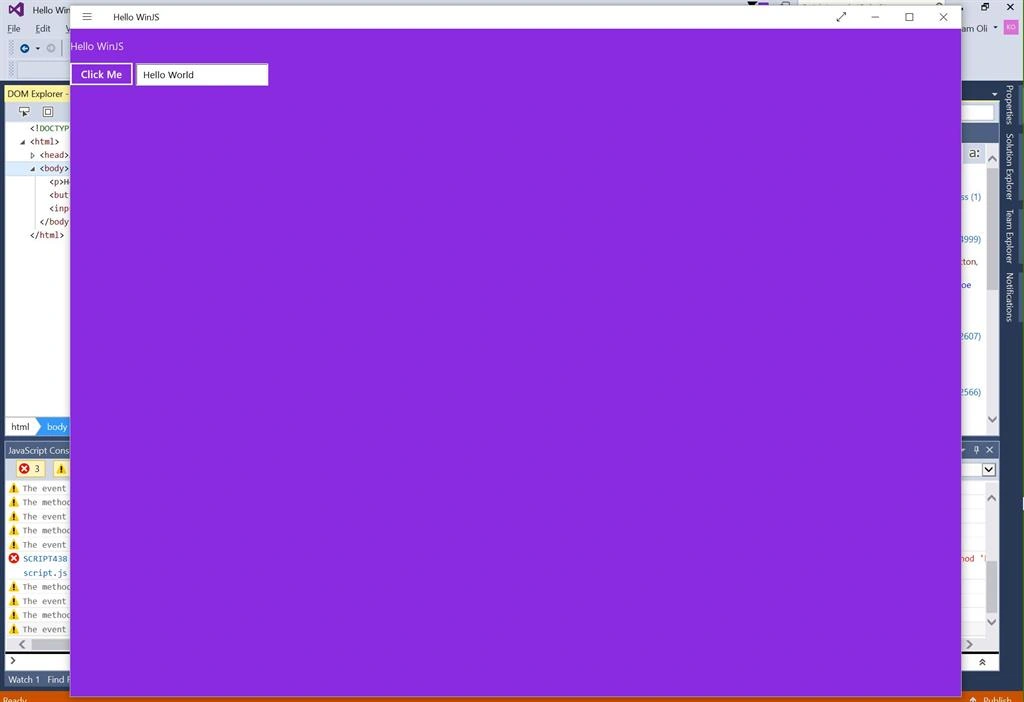
Now we are ready to run our application, Press F5 and click on Click Me button. You will see “Hello World” in the input field that is retrieved from native C# code using Windows Runtime Component.
In the coming articles, I will show you how to do asynchronous operations in Runtime Components.
Thanks! Happy Coding.
Santosh Kumar AdidawarpuPosted May 11, 2016, 5:23 AM
Nice Share..
Kuppurasu NagarajPosted Apr 22, 2016, 12:11 PM
Nice Sharing..
Debasis SahaPosted Apr 21, 2016, 1:30 PM
Nice One..
Vignesh ManiPosted Apr 21, 2016, 8:24 AM
Nice