

Introduction
The support for Windows 7 from Microsoft was ended January 14, 2020.
Microsoft Lifecycle Policy offers five years of mainstream support. Depending on the product, it also offers a period of extended support. For Windows operating systems, the extended support period is five years.
As defined in the policy, after the extended support period for a product ends, Microsoft no longer publishes updates or security updates for that product. This may create security and compliance issues and expose an organization's applications and business to serious security risks.
Learn more at Microsoft Lifecycle Policy
Based on the On-Premises IT Infrastructure, Windows 7 to Windows 10 Migration can be performed in one of the following ways,
- In-Place upgrade
- Wipe-and-Load
The below steps illustrate the process of migrating from Windows 7 Professional to Windows 10 Professional through In-Place upgrade using Media Creation Tool.
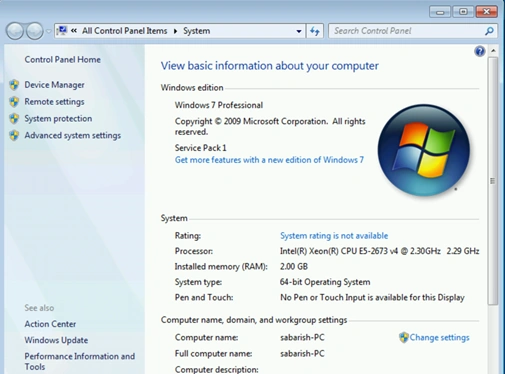
Windows Edition: - Windows 7 Professional
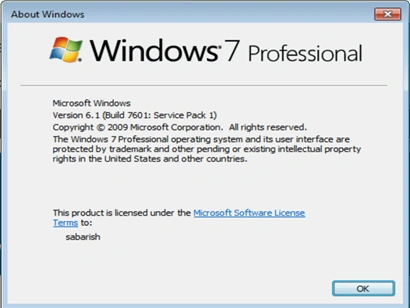
Version 6.1 (Build 7601: Service Pack 1)
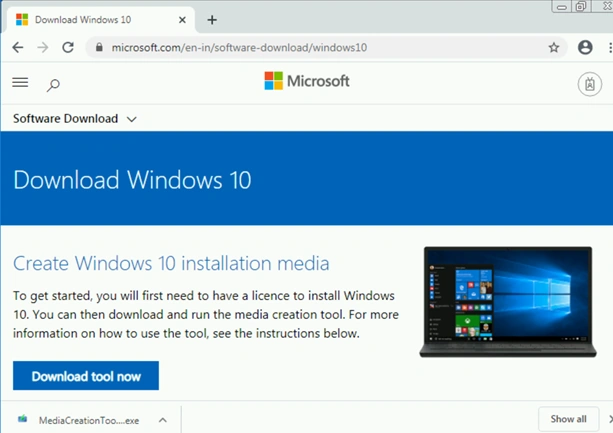
Open Browser and Navigate to “here”
Click on Download tool now
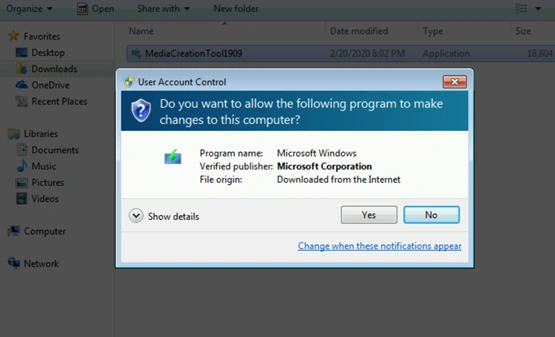
Run the downloaded tool.
Click Yes to grant access for the tool to make changes on the computer.
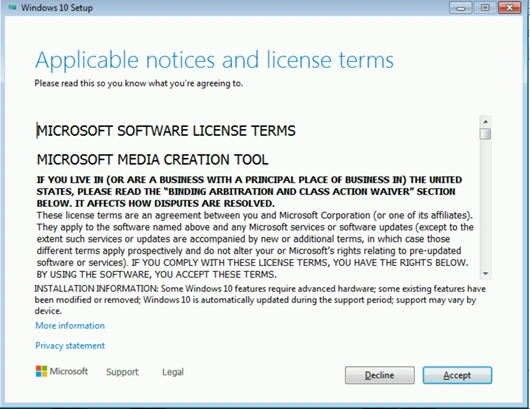
Go through the Notice & License terms issued by Microsoft on the Media Creation Tool
Click Next
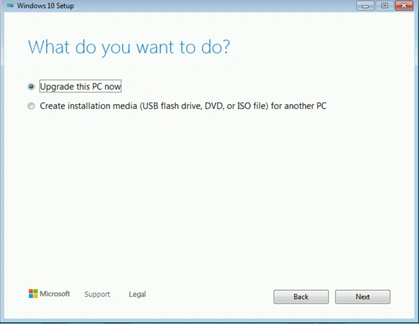
Select Upgrade this PC now.
Click Next.
Note that the media creation tool can be used to perform “In-Place upgrade”, where the tool must be executed on the machine which has to be updated.
Also, we can make use of this tool to create Installation media which will be used through Flash drive, DVD or ISO file to upgrade another PC.
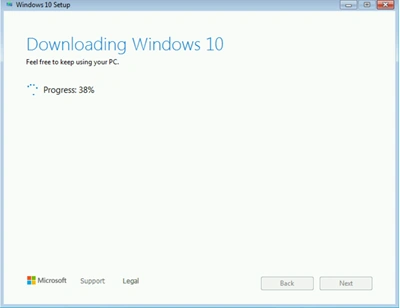
Windows 10 Download in Progress
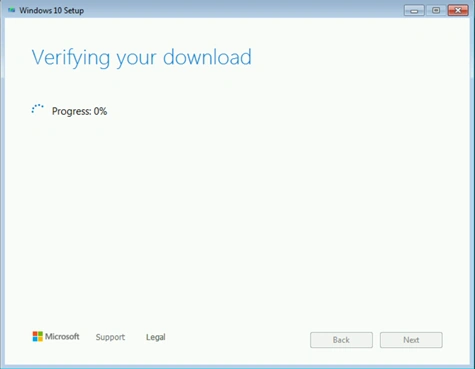
Verifying download
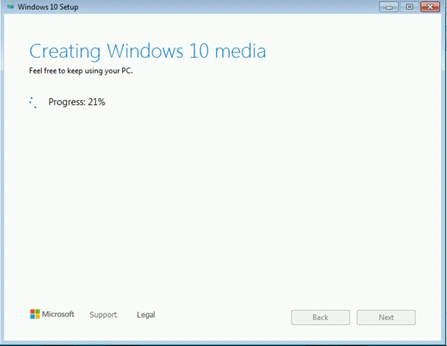
Creating Windows 10 Media
In Progress
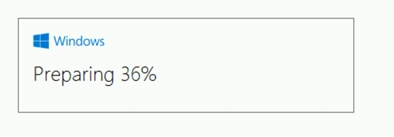
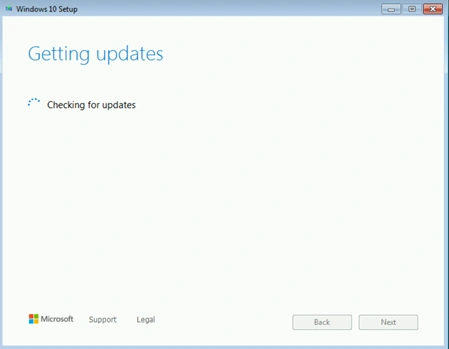
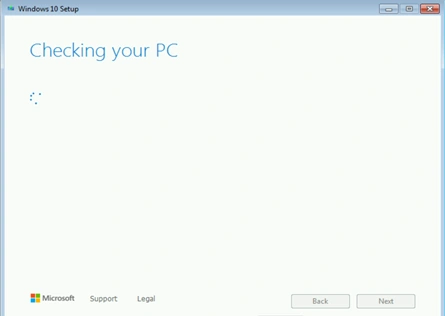
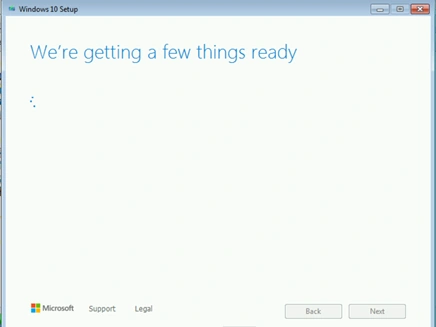
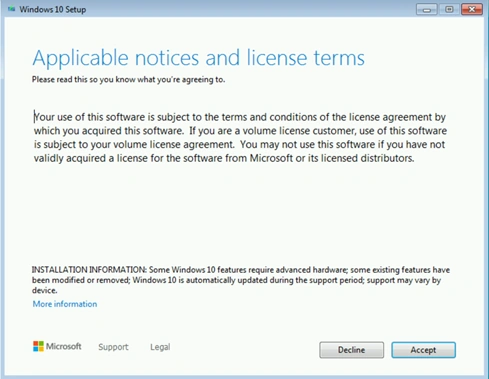
Go through the Notice & License terms issued by Microsoft on setting up Windows 10.
Click Accept
In Progress
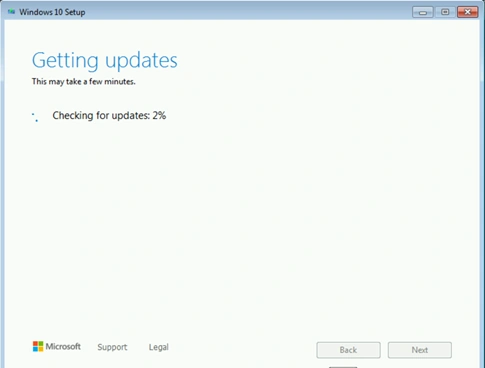
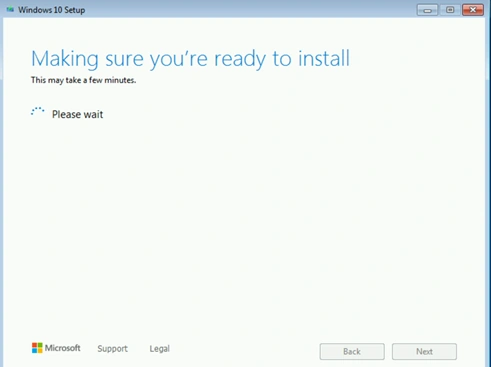
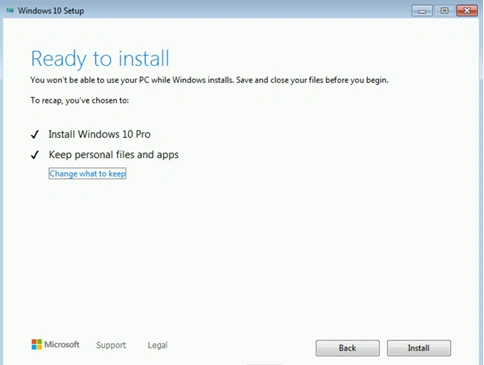
While performing an in-place upgrade from Windows 7 Professional, the Media Creation tool by default upgrades it to Windows 10 Professional. This Windows 10 Professional can be upgraded to Windows 10 Enterprise with minimal effort. I will explain in my next article.
Installing Windows 10
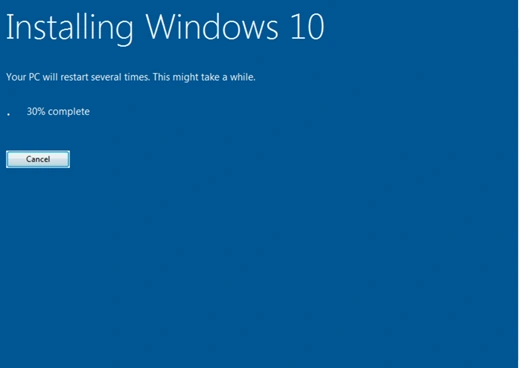
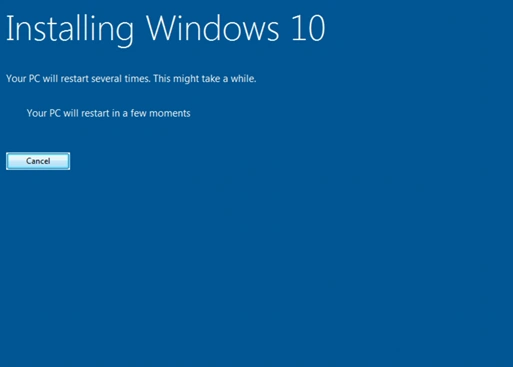
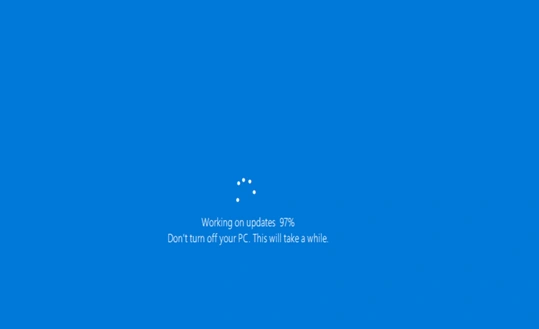
Working on Updates
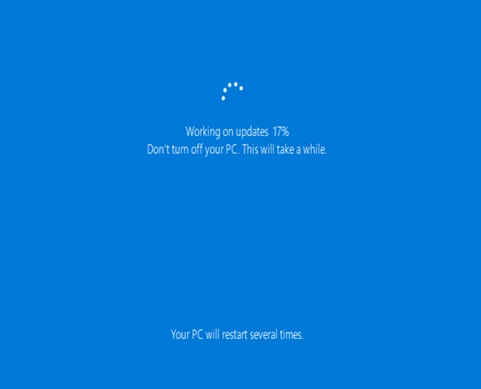
Updated Successfully
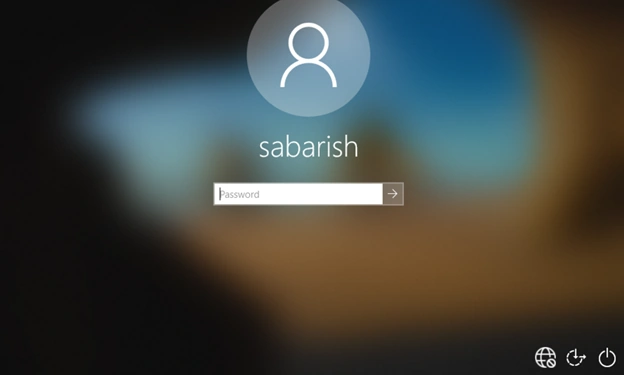
Log in to the system.
Finalizing the update
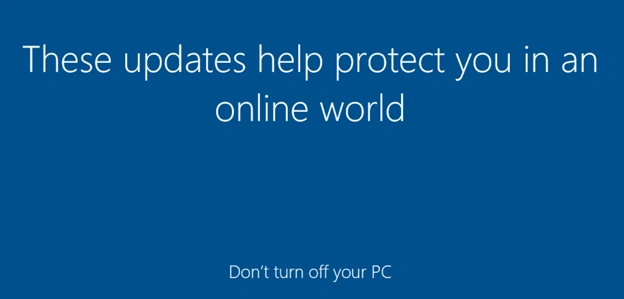
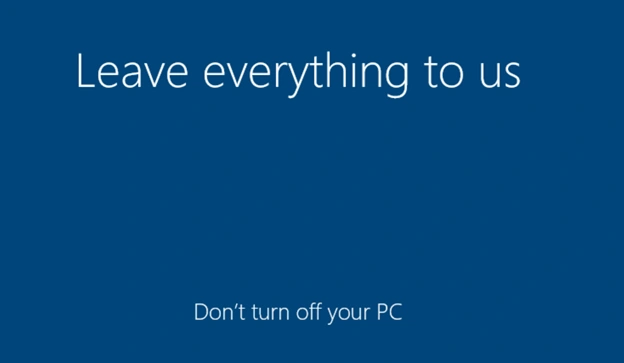
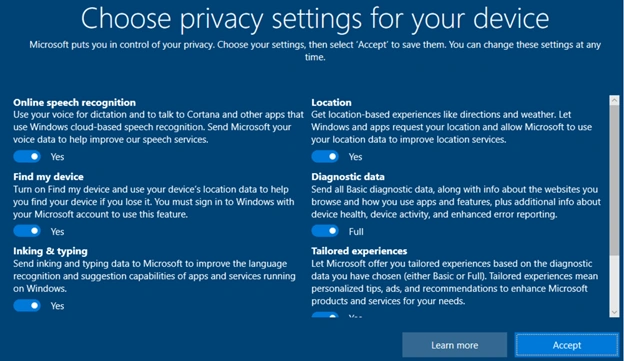
Select the desired Privacy Settings.
Click Next.
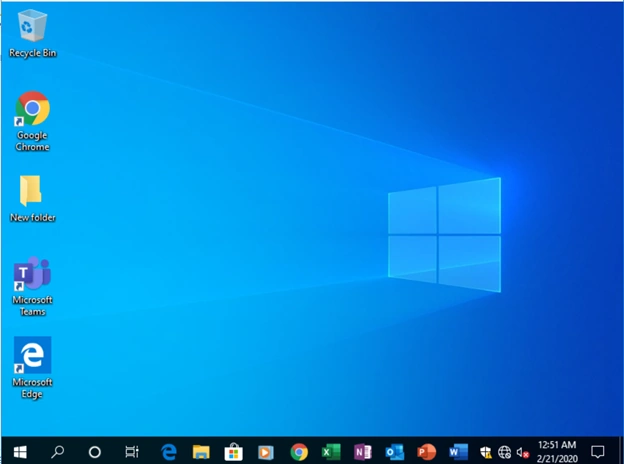
Operating System upgraded successfully.
Note that the applications pinned to Taskbar & the documents saved on user profile are also migrated.
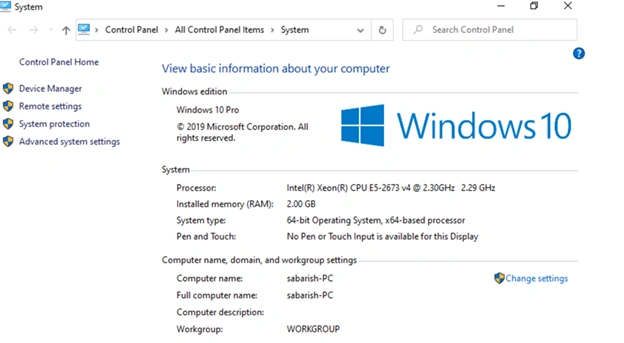
Upgraded Windows Version :- Windows 10 Pro
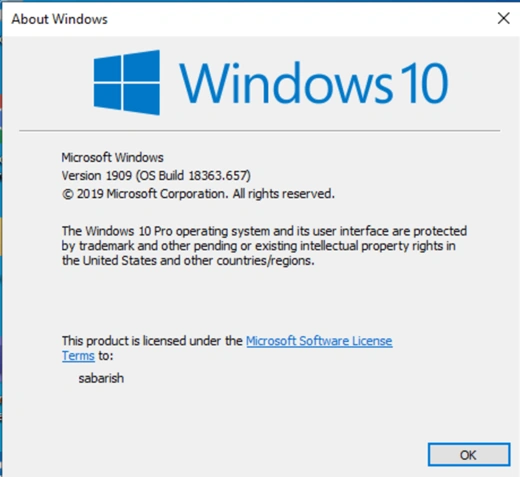
Upgraded Windows Version: 1090 (OS Build 18363.657)
Recovery in Windows 10
After Windows 10 is installed, the Recovery option in Windows 10 gives you up to 10 days to go back to Windows 7. This is useful if a device or app on your system does not function properly and you need to go back to your previous Windows 7 installation. After 10 days, by default Windows 10 will free up the space consumed by your Windows 7 recovery files on your hard drive and delete files from the previous installation. Although Windows 7 after this time is deleted and you won’t be able to revert Windows 7, your apps and personal files will remain in Windows 10.
Rizwanudeen BPosted Feb 28, 2020, 12:02 PM
""An outstanding effort"" at the right time!surely,going to benefit *readers#