

Introduction
This article demonstrates an interesting and very useful concept in ASP.NET MVC.
Question: What is ViewBag?
In simple terms "ViewBag is the data holder that enables the definition of a dynamic property and holds the data that can be passed from a controller to a view".
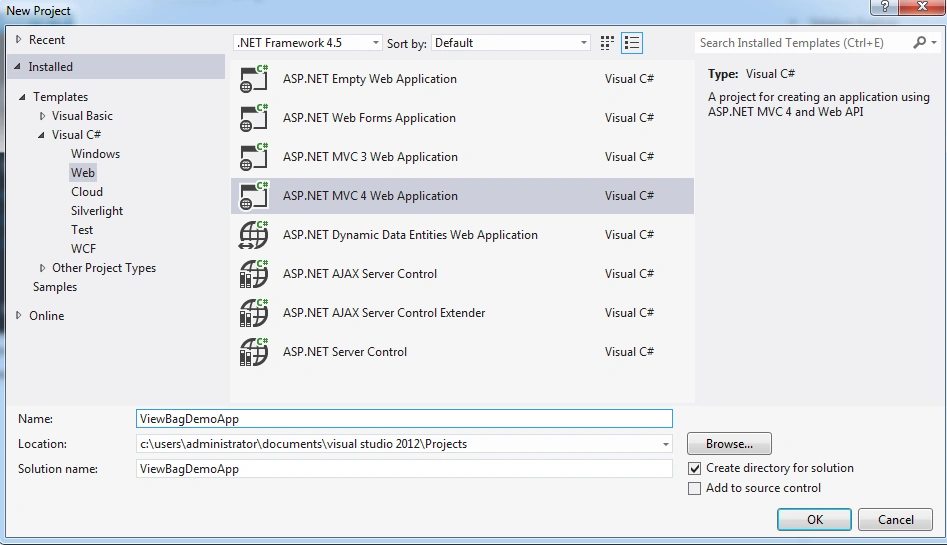
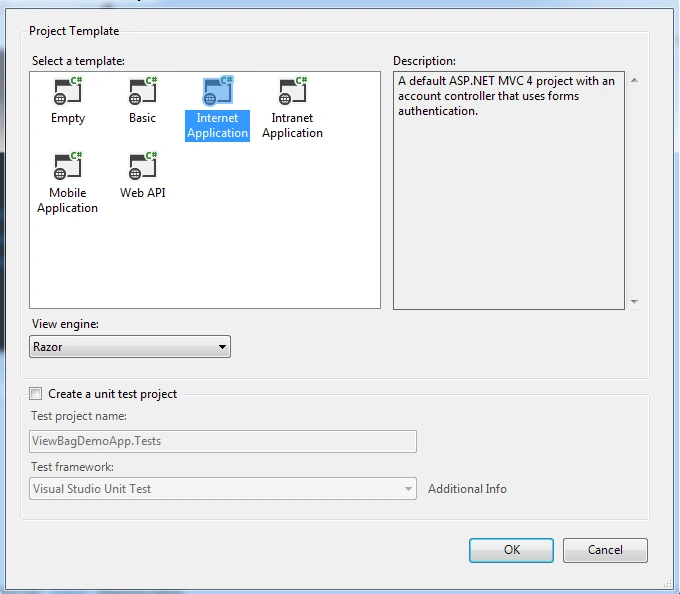
Step 1: Create a new ASP.NET MVC application
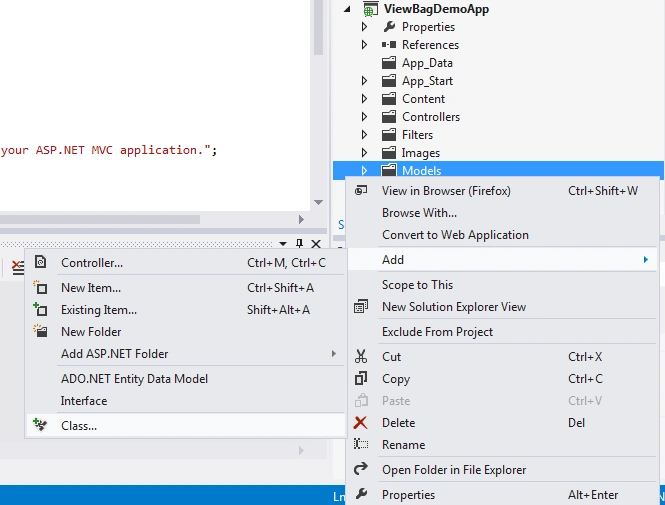
Step 2: Adding new Model
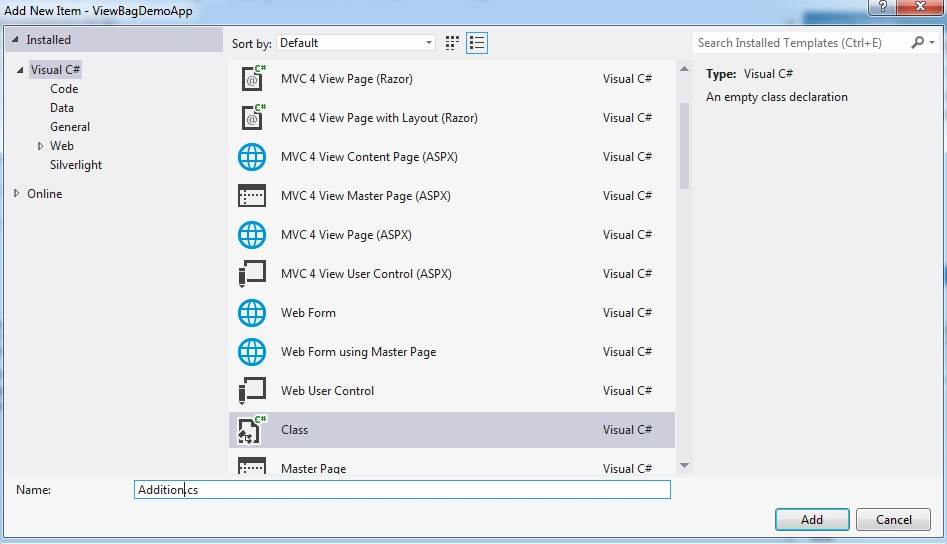
- using System;
- using System.Collections.Generic;
- using System.ComponentModel.DataAnnotations;
- using System.Linq;
- using System.Web;
- namespace ViewBagDemoApp.Models
- {
- public class Addition
- {
- [Required(ErrorMessage = "Please Enter FirstNumber")]
- public int FirstNumber { get; set; }
- [Required(ErrorMessage = "Please Enter SecondNumber")]
- public int SecondNumber { get; set; }
- }
- }
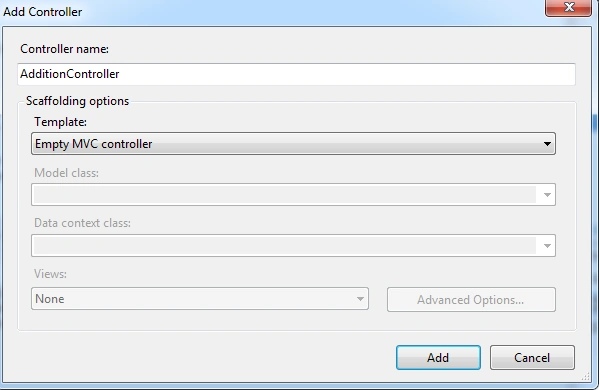
- using System;
- using System.Collections.Generic;
- using System.Linq;
- using System.Web;
- using System.Web.Mvc;
- using ViewBagDemoApp.Models;
- namespace ViewBagDemoApp.Controllers
- {
- public class AdditionController : Controller
- {
- //// GET: /Addition/
- public ActionResult Index(Addition addition)
- {
- ViewBag.AddMessage = "Addition Result is: ";
- ViewBag.Result = addition.FirstNumber + addition.SecondNumber;
- if (ViewBag.Result < 1)
- {
- ViewBag.AddMessage = string.Empty;
- ViewBag.Result = string.Empty;
- }
- return View();
- }
- }
- }
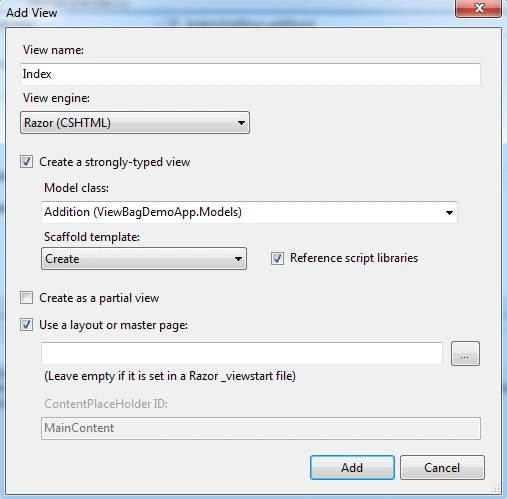
- @model ViewBagDemoApp.Models.Addition
- @{
- ViewBag.Title = "Addition Operation Using ViewBag";
- }
- <h2>Addition Operation Using ViewBag</h2>
- <br />
- @using (Html.BeginForm())
- {
- @Html.ValidationSummary(true)
- <fieldset>
- <legend>Addition</legend>
- <div class="editor-label">
- @Html.LabelFor(model => model.FirstNumber)
- </div>
- <div class="editor-field">
- @Html.EditorFor(model => model.FirstNumber)
- @Html.ValidationMessageFor(model => model.FirstNumber)
- </div>
- <div class="editor-label">
- @Html.LabelFor(model => model.SecondNumber)
- </div>
- <div class="editor-field">
- @Html.EditorFor(model => model.SecondNumber)
- @Html.ValidationMessageFor(model => model.SecondNumber)
- </div>
- <p>
- @ViewBag.AddMessage @ViewBag.Result
- </p>
- <br />
- <p>
- <input type="submit" value="Add" />
- </p>
- </fieldset>
- }
- <div>
- @Html.ActionLink("Back to List", "Index")
- </div>
- @section Scripts {
- @Scripts.Render("~/bundles/jqueryval")
- }
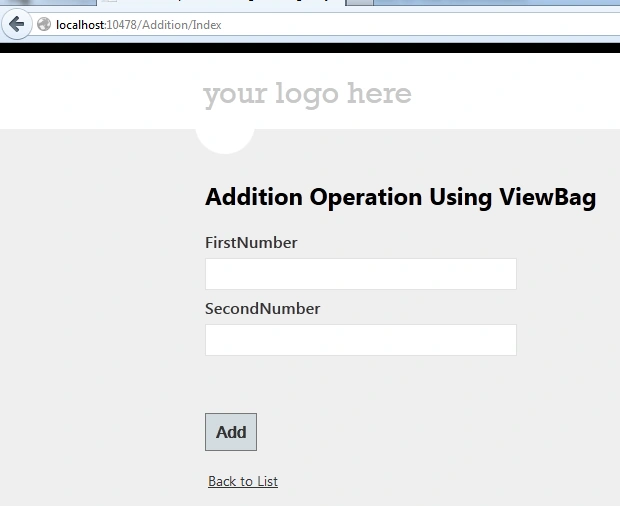
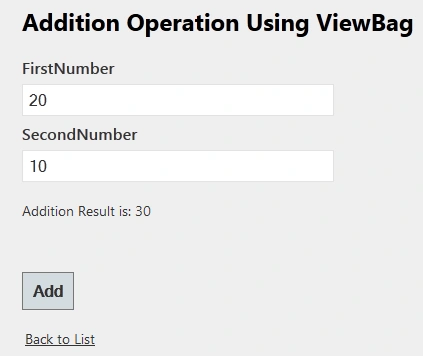
I hope this article was useful for you. I look forward to your comments and feedback. Thanks, Vijay.
Gowtham RajamanickamPosted Mar 11, 2015, 8:33 AM
good....