


Introduction
The Notify function in Power Apps helps you give users feedback about their actions. It’s a simple way to display messages, whether they’re about success, warnings, or errors. This article will explain how to use the Notify function, its benefits, and its downsides.
What is the Notify Function?
The Notify function shows messages to users. You can use it to inform them of the outcome of their actions in the app, helping them understand what’s happening.
Why Use the Notify Function?
- Instant Feedback: It gives users immediate responses to their actions.
- Guides Users: It helps users navigate errors or issues effectively.
- Improves Experience: Overall, it makes the app more user-friendly.
Advantages
- Quick Responses: Users get instant notifications, reducing confusion.
- Custom Messages: You can tailor messages to fit the situation.
- Different Types: It supports various message types like success, error, and info.
Disadvantages
- Too Many Notifications: If overused, notifications can be annoying.
- Short Duration: Notifications disappear quickly, which might not be enough time for some users.
- Temporary: They’re not permanent and won’t stay on the screen.
Steps to Use the Notify Function
Log In to Power Apps: Go to the Power Apps portal and sign in.
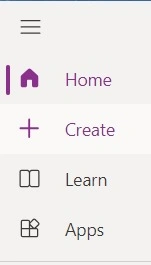
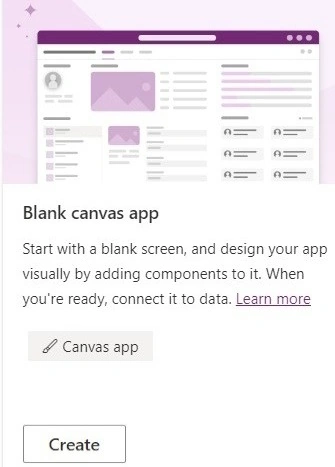
Create or Open an App.
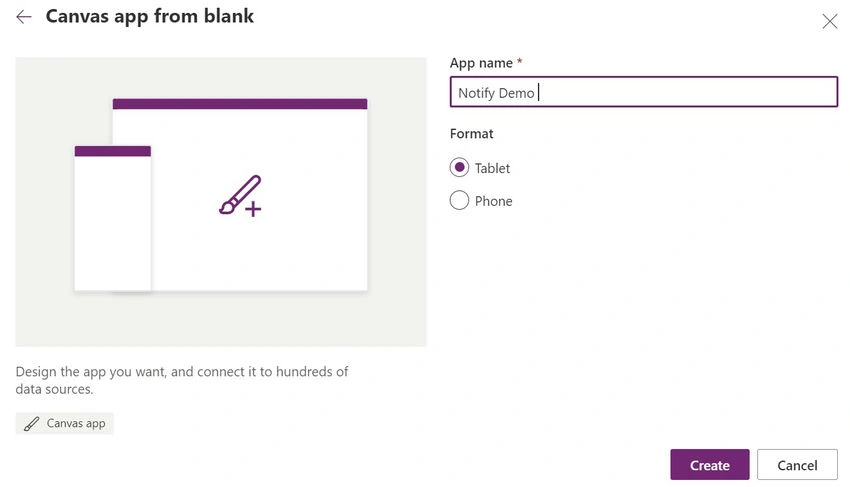
Start a new app or open an existing one.
Add a Control.
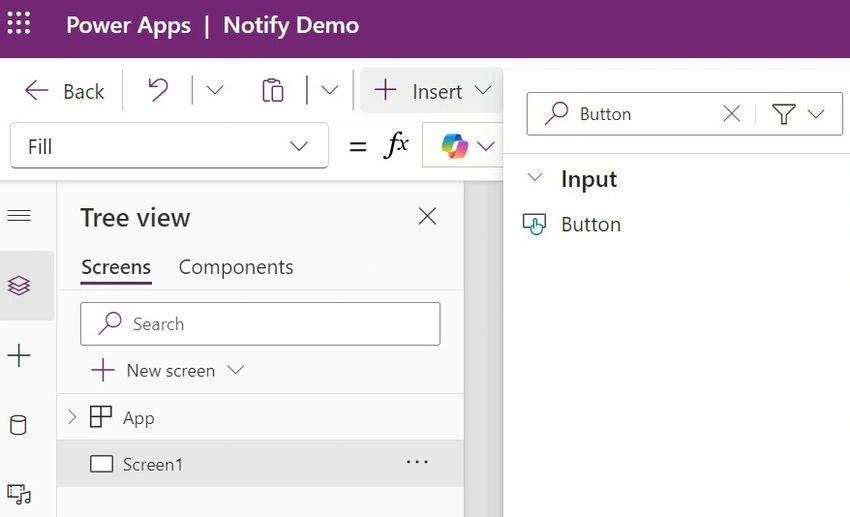
Insert a button or any control to trigger the notification.
Use the Notify Function.
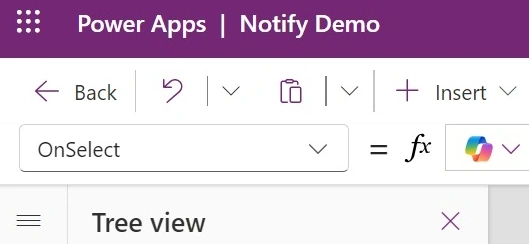
Select the button and set its OnSelect property to demonstrate different types of notifications:
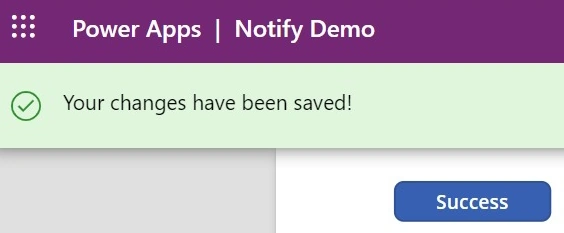
Success notification

Notify("Your changes have been saved!", NotificationType.Success).
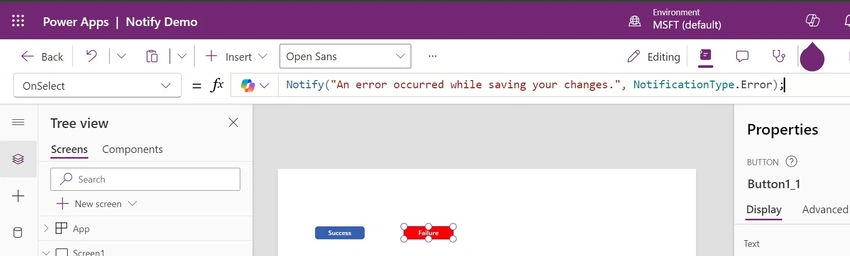
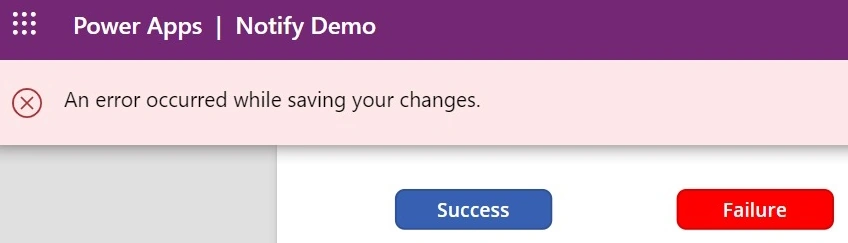
Error notification: Notify("An error occurred while saving your changes.", NotificationType.Error).
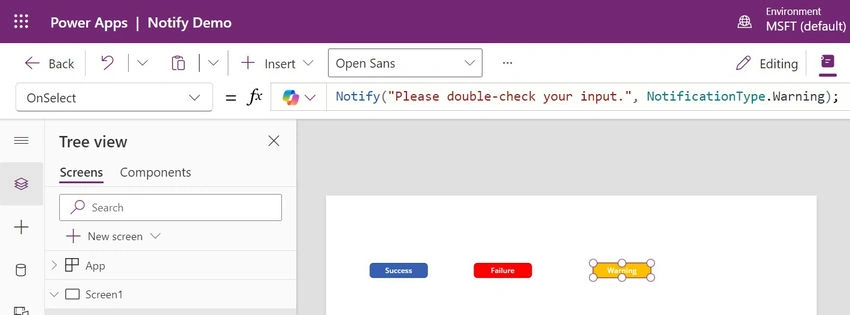
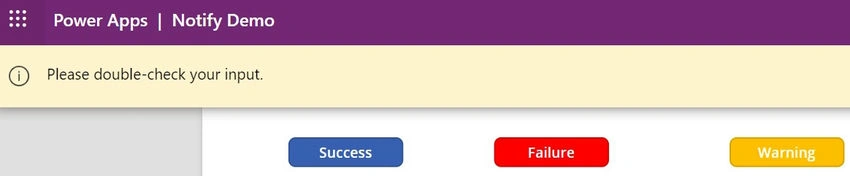
Warning notification: Notify("Please double-check your input.", NotificationType.Warning).
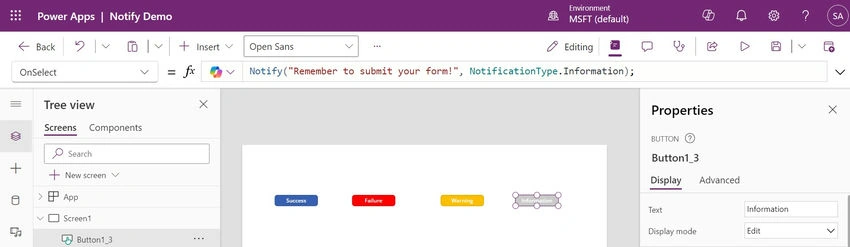
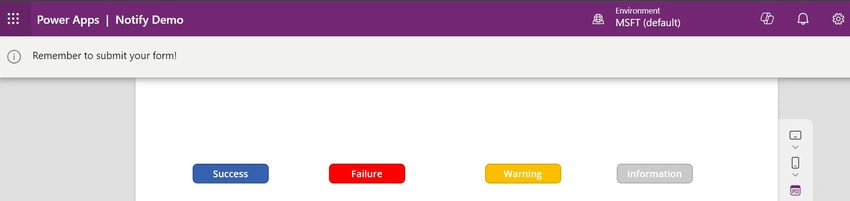
Information notification: Notify("Remember to submit your form!", NotificationType.Information).
Test It Out: Run the app and click the button to see the different notifications.
Conclusion
The Notify function in Power Apps is essential for providing feedback to users. It enhances the user experience by offering real-time responses. However, it’s important to use it wisely to avoid overwhelming users. In future articles, we’ll dive deeper into customizing notifications and best practices.
Join the conversation! Your thoughts help the community grow.