

Introduction
In this article I will explain how to load any website into our Windows 8 apps. This can be done using the WebView control in a Windows store application. The webview control is a container control that hosts web content. To see how it works use the following steps.
Step 1
Open Visual Studio 2012 RC and click on File -> New -> Project; see: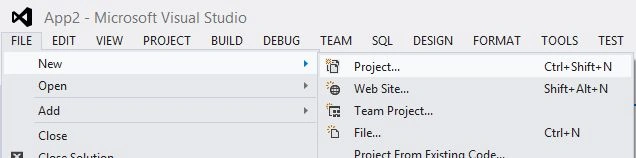
Step 2
A window will appear; in this, select Windows Store from Visual C# from the left pane and then blank page from the center pane then give the name of your application and then click ok.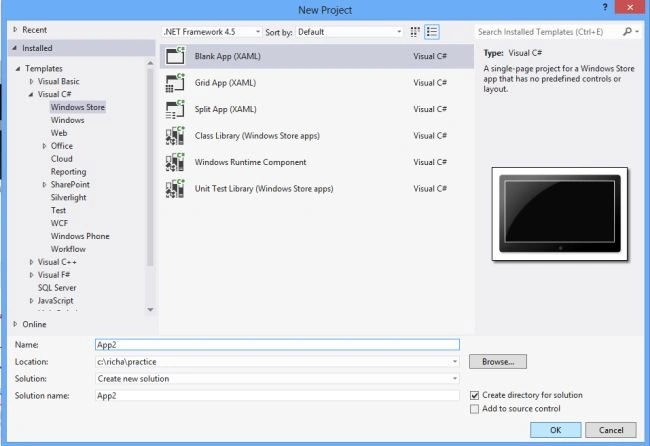
Step 3
Write the following code in the MainPage.xaml file:
<Page
x:Class="App2.MainPage"
xmlns="http://schemas.microsoft.com/winfx/2006/xaml/presentation"
xmlns:x="http://schemas.microsoft.com/winfx/2006/xaml"
xmlns:local="using:App2"
xmlns:d="http://schemas.microsoft.com/expression/blend/2008"
xmlns:mc="http://schemas.openxmlformats.org/markup-compatibility/2006"
mc:Ignorable="d">
<Grid>
<Grid.Background>
<LinearGradientBrush EndPoint="0.5,1" StartPoint="0.5,0">
<GradientStop Color="Black"/>
<GradientStop Color="#FFF1E3B0" Offset="1"/>
</LinearGradientBrush>
</Grid.Background>
<TextBlock Name="text" HorizontalAlignment="Left" VerticalAlignment="Top" Margin="50,50,0,0" Height="50" Width="641" Text="Enter any Site Started with http:// that you want to see in the webview" FontSize="20" Foreground="#FFEEEDF5">
</TextBlock>
<TextBox Name="entersite" Height="50" Width="473" Margin="760,50,133,0" HorizontalAlignment="Center" VerticalAlignment="Top"/>
<Button Height="50" Width="115" Margin="50,150,0,550" Content="GO" FontSize="25" Click="Button_Click_1"></Button>
<WebView Name="web" Height="502" Width="996" Margin="191,140,179,126" HorizontalAlignment="Center" VerticalAlignment="Center" Visibility="Collapsed"></WebView>
</Grid>
</Page>
Step 4
In the Button click event write the code in the MainPage.xaml.cs file as:
namespace App2
{
public sealed partial class MainPage : Page
{
public MainPage()
{
this.InitializeComponent();
}
private void Button_Click_1(object sender, RoutedEventArgs e)
{
Uri targeturi = new Uri(entersite.Text);
web.Navigate(targeturi);
web.Visibility = Visibility.Visible;
// entersite.Text = " ";
}
}
}
Step 5
Now to run the application press F5. The screen will look like:
When we give the URI of any website in the textbox including the http:// part and then click on the Go button the Paticular site is loaded into the webview as:
Now we can see the website in the webview, we can also give another URL for another site and this will open another site as: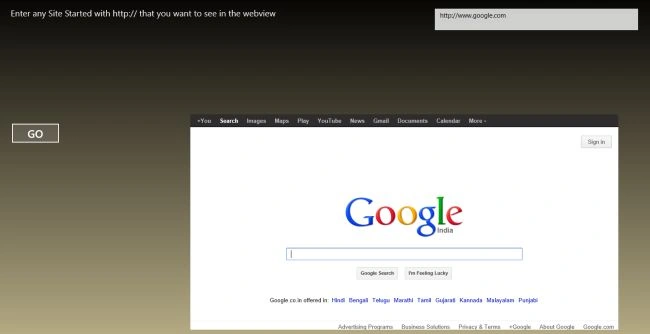
Summary
In this article I explained the WebView control of the Windows 8 apps.
Rajiv ChowdheryPosted Oct 6, 2014, 1:55 AM
Thanks,