

This article explains the first look of Visual Studio 15 Preview. It will cover some important and new features and enhancements done in Visual Studio 15 such as performance, supported features of C# 7.0, Conditional Compilation Options, IDE improvements, etc.
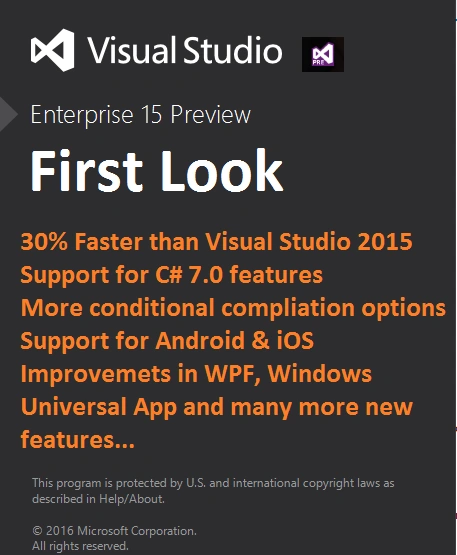
As we know Microsoft has announced it new version of Visual studio; i.e., Visual Studio 15. Please do not be confused with Visual Studio 2015 (Visual Studio 14). Many developers are getting confused with Visual 2015 so I am going to clarify the difference so that you can understand it easily. Visual Studio 2015 is a product name having the version number Visual Studio 14 and here I am talking about Visual Studio 15; that product name may be announced as Visual Studio 2016 or Visual Studio 2017. To understand it more clearly have a look at the below screenshot.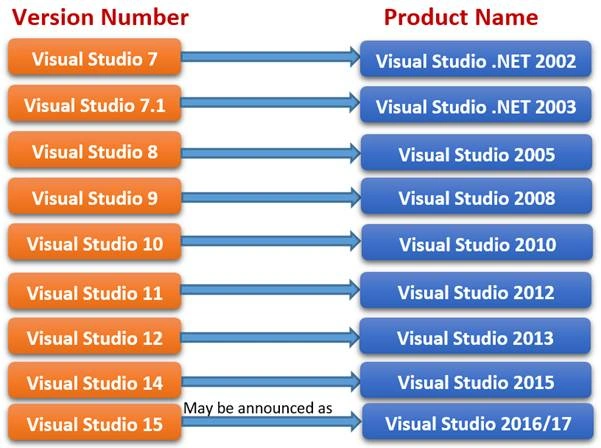
- Up to 30 percent faster than Visual Studio 2015
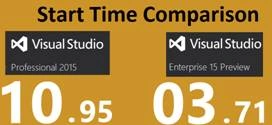
As per Microsoft, Visual Studio ‘15’ starts at 30 percent faster than Visual Studio 2015, but it varies from PC to PC and when I tested it at my end then the result was very different. On my laptop, Visual Studio ‘15’ took only 3 seconds to start whereas Visual Studio 15 took 10 seconds to start. I installed Visual Studio 2015 6-7 month ago and I was unhappy witthe start time of Visual Studio 2015 and I think Microsoft has taken this issue seriously andare doing start time improvements in an upcoming version.
- Using Local Functions or Nested Functions (Feature of C# 7)in Visual Studio Preview
Using local functions inside a function is called local function. Even though C# 7 has not been announced officially, some features are being added with C# which developer communities are saying is C# 7. To understand how local function works just have a look atthe below code and see how you are going to write and call Add() and Multiply() methods.
Output- usingstatic System.Console;
- namespace UseLocalFunctions
- {
- classProgram
- {
- staticvoid Main(string[] args)
- {
- void Add(int x, int y)
- {
- WriteLine($ "Sum of {x} and {y} is : {x + y}");
- }
- void Multiply(int x, int y)
- {
- WriteLine($ "Multiply of {x} and {y} is : {x * y}");
- Add(30, 10);
- }
- Add(20, 50);
- Multiply(20, 50);
- }
- }
- }
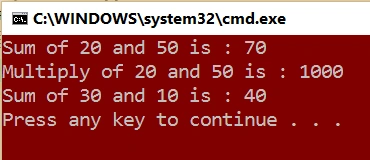
If you are not aware about C# 6.0 features and you are wondering how WriteLine() method is used without Console and what is $ “” then please visit the below links for details,
- Using Static Classes as Directive in C# 6
- C# 6.0 String Interpolation
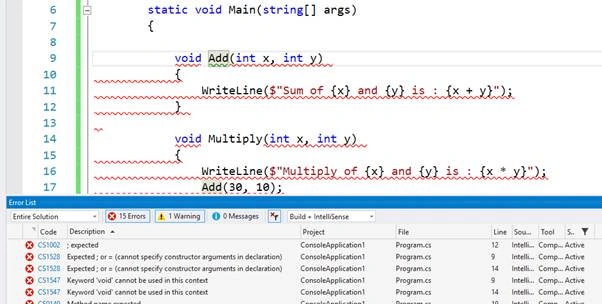
But when I tried to run the same code inside Visual Studio 2015 SP1 then I got a lot exceptions and warning. Please have a look at the below screenshot which displays the build error in Visual Studio 2015.
- Using Binary Literal
Inthe new version of C# we can use binary literals in the same way as hexadecimal literals are used.
C# supports Hexadecimal literas and we use 0x or 0X and now C# will support binary literals too and we will use 0b and 0B for binary literals.
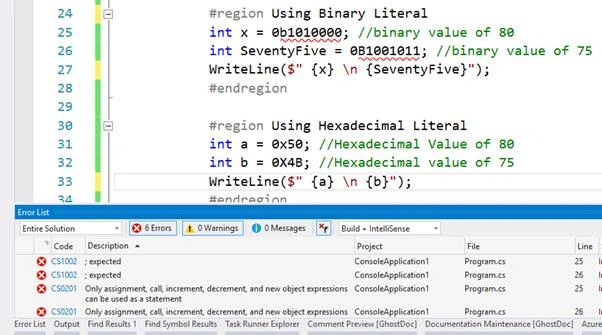
As stated earlier hexadecimal literalis already supported in C# and if you run the same code inside Visual Studio 2015 then you will get error for binary literal but hexadecimal literals are compiled successfully. Refer to the below screenshot for the build error being displayed for the same code with Visual Studio 2015.- usingstatic System.Console;
- namespace VisualStudio15FirstLook
- {
- classProgram
- {
- staticvoid Main(string[] args)
- {#region Using Binary Literal
- int x = 0b1010000; //binary value of 80
- int SeventyFive = 0B1001011; //binary value of 75
- WriteLine($ " {x} \n {SeventyFive}");#endregion
- # region Using Hexadecimal Literal
- int a = 0x50; //Hexadecimal Value of 80
- int b = 0X4B; //Hexadecimal value of 75
- WriteLine($ " {a} \n {b}");#endregion
- }
- }
- }
- Using Digit Separators
Digit separator is also a new feature in C# which is supported with Visual Studio ‘15’ preview. We can use one or more than one Underscore( _ ) character for digit separators, so the code snippet would look something like:
This feature will work only with Visual Studio ‘15’ preview and not with VS 2015.- #region Using Digit Separators
- int binaryData = 0B0010_0111_0001_0000; // binary value of 10000
- int hexaDecimalData = 0X2B-67; //HexaDecimal Value of 11,111
- int decimalData = 104_567_789;
- int myCustomData = 1___________2__________3___4____5_____6;
- double realdata = 1_000.111_1e-1_000;
- WriteLine($" binaryData :{binaryData} \n hexaDecimalData: {hexaDecimalData} \n decimalData: {decimalData} \n myCustomData: {myCustomData} \n realdata: {realdata}");
- #endregion
- Pattern matching
Apart from this we can use a lot of other types of pattern matchings like Type Pattern, Constant Pattern, Var Pattern, Recursive Pattern, Property Pattern& Property Sub-pattern, Switch Statement, Match Expression, Case expression, Throw expression, Destructuring assignment,Testing Nullable, Arithmetic simplification, Tuple decomposition, Complex Pattern,Wildcard Pattern etc.- //Example 1
- var myData = "Custom Data";
- var myData2 = myData isstring ? "aaaaa":"bbbbbb";
- var myData3 = myData isstring a ? a : "Not a String";
- WriteLine(myData2);
- WriteLine(myData3);
- //Example 2
- var x = 10;
- var y = 0b1001;
- var z = y isint ? $"{y * x}" : "Invalid data";
- WriteLine(z);
- Custom Code Style Enforcement (C# Code Style Preferences)
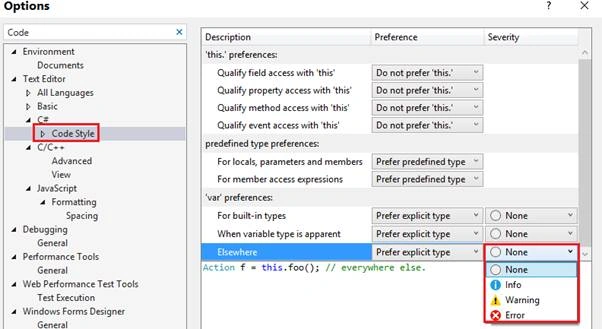
The Custom Code Style Enforcement option provides us the feature to add some preferences. It has three sections of preferences,
a. ‘this.’ preferences,
b. predefined type preferences
c. var preferences
You can open this window by navigating to Tools > Options > Text Editors > C# > Code Style,
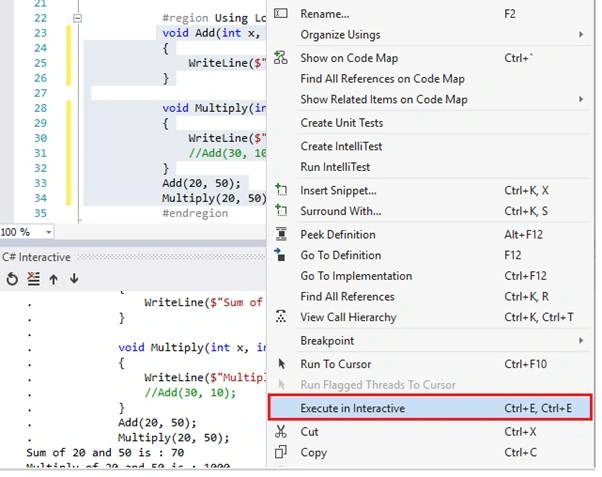
- Execute in Interactive (Execute your Code Snippet Inside C# Interactive Window)
Now you can execute a code snippet very easily using C# interactive window to do this you just need to select the code snippet and press “Ctrl+E,Ctrl+E”
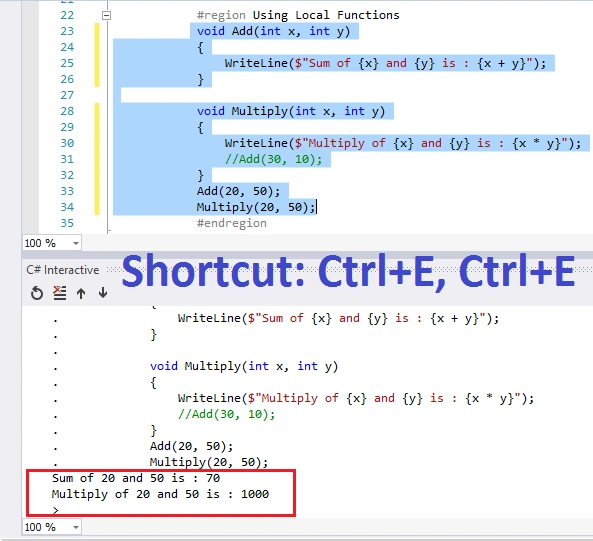
or you can use context menu for it. Select the code snippet and right click on it.
- New compiler flags: two new compiler flags have been added deterministic&publicSign.
- ref returns and Ref Locals.
- Add Conditions to Exception Settings
in Visual Studio ‘15’ preview we can add conditions for break and thrown exceptions and we can set how to handle this if it is coming from a particular module.
Suppose FileNotFound exception occurs from PDFConversion.dll then we can se whether that application should break or not etc.
- Open Folder (New Feature in Visual Studio 15 Preview)
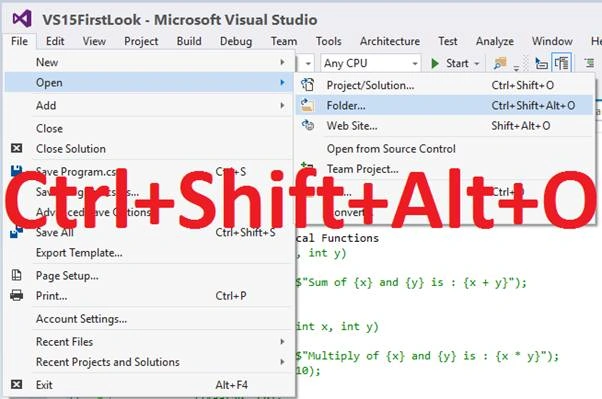
Apart from this in Visual Studio ‘15’ preview you can open and edit any code from any folder.
- Edit & Continue for XAML apps (WPF & Universal Windows App):
In Visual Studio ‘15’ preview we can edit XAML while application is running and new code change will be reflected immediately i.e. we do not need to recompile the application.
Here I have focused only on Visual Studio IDE and C# new features but this is not a complete list and Microsoft has added lot of new features for Apache Cordova, Visual C++, Team Explorer, SSDT, Nuget, Application Insights& JavaScript.
Monibrata BhattacharjeePosted Aug 14, 2017, 1:01 AM
Thank you very much for the information. Under "Up to 30 percent faster than Visual Studio 2015" heading I get little confused because of the description. You may clear my doubt.. "Visual Studio ‘15’ took only 3 seconds to start whereas Visual Studio 15 took 10 seconds to start." - Did you mean the second visual studio as the product name? Waiting for your reply.
kalu singh raoPosted Jul 2, 2016, 3:25 PM
Nice...
Bhuvanesh MohankumarPosted May 3, 2016, 12:55 PM
Good one..
Prakash TripathiPosted Apr 18, 2016, 11:40 AM
Nice explanation. Found it useful.
Debasis SahaPosted Apr 16, 2016, 6:06 AM
Nice one..
Bhavik PatelPosted Apr 13, 2016, 11:06 PM
confuse about visual studio versioning. I am using visual studio 2015 community, shall I download visual studio 2015 preview ? what is the diff between both?
Kuppurasu NagarajPosted Apr 8, 2016, 2:38 PM
Nice
Banketeshvar NarayanPosted Apr 8, 2016, 1:44 PM
If you have written your own method with same name in that case your method name will get preference static void Main(string[] args) { Console.WriteLine("WriteSomething"); //System.Console.WriteLine WriteLine("Write SomeData"); //Program.WriteLine } public static void WriteLine(string s) { //do something }
Sourabh SomaniPosted Apr 8, 2016, 4:00 AM
My next question is that if I create my own WriteLine Method in that class then how it will be call???
Sourabh SomaniPosted Apr 8, 2016, 4:00 AM
Really this is great article :) But I have one question as we know that every static method is called with its class name. In above we are calling WriteLine Method without Console class and WriteLine is an static Method. Now Question is that who is responsible to call this method???How it is calling??? And who is Calling?????
Rajeesh MenothPosted Apr 5, 2016, 12:16 PM
Thanks for the information!!!
Adil KhanPosted Apr 5, 2016, 6:42 AM
Excellent Article..many things i come know
Gopi ChandPosted Apr 4, 2016, 11:06 AM
Nicely explained
Sibeesh VenuPosted Apr 4, 2016, 8:29 AM
Thanks for the information
Suman VermaPosted Apr 4, 2016, 8:00 AM
Good article, Thanks for sharing
Yaduveer SainiPosted Apr 4, 2016, 7:14 AM
Good article.....
Vignesh ManiPosted Apr 4, 2016, 4:11 AM
Nice one
Debasis SahaPosted Apr 4, 2016, 4:04 AM
Good One..
Rahul Kumar SaxenaPosted Apr 4, 2016, 3:48 AM
good Show
Muhammad Aqib ShehzadPosted Apr 4, 2016, 2:31 AM
nice one
Jaipal ReddyPosted Apr 4, 2016, 12:16 AM
Nice article. .
Manoj KulkarniPosted Apr 3, 2016, 10:55 PM
Nice article. Thank you for sharing
Mahesh ChandPosted Apr 3, 2016, 10:40 PM
Thank you BN. This is very useful. I was planning to write an article on same compare versions but you have done a great job.
Ammar ShaukatPosted Apr 3, 2016, 4:57 PM
awesome.