

Introduction
This article explains how to use the Visual Debugger to locate and debug the code for visual elements in a GUI application. The debugger can be used in Java and javaFX GUI applications.
This article will help you with the following:
- Use a GUI snapshot of the application
- Working with a GUI snapshot to locate the source code
- Add a listener to events
- View the event log of a GUI component
How to use a GUI snapshot?
- Select "File" -> ""New Project" from the main menu.
- Choose "Client Editor" in "Samples" -> "Java" category.
- Now click the "Next" button.
- Determine a location for your project.
- Finally, click the "Finish" button.
- After clicking the Finish button, the IDE launches the project and the project window opens with the project.
- To begin the debugging session click on the "Debug" main menu and select "Debug Main Project" in it (or you can right-click on the project node in the project window and debug).
- The debugging session begins, the IDE will launch the application and open the debugging window.
- At the time of debugging session select "Debug" -> "Take GUI Snapshot" from the main menu.
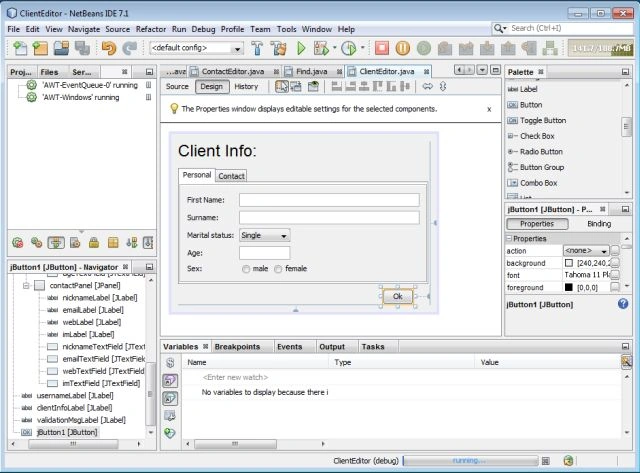
Visual Debugger: Implementation
The GUI Snapshot is a visual debugging tool that locates your source code for the GUI component. One can do the following on the snapshot:
- Select components
- Initiate a task from the pop-up menu to see the source code of the components
- View listener
- Add breakpoints to the components
Identifying the Source Code for Components
The GUI Snapshot description is explained in this section, you will become familiar with the use of a GUI snapshot to navigate to the line were a component is declared and initialized. A pop-up menu is used to invoke various commands when a component in a GUI snapshot is selected.
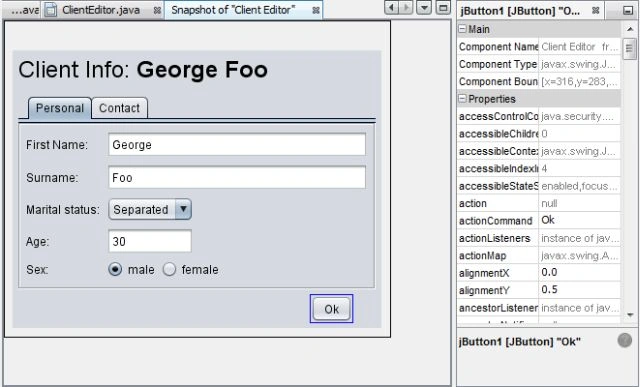
- When we select any of the components from the snapshot, there appear details of the selected component.
- If the property window is not visible then choose "Window" -> "Properties" from the main menu.
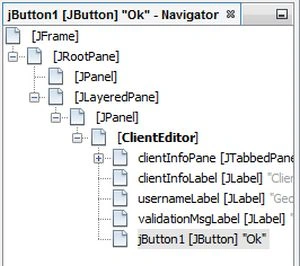
- The IDE displays the location of components in the Navigator window.
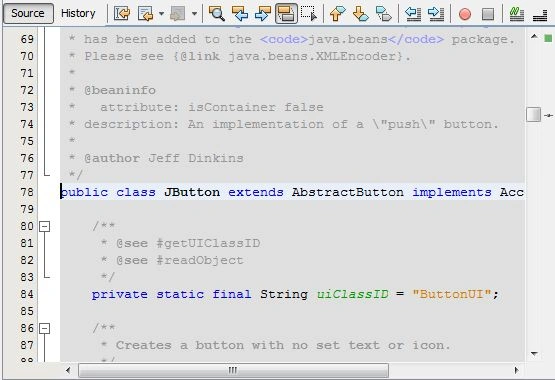
- When we right-click on any of the components of the snapshots and select "Go to Component Declaration", the IDE opens the source file and the cursor is placed where the code for that component is declared.
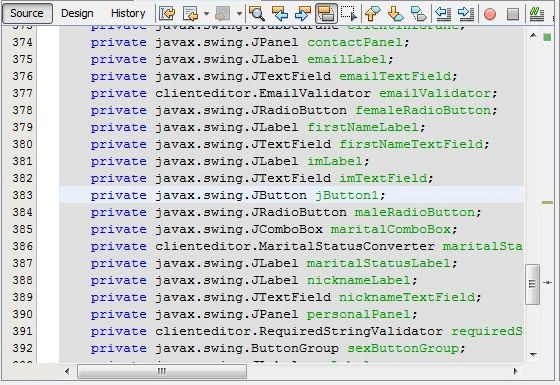
- When we right-click on any component and select "Go to Component Source", the IDE opens the source file editor and places the cursor on the source code of the component selected.
Examine Component Events
This explains the component events of the GUI snapshot.
- When we right-click on any of the components of the GUI snapshot and select "Show Listener" from the pop-up menu, the IDE opens the custom listener node.
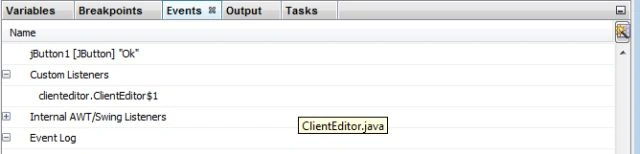
- Right-click on the clienteditor.clientEditor$1 just below the custom listener node and select "Go to Component Source" in the popup menu. This opens the source code where the listener is defined.
- When an empty text field is selected, the items in the event window will change to show the listener of the selected component.
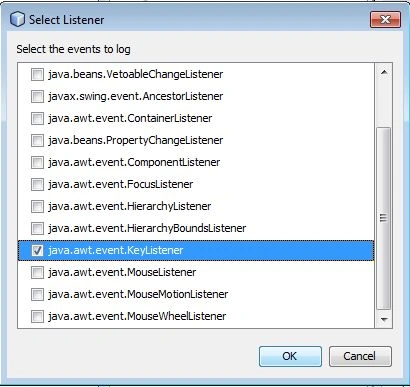
- To open the Select Listener Window, double-click on the Event node in the Event window.
- Choose the "java.awt.event.KeyListener" listener from the dialog box to make the text field listen to the keyboard events.
Join the conversation! Your thoughts help the community grow.